Printout of the assessment report is available from both the Administration and E-gradebook levels. We will show you how to easily prepare a summary of the student’s history in the group.
How to print an assessment report from the Administrator level?
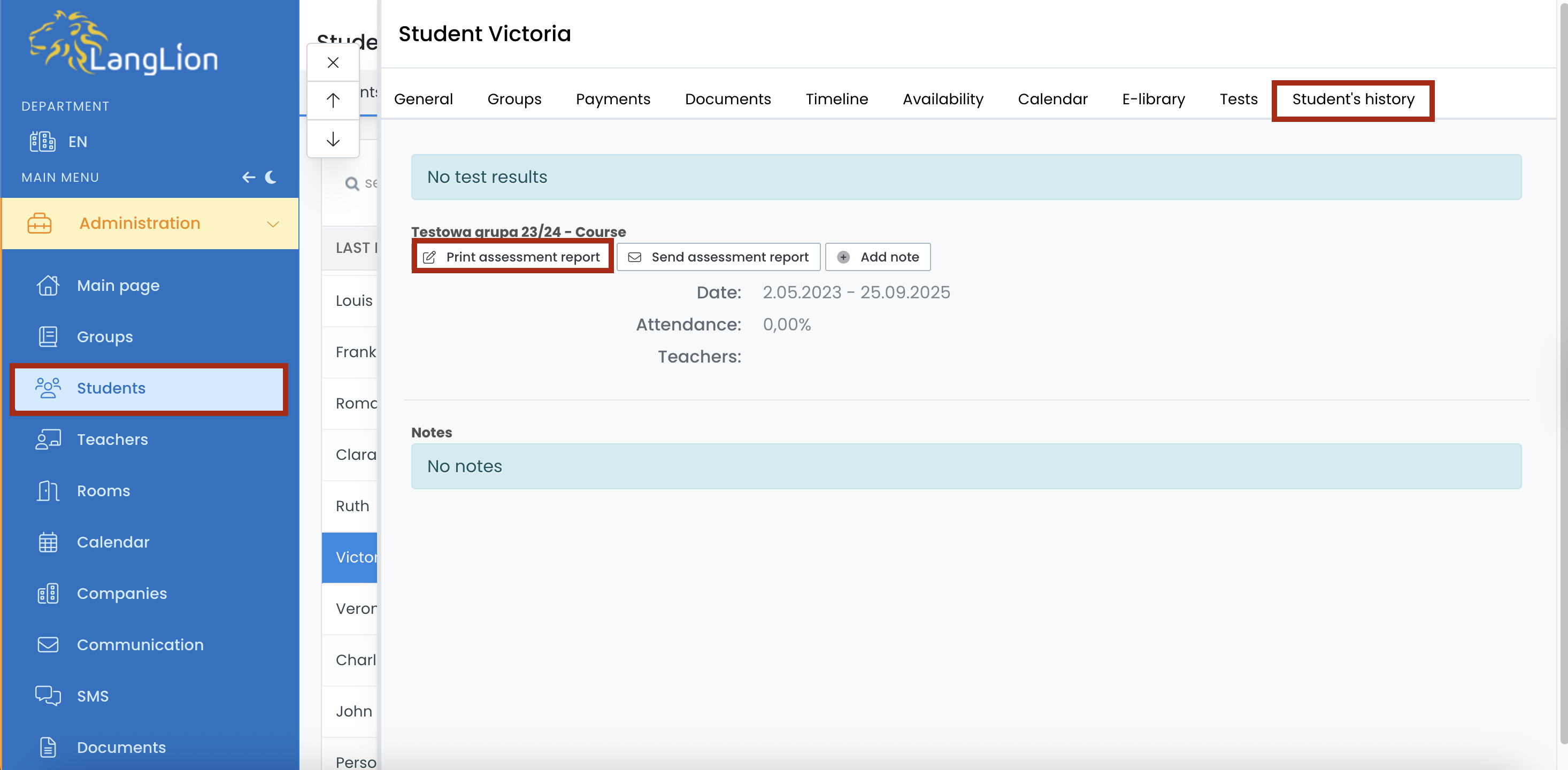
If you are an Administrator, go to the Administration module, select the student from the Students tab, and then click on the Student’s history tab. Then click on the Print assessment report button.
Select the boxes and click Generate.
From this level, we can also send an assessment report to the student or parent. To send a report to the student, choose the Send assessment report option.
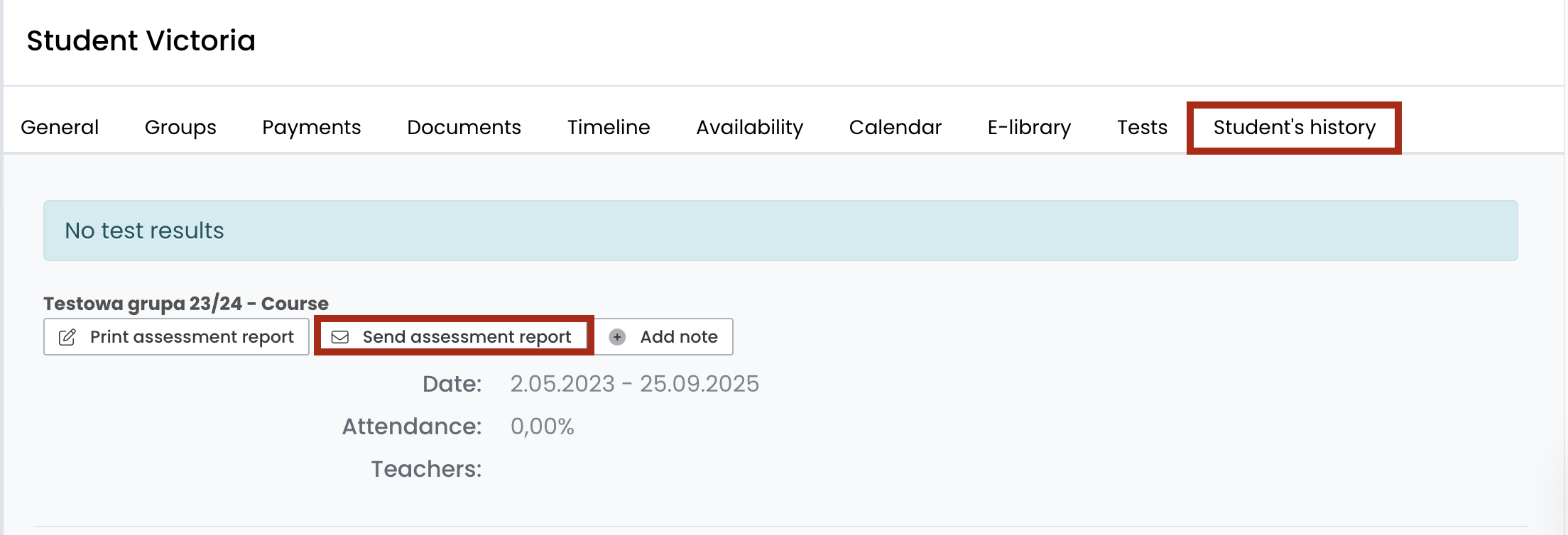
If the student is a minor, a parent’s email address should be provided instead.
If you want to send or print this report for more students at the same time, you can use the mass options.
In the Administration module, go to the Students tab and filter out students for whom you are printing the assessment. Click on the More button and then select Assessment report from the menu. Select which information to include in the assessment and click Generate.
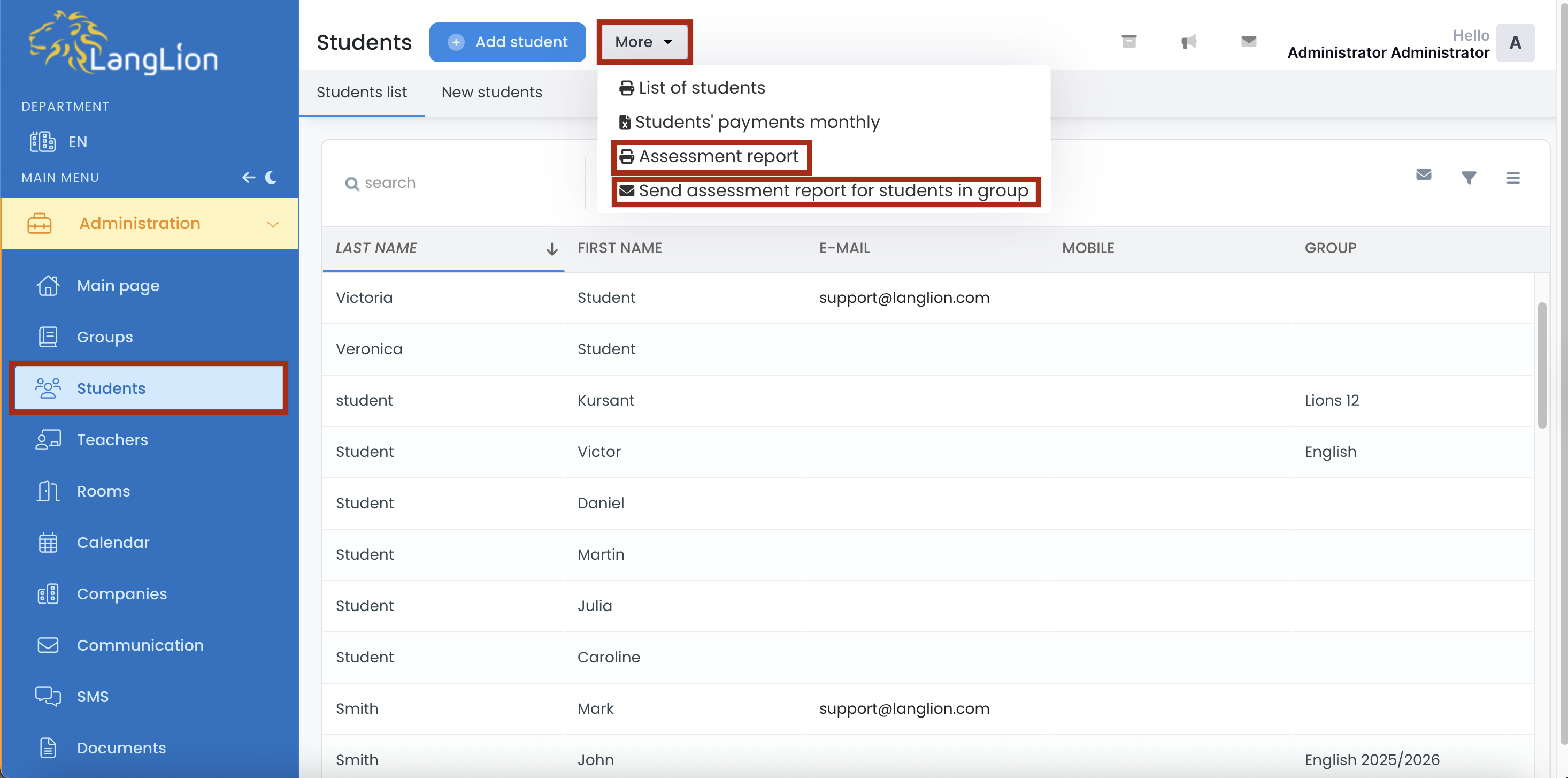
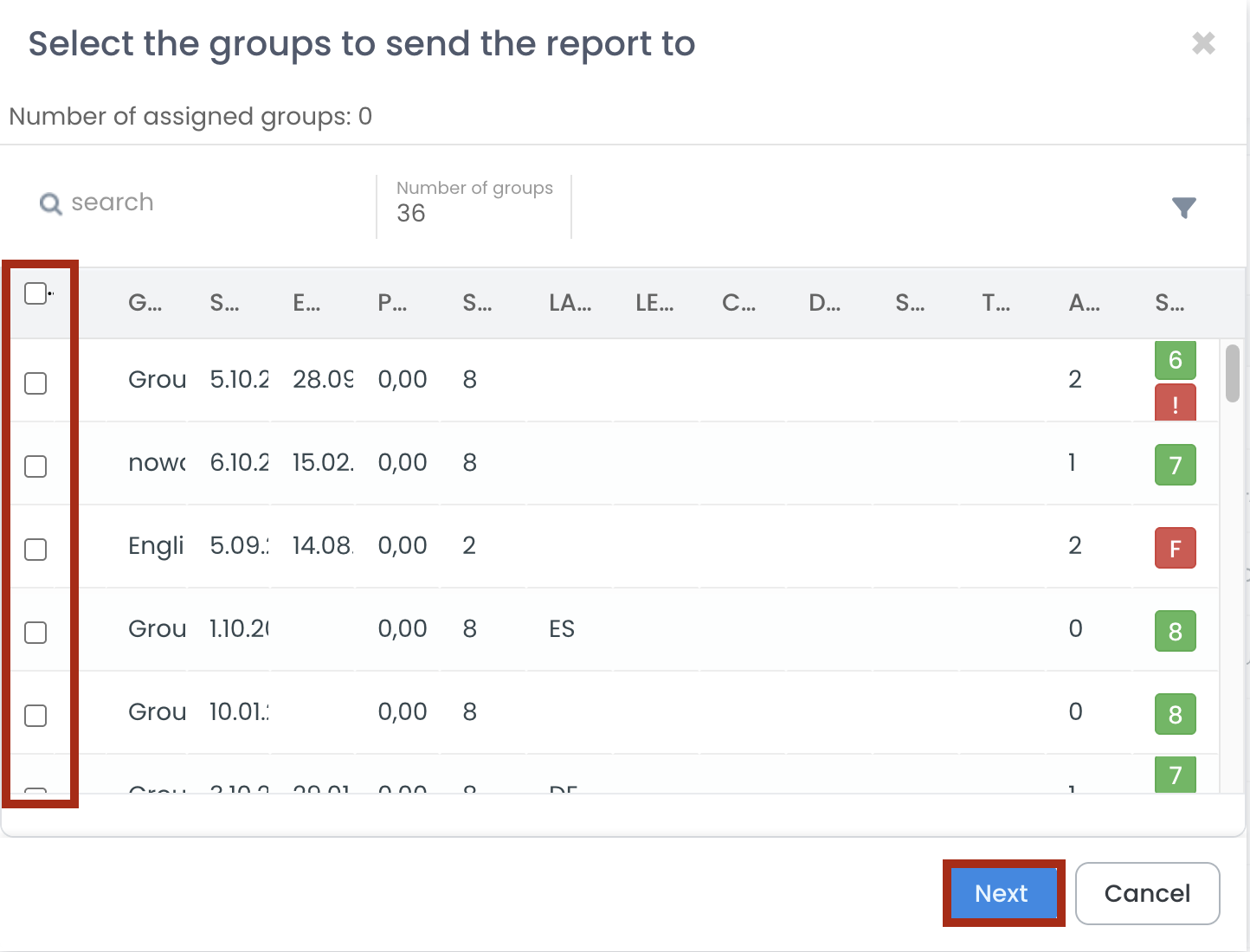
For sending the report, choose the option Send assessment report for students in group. After selecting this option, choose the relevant groups to which you want to send the reports and click Next to select the information to include in the assessment report sent to students.
How to print an assessment report from the E-gradebook?
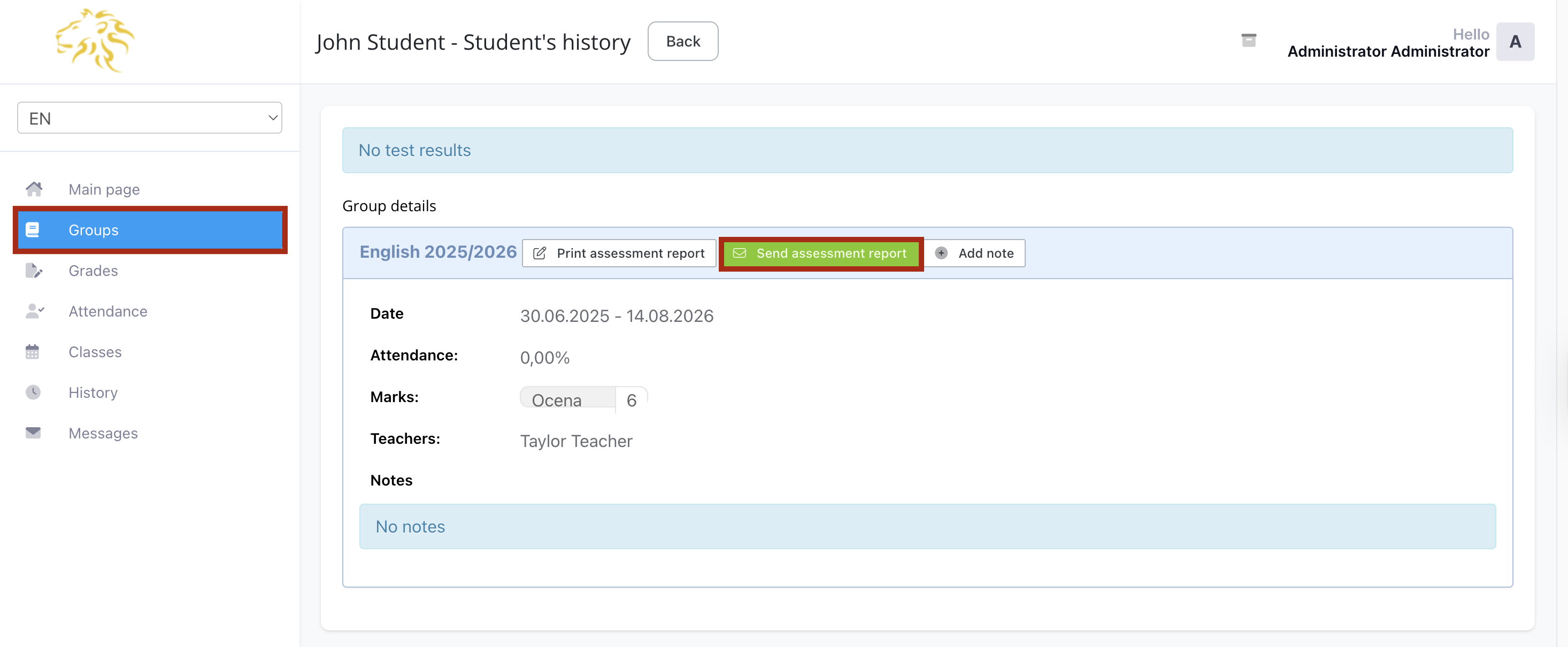
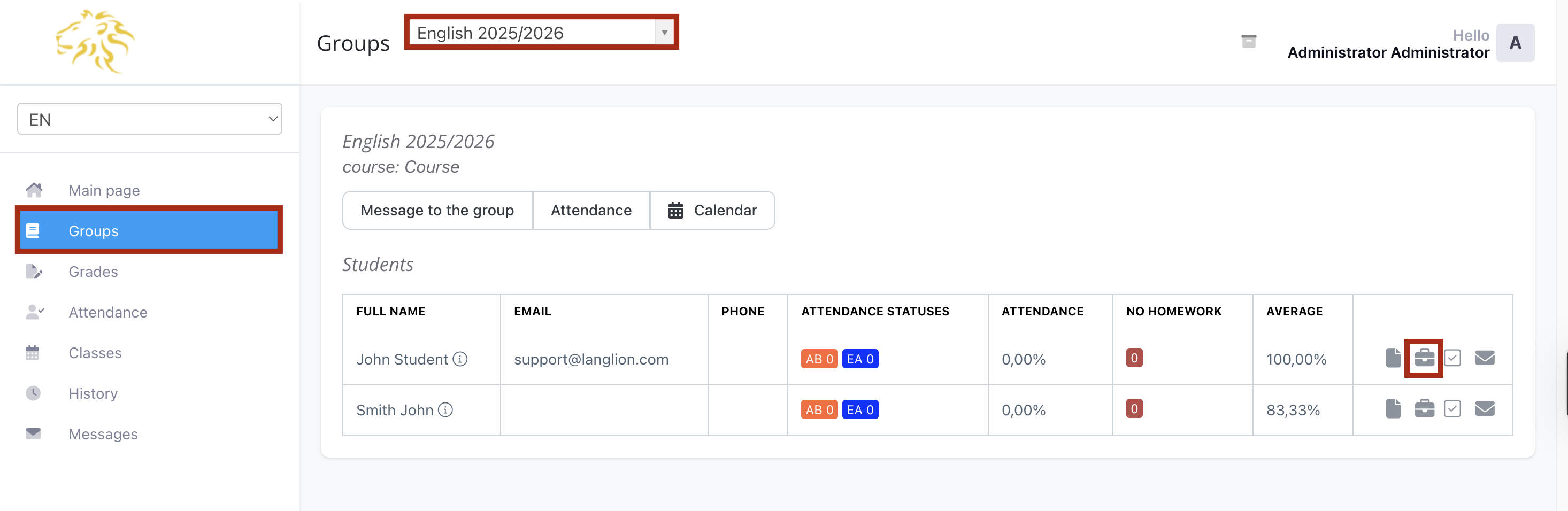
1. To print the student’s history, click on the Groups tab. Then, after selecting the group, with the given student, click on the „Student’s history” option.
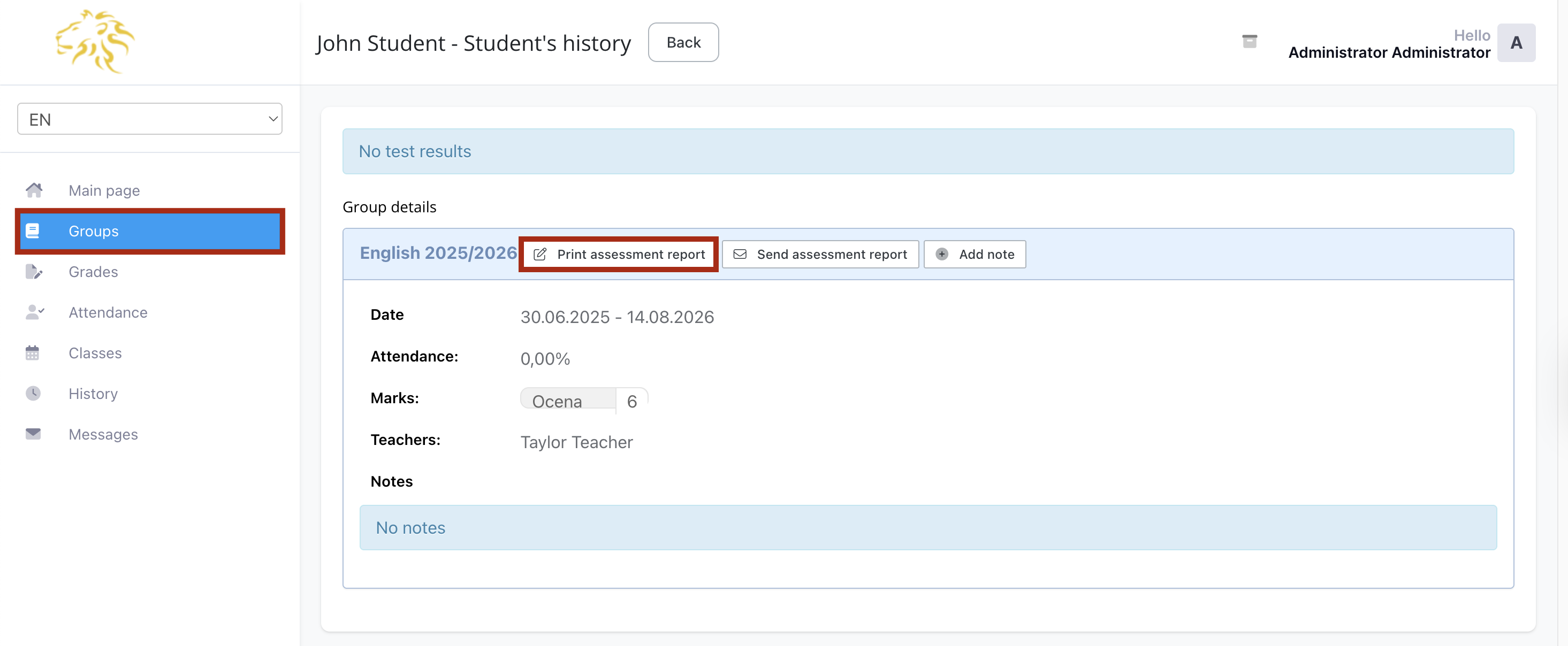
2. In the next step, in the student’s history view, click on the Print assessment report button.
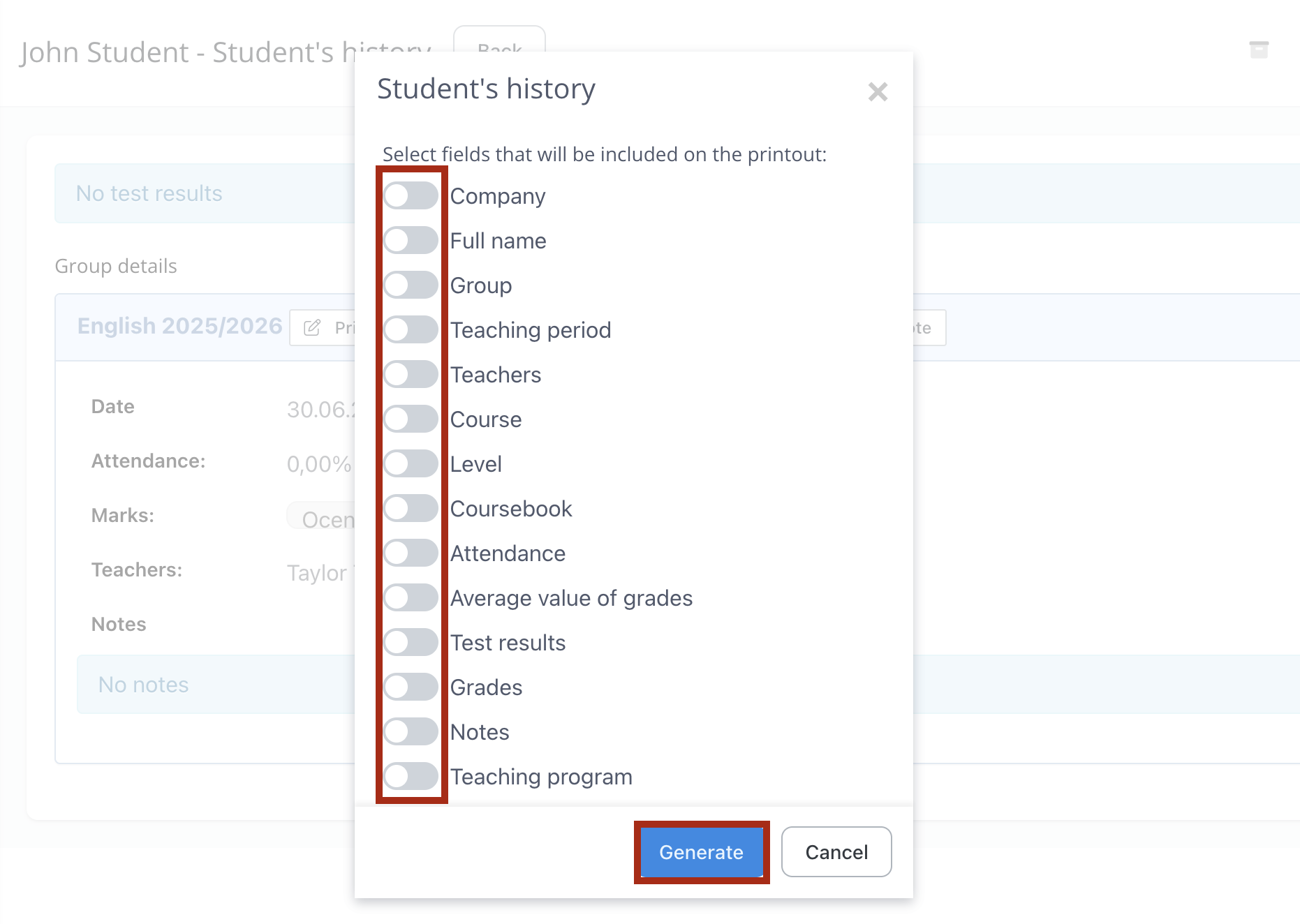
3. Next, in the editing window of the student’s history printout, select the information to be printed and click Generate.
After generating a assessment report, you can send it by e-mail (in the case of minor students, the report is sent to the parent’s e-mail address) just click the „Send assessment report” button.
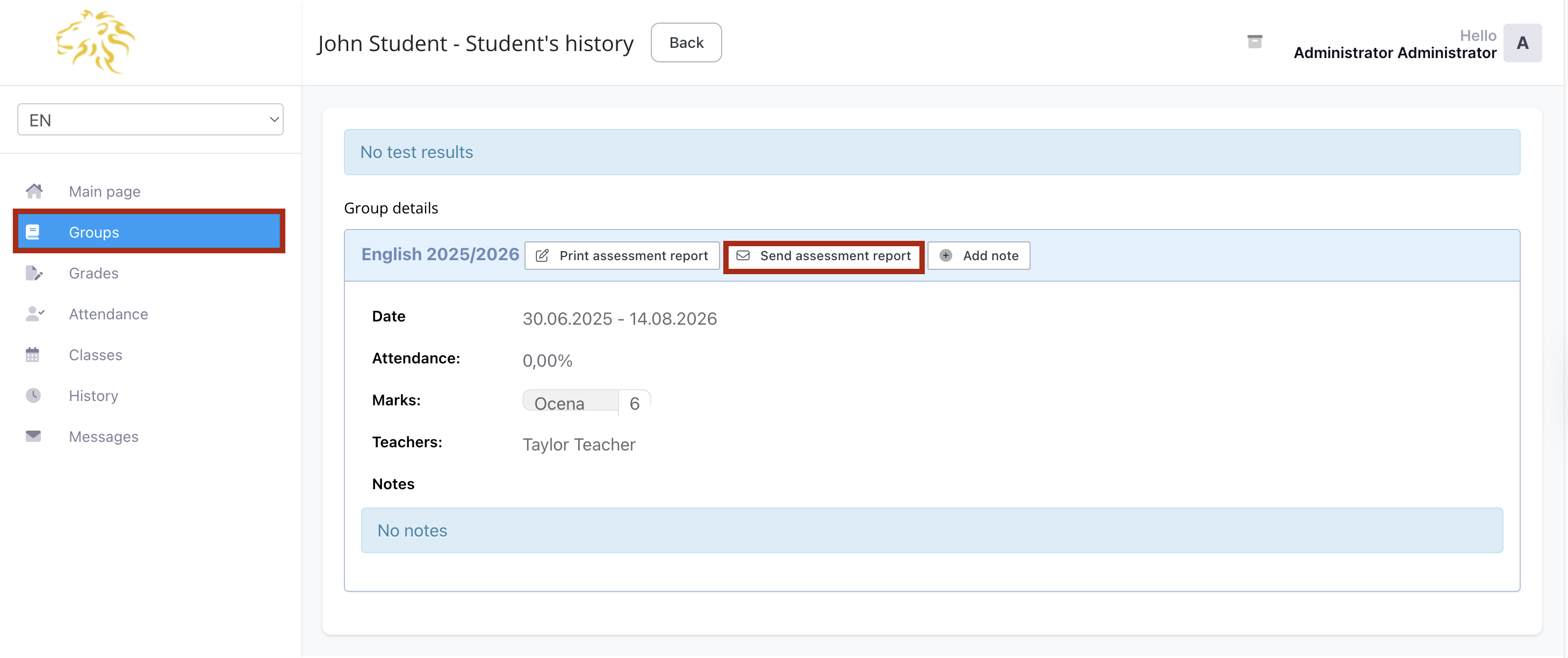
After sending the report, the button will turn green, and when you move the mouse cursor over the button, information with the exact sending date (day-month-year-time) and the e-mail address to which it was sent will also be displayed.