
If you use PayPal to receive online payments from your clients you can integrate it with LangLion Platform.
How to set up online payments in LangLion?
For integration, you need data that you can get by signing up for your PayPal account:
- Client Id
- Secret
To get them, go to https://developer.paypal.com/ and log in using the access data to your PayPal profile.
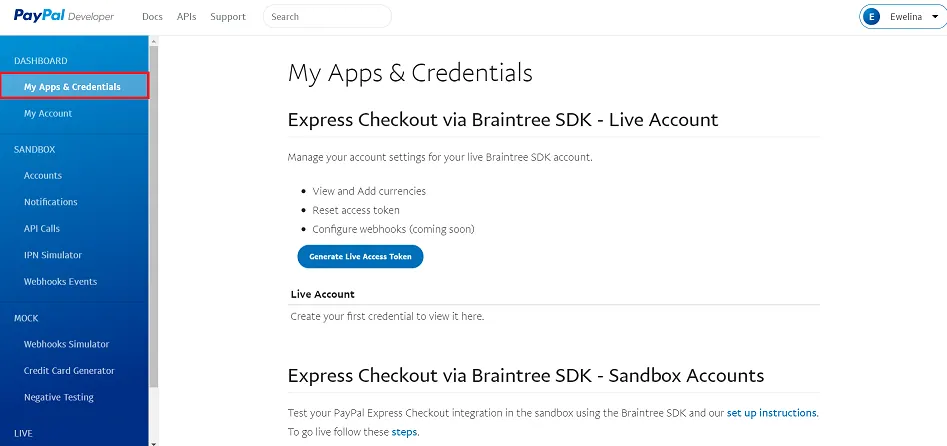
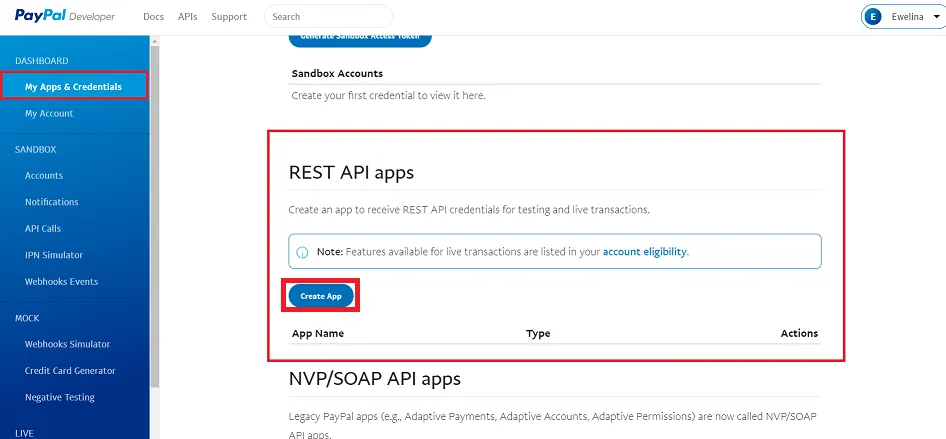
Go to the My Apps & Credentials tab and then search for the REST API apps and click on the Create App button.
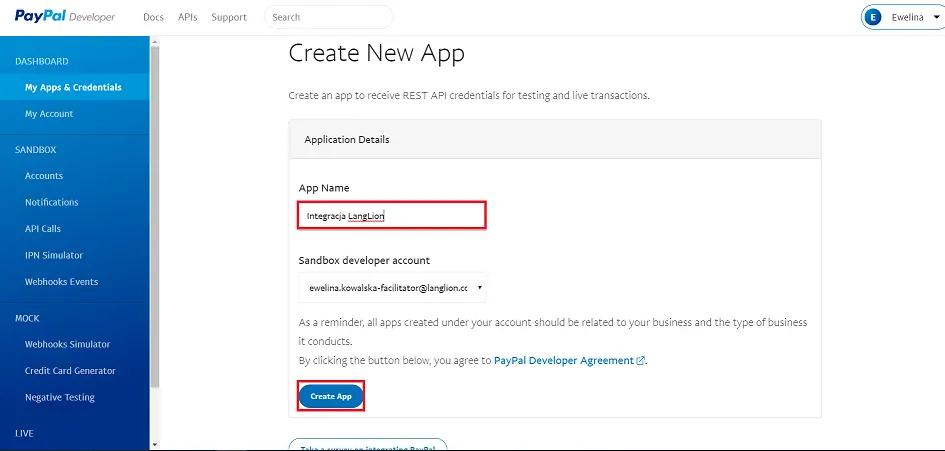
In the App Name field, enter the name of the application (according to your idea) and confirm with the Create App button.
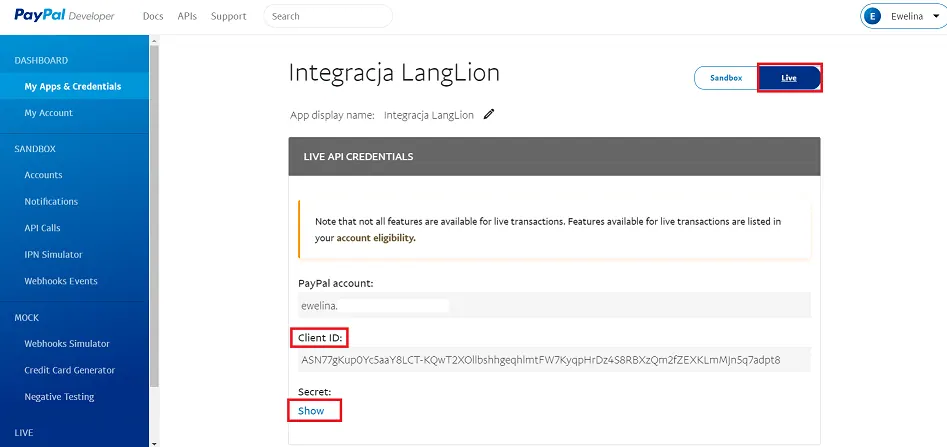
Wait for the page to refresh and click on the Live button in the upper right corner. Here you will find the customer Id (Client Id) and the hidden key (Secret). To see the key click Show.
You can now complete the data on the LangLion Platform on the “Online payments” → “PayPal” tab.
Paste the copied Client Id and Secret into the fields in the “Credentials” card.
To complete the configuration, set the following in the “Settings” card:
- “Default payment form for PayPal transaction” – in this field, you can choose from the available payment methods the one that will be integrated with the PayPal payment option. Saved PayPal transactions will have the selected form of payment. This configuration allows for automatic creation of cash documents.
- “Default product for PayPal transaction” – choose a product from the list that will be automatically assigned to the transaction with PayPal.
- “Show payment page for users without PayPal account by default” – with this option enabled, the default view will be the card payment page via PayPal. Students who have their own PayPal accounts will be able to log in from this page.
Once the Client Id and Secret are filled in, turn on the “Activate online payments” switch in the “Online payments” card at the top of the page – only then will students see the payment button in their panel, and the status in the card changes to “Active”. The switch cannot be turned on until the credentials are filled in. If you are still preparing online payments, leave it off – the system will then show a warning that online payments are inactive.
To save your settings click “Save”.
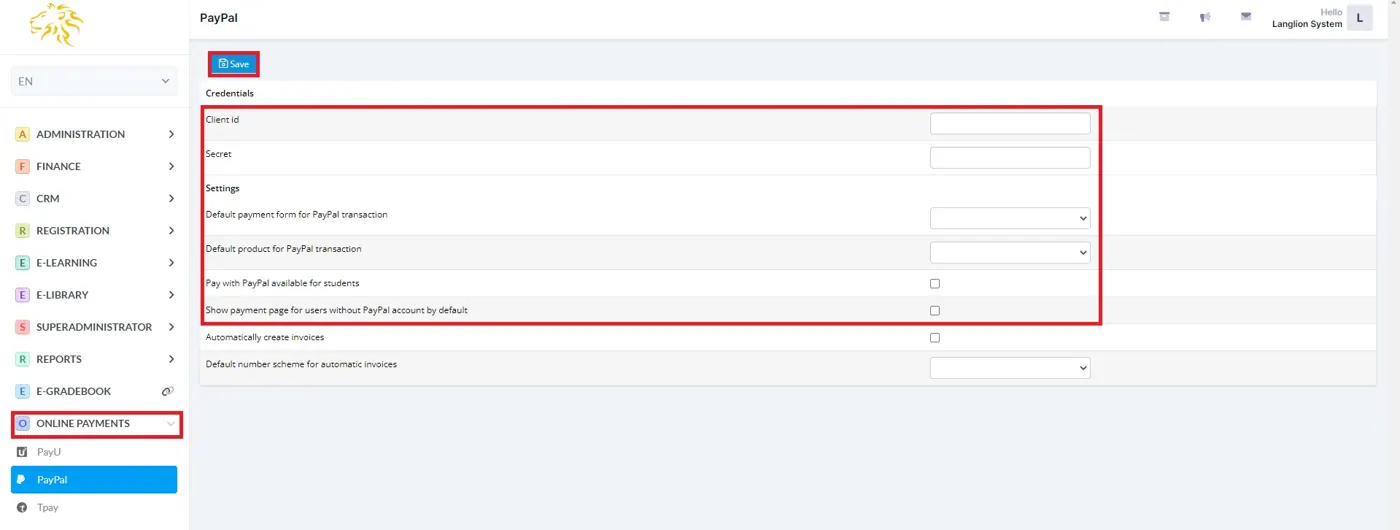
Done, your PayPal account has been integrated with the LangLion Platform. From now on, your students can use online payments in addition to a traditional bank transfer or cash payment.
Automatic creation and sending of invoices
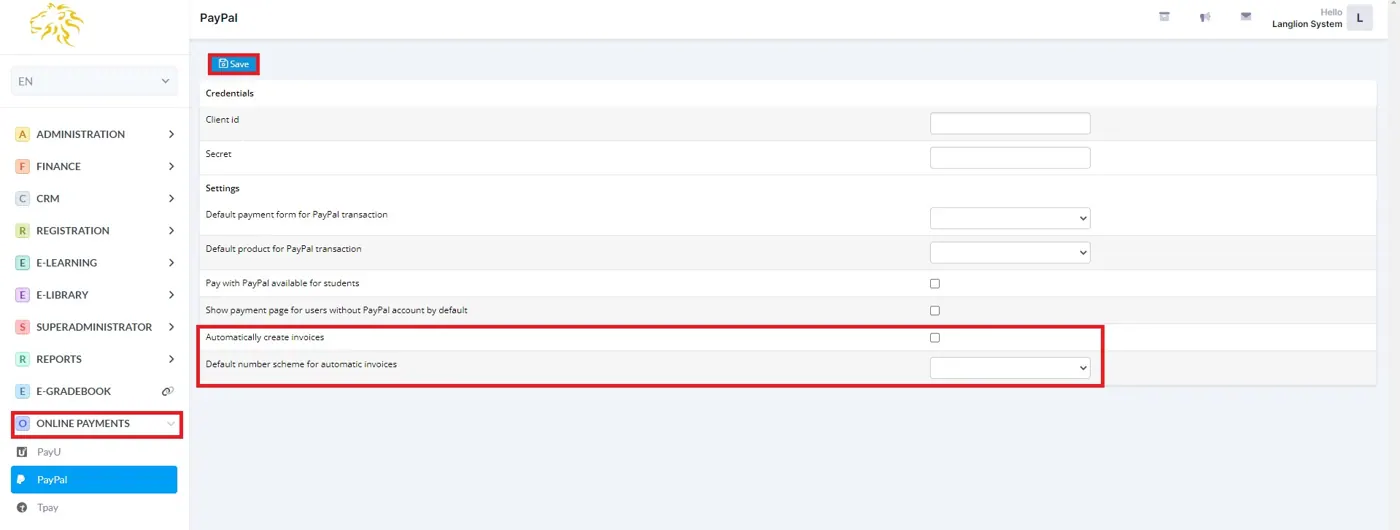
If you issue invoices to your students, now the system can do it for you! Immediately after a student makes an online payment, they will also be invoiced.
All you have to do is check the Automatically create invoices option and choose a default number scheme for automatic invoices.
After making changes, click Save.
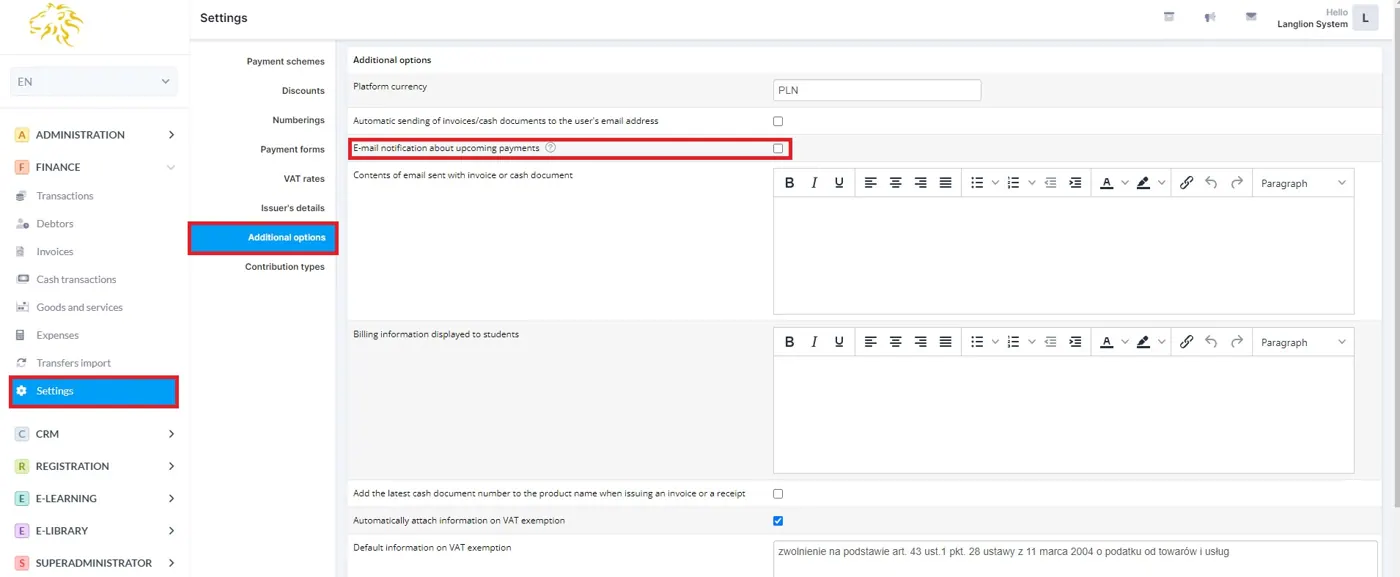
Additionally, the system can send the invoices to the student’s email address automatically. Go to “Finance” → “Settings” → “Automatic notifications”, and in the “Invoice email notification” section turn on “E-mail notification after adding new invoice”.
Click the “Save” button to save the changes.
How can a student pay the installment using PayPal?
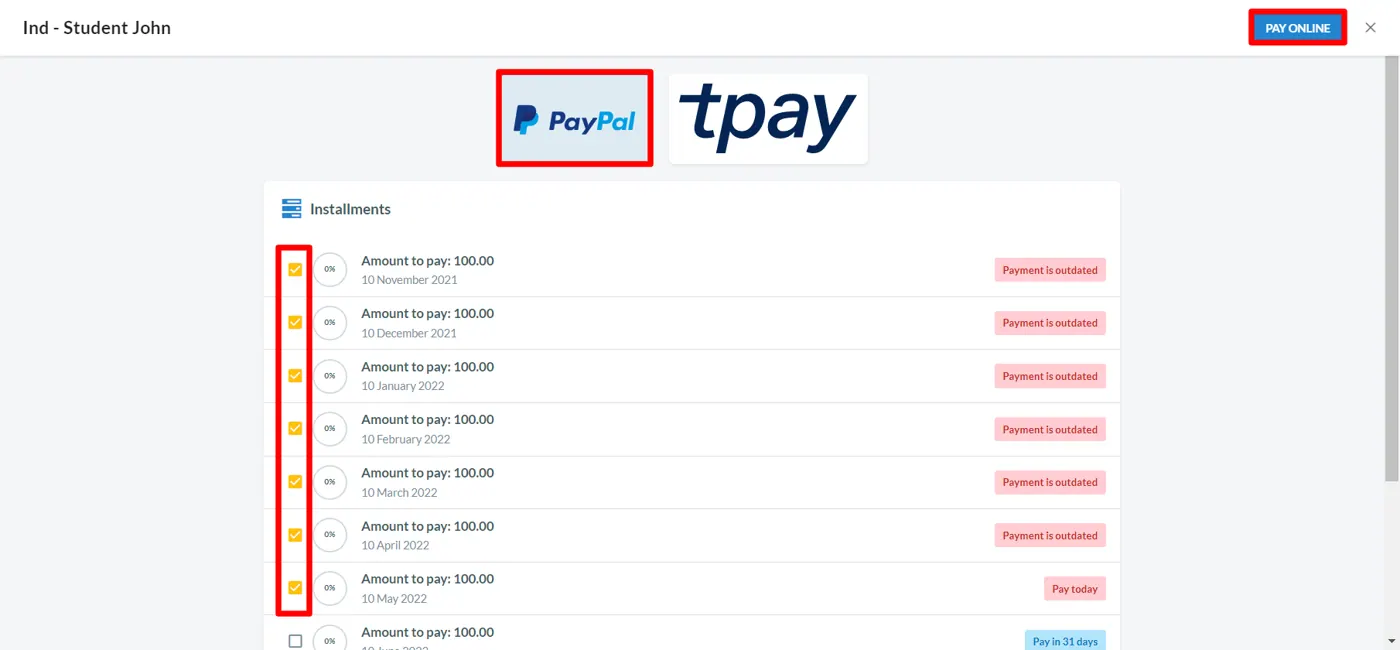
To make a payment for the course, the student should log in to his LangLion account, go to the Payments tab, and click the Pay online button.
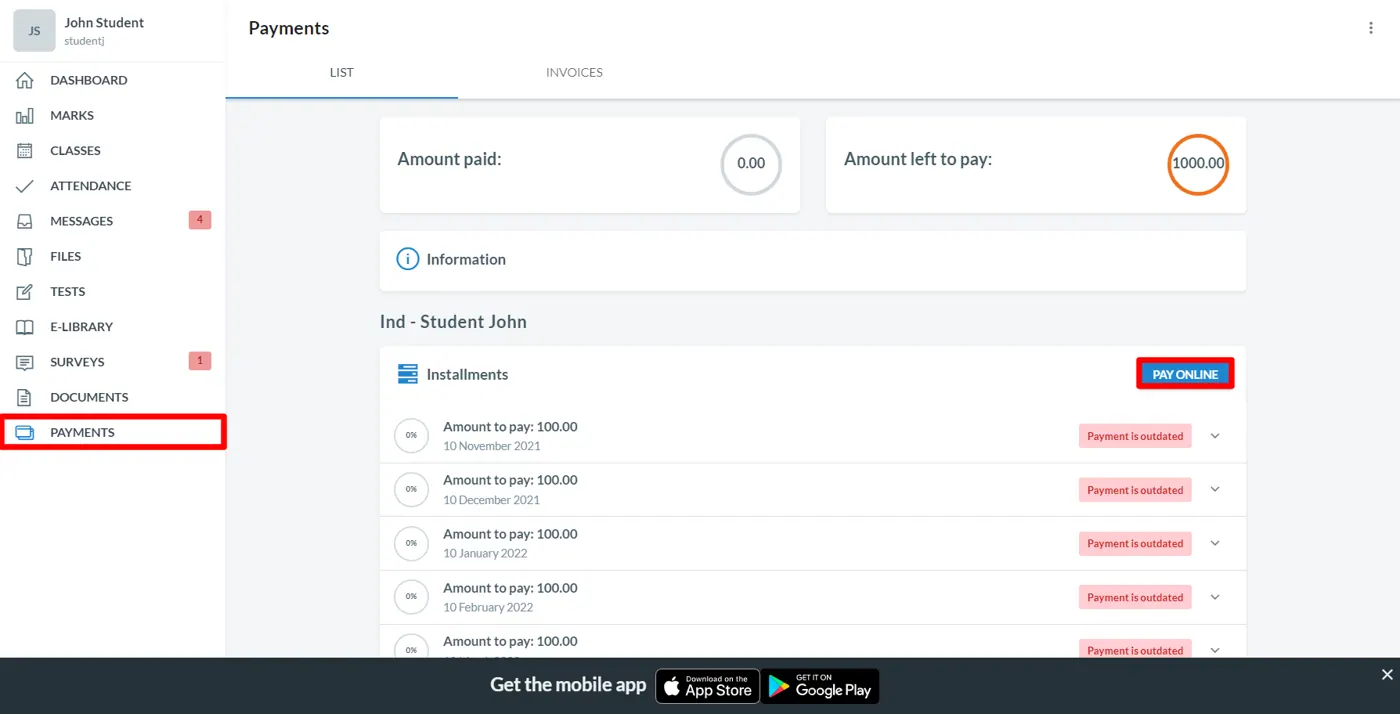
Next, the student will be able to choose which installments he wants to pay for.
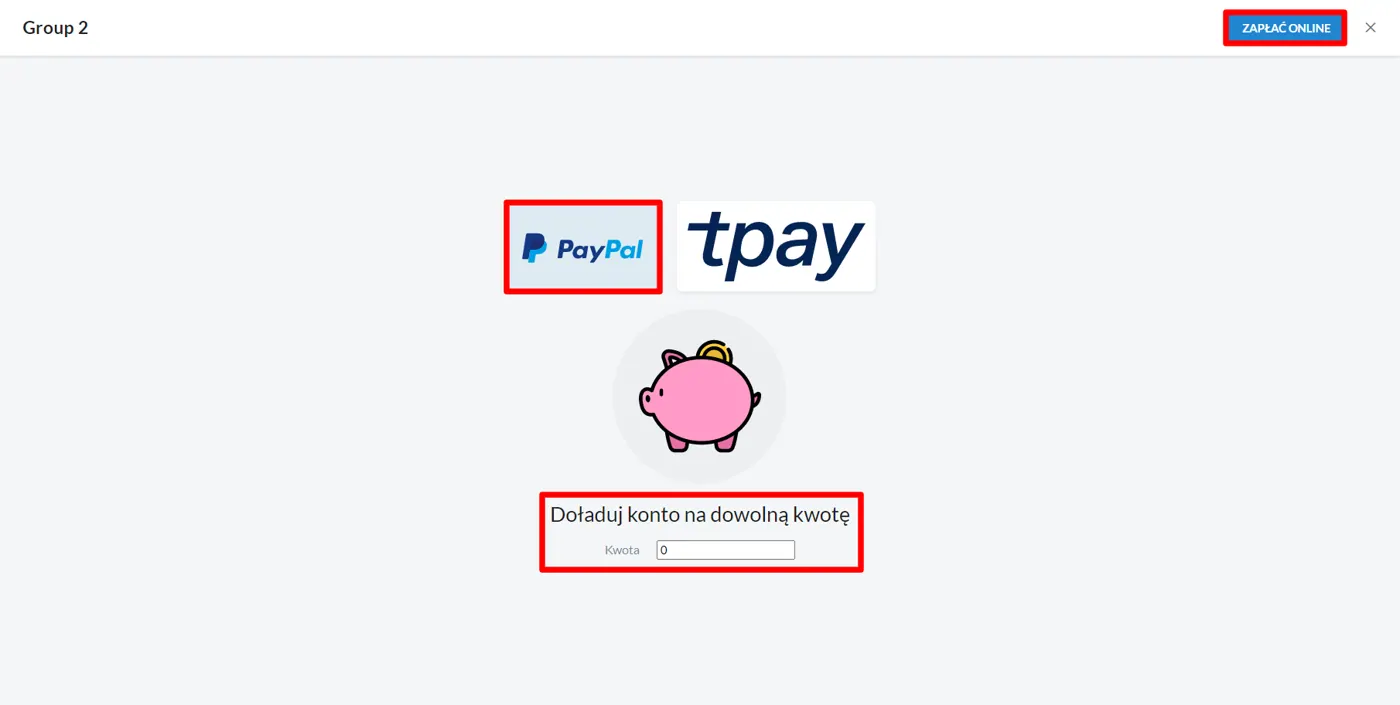
For students with hourly billing in advance, online payment looks a bit different. After clicking the Pay online button, a field appears with a place to enter the amount that the student wants to pay.
The transaction will of course also be visible on the list in the Finance -> Transactions tab in the admin panel.