You can print a student's grades in two simple ways:
- by downloading a summary of the grades of all students in a selected group
- by downloading the student's history, including the grades of the selected person only
Printing the grades of all students in a selected group by the teacher or from the E-gradebook
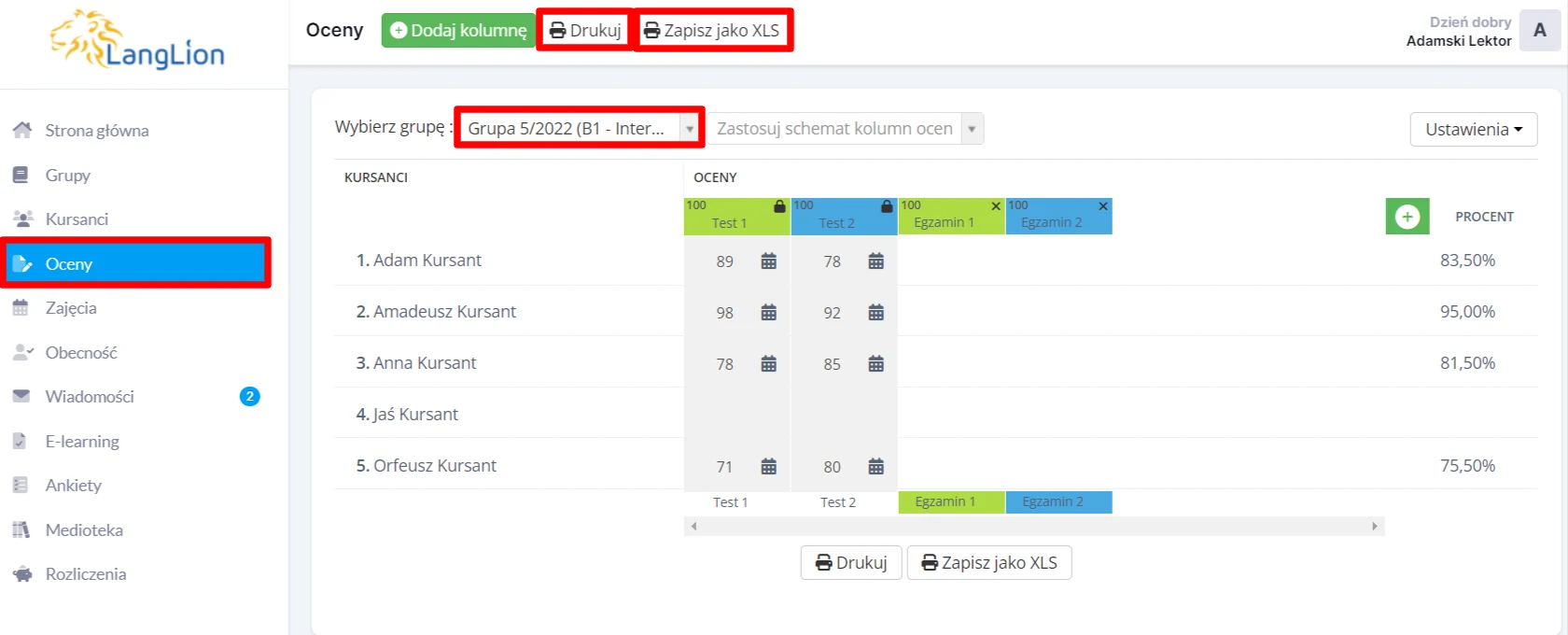
1. After logging in to your account, click the "Grades" tab, choose the group and then click the "Save as XLS" button.
2. Then, in the "Print grades" window, choose the information to be included in the summary and click "Print" – the system downloads an XLS file that you can open in a spreadsheet and print.
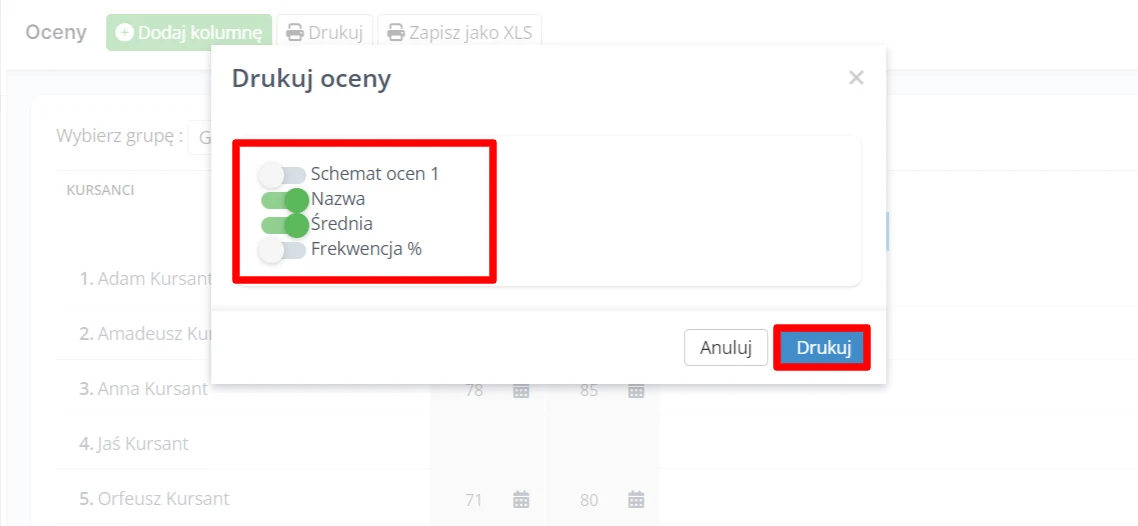
Done – the summary of the grades of students in the selected group has been created.
Printing a student's history from the teacher's account or the E-gradebook
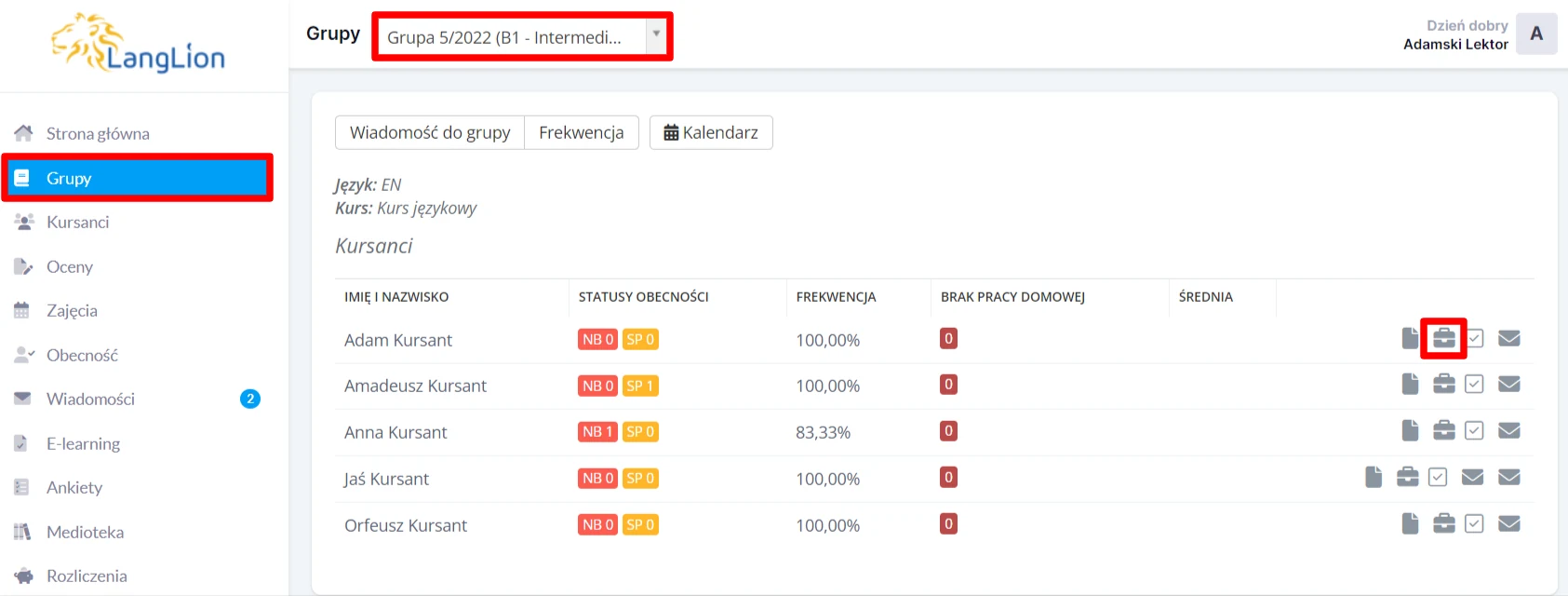
1. To print a student's history, click the "Groups" tab. Then, after choosing the group, click "Student's history" next to the student.
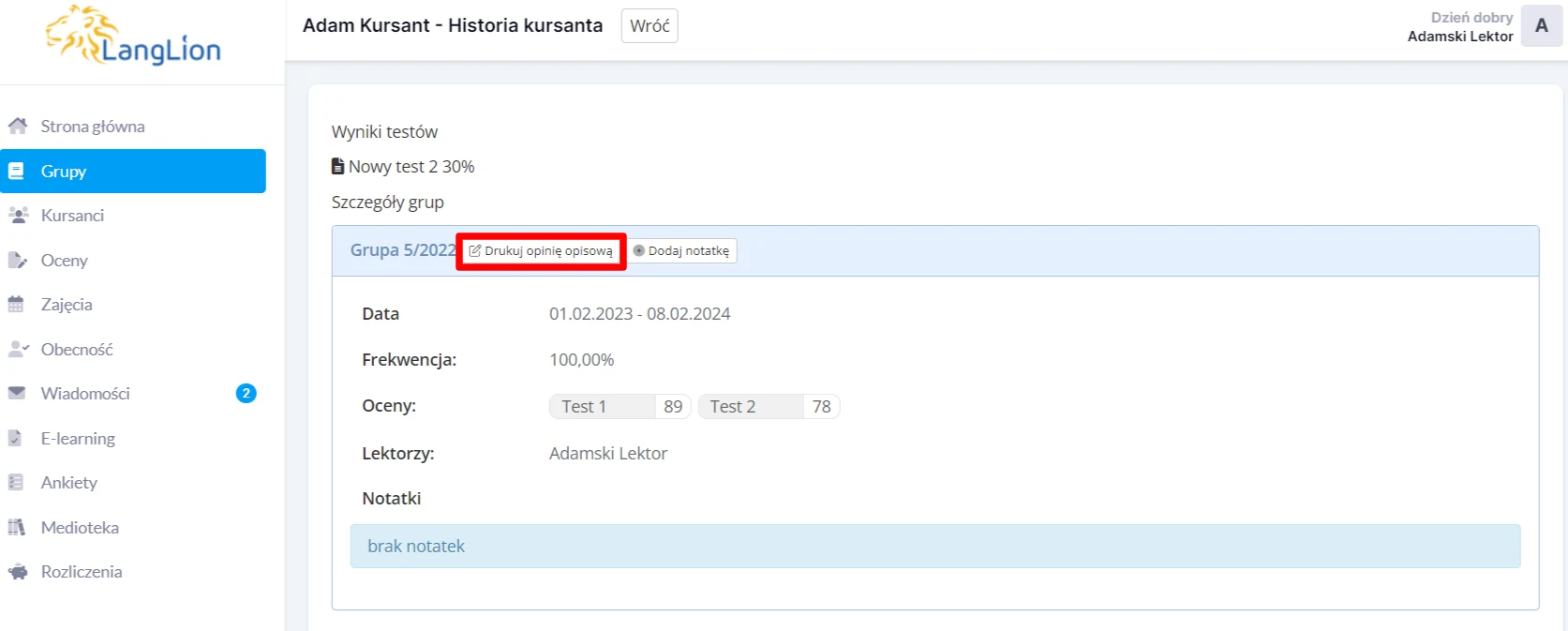
2. Next, in the student's history view, choose the "Print assessment report" button.
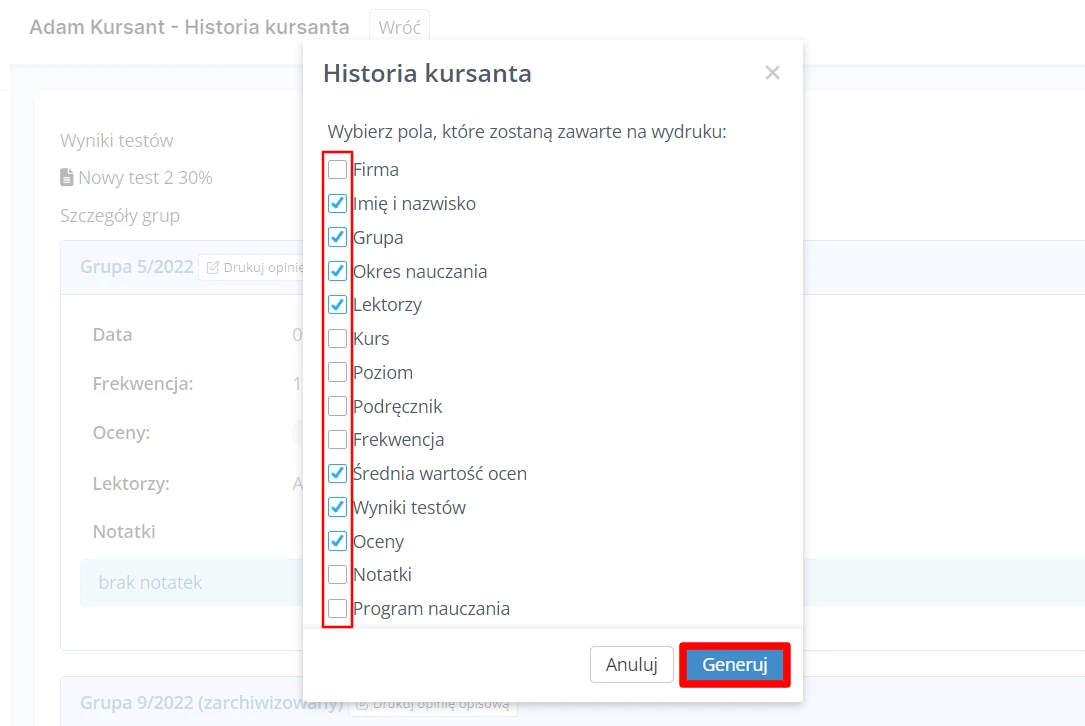
3. Then, in the student's history printout window, choose the information to be included in the printout and click "Generate".
Printing a student's history from the administrator's account
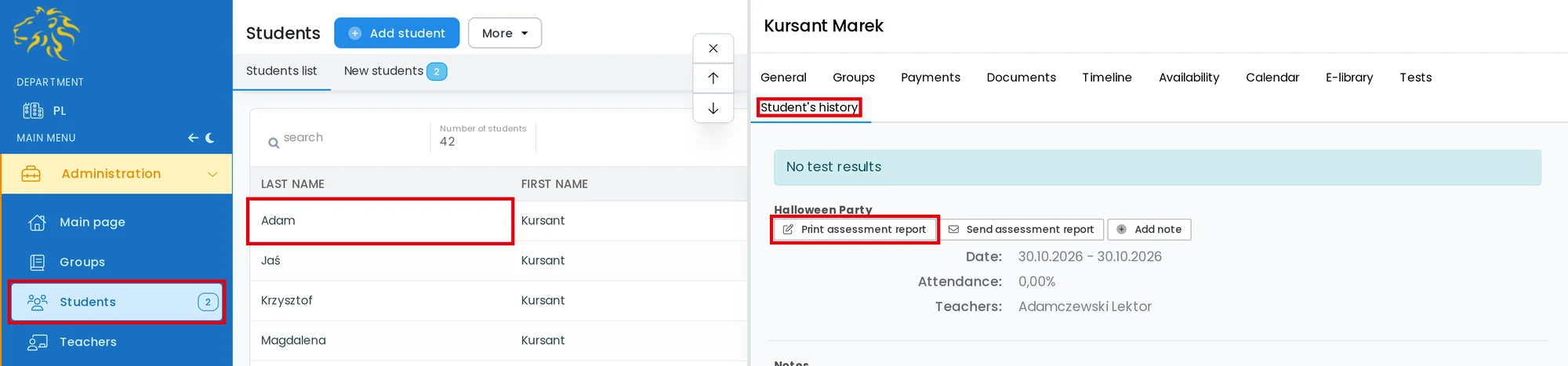
To do this, choose the student from the "Administration" -> "Students" tab and click the "Student's history" tab. Then choose the "Print assessment report" button.
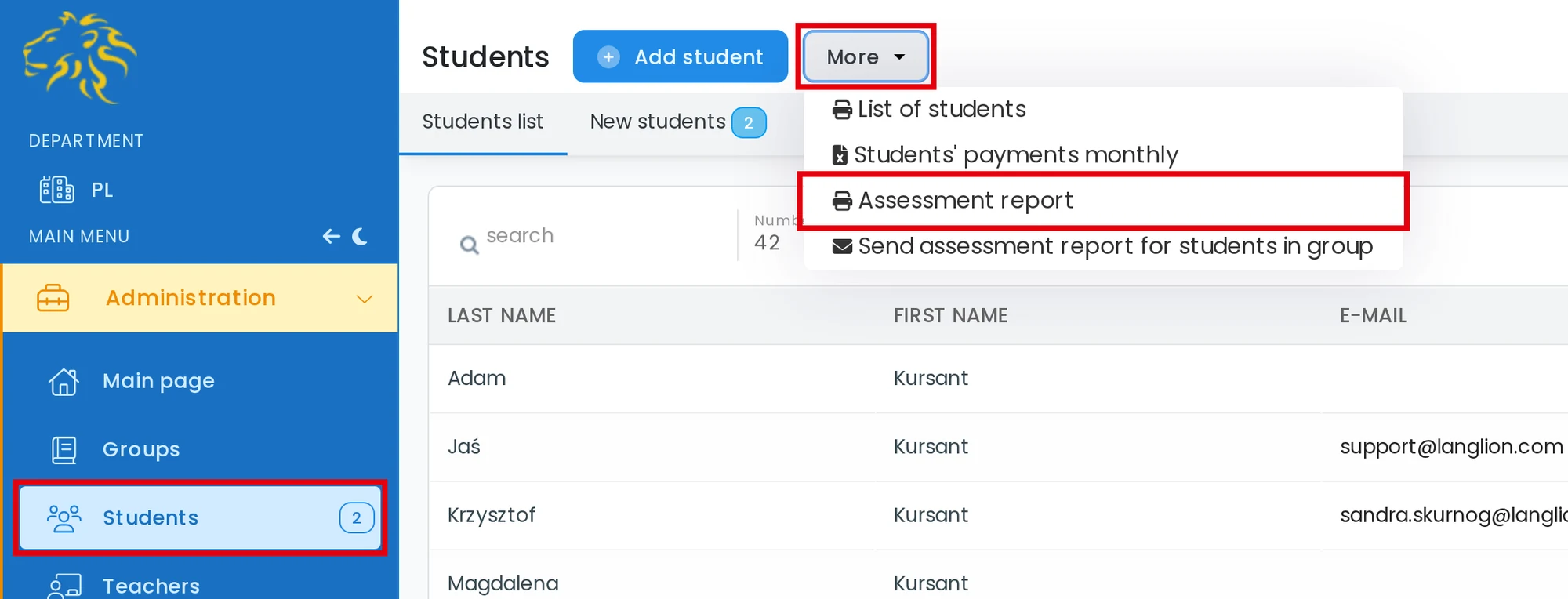
If you want to print assessment reports for more students at once, use the bulk print option.
In the "Administration" module, go to the "Students" tab and filter the students you are printing the summary for. Click the "More" button and then choose "Assessment report" from the menu. Select the information to be included in the report and click "Generate".
The same menu also contains "Send assessment report for students in group" – use it to send the reports by e-mail instead of printing them.