
A teacher or a student may ask you to print the list of classes in a group.
How do I print a group's list of classes?
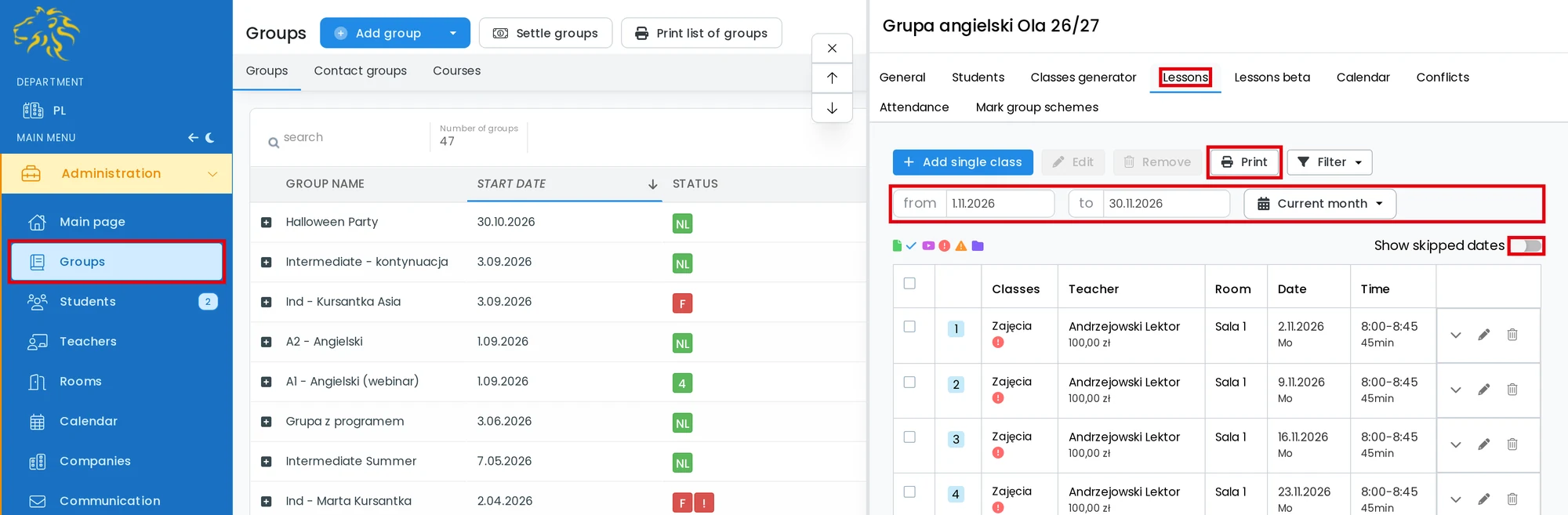
1. Go to the "Groups" tab.
2. Choose the group from the list and go to the "Lessons" tab.
3. Choose the time range:
- group date range,
- previous month,
- current month,
- next month,
- previous week,
- current week,
- current year.
The current month is selected by default.
The group date range automatically sets the group's start and end dates. You can also set your own time range by editing the "From" and "To" calendar fields.
You can filter the list of classes on the screen with the "Filter" button by:
- added classes details (topics, homework etc.),
- attendance checked,
- online classes,
- existing conflict,
- modified classes,
- files added.
Use "Clear filters" to remove the filters and set new ones.
Filters only narrow down the view on the screen – they do not affect the printout. The printout includes all classes from the selected date range.
4. If skipped dates should also be included in the printout, turn on the "Show skipped dates" switch.
5. After setting the dates, click "Print" – the system downloads the list of classes as a PDF file.
Done! The group's list of classes has been downloaded as a PDF file that you can print.