
Getting ready for the new school year and want to reuse your previous groups? Copy a group – the new group gets the same settings, and you only change what is different (name, dates, prices).
How do I copy a group?#
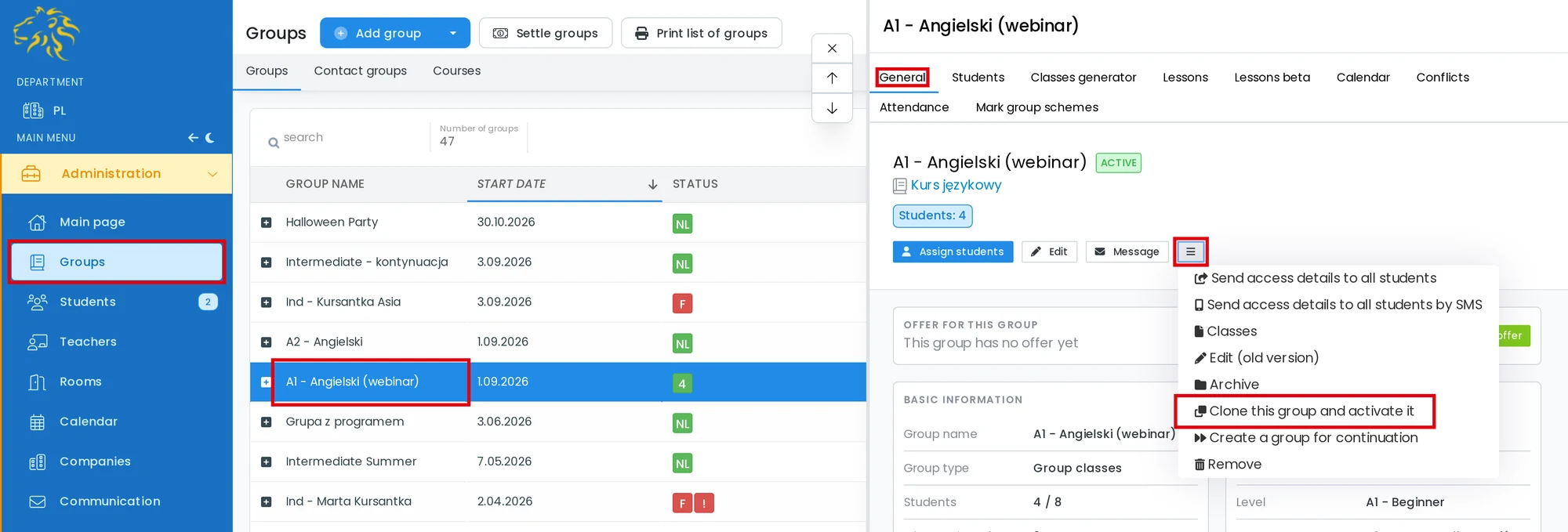
1. Click on the "Administration" module and select the "Groups" tab.
2. Select the group you want to copy.
3. In the "General" tab, click on the three lines icon and select "Clone this group and activate it".
4. The "Copy group" form opens, filled in with the data of the group being copied. At the top, on the "Copy of group" card, you can see the source group's name and the "Copy lesson generator settings" switch (days, hours, teacher and room from the classes generator). If the new group should have the same schedule, leave it on; if not, switch it off.
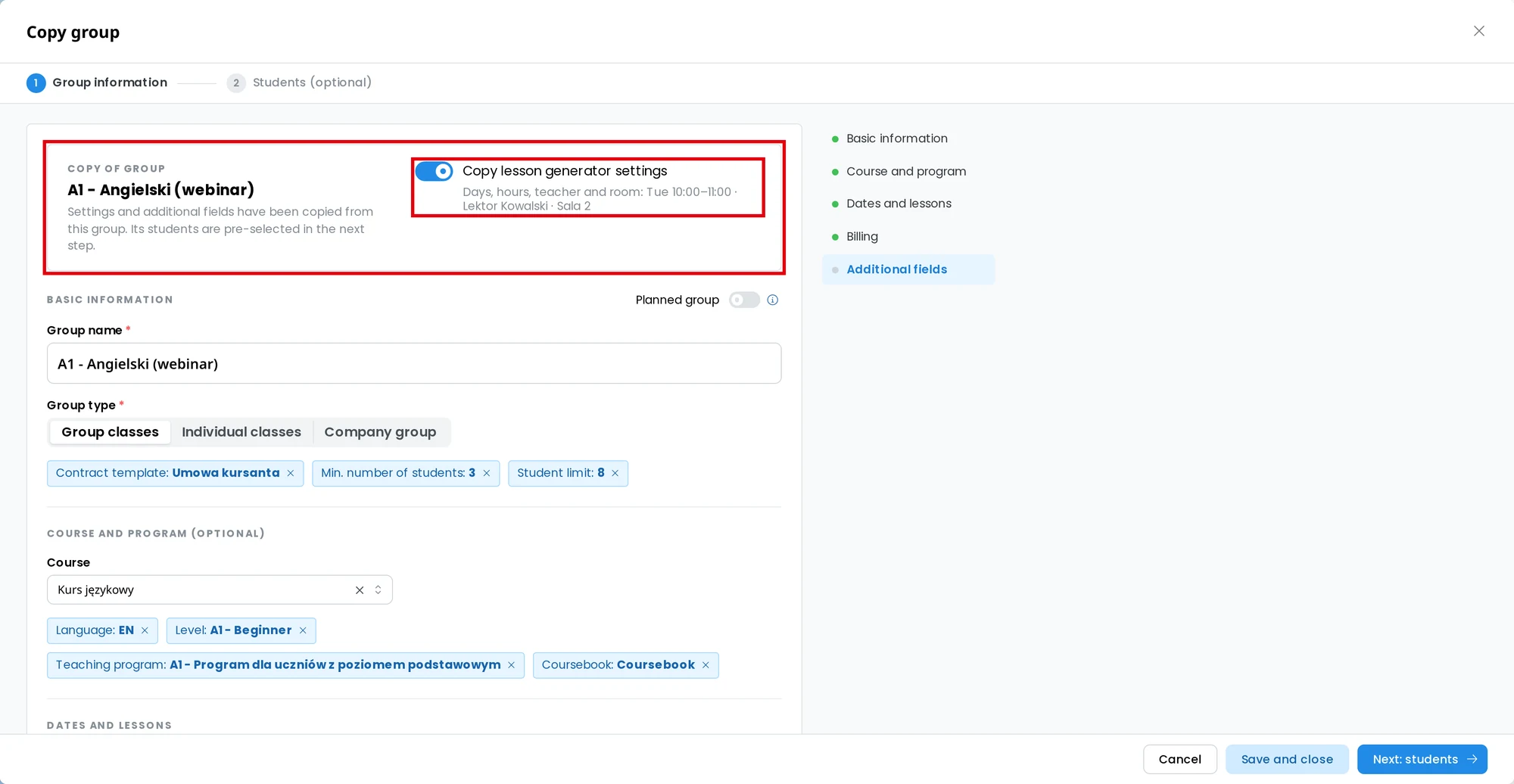
5. In the "Group information" step, make the necessary changes: give the group a name, change the start date, check the settlement method and the current prices for the course or classes.
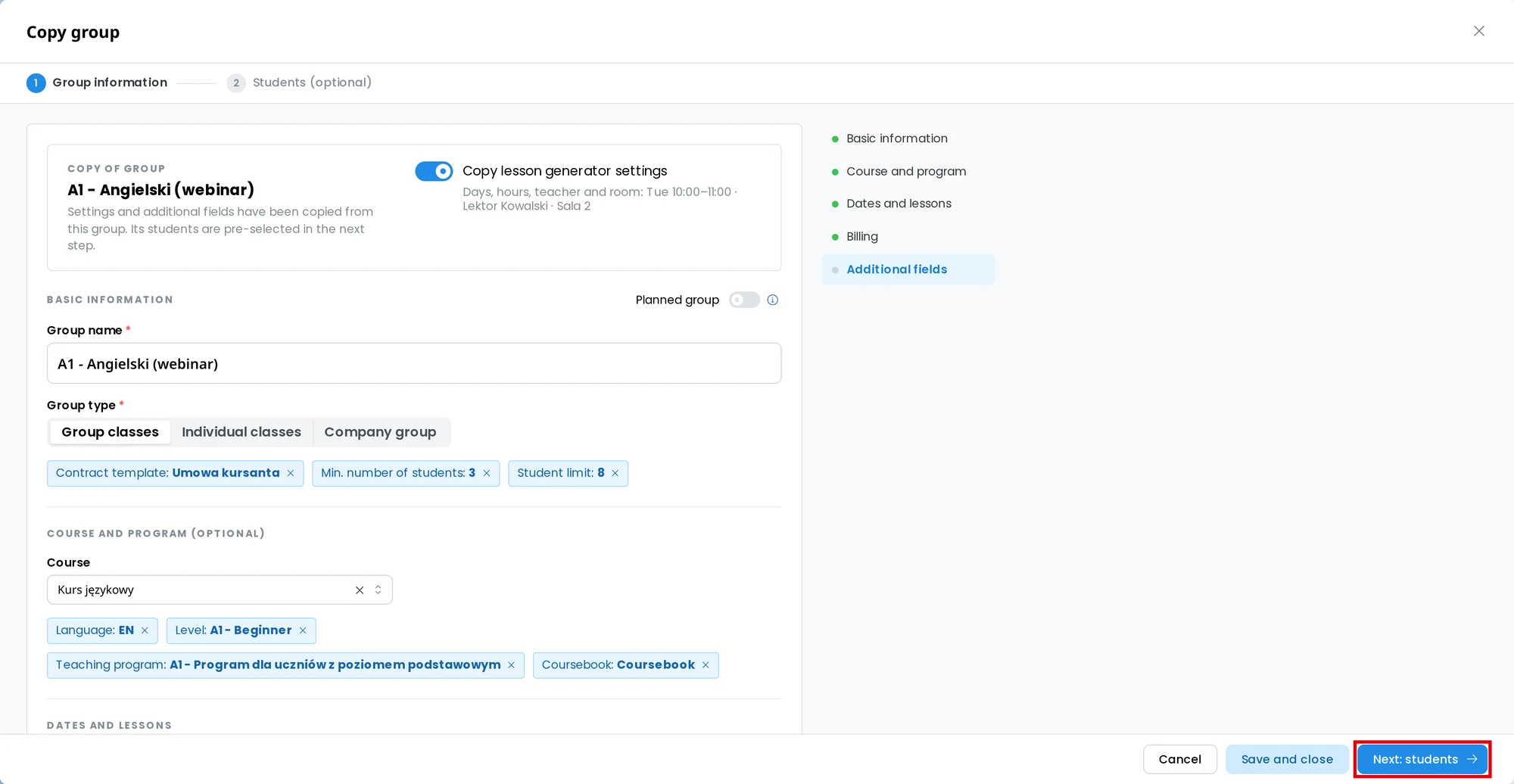
6. Click "Next: students". In the "Students (optional)" step, the students enrolled in the copied group are already selected – you can deselect those who are not moving to the new group.
7. Click "Create group and add students (N)", where N is the number of selected students.
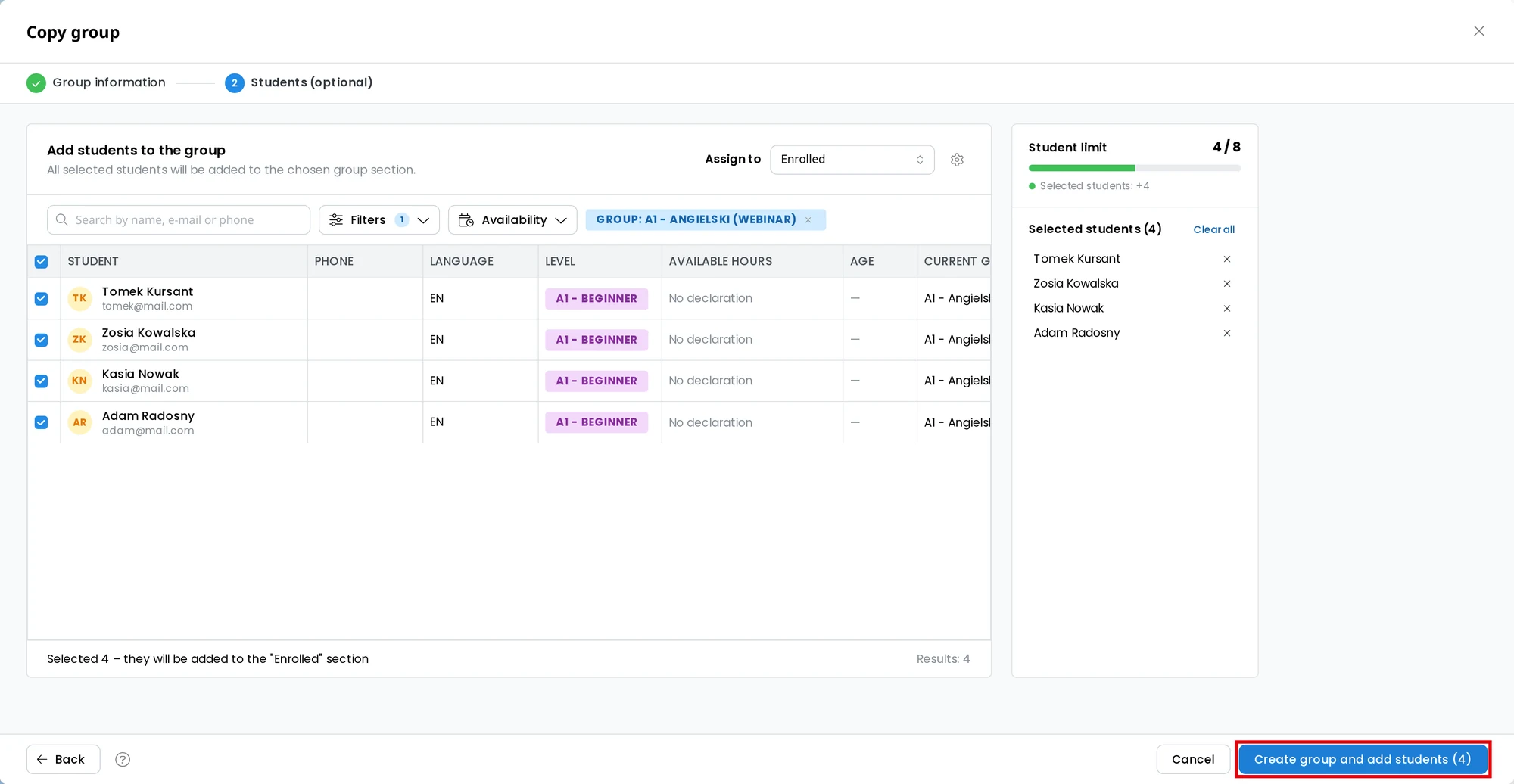
The "Save and close" button in the first step creates the group without students. You can then add students to the new group later.
Done! The system opens the new group. You can move the previous group to the archives.
Which students move to the new group?#
Only students from the "Enrolled" list of the copied group are selected. People in reservation or on the waiting list are not moved. You decide who is enrolled in the new group in the "Students (optional)" step. If someone is missing from the list (e.g. the student is in the archives), restore them from the archives and add them to the new group manually. If a student is going to study in a different new group, deselect them or remove them from the copied group and add them to the right one.
Can I copy a group that is in the archives?#
Yes. On the list of groups, switch on the archive view with the "Archives" button, select the group and follow the same steps as described above.
Want to offer students a continuation instead of enrolling them straight away?#
The same menu (three lines in the "General" tab) has the "Create a group for continuation" option (available with the Registration package). Students get the new group as an offer instead of being enrolled in it. Read more in Course Continuation.
When creating a new group from scratch, you can also click "Copy from last group" in the form – it fills in the settings of the most recently created group.