
With reservations in the LangLion Platform, you can divide the students in a group into separate lists: enrolled, in reservation, awaiting, discharged and offered. Reservations make it easier to enrol students in groups.
To enable reservations in groups, write to us at support@langlion.com
How do I assign students to a reservation?#
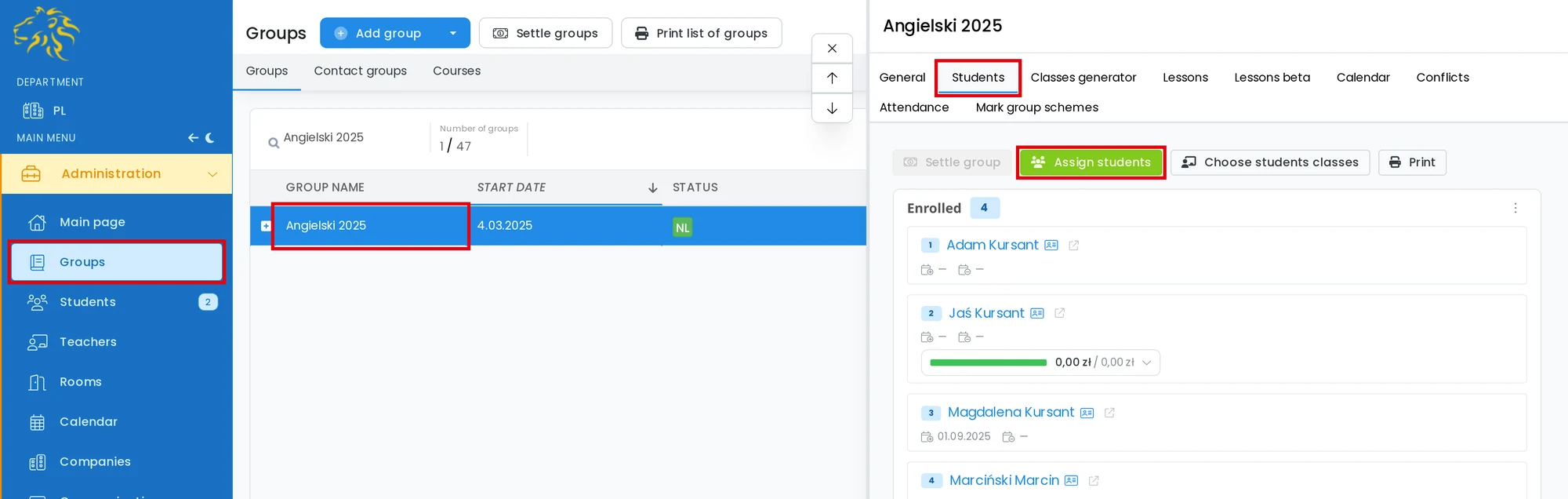
- Click the “Groups” tab in the “Administration” module.
- Select the group and click the “Students” tab.
- Click “Assign students”.
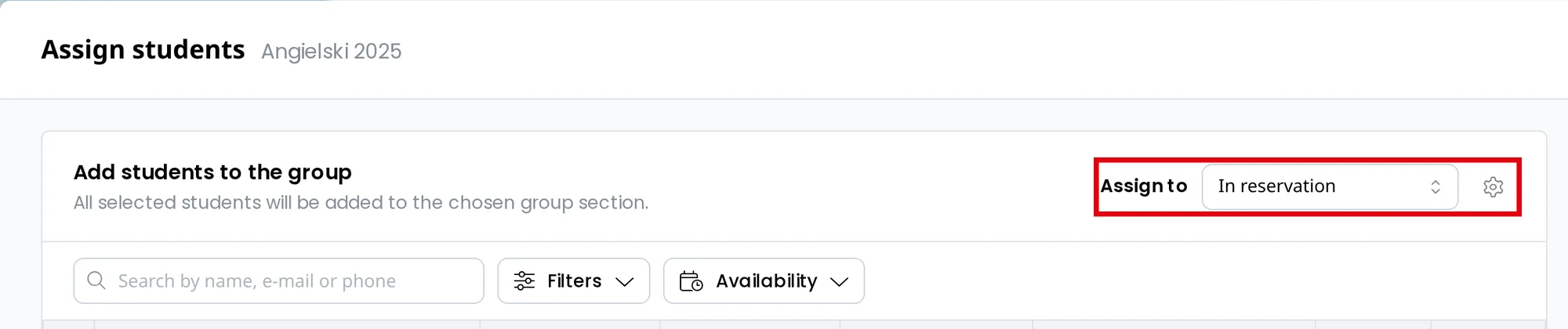
- Select the students, leave “In reservation” in the “Assign to” field (or choose another list: “Enrolled”, “Awaiting” or “Offered”) and save.
What lists of students are there in a group?#
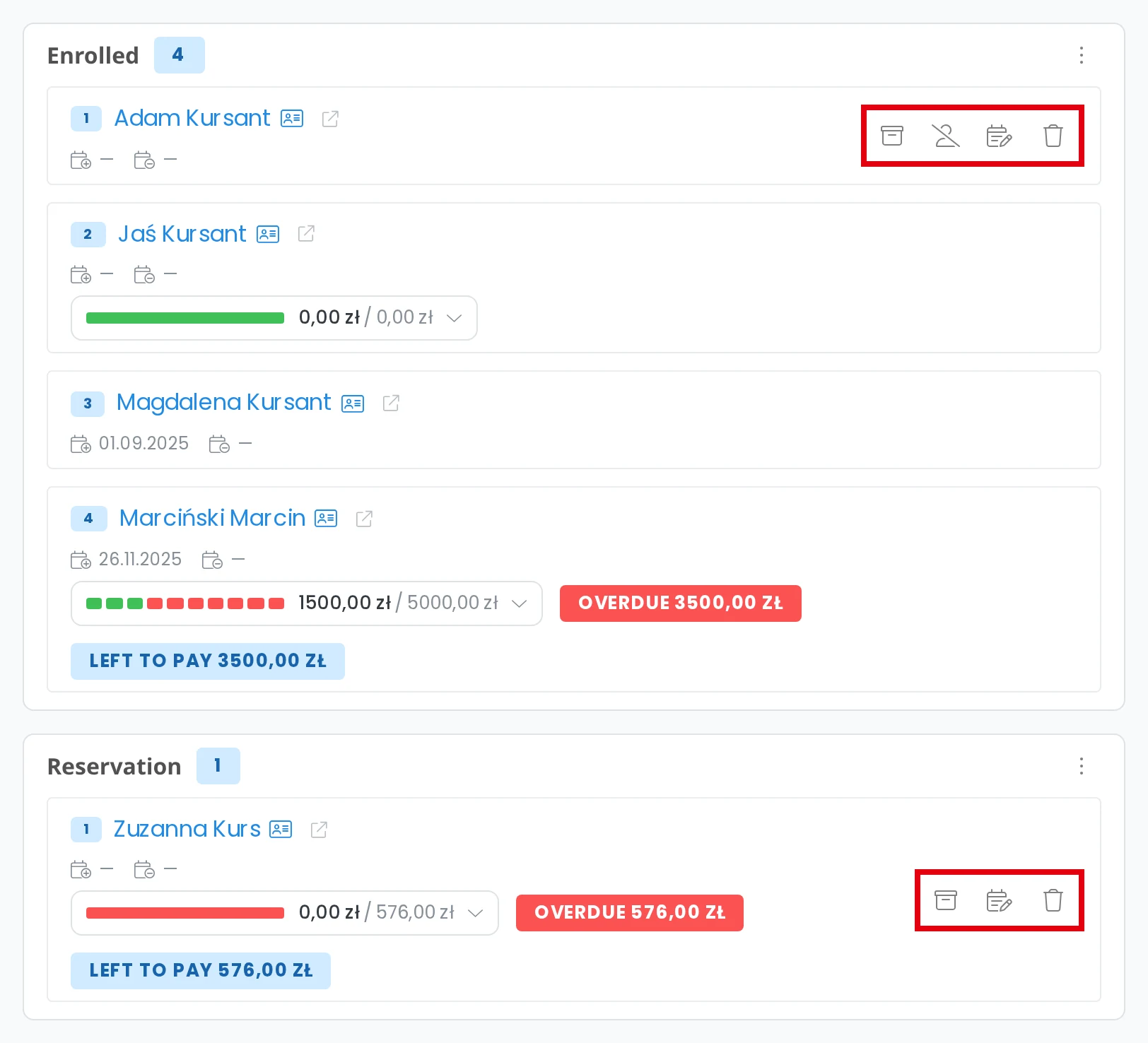
In the group's “Students” tab, students are divided into lists. The number of people is shown next to each list name.
- “Enrolled” – students enrolled manually or after signing a contract for this group; they appear on the group's attendance list. When there are more enrolled students than the group's student limit, a “Limit exceeded” warning appears next to the list.
- “Reservation” – students added to the group who have not signed a contract yet; they do not appear on the attendance list.
- “Awaiting” – students waiting for a place, e.g. when the group's student limit has been reached; they do not appear on the attendance list.
- “Discharged” – students who have been discharged from the group.
- “Offered” – students who have been offered this group.
Under the student's name you can see the enrolled date and the discharge date, and on the “Reservation” list also the “Reservation till” date. You can also see the student's balance and instalments in this group.
What do the icons next to a student mean?#
The icons depend on the list the student is on:
- “Archive” – archives the student (on every list).
- “Discharge” – discharges the student from the group with the selected discharge date (only on the “Enrolled” list).
- “Edit date” – changes the enrolled date (“Enrolled” list), the “Reservation till” date (“Reservation” list) or the discharge date (“Discharged” list).
- Bin icon (“Remove from group with student's history and payments”) – removes the student from the group.
Removing a student from a group also deletes their history and payments in this group. If the student is finishing classes in the group, use “Discharge” instead of the bin.
How do I move a student from reservation to enrolled?#
Drag the student with the mouse: hover over the student's name, hold the left mouse button, move the student to the “Enrolled” list and release the button. You can move a student between any lists in the same way.
How do I create a new group for awaiting students?#
Next to each list there is a ⋮ menu:
- “Create group” – creates a new group based on the current one (the group details are copied and you can change them) and moves the selected students from this list to it. In the new group the students are placed on the “Enrolled” list.
- “Send message” – sends a message to everyone on this list.

How do I change a student's status from the student profile?#
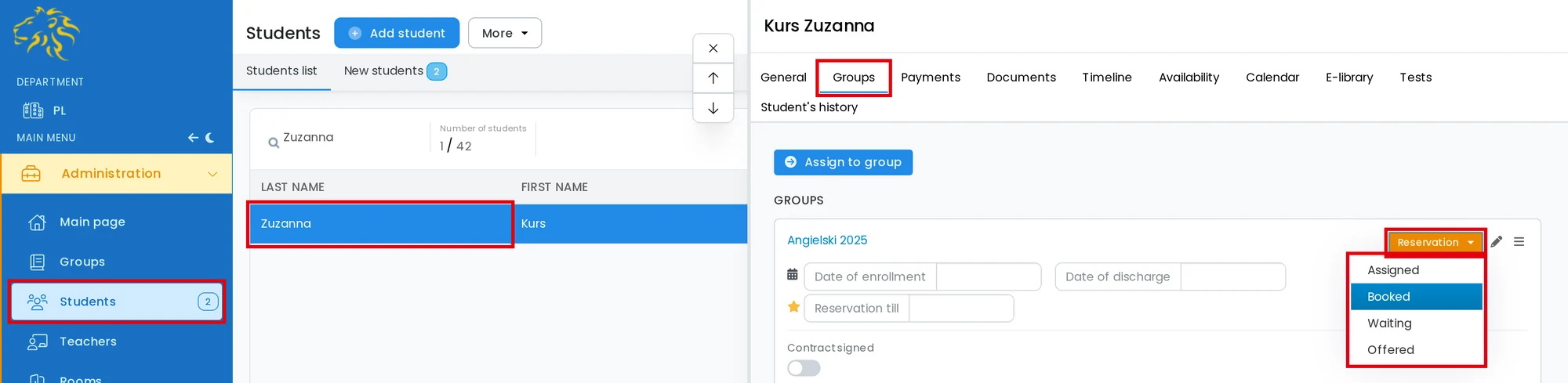
You can also change a student's status in a group in the student profile, on the “Groups” tab: click the status button next to the group name (“Change status”) and select the new status.
When is a student moved from reservation to enrolled automatically?#
People on the reservation list are automatically moved to the “Enrolled” list after signing the online contract.
If you use standard contracts and manually mark the contract status as signed, the system will ask if you want to move the student to the list of enrolled students once the contract has been signed. This message will also appear after adding the payment for the course. This applies to entering paid transactions or confirming payment of a transaction. When a student makes a payment via online payment, after the transaction is created, the system automatically moves them to the list of enrolled students.
A student on the reservation list is not visible in the teacher's account.