Sometimes, the teacher will get ill or a situation will occur which will prevent him or her from conducting classes. In this case, you need to arrange a substitution. LangLion Platform allows you to mark replacement on the classes list. First, add a new status of classes – replacement.
How can I add substitution?
First of all, add a new classes status– Substitution.
- Click on the Settings tab in the Administration module,
- Click on the Classes → Classes statuses tab and select Add,
- Enter the name of the status, select the Substitution function and enter % student’s fee and % teacher’s fee and save the changes
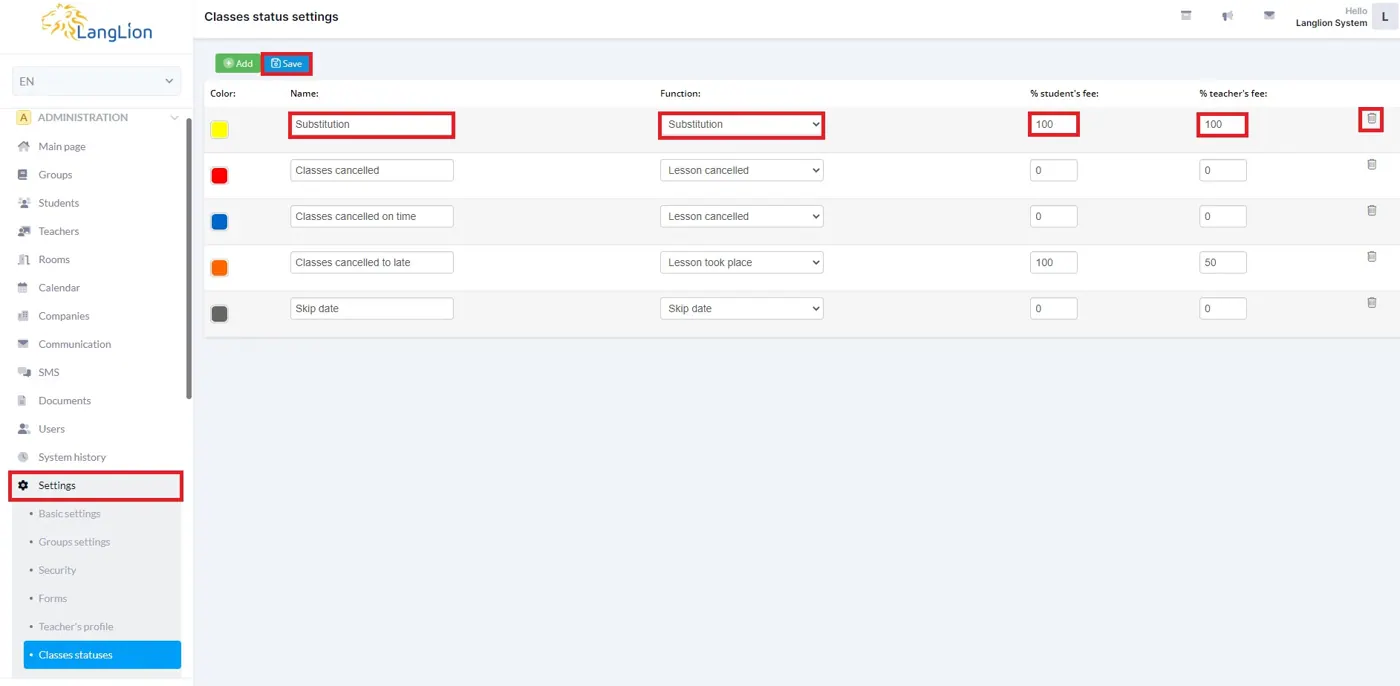
% Of the student's fee - the value by which the student's rate will be recalculated for the lesson on which the substitute will be assigned,
% Of the teacher's fee - in case of replacement, the rate is defined individually in the substitution editing window, covering teacher's fee will be recalculated by this value
How to assign a substitution in a group?
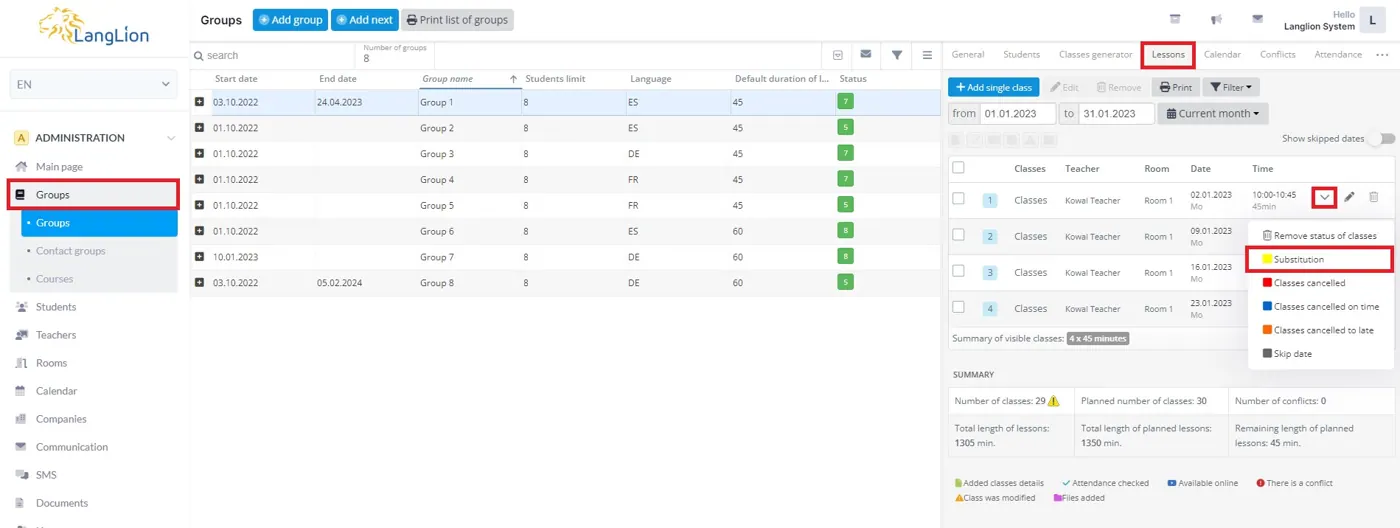
- Click on the Groups tab and select the appropriate group,
- Go to the Lessons tab,
- Select the right lesson and click on Set status of classes
- Select Substitution from the list
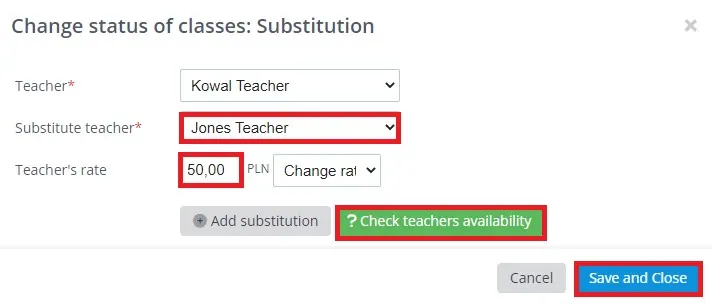
In the Change status of classes window, choose who will replace the absent teacher and enter the rate. The Check teachers availability button narrows the list down to teachers who do not have classes at that time. If the substitution is covered by several teachers, click Add substitution and select another teacher. Save the changes.
The substitution window is only shown to the school administrator.