The end of the year is approaching, and you want to offer your students the opportunity to continue their course? In the LangLion system you can do it in a few clicks.
How to offer students a continuation in a group that will have the same settings as the current group?
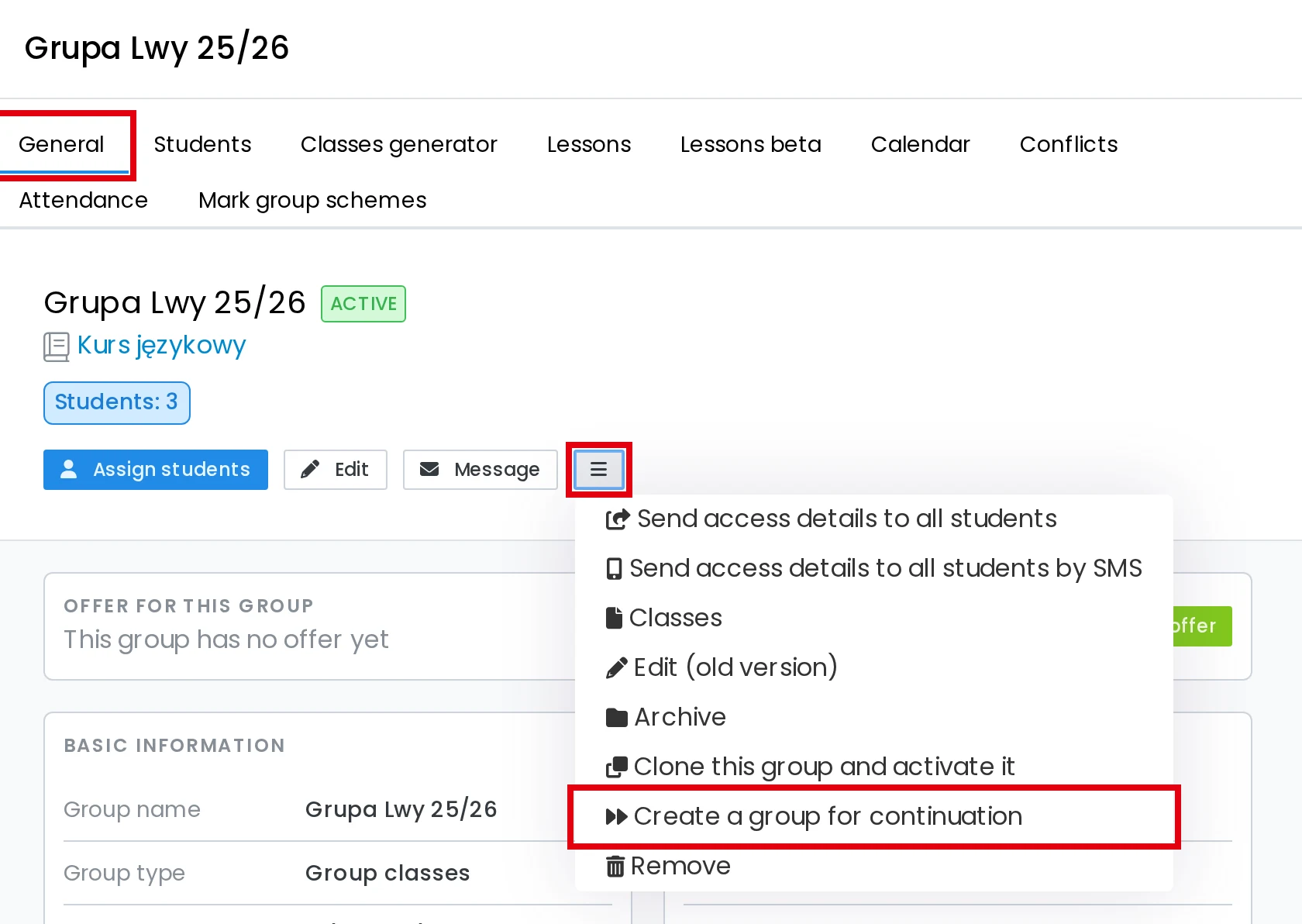
- In the Administration module, select the Groups tab and open the group whose students you want to offer a continuation.
- In the General tab, click More (three horizontal lines) and select Create a group for continuation.
- The Create a group for continuation form opens, filled in with the data of the current group. Give the new group a name, update the start date, choose the type of settlement and set the current prices for the course or classes.
- If the new group should have the same lesson schedule, leave the Copy lesson generator settings switch on in the Group continuation card (below it you can see the copied days, hours, teacher and room). If the schedule will be different, turn it off.
- Click Next: students. In the Students (optional) step, all active students of the current group are already selected – they will be added to the Offered section of the new group.
- Deselect the students you don't want to offer a continuation to and click Create group and add students.
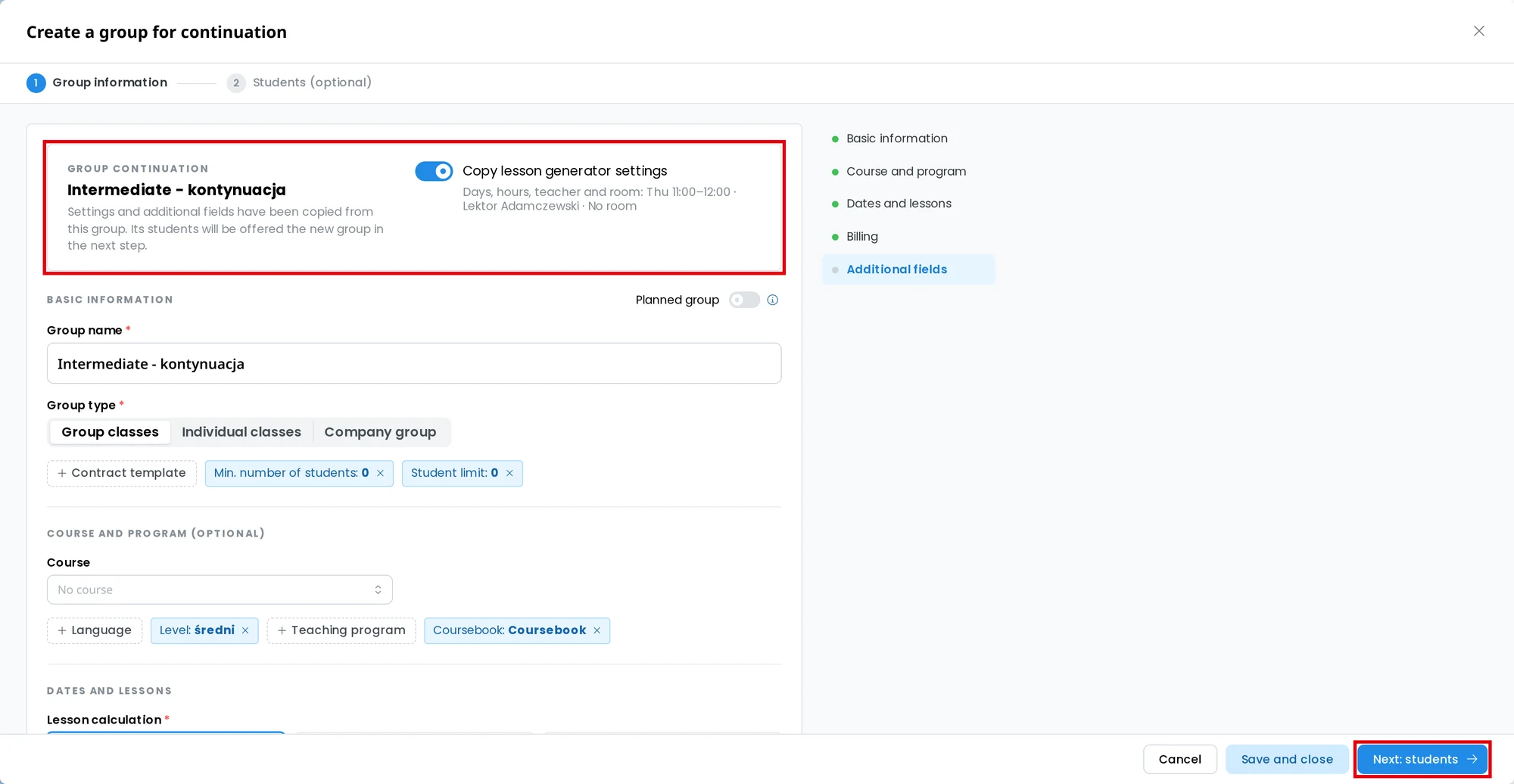
If you click Save and close already in the first step, the group is created without students – you can add them later with the Assign students button.
If the group has a "Payment scheme" assigned, the system will first display to the student the course price, which is the sum of the generated installments. Otherwise, it will show the course price specified in the group's general information - "Price of the course".
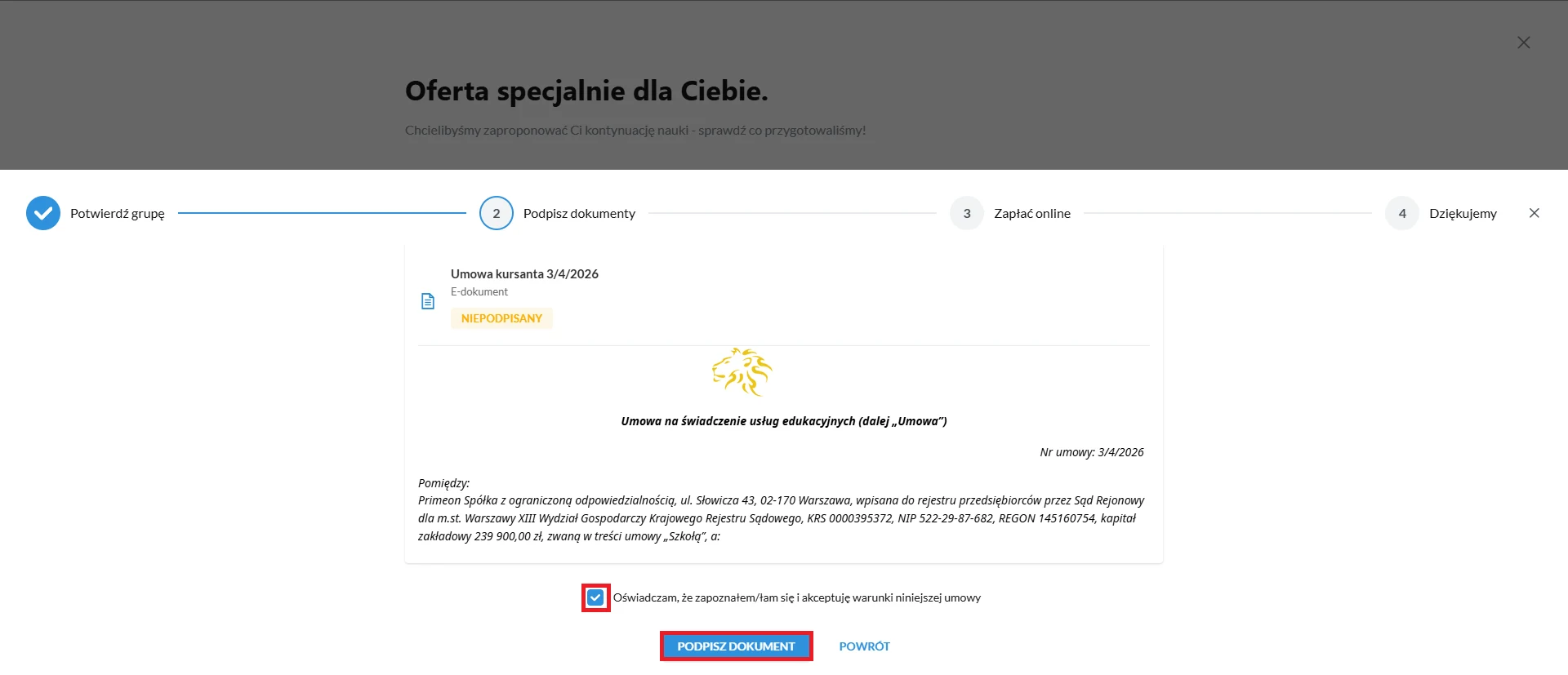
If an "Agreement template" in the form of an E-document is also added during group creation, the student will have the option to immediately review the content of the document and sign it after selecting the offered group.
Similarly, you can copy a group that has the "Planned group" option enabled.
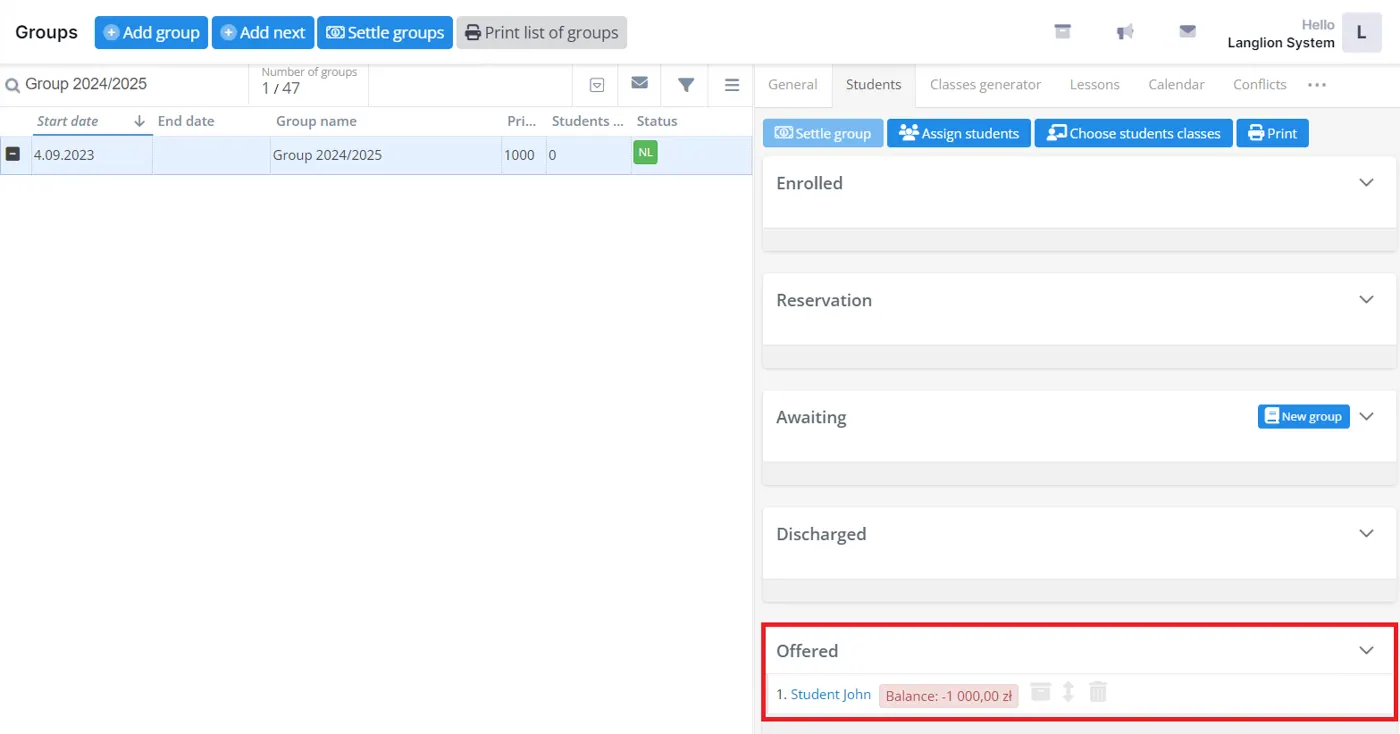
Now, all selected students from the previous group have been assigned to the Offered list in the new group, thereby receiving a proposal to continue the course.
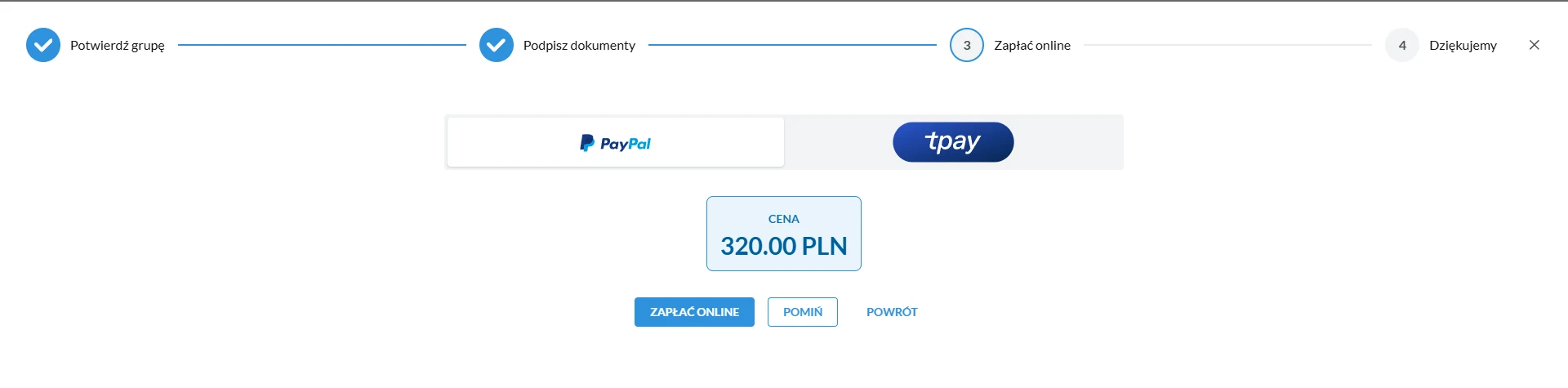
If you have the Online payments module, the offered student can pay for the course right away
When creating the continuation group, enter the amount in the Price of the course field. If students pay in instalments, you can also assign a payment scheme to the group. A student who accepts the offer can sign the agreement and pay straight away – the full amount or the first instalment according to the assigned payment scheme.
If a student decides to continue classes in the offered group, you will receive an email notification with this information, and they will be automatically moved to the Reservation list. The administration will also receive an email if the student decides not to continue or expresses a desire to continue the course in another group.
The student who did not choose the offered group will automatically disappear from the "Offered" list.
The student who chose the offered group and then signed the agreement or made the payment assigned to that group will automatically be moved to the "Enrolled" list.
How can a student extend the course?
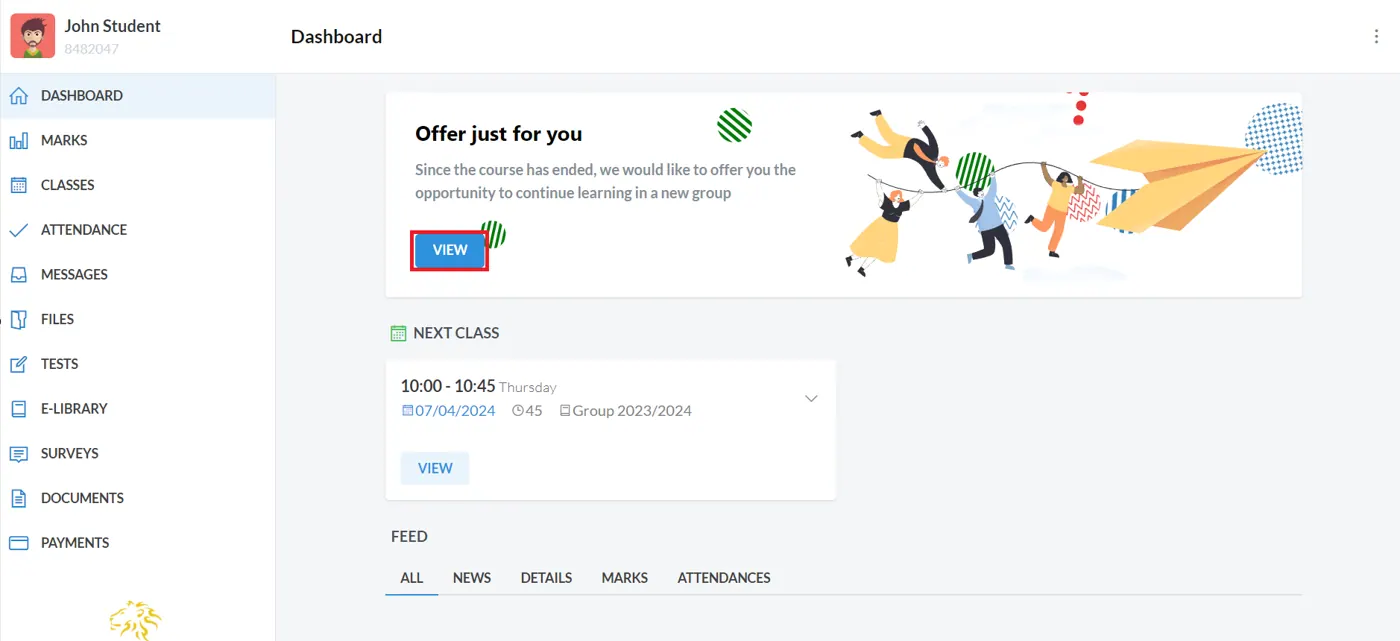
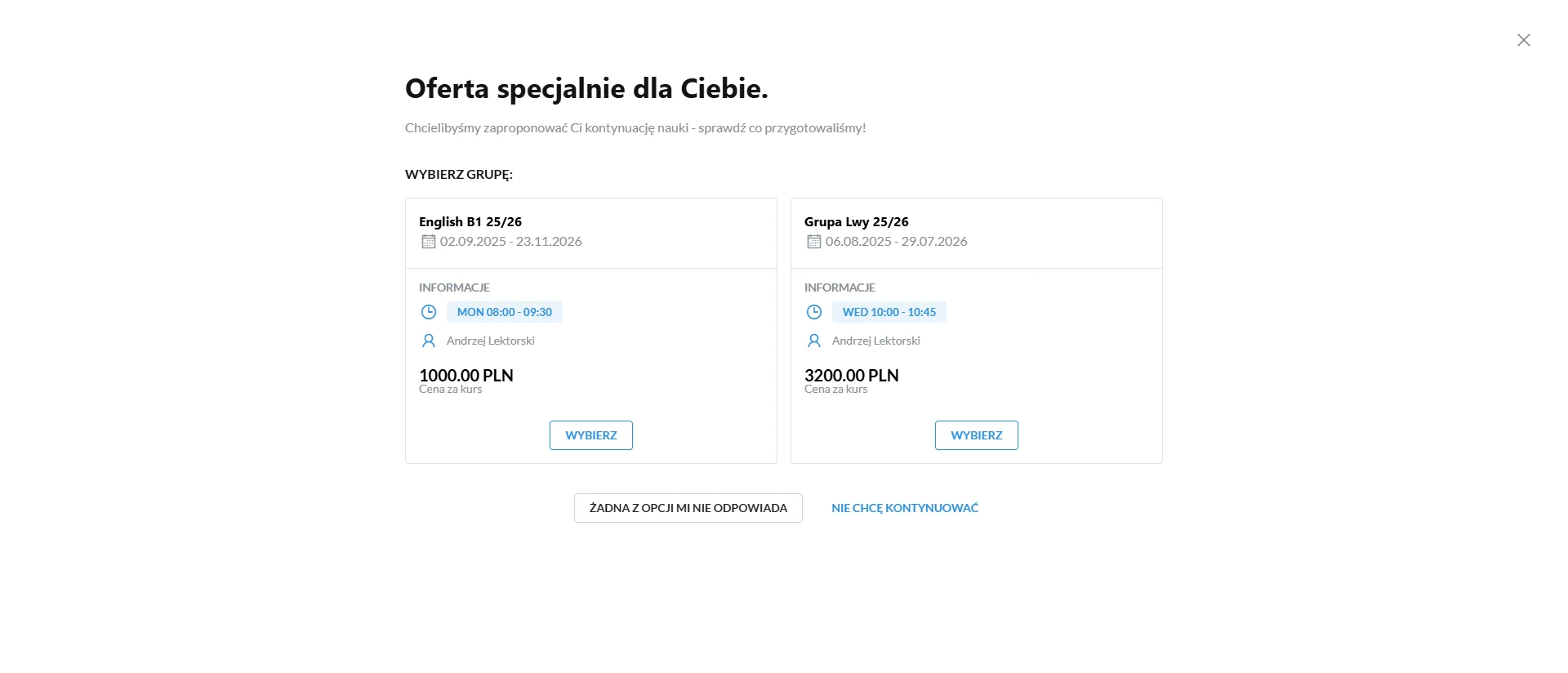
When the student logs into their panel, they will see information about the pending course extension offer on the dashboard. To view the details, they need to click the View button.
The student will see the details of the received offer.
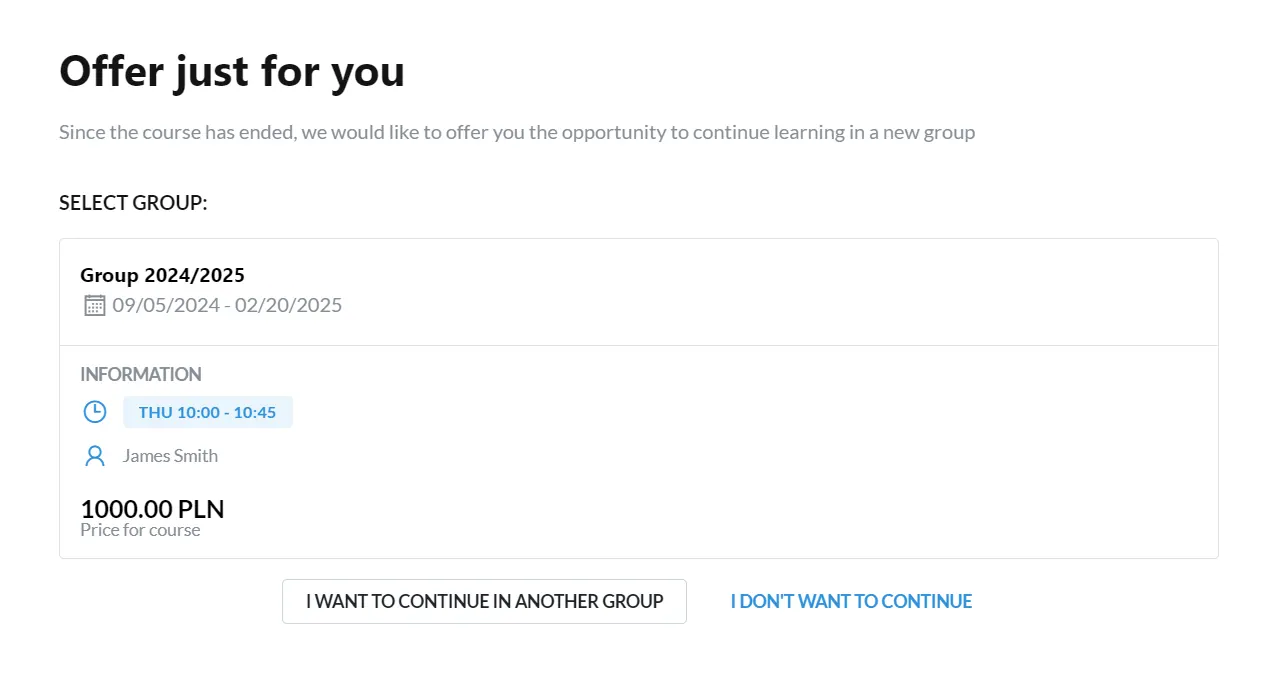
From this point, the student has the option to choose one of several options:
- The group that has been offered
- None of the options work for me
- I don't want to continue
In the case of a minor student, this choice can only be made from the parent’s panel.
After choosing the offer, the student can sign the agreement and pay for the course in the next steps.
The student/parent will receive an email confirmation with the group they chose.
How to offer students more than one group to choose from?
In their panel, the student sees all groups in which they are on the Offered list and chooses one of them. To offer several groups to choose from:
- Create a continuation group from the current group (as above) or add new groups that you plan to open.
- In each of the other groups, click Assign students, select the students of the current group and add them to the Offered section.
Done! Your students have received an offer to continue their classes with the option to choose from several groups.
If a student attends, for example, English and Italian classes and you want to offer them a continuation in both courses, you can do it – just choose the right course when creating each continuation group. After logging in, the student will see both course extension offers on the dashboard and can check their details by clicking View.
Creating an offer for a continuation group
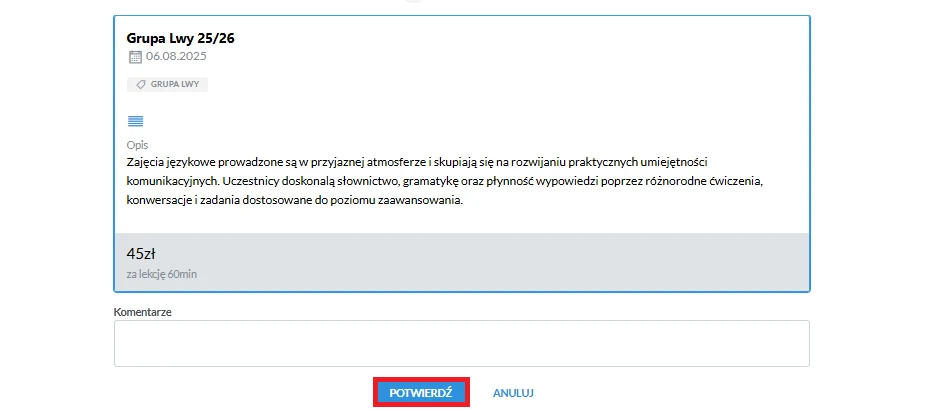
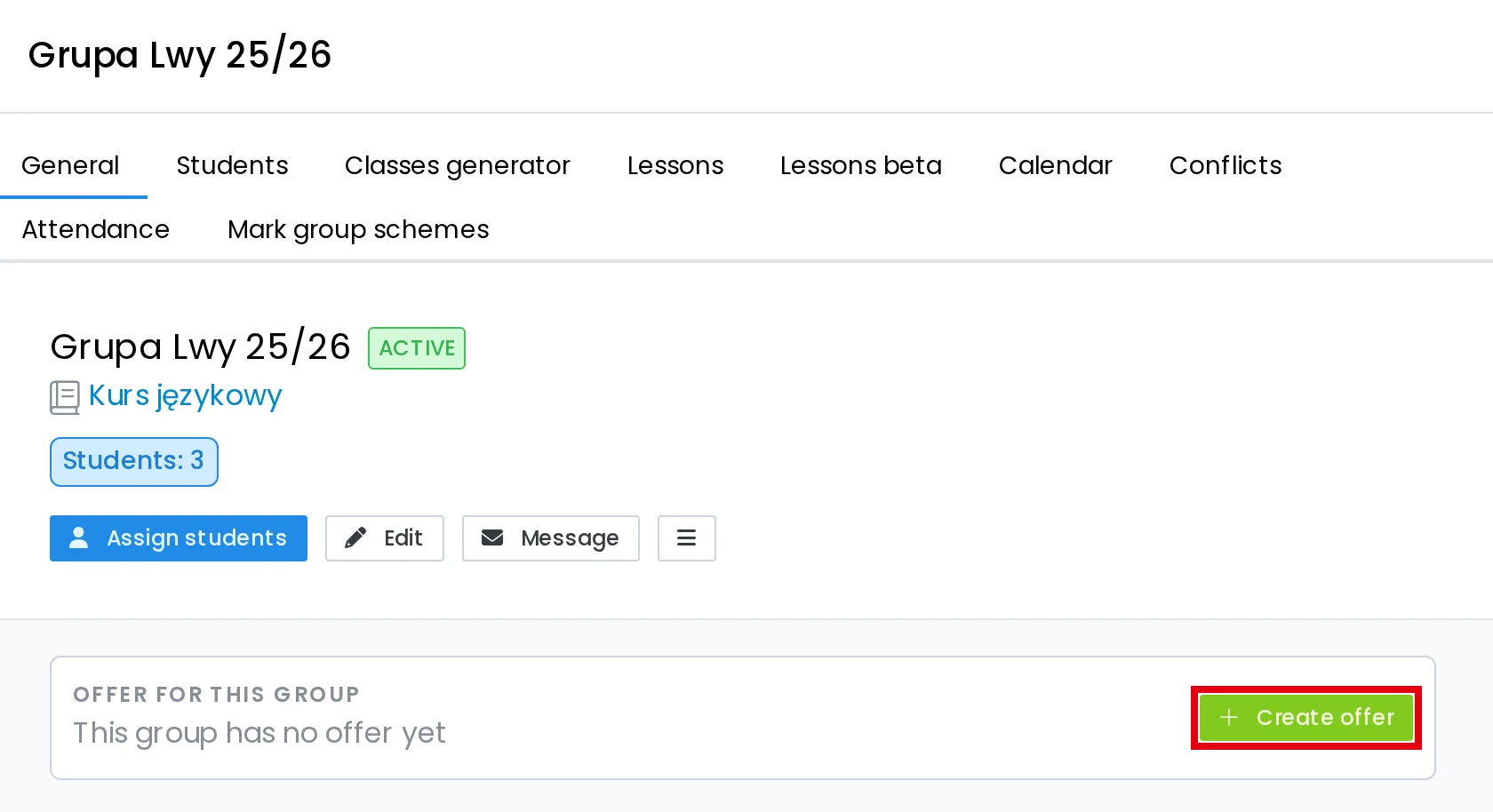
Do you want to add more information to the continuation offer or change how the price is displayed? In the General tab of the new group, in the Offer for this group card, click Create offer.
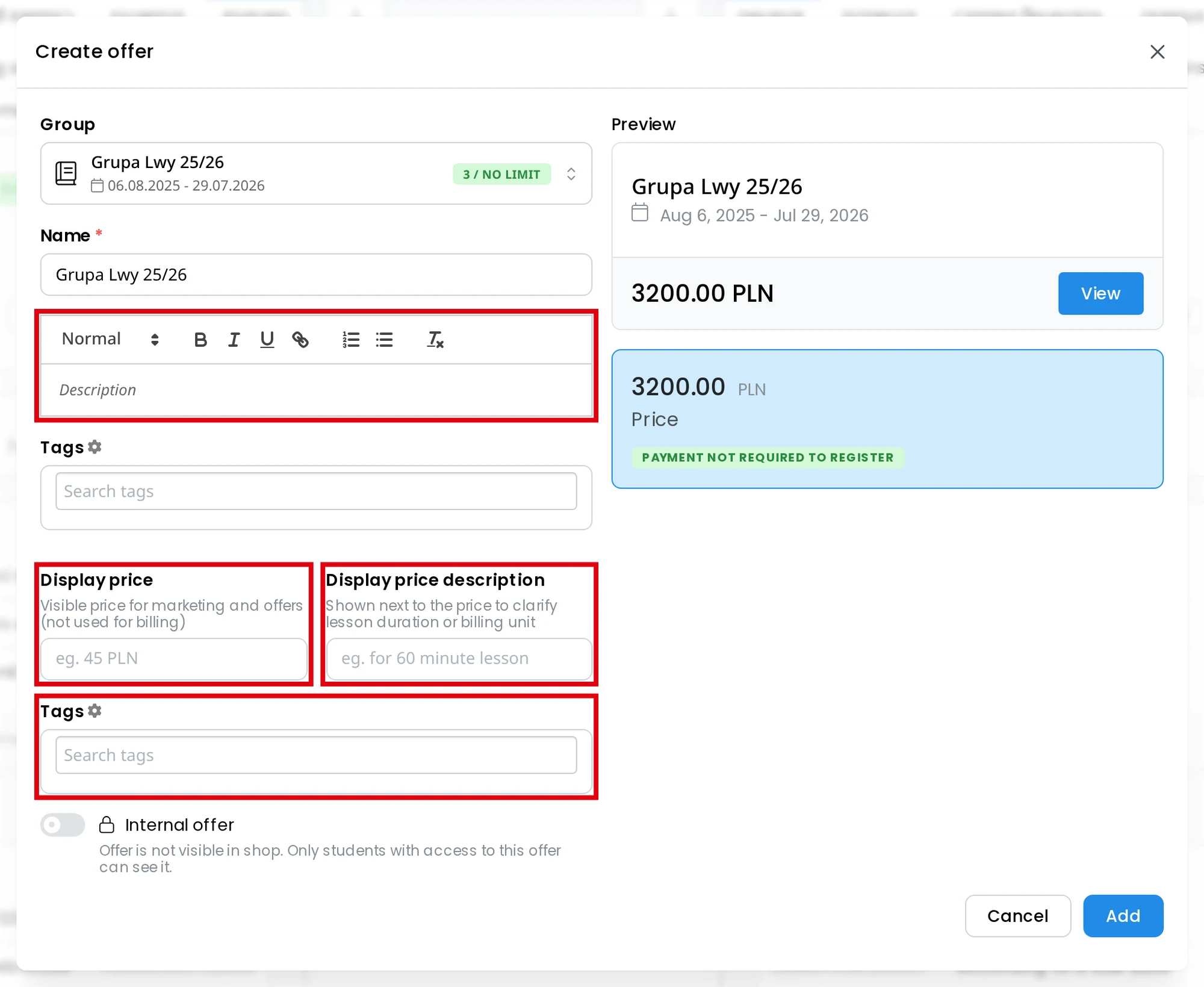
In the offer form you can fill in:
- Description – additional information shown to the student when they view the continuation offer.
- Display price – for example a monthly price resulting from instalments or a price per class.
- Display price description – explains what the amount in the Display price field refers to.
- Tags – highlight the offer and its key information.
Done! After the offer is saved, the student will see it with all the added information after logging in and can confirm participation in the group by clicking Confirm.