
Are you planning to start online registration at your school? Place a registration form generated by LangLion on your website and gather all the potential customers’ data on the Platform.
How to configure Registration module settings?
It’s simple, go to the Registration module and click the Settings tab, then Registration page.
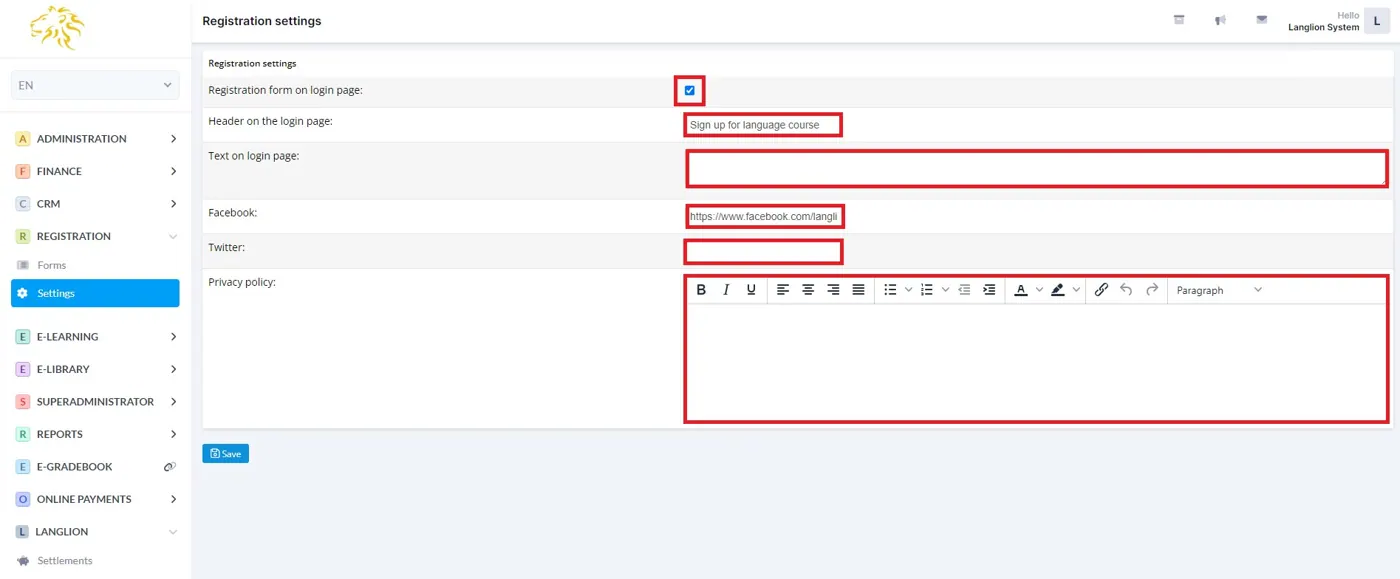
If you want the login panel to be linked to the registration form enable the Registration form on login page option.
Enter the header text that will be displayed on the login page
Make sure to encourage customers to sign up and enter the text that will appear on the login page. To do this, please complete the Text on login page field.
Is your school on Facebook or Twitter? Post links to relevant pages. The customer will be able to visit the pages from the login panel by clicking on the appropriate link.
Have you defined a school privacy policy? Enter its text in the Privacy policy field to place it on the login page. This field is visible only to users who can edit all general settings of the school.
In the Meta pixel ID field you can enter your Meta (Facebook) pixel ID to measure traffic on the registration page.
Once you have finished editing the registration settings, click the Save button.
Next to the Registration page tab there is the Online registration tab, described in Online enrolment.
In case of schools with more than one department and separate forms, the logos of the departments will be displayed according to the given form.