
LangLion platform gives a possibility to add and edit consents for personal data processing. You add consents in the department settings – with several departments, separately for each of them, unless shared consents for all departments are enabled in your system. The administrator can enter name and content of each consent, according to individual requirements. They are displayed in student’s and teacher’s panels, also available to use while registering new students using registration forms. Each student can select and modify consents from his dedicated profile. Marking appropriate consents is necessary if you wish to contact your students by sending email notifications.
How to add a new consent?
1. Choose „Settings” tab in „Administration” module. Click „Basic settings” and „Consents” tab
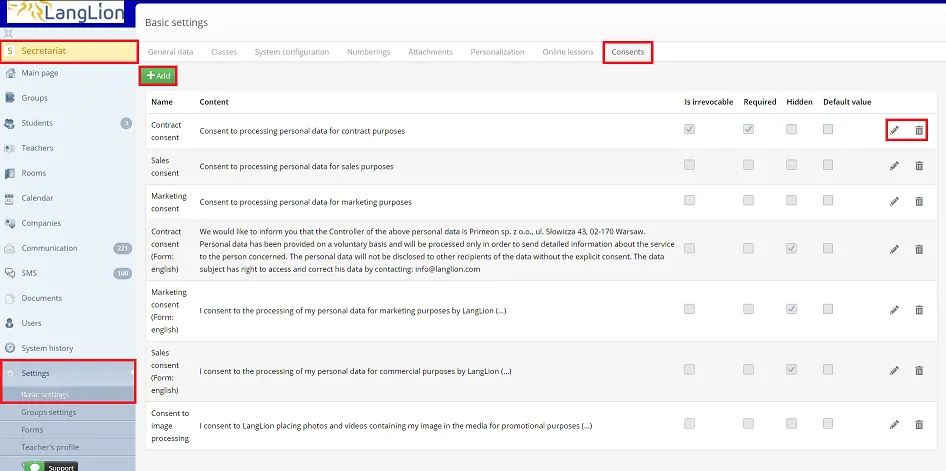
2. Choose „Add” button
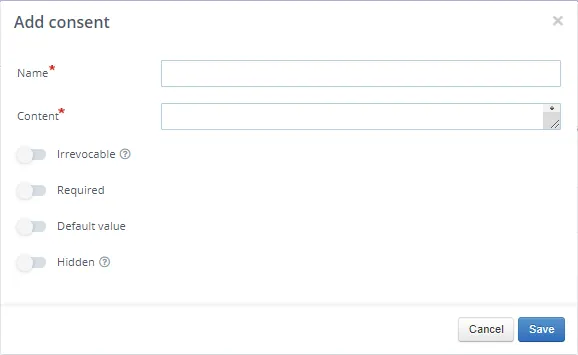
3. Fill in Name and Content fields
4. Mark additional features, according to your needs:
- Irrevocable – check, if you don’t allow student to change this consent. If student wants to modify it, he needs to contact the school office.
- Required – it is obligatory to accept this consent
- Default value – consent is marked as accepted by default
- Hidden – check, if you wish to hide this consent in student form
5. Click „Save” to confirm
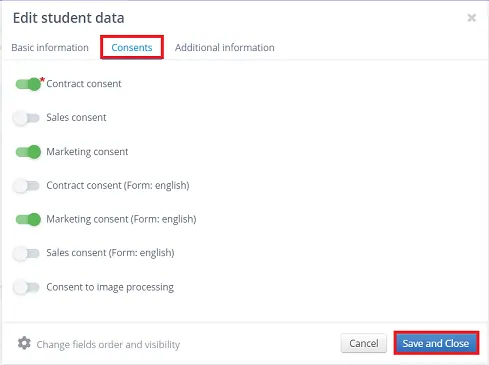
Consents added by Administrator are displayed in student’s form in separate „Consents” tab. You can manage consents while adding new student or editing data of existing one.
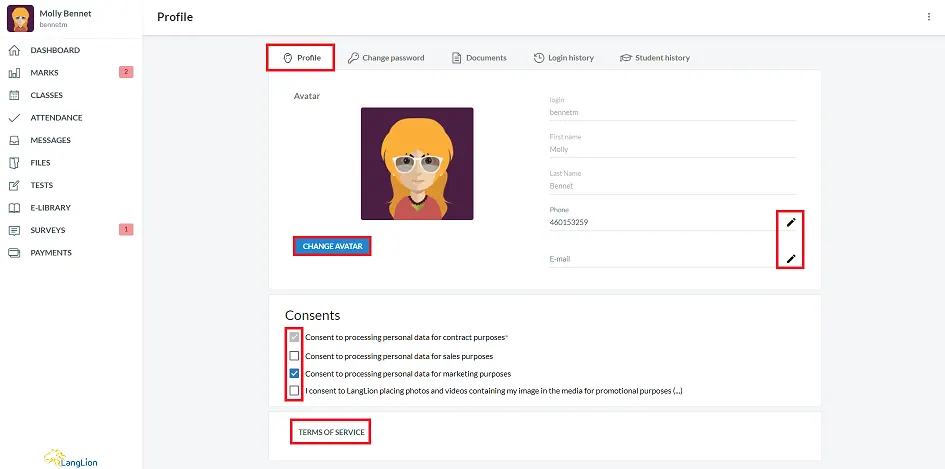
Consents are also shown on the first page after logging to student’s panel and available in Settings menu, „Profile” tab. Student can accept them whenever needed as well as cancel their acceptance (unless it is marked as Irrevocable by Administrator). Once modified by student via his profile, consent is automatically updated on student’s form in the Administration module.
If parents accounts are activated in „System configuration”, consents applies also to parents accounts. In order to access them, choose Edit student’s data form, and click „Parent’s data” tab. Each parent can access and modify consents when logging to parent’s panel.
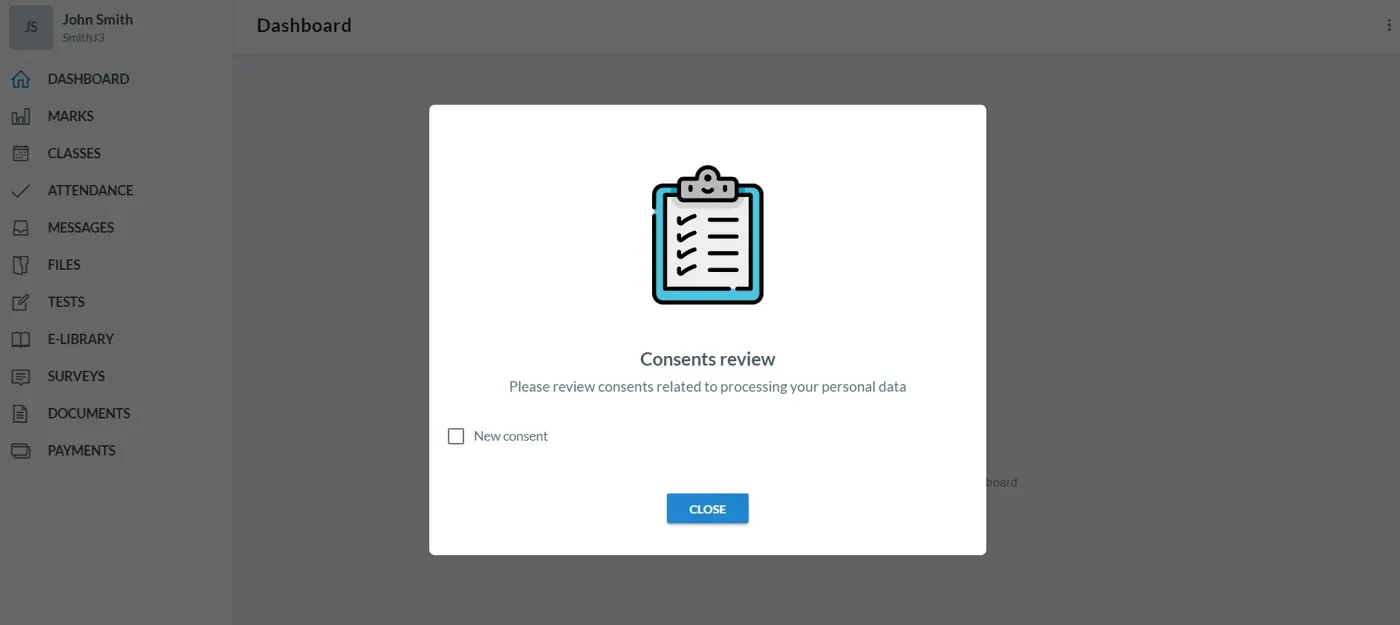
If you add new consent during school year, student will be informed about new consent after logging into the system. Student will be able to read the content of the new consent and accept it.
Consents in Registration module
Consents are used also in Registration module, when adding registration forms. Consents added in the Administration settings, are displayed also in registration form fields, in „Form” tab. To choose which consent should be included in the registration form, mark the selected „Visible text box” checkbox. You can also mark selected consent as required („Required text box”), so without completing them, the student will not be able to finish the registration. Click „Save” to confirm changes.
If you embedded registration form on your school website using HTML code, it will be necessary to embed form once again after updating consents.
Detailed information on how to create and edit registration form can be found under this link: Registration forms generator
Consents in teacher’s form
Data processing consents are applied also in teacher’s form. You can edit them while adding new teacher’s account but also during school year. Additionally they can be modified at any time by the teacher from his profile.
More information on how profile can be updated by the teacher can be found in teacher’s account instruction.