
The LangLion platform lets you send e-mails through an external SMTP server. This is particularly useful if your messages are not being delivered or are ending up in spam.
To add an external SMTP server, go to the "Settings" tab in the "Administration" module. Then open the "Communication" -> "E-mail" tab.
To set up the connection to the SMTP server of your mailbox, fill in the fields in the "Custom SMTP server" section and click "Save":
- Hostname – the address of your e-mail provider's outgoing mail server.
- Port – the port number used for the connection.
- Encryption – SSL or TLS (recommended).
- Authorization – tick it if the server requires logging in (it usually does).
- Username – your full e-mail address.
- Password – the password to your mailbox or a generated app password (if your provider requires one, e.g. Gmail).
If your school has several departments, a superadministrator can tick "Configuration for all departments" so that the same SMTP server is used in all departments. Note: separate SMTP settings saved earlier in individual departments are then removed.
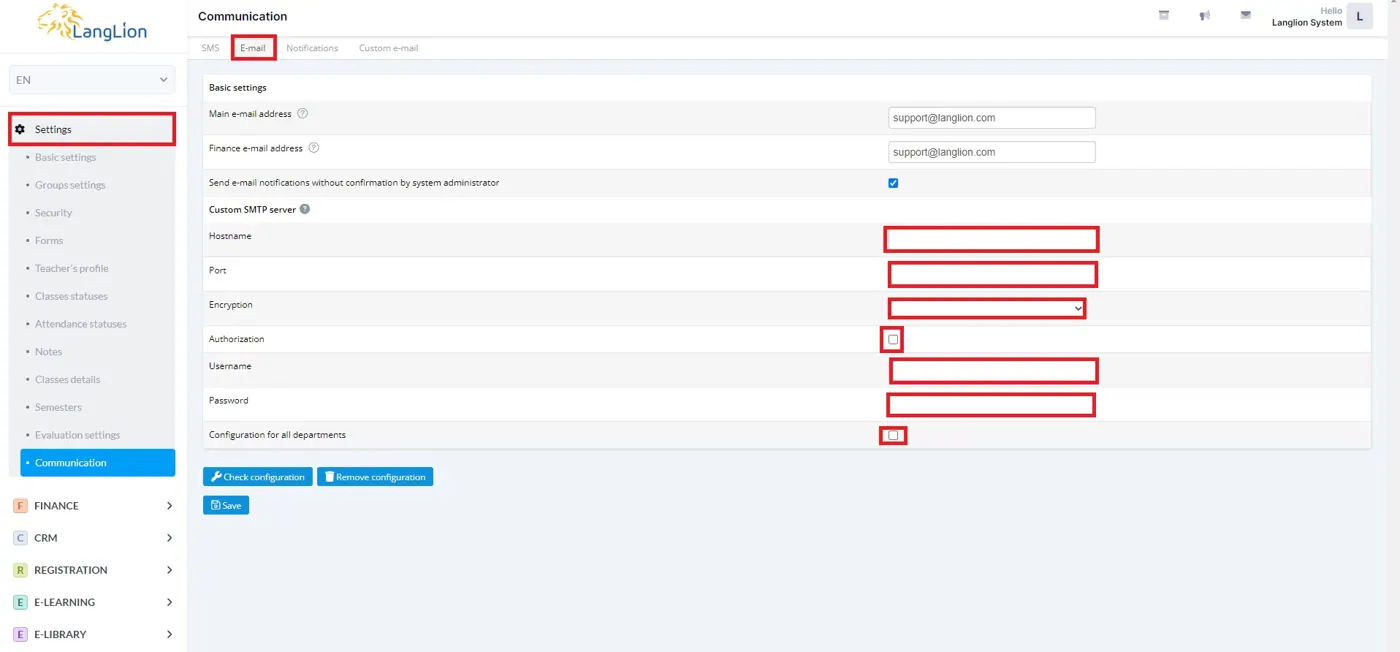
Once you have entered the settings, use the "Check configuration" button to make sure they are correct.
If the settings are wrong, use the "Remove configuration" button and enter them again.
From now on, all e-mails and notifications from LangLion will be sent through the external SMTP server.
Example settings for popular e-mail providers.
Gmail: SMTP server: smtp.gmail.com Port: 465 Encryption: SSL or SMTP server: smtp.gmail.com Port: 587 Encryption: TLSOutlook/Microsoft 365:
SMTP server: smtp.office365.com
Port: 587
Encryption: TLS
Onet Poczta:
SMTP server: smtp.poczta.onet.pl
Port: 465 or 587
Encryption: SSL/TLS
WP Poczta:
SMTP server: smtp.wp.pl
Port: 465 or 587
Encryption: SSL/TLS
Interia Poczta:
SMTP server: poczta.interia.pl
Port: 465 or 587
Encryption: SSL/TLS