
The System configuration tab contains a set of options that allow you to manage the functionality of the LangLion Platform, depending on the needs of the administrators and the way the school operates.
How do I change the system settings?
1. Click the Administration module and select Settings.
2. Go to the System configuration tab.
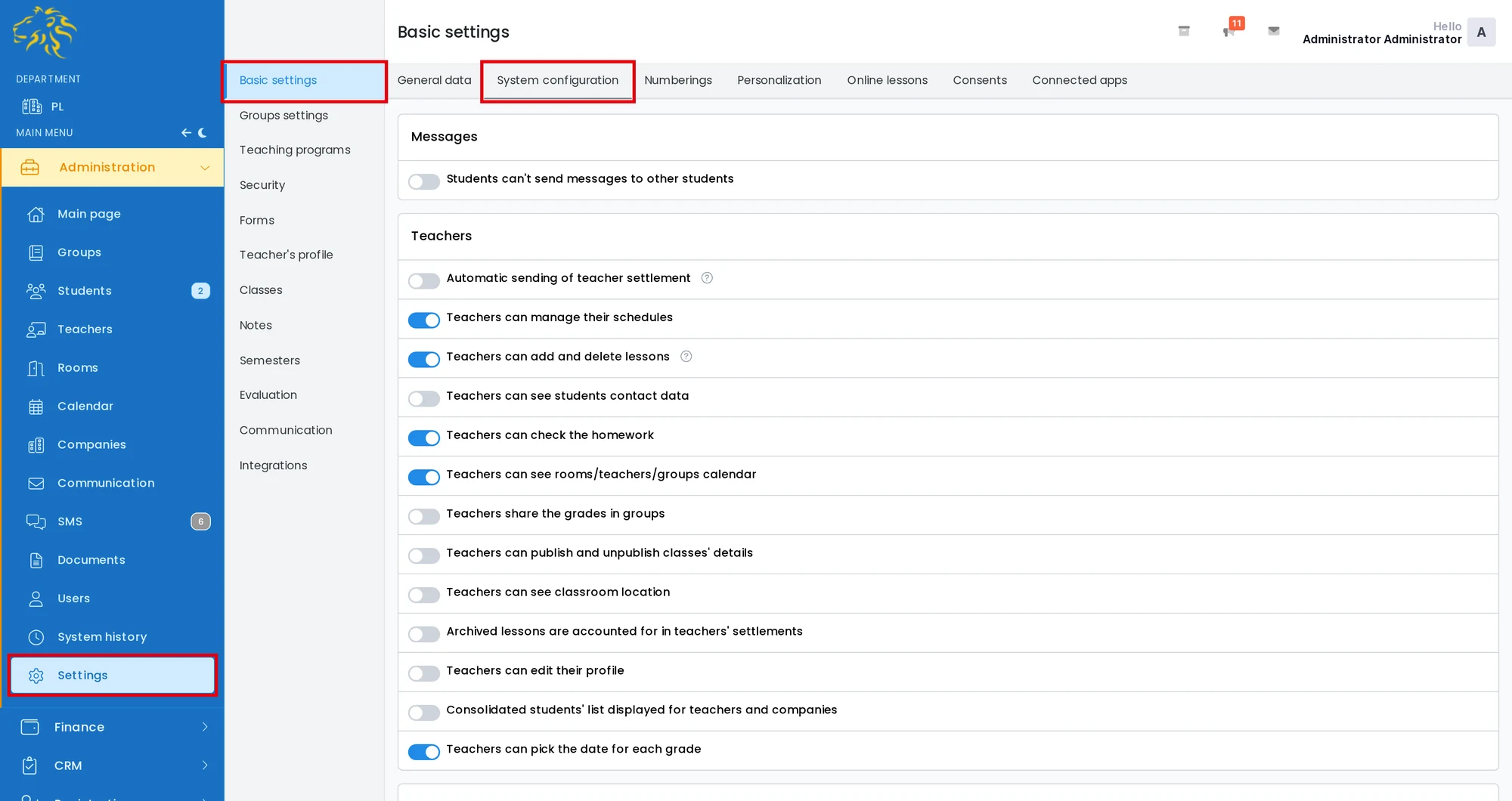
The tab contains the following options, divided into sections, that you can turn on or off:
1. Messages
- Students can't send messages to other students – students can send messages only to teachers and the school office, using system messages
2. Teachers
- Automatic sending of teacher settlement – right after a settlement is created for a teacher, it is sent automatically to the teacher's e-mail address
- Teachers can manage their schedules – enables teachers to change the dates and times of classes and set class statuses
- Teachers can add and delete lessons – this option depends on "Teachers can manage their schedules", which is turned on automatically together with it
- Teachers can see students contact data – the teacher will see the phone number and e-mail of the student/parent
- Teachers can check the homework – with this option enabled, teachers can indicate whether the student has done the homework
- Teachers can see rooms/teachers/groups calendar
- Teachers share the grades in groups – in groups taught by several teachers, teachers can create grade columns visible to the other teachers of the group and enter grades in each such column
- Teachers can publish and unpublish classes' details – details can be filled in earlier, but students see them only after they are published
- Teachers can see classroom location
- Archived lessons are accounted for in teachers' settlements – if a group is archived during the settlement period, it is still included in the settlement
- Teachers can edit their profile – they will be able to add information about their education, experience, etc.
- Consolidated students' list displayed for teachers and companies – displaying a list of all students added to the company and all students taught by the teacher
- Teachers can pick the date for each grade – each grade is saved with a date
3. Group management
- Defining the learning programme in group – lets the teacher add a teaching programme to the group
- Create contact groups – enables the option to create different contact groups you can use when sending e-mails or text messages
- Planned groups option (data invisible for students and teachers) – useful when you prepare the timetable before the school year starts
- Assigning payment scheme to a group – lets you set one payment scheme for all students in the group
- Display form for installment settings in group – a tool that splits the course price into equal installments
4. Student
- Generate students' logins with following numbers – the option generates numeric logins instead of logins based on the student's personal data
- Display students' birthdays on the main page
- Show all linked accounts when logging in – after logging in, a parent sees all student accounts linked to them, not only the accounts of children assigned to their parent account
5. Others
- Save date for creating subsequent transactions – when you need to add several payments with the same past date, this option remembers the date entered in the first transaction and shows it when you add the next payments
- Display more information on the rooms/teachers calendar (XLS file)
- Color customization on calendar
- Confirmation of each individual lesson by administrator – used by schools where a methodologist checks that teaching follows the curriculum; without the administrator's confirmation of the lesson, the teacher's settlement won't be possible
- Display classroom on the classes list
- Display groups on students list – with this option enabled you can add the "Group" column to the students list
- Generate installments without rounding
- Force to delete paid lessons by generator – this option applies to changes in groups paid per hour in advance. For example, a student has 10 lessons planned and has paid for all of them. If you change the number of lessons in the group's general settings to 5 and generate the plan again, the system marks some lessons (the last 5 in the plan) as modified and does not let you delete them – you can only do it manually. If "Force to delete paid lessons by generator" is on, the system simply deletes the extra lessons, shortens the plan to the first 5 lessons and moves the overpayment to the balance.
Once you modify something in the system configuration and save the changes, log out and log in again to refresh the settings.