Would you like to ask questions and get feedback on the quality of service at school?
The LangLion platform was equipped with a survey module. This tool provides the opportunity to investigate the satisfaction of Platform users. You can easily see, for example, how satisfied students are with your services. Build polls in a similar way as tests. After completing the questionnaire, the administrator will be able to see the results of the survey.
How do I create a survey?
It’s easy:
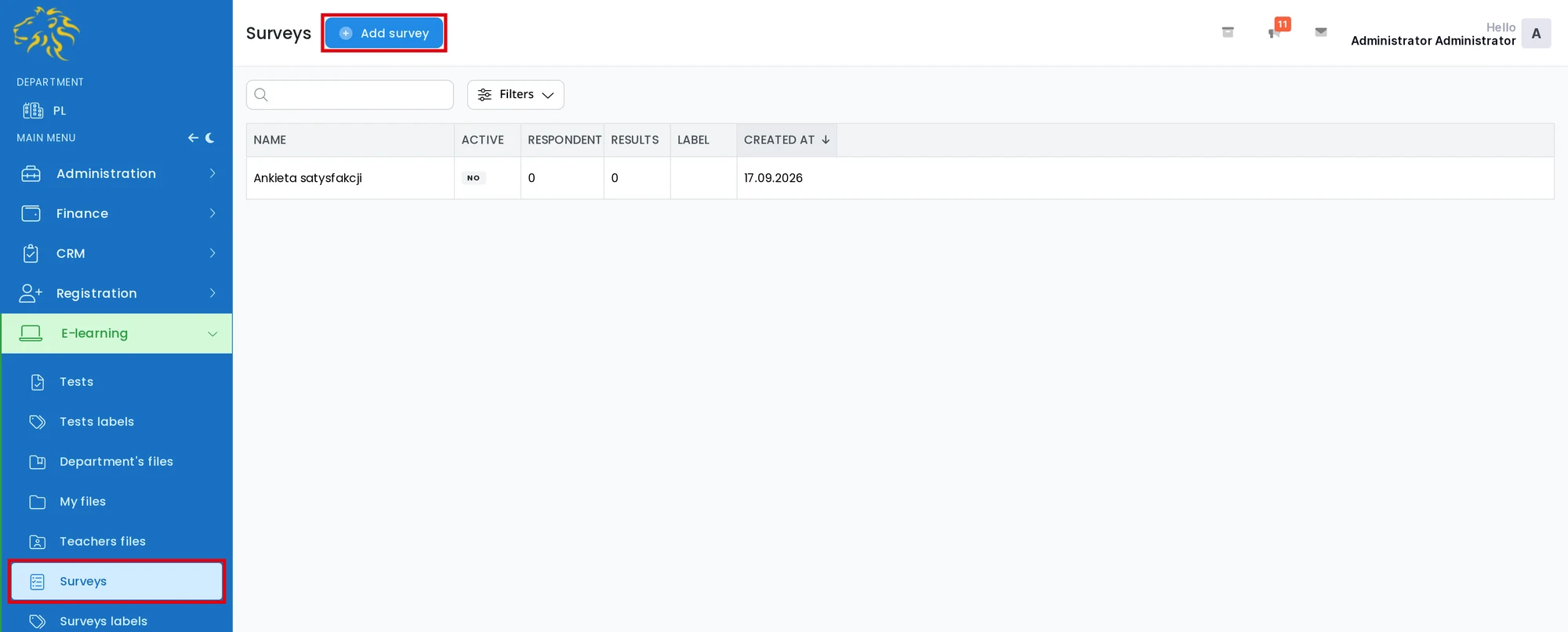
1. Go to the E-learning module and then select a Surveys tab
2. Click on the Add your first survey or Add survey button.
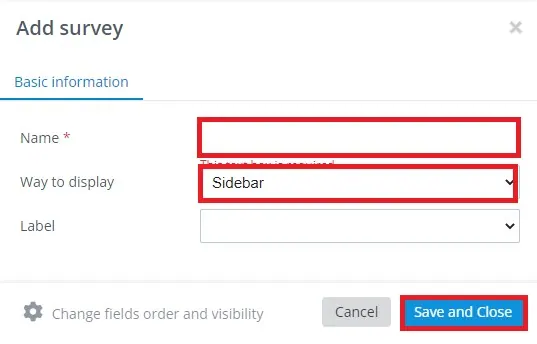
3. In the next step, in the Add Survey window, enter the name and display method:
- Sidebar on the home page – the survey will appear on the side of the Main page tab of the student and teacher account,
- After log in – the questionnaire will be displayed just after logging into the account or the teacher
You can also assign a label.
4. Click on Save and close.
The first stage of survey creation is completed. The survey is still inactive. Now go to editing questions in the survey. To do so, on the survey page, in the Info tab, click the Edit questions button.

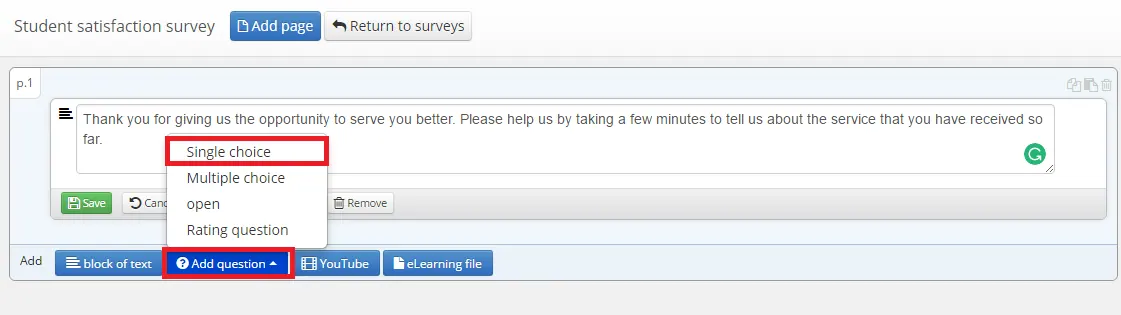
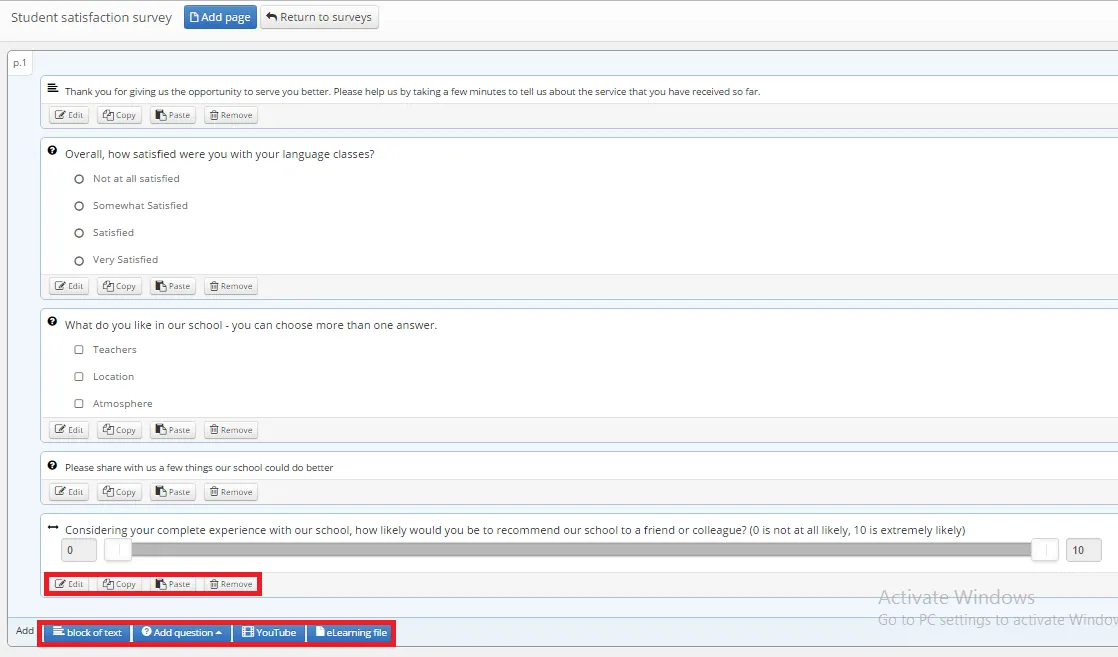
The first blank survey page is displayed, here you can include:
- Block of text – allows you to enter a text field on the survey,
- Add question – allows you to post single choice, multiple choice, open and rating questions, as well as an NPS question (scale 0–10),
- YouTube video – an option for linking to a YouTube video,
- eLearning file – the possibility of placing a file available in the module „E-learning”.
In addition, you can copy, paste and delete survey pages.

How do I add questions to a poll?
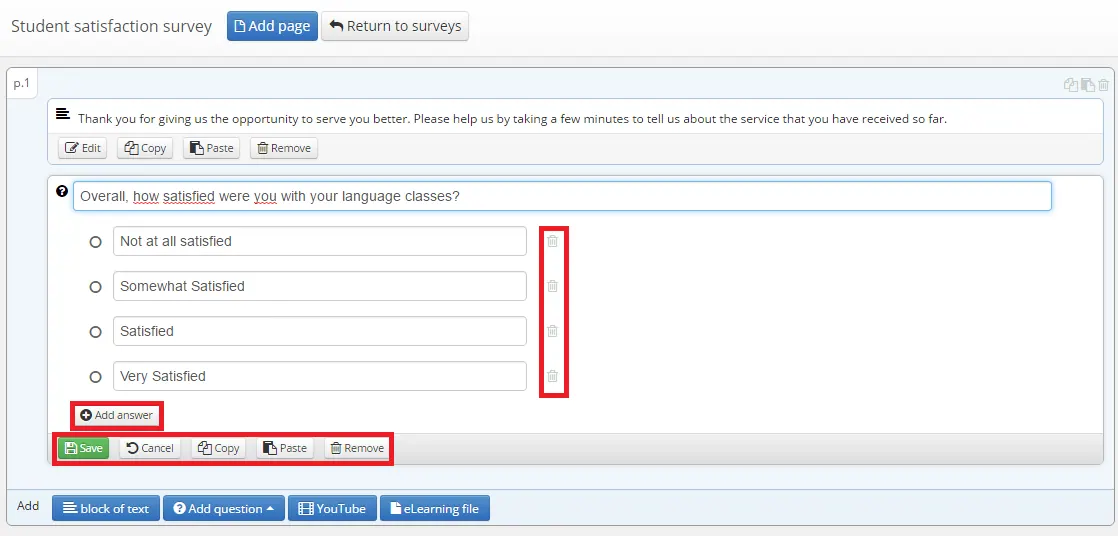
To add a question to the survey, click the „Add question” button. Let’s assume the first question will be a single choice.
Enter the question text and use the Add Reply button to create variants of the response. The incorrectly entered answer can easily be removed using the recycle bin icon. When you have finished editing the question, click the Save button.
The respondent will be able to answer one question.
Another question will give the respondent the opportunity to answer more than one answer. So choose the multiple choice question. You can create this type of question the same way as the single choice question.
Another question – open allows the respondent to give a written assessment.
Another question is the Rating question. It allows the respondent to respond by changing the position of the slider. As the position changes, the rating changes. To edit this type of question, enter its content and set a maximum rating. When finished editing click on „Save” button.
The last one is the NPS question. The respondent answers on a scale from 0 to 10, e.g. to the question "Would you recommend our school to a friend?". In the results, the system splits the answers into Detractors (0–6), Passives (7–8) and Promoters (9–10) and calculates the NPS score.
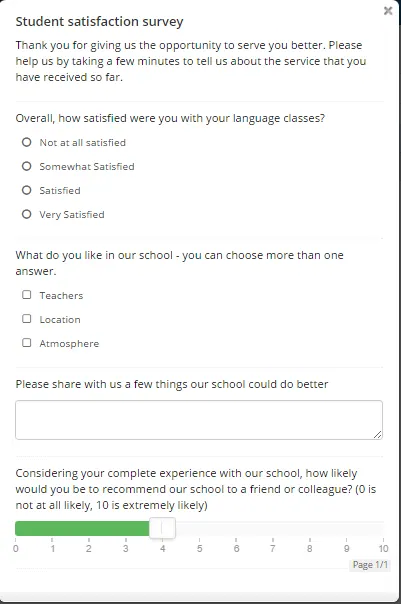
Done, the survey was built using the available question types. You can check out the preview of the finished survey.
Where can I find the survey settings?#
In the Surveys tab, click the survey on the list – its page opens with two tabs:
- Info – the survey status (Active/Inactive), the Send notifications, Share, Edit questions, Preview and Activate/Deactivate buttons, the number of questions and responses, the list of questions and the people and groups the survey is shared with,
- Results – the respondents' answers.
How do I activate the survey?#
A new survey is inactive. On the survey page, in the Info tab, click the Activate button. While the survey is active, respondents can complete it. To end the survey, click Deactivate.

How do I share the survey?#
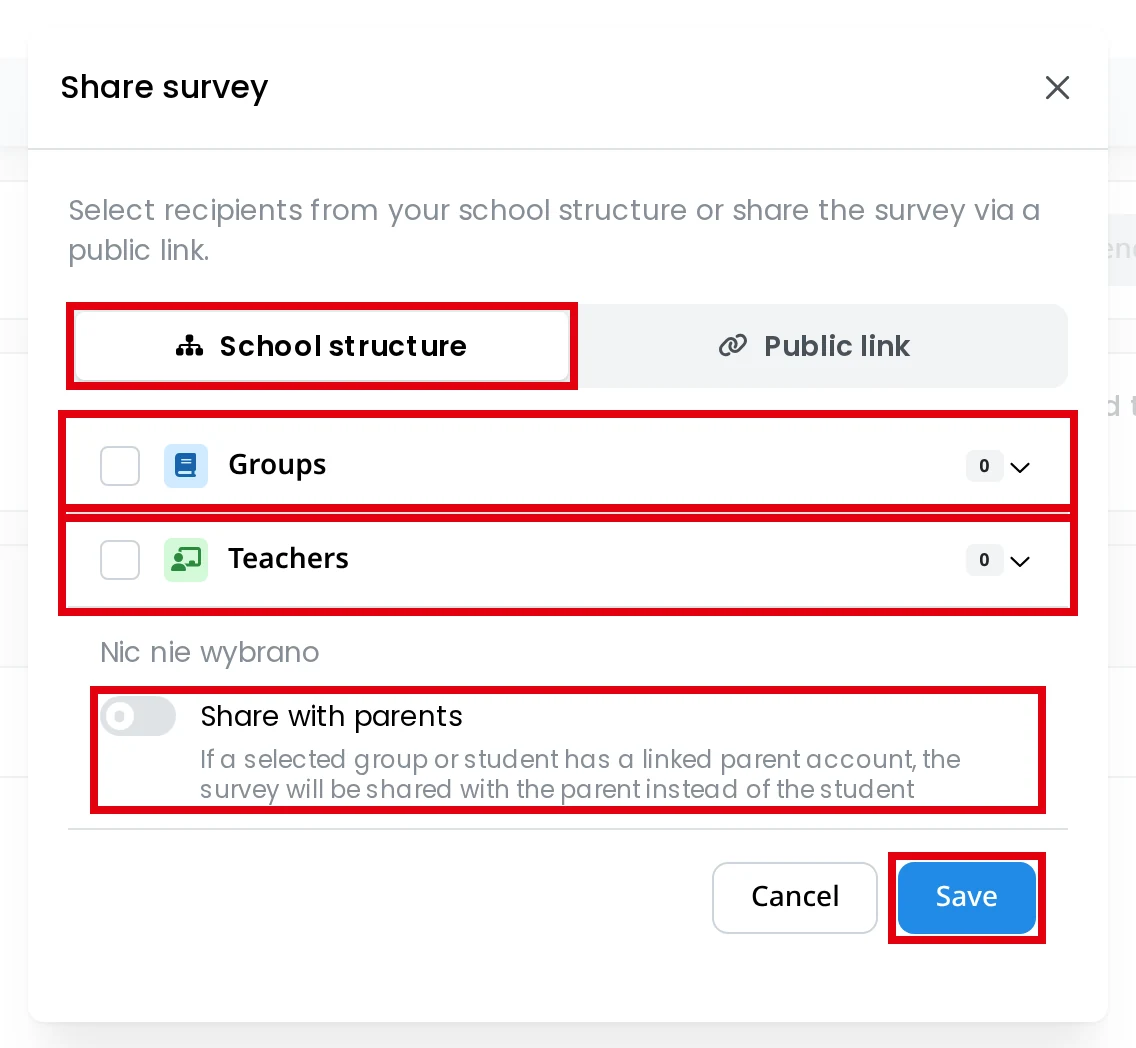
- On the survey page, in the Info tab, click the Share button – the Share survey window opens.
- In the School structure tab, select groups (the Groups section) and/or teachers (the Teachers section). The survey goes to the students of the selected groups.
- Optionally, turn on Share with parents – if a student in a selected group has a parent account, the survey goes to the parent instead of the student.
- Click Save.
Done! You will see the people and groups the survey is shared with in the Info tab, in the Shared to section.
Do you have several departments? If the "Sharing surveys between departments" option is enabled in "Superadministrator" → "Settings", the "Share survey" window lists groups from all departments you have access to – not only from the department selected in the header. Shares with groups from departments you cannot see stay unchanged when you click "Save". Without this option, the list shows only the groups of the department selected in the header. More about department settings: Superadministrator.
How do I remind people who have not completed the survey?#
When the survey is active, click Send notifications in the Info tab. The system asks whether to notify only the users who have not yet completed the survey – confirm. The button changes to Planned to be sent and, once sent, to Notifications sent. The button is disabled while the survey is inactive.
How do I share the survey outside the platform (link or QR code)?#
You can also share the survey with people who have no account, e.g. on the school website or on a poster:
- Click Share and, in the Share survey window, select the Public link tab.
- Copy the address from the Survey address field with the Copy button, or click Open preview to see what the survey looks like.
- To get a QR code, click QR code and, in the Survey QR code window, choose Download PNG or Print.
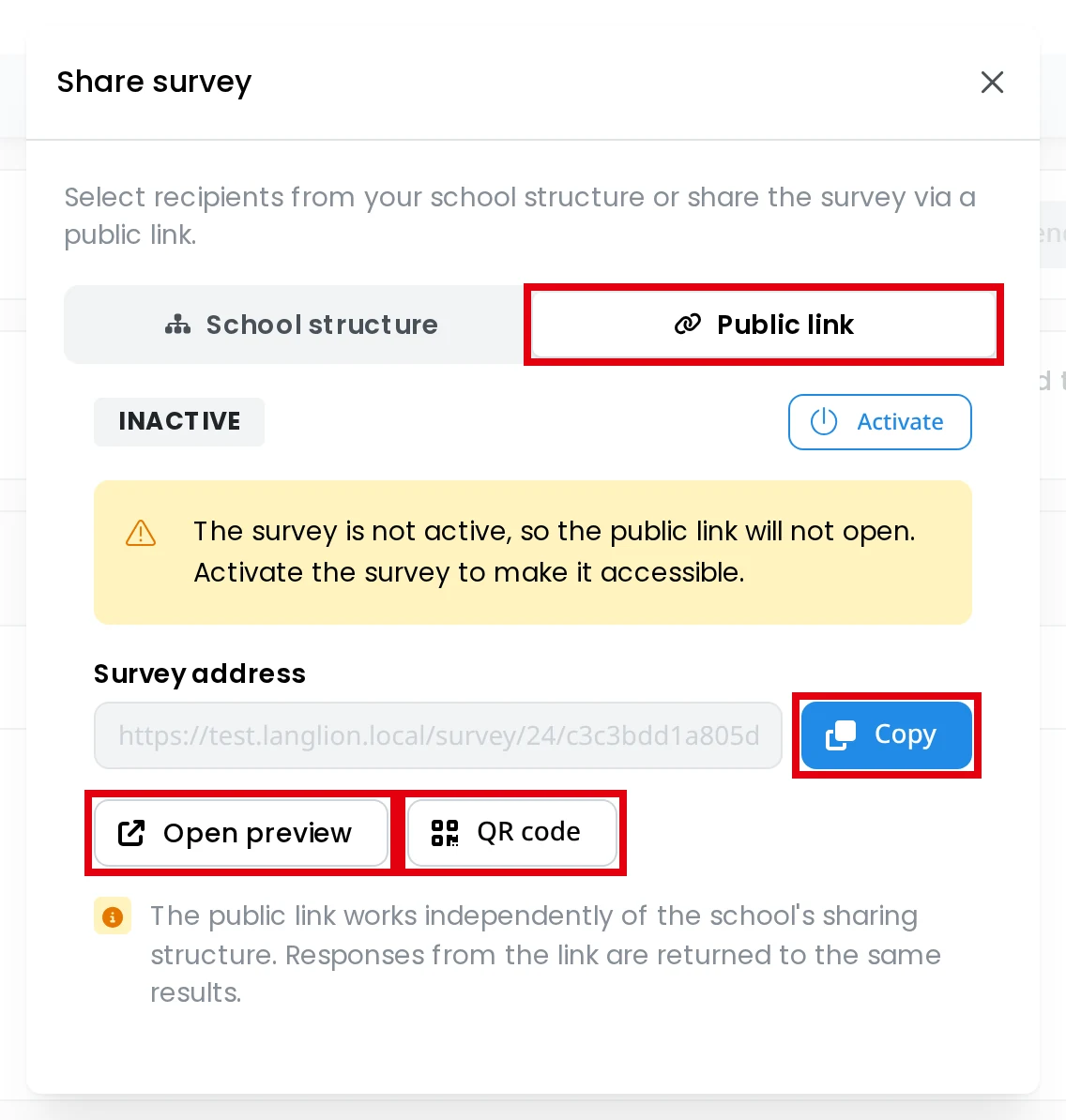
The link opens only while the survey is active. Responses from the link go to the same results as responses from students and teachers.
How do I copy a survey?#
Do you want to create several similar or identical surveys for different users? Copy an existing survey:
- Open the survey you want to copy.
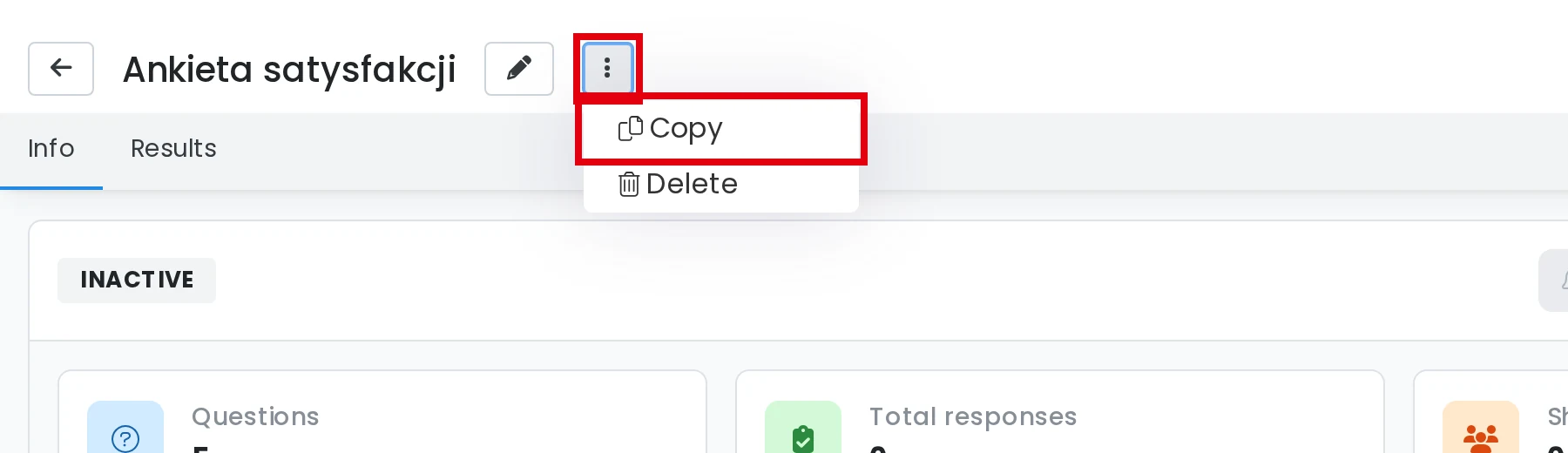
- Click the More menu (three dots) in the survey header and choose Copy.
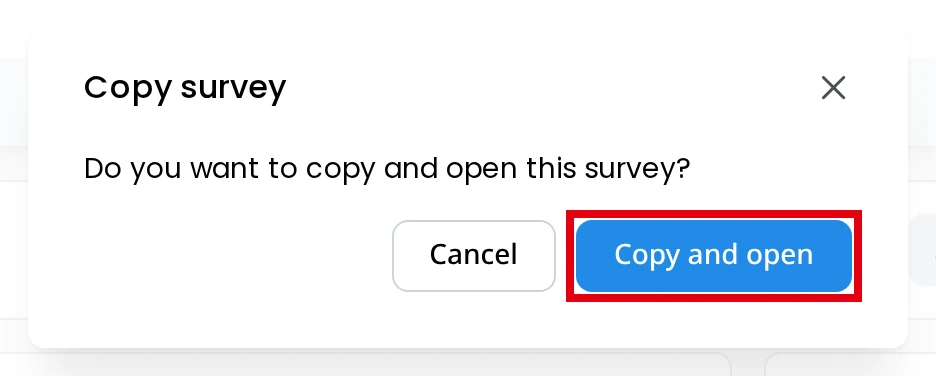
- In the Copy survey window, click Copy and open.
Done! The copy of the survey opens, and you can change it and share it with other people.
How do I check the survey results?#
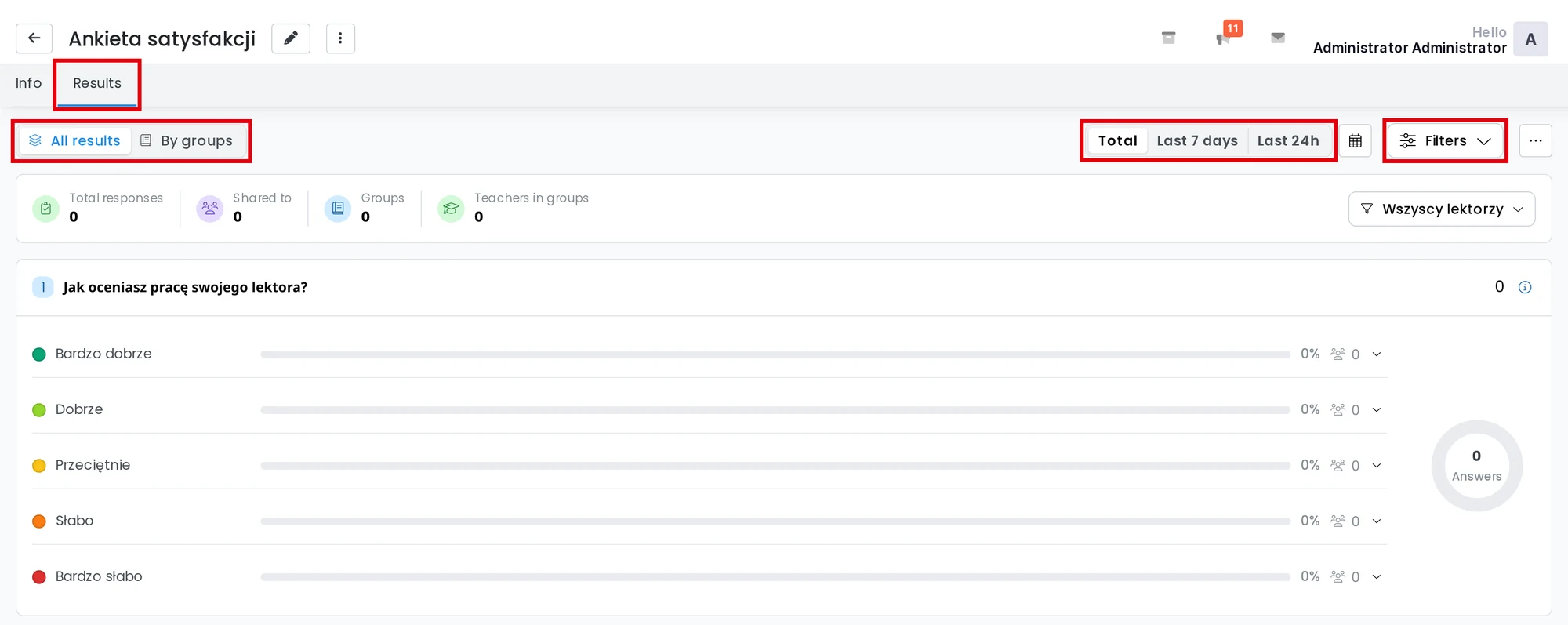
Open the survey and go to the Results tab. Here you can:
- choose the time range: Total, Last 7 days, Last 24h or your own date range (with hours),
- click Filters to see answers only from selected groups, teachers or companies,
- switch between the All results and By groups views (comparison of groups),
- in the … menu, choose Export to XLS to download the results to a spreadsheet.
Answers to closed, rating and NPS questions are presented graphically, and answers to open questions are shown as the respondent wrote them. The number of responses and the number of people the survey is shared with are shown in the Info tab.
The Clear answers option in the … menu deletes all answers in the survey. This cannot be undone – if you may need the results, use Export to XLS first.