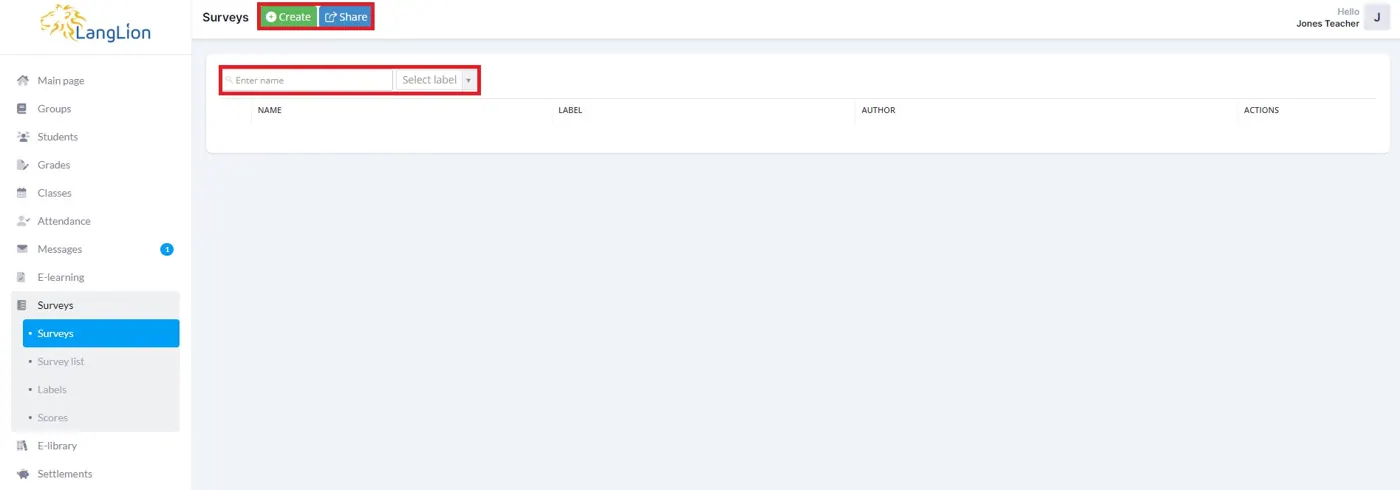
This tab displays all surveys shared by the administrator (completed and those that need to be completed). You can create and assign surveys to students and check the results of surveys you have created. You can also search for surveys using the built-in search engine. If the survey has a label assigned, you can search for it according to this criterion.
Creating surveys and the Labels and Scores tabs are available if teacher surveys are turned on for your school – technical support turns them on (support@langlion.com). Otherwise teachers see only the Survey list tab.
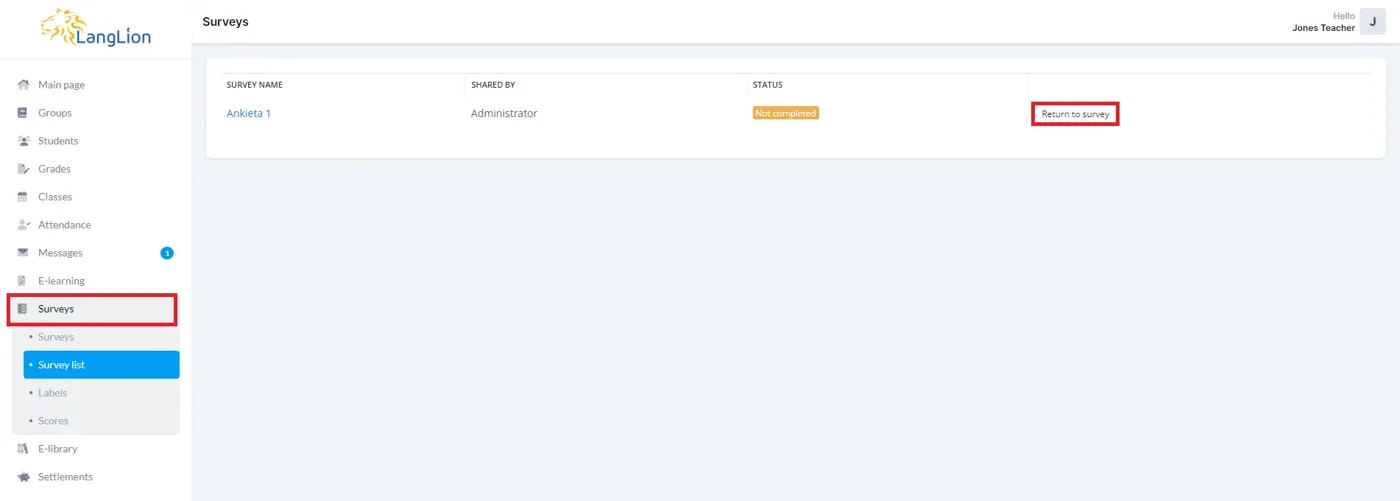
In the Survey list tab, all questionnaires that have been shared with you are available. Each survey is marked with a status. To complete a survey, click its name or the Fill out survey button. If you have already started the survey but not finished it, the button is called Return to survey.
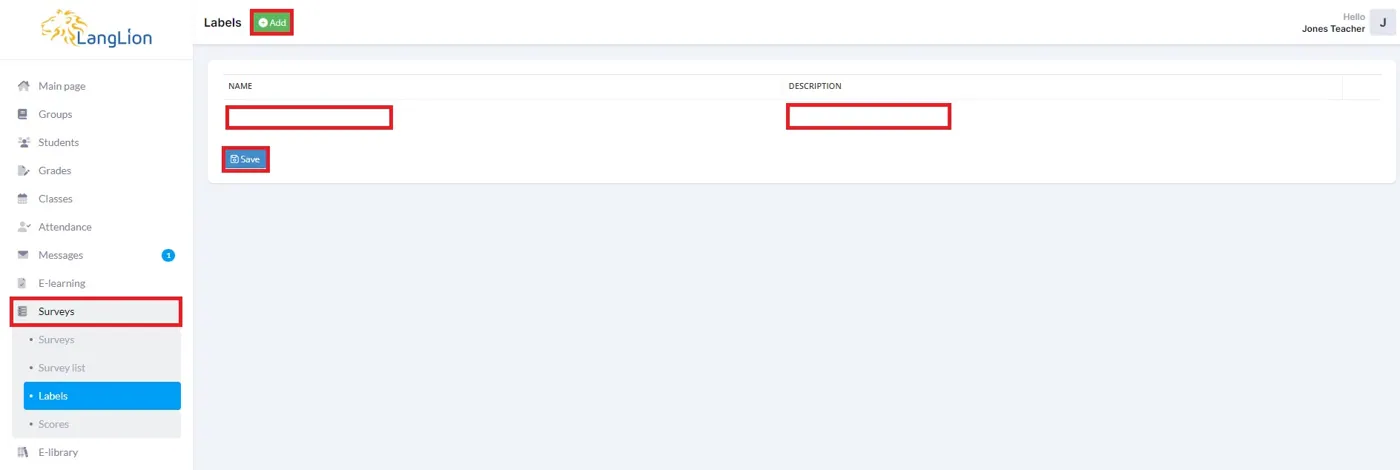
In the Labels tab, you will create labels, which you can then use when creating surveys. Using the Add button, create a list of labels by entering their name and possibly a description.
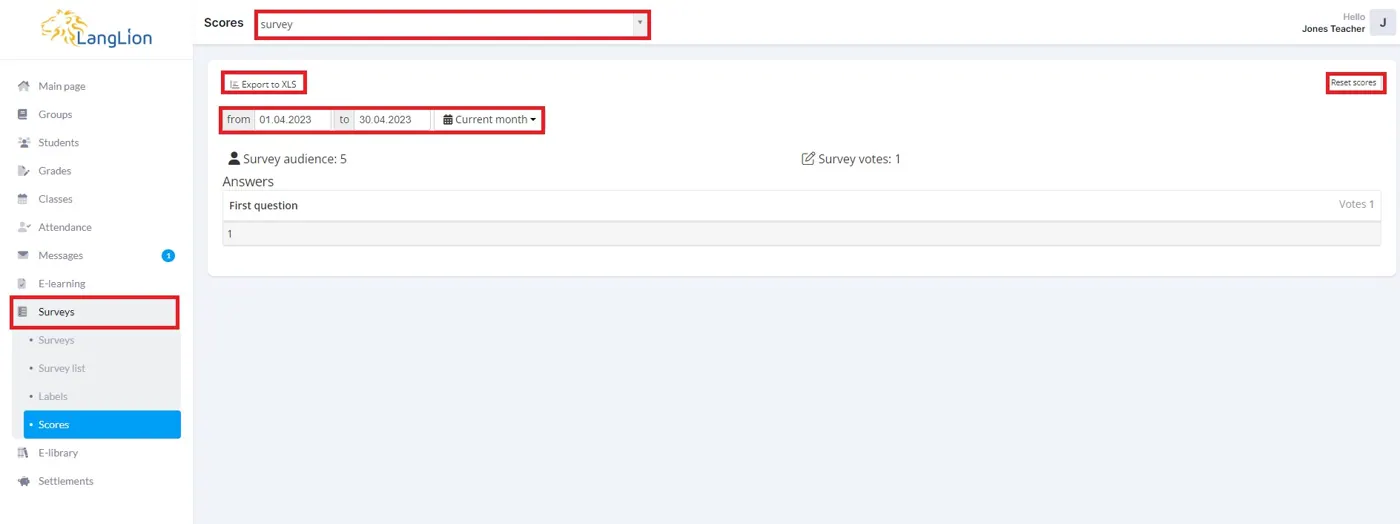
In the Scores tab, results of completed polls that you have created and assigned to students are available.
To view the survey results, first select the poll from the drop-down list.