
In the Attendance tab, you can monitor the attendance of your students.
The tab is divided into two views.
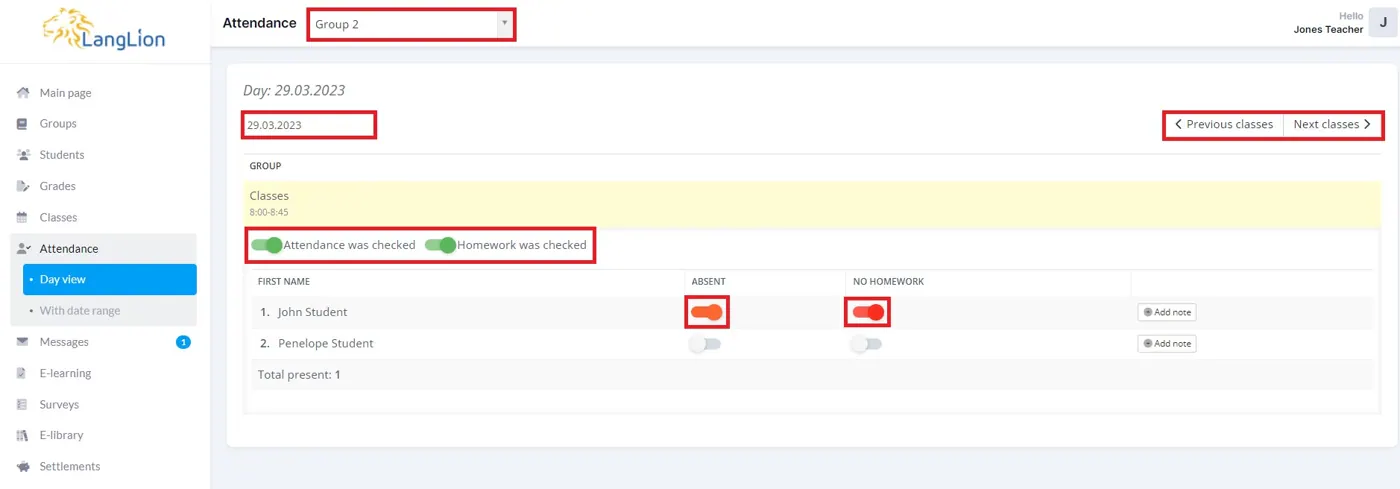
Day view, where you have the option to view and enter class attendance on a specific day. Select a group and a day. Check the Attendance was checked option and if any student was absent, check it next to his name. Do the same for the homework.
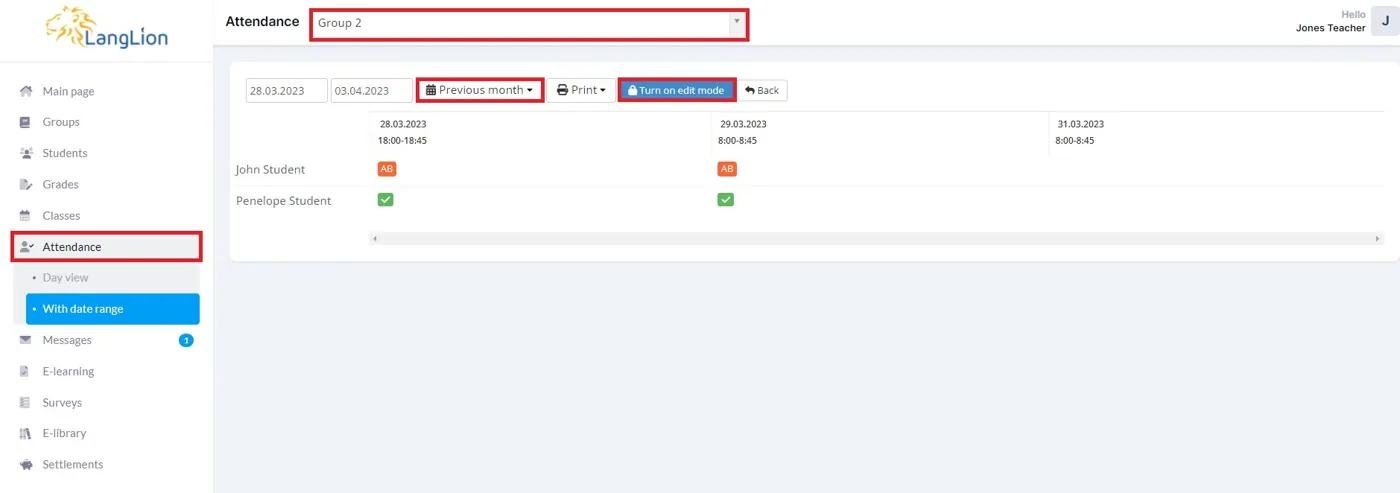
With date range, where you can display the attendance of students in the selected time range. Additionally, you can change the entered attendance of students. To do this, use the Turn on edit mode option.
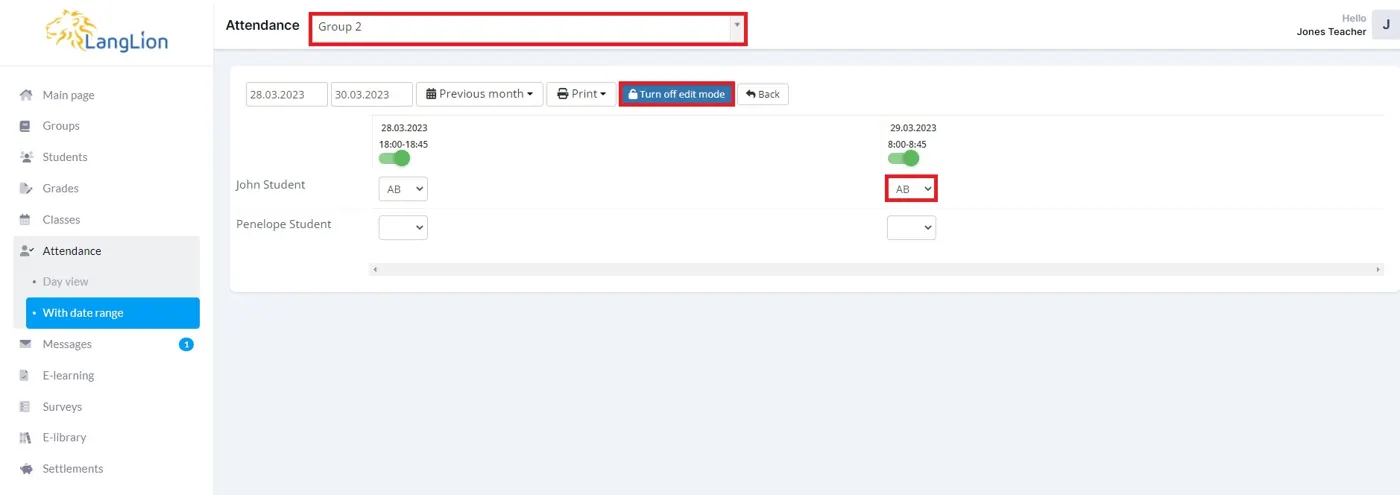
Make changes and click the Turn off edit mode button.
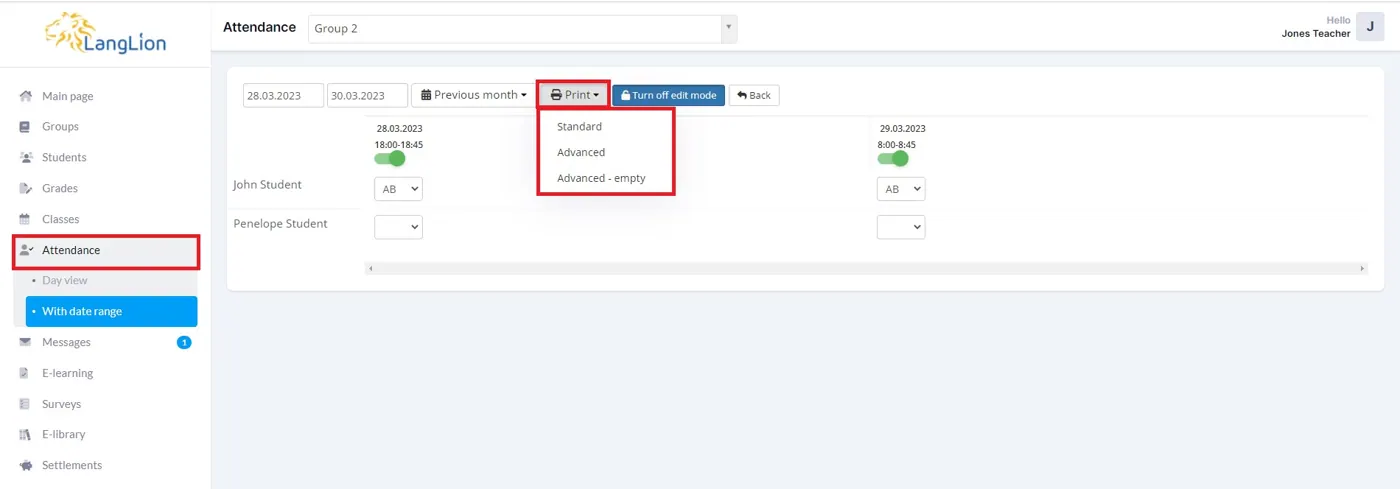
If you want to print the attendance statement, click on the „Print” button, and select the type of statement:
- Standard – contains information about the group name, report date range, student’s name, date and time of classes,
- Advanced – additionally includes information such as company data, teacher’s name, language, level, lesson length, number of classes,
- Advanced – empty – the same as the previous one, but without presence statuses.
The downloaded PDF file is named after the group and the selected date range (YYYY-MM-DD), e.g. for the group "IND - Jan Kowalski" and October 2026: "IND_Jan_Kowalski_2026-10-01-2026-10-31.pdf". Accented letters are replaced with plain ones, spaces and characters not allowed in file names (/ \ : * ? " < > |) with "_", and hyphens in the group name are left out. A very long group name is shortened to 150 characters. This way you do not have to rename the file when, for example, you send a company a monthly attendance summary for an individual group.