
The company account allows the company manager to supervise the progress of his employees and check their presence, as well as download reports regarding courses.
Main page
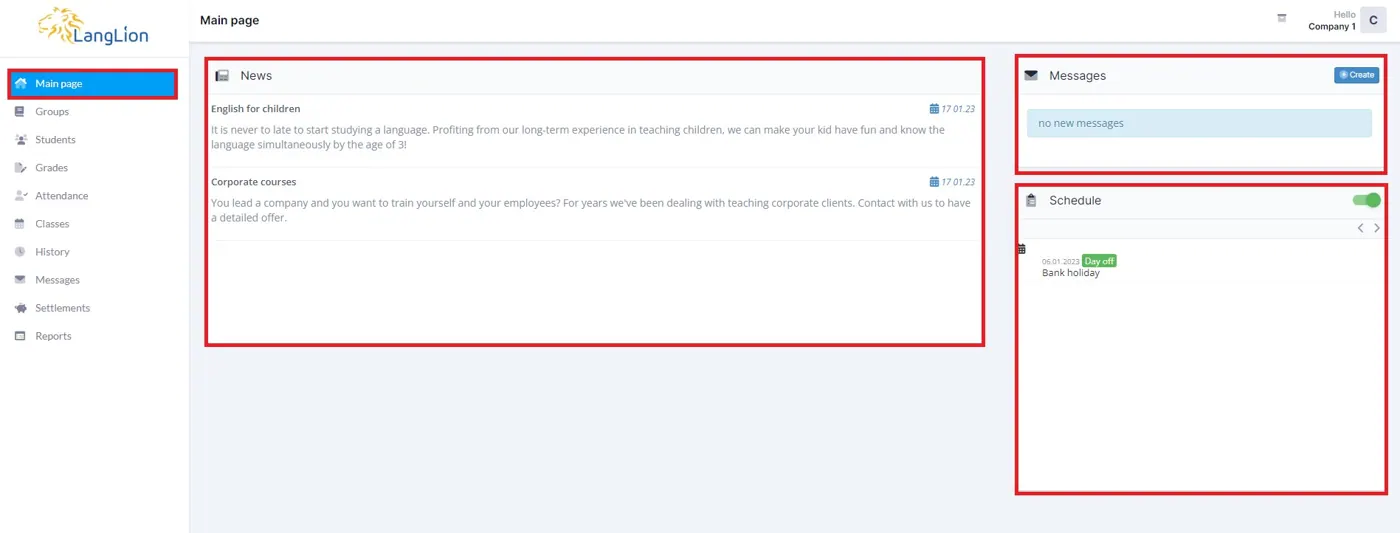
The News window contains information posted by the administrator. Information about the school competitions, organizational announcement, etc. are displayed here.
The Messages window displays system messages received from other users. With the New message button, you can send messages within the LangLion Platform.
The Schedule window contains information on holidays and days off. Schedule entries are added by the school administrator.
Browse subsequent pages of the schedule using the „<„, „>” buttons. You can also view past events in the schedule after enabling the Show past events option.
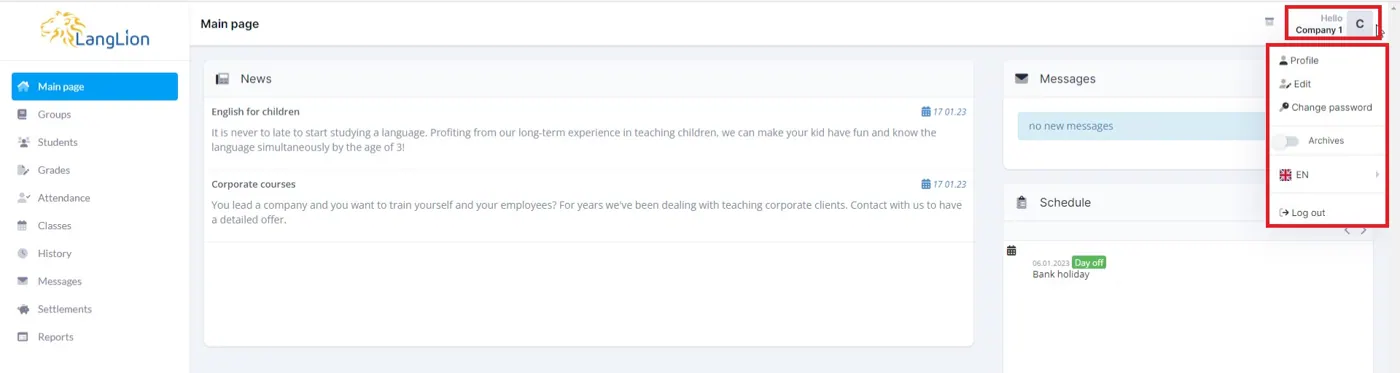
In the right upper corner of the page, you will find a menu bar. Here, you can change the language of the interface, see your corporate profile details, edit those details (email, phone number, consents to process data), change the password to the account and also see the login history.
Here you can also find the „Log out” function.
Groups
The Groups tab contains a list of groups assigned to the company and students participating in the company course.
In this tab, there is an option to print access data to student accounts.
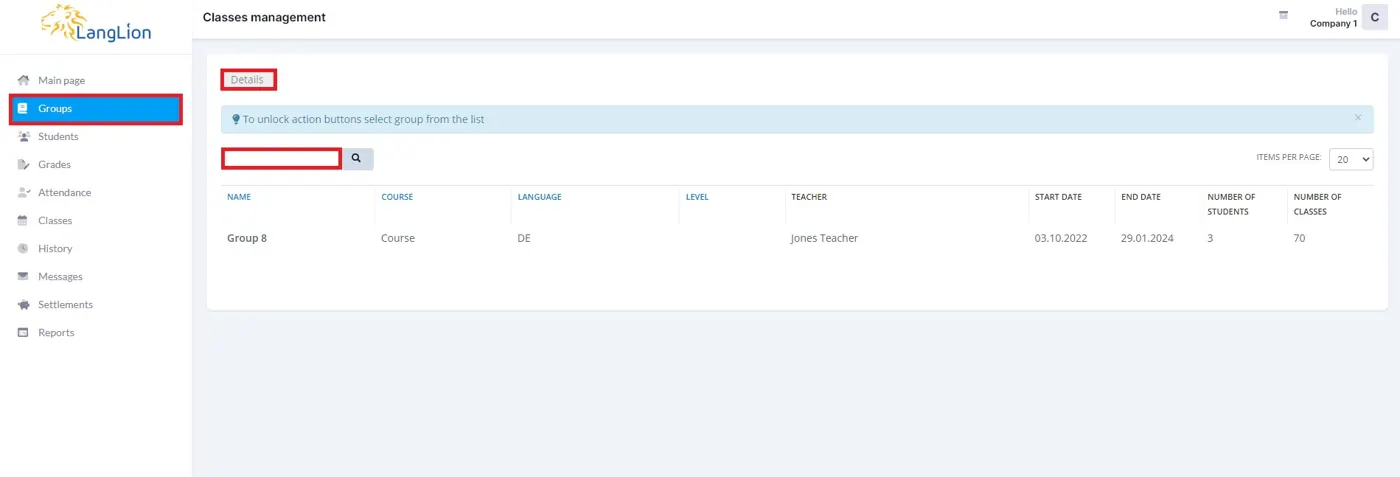
Select a group on the list and click on the Details button
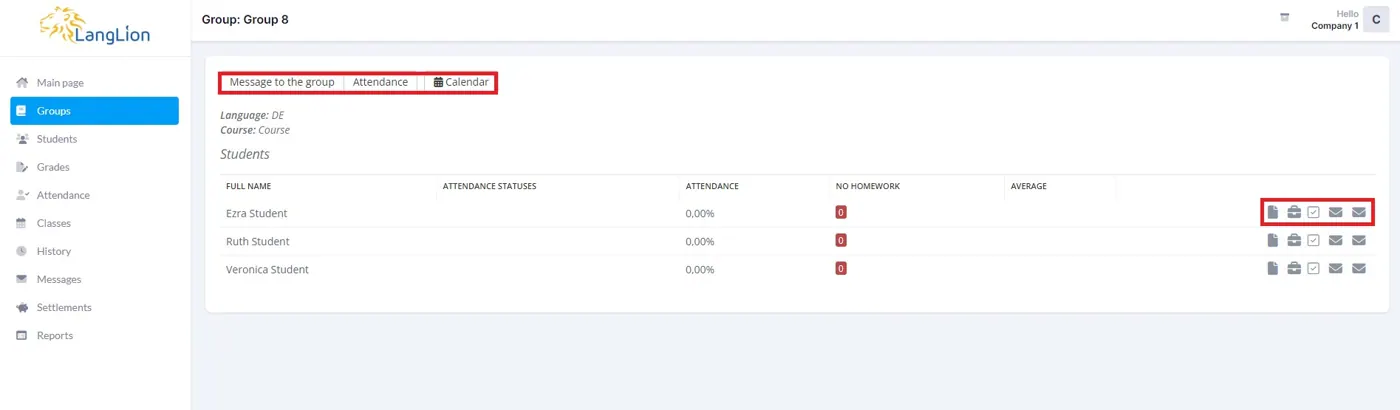
This tab displays detailed info on the selected group, contact details of the students, their attendance statuses, percentage attendance, the average grade calculated from the received grades.
In addition, the manager, using a set of icons for each student can:
- see the grades
- check the employee’s history
- check the attendance
- send a message to an employee
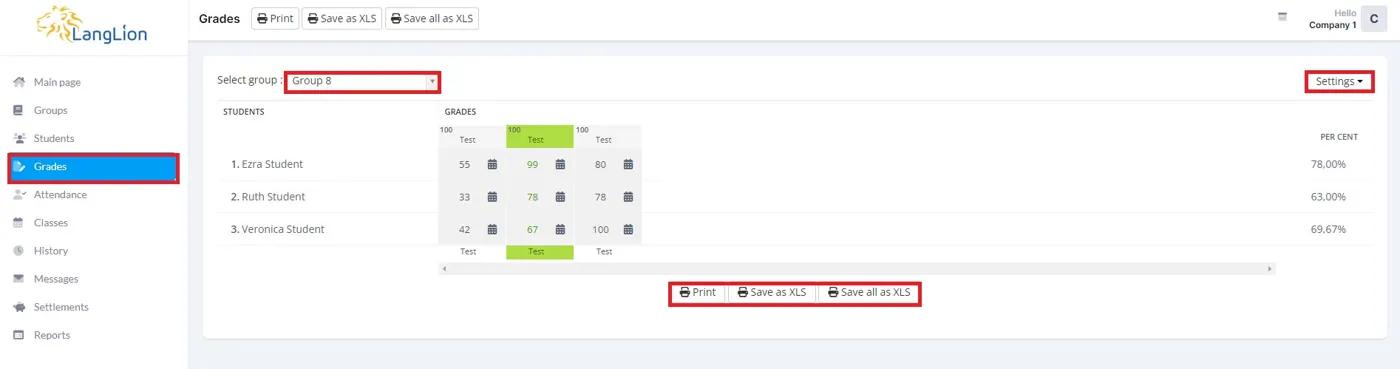
In the Grades tab, after selecting the right group, the manager has the opportunity to check the students’ evaluation.
It is possible to print the grades and also export them to a spreadsheet. You can export grades of a selected group or all company groups.
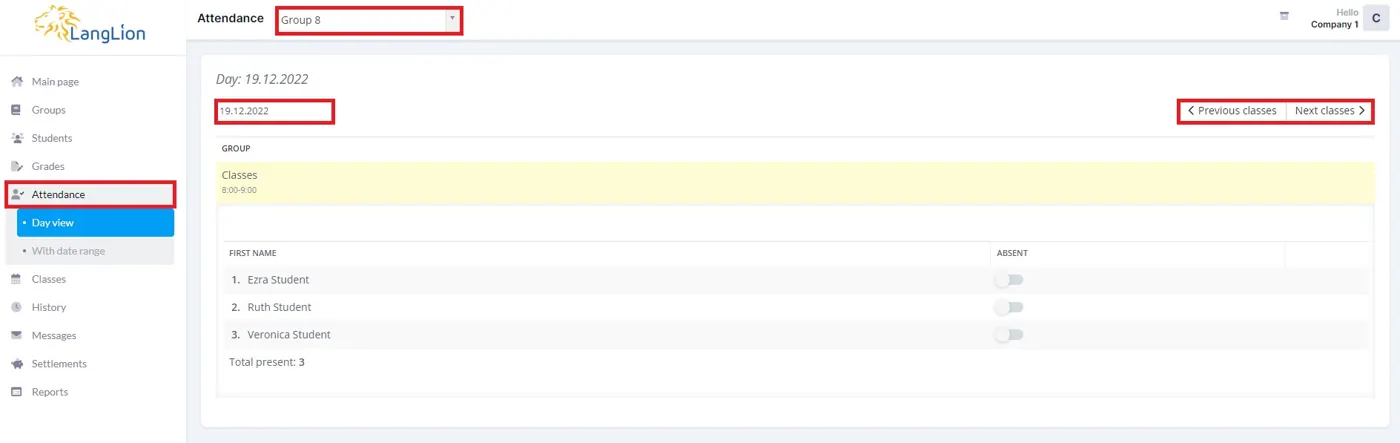
Two tabs in the Attendance module provide insight into the attendance of students. The Day view tab allows you to check how many students were present on a specific day and if everyone had their homework done.
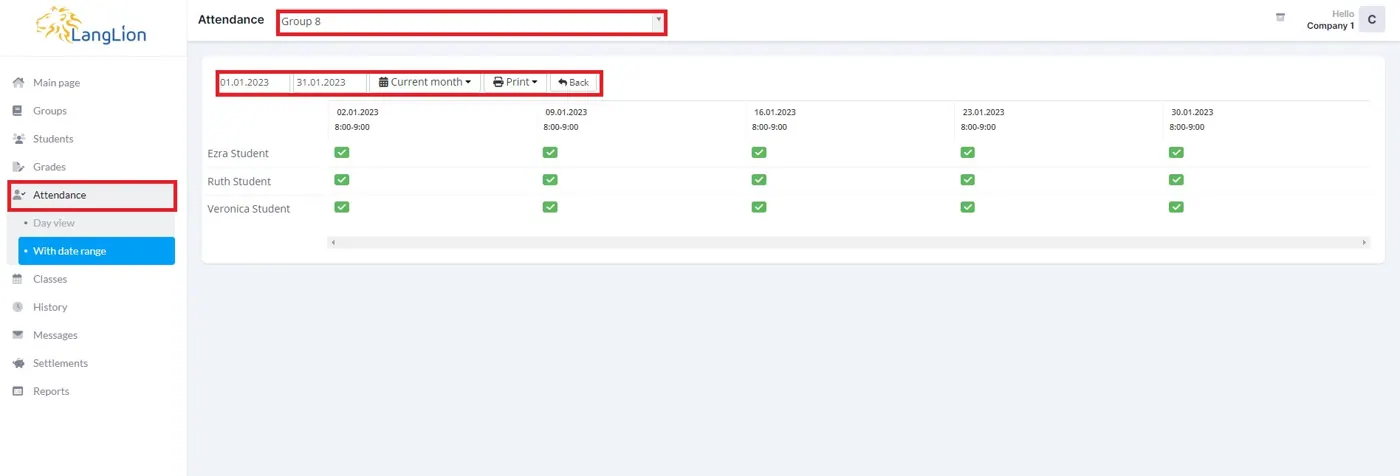
The With date range tab gives you the opportunity to view the attendance of the company’s courses for the selected period of time. The attendance reports can also be printed by the manager.
Classes module consists of two tabs. First one is Calendar.
Use the buttons to navigate:
set the view of the week containing the current day – just click on the Today button,
- to see the next or previous week use the „<„, „>” buttons,
- to display a certain day choose it clicking on the calendar icon,
- to print the calendar click on the Print button,
- to zoom in and out use the set of 1x, 2x and 3x buttons
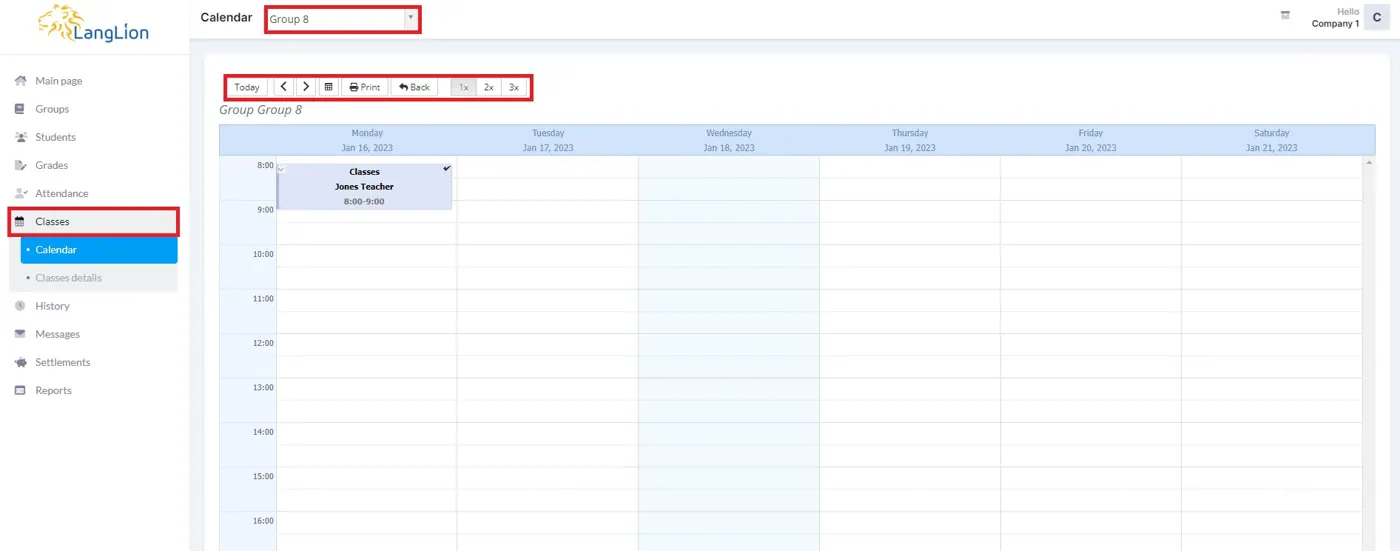
Each class block contains information about the classroom and the teacher. Blocks of classes are equipped with a menu. To open the menu, click on the down arrow icon in the upper left corner of the block.
The menu contains the option See details.
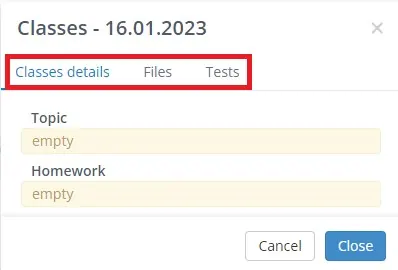
After selecting this option, a window will be displayed containing the tabs: Details of classes, Files and Tests. These tabs display information entered by the teacher – topic of classes, homework, added files, tests.
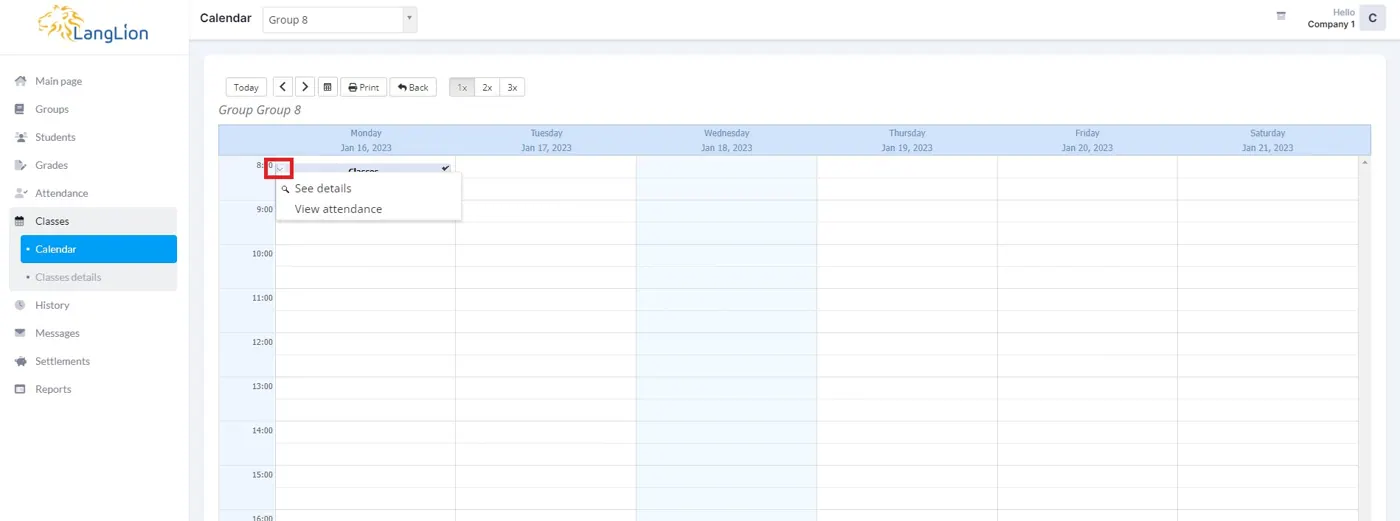
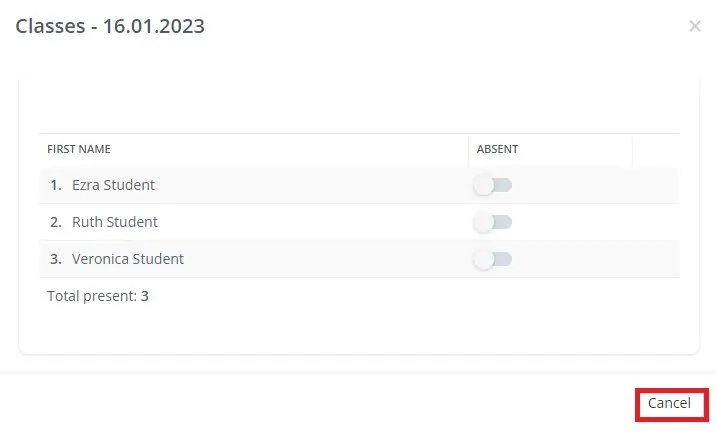
When you choose the option View attendance the system will display the list of students and attendance statuses.
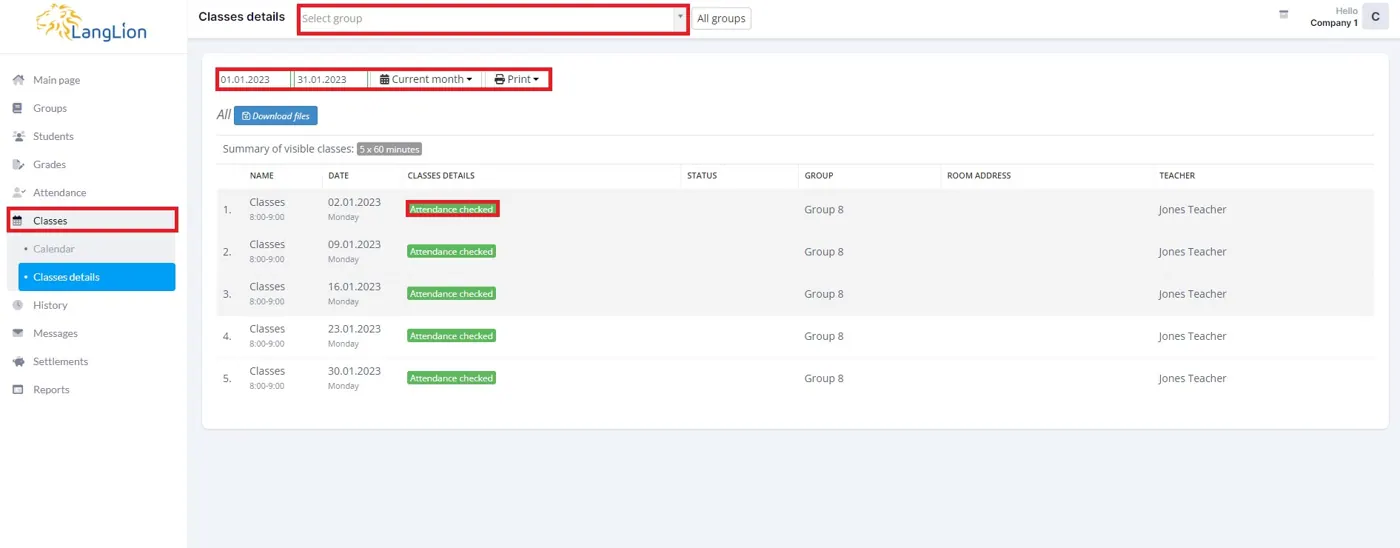
In the Classes details tab, the company manager has the opportunity to see the list of classes generated in company groups. You can filter the list according to a chosen date range:
- Date range for group (all classes will be displayed from the start date to the end date of the group)
- Current month
- Previous month,
- Next month,
- Previous week
- Current week
- Current year (displaying lessons during the calendar year).
It is also possible to display classes in a non-standard time interval. Set up a date range by selecting a start and end date in the calendar fields.
With the help of the Print button (PDF or XLS option), the manager can download the list of classes from the period set in the filters (it will include the classes details).
You can see if the teacher added class details and checked the attendance. There will be flags displayed next to the lesson: Filled-in and Attendance checked.
By clicking on the Download files button you’re able to download all the files that were attached to the lessons.
The Messages tab allows the manager to communicate with other users of the LangLion Platform – students (employees), teachers conducting classes in the company’s groups, school administration. This tab is a mailbox and it consists of these folders:
- Received messages
- Sent
- Trash
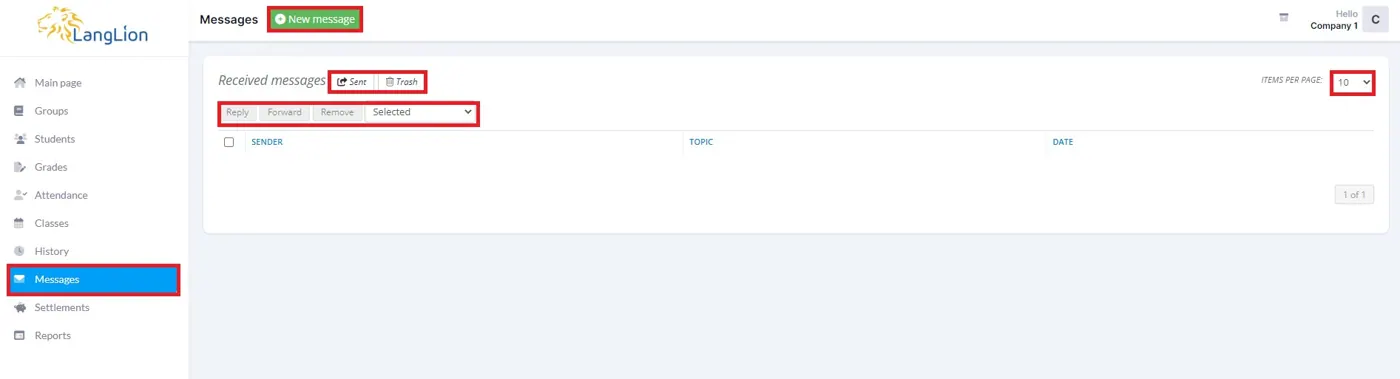
Here’s the list of the mailbox functions:
- Reply – the manager has the ability to send a reply message to the sender. The message creation window will be displayed, in which the recipient will already be selected from the address book.
- Forward – option to send the received message to another user or users,
- Remove – a function that allows you to move messages to the trash.
It is also possible to transfer more messages to the trash. Just select a few messages (checkbox for each message) and click on the „Selected” function and then Remove.
In addition, the manager has the ability to adjust the number of messages he wants to display. The available quantities are 10, 20 and 50 messages.
By using the Print button it is possible to print a message.
Creating a message
To create a message, click on the New message button.
The message creation window is displayed. To send a message to the correct user, click on the Address book button. The recipient should be selected by clicking the appropriate folder (Administration, Teachers, Groups) and then marking the user’s checkbox.
To close the address book, click on the X or Close button.
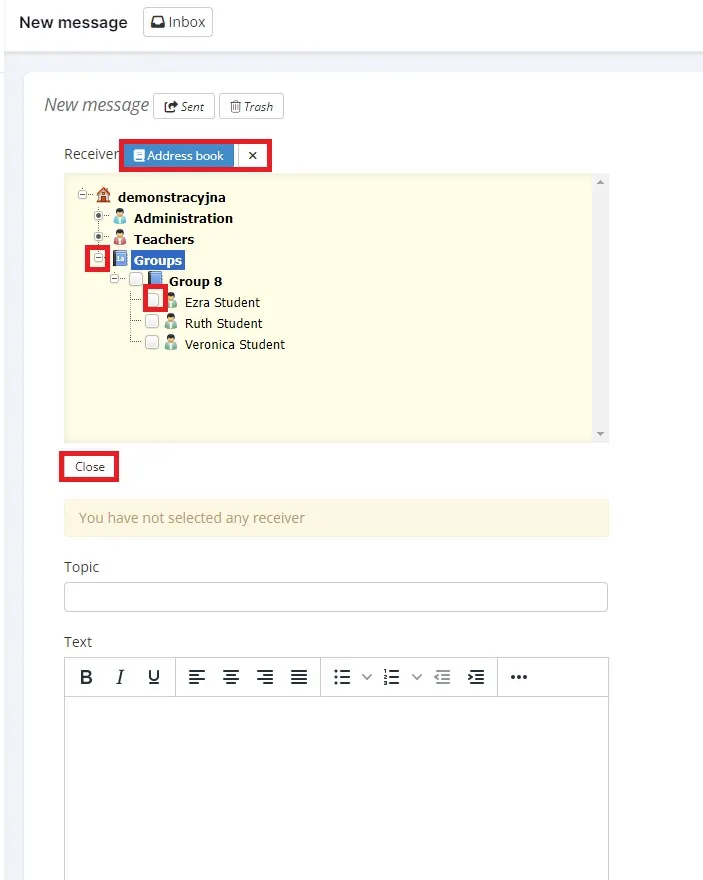
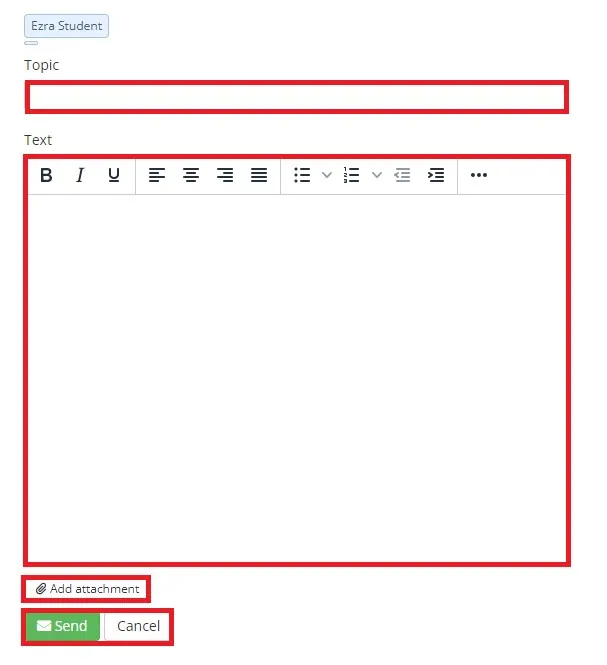
In the Topic field, enter the subject of the message. Underneath there is a text editor that allows you to edit the content of the message.
Using the Add attachment button, you can attach a file to the message. After clicking the button, the exploration window will appear, thanks to which it will be possible to find the right file and attach it to the message. In order to send a message, click Send. There is no option to create and save a draft so if you cancel the process of creating the message, you need to start again.
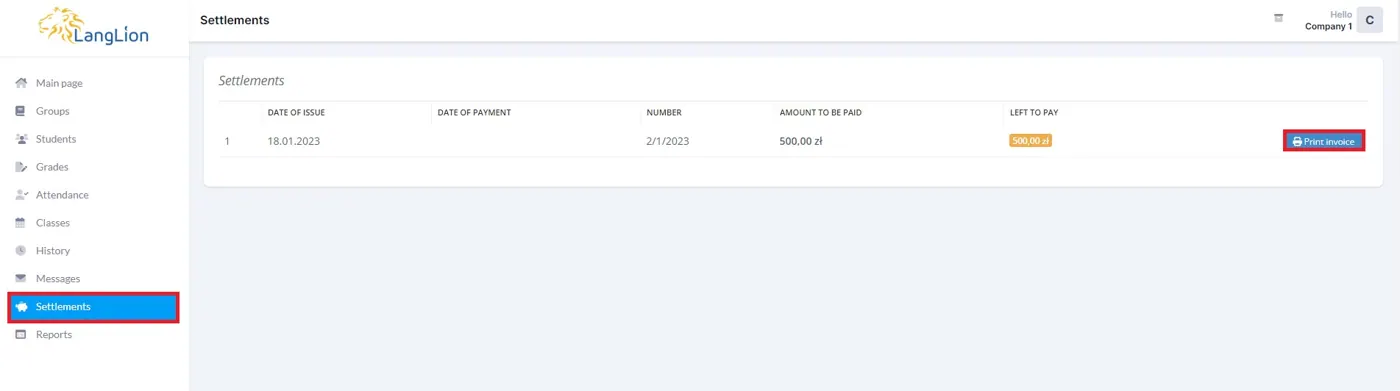
In the Settlements tab, all settlements between the school and company are displayed. The manager can view the invoices issued by the school and can download them. The invoice printout also contains an attachment with information about the groups and cost of its classes.
The Reports tab contains reports on company groups.
In order to select the appropriate report, click on the Select report button.
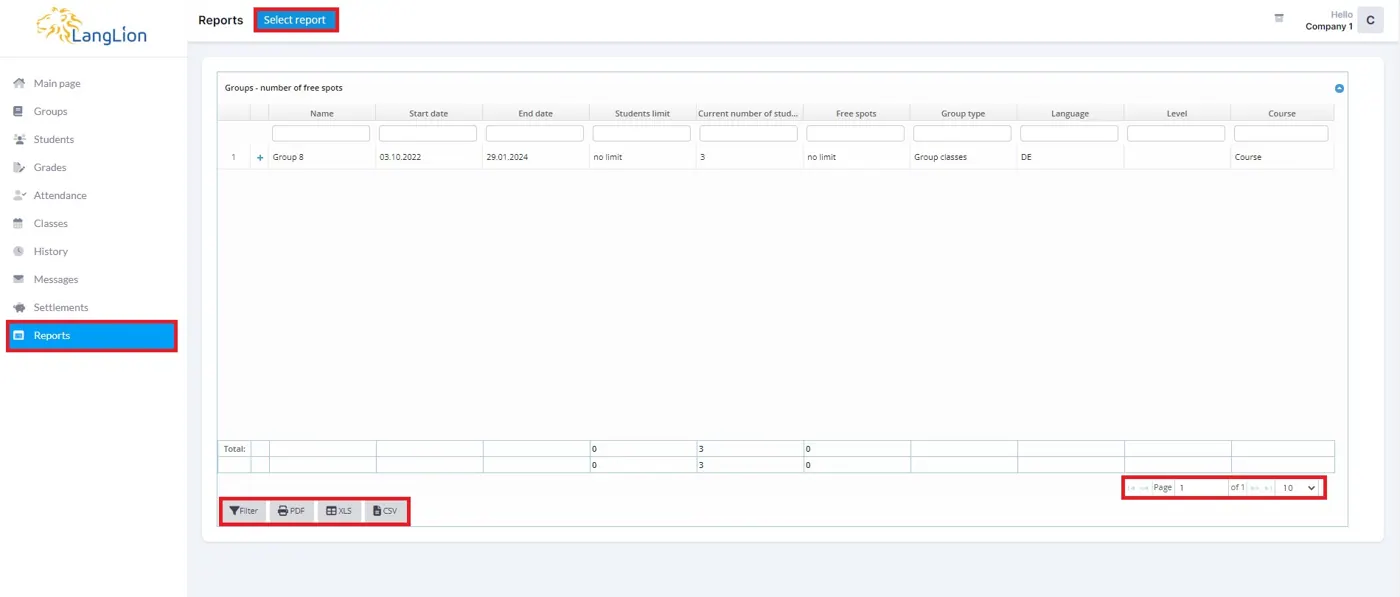
The following types of reports are available:
- Groups – attendance – a report filtered by dates, showing the percentage attendance of company groups, including the number of students in each group
- Groups – number of free spots – thanks to this report it is possible to obtain information on groups, their start and end dates, current numbers of free spots, spots reserved and awaiting, as well as information on language taught and level
- Groups – lesson statuses – a report that displays a compilation of lessons with its statuses. The list shows the number of lessons completed, cancelled, etc.
Each report can be downloaded to an XLS, CSV or PDF file.
- Students – personal information – the possibility of compiling personal data of students,
- Students – attendance – a report, filtered by date, showing the percentage attendance of company group students,
- Students – assignments statuses – this report allows you to prepare a list of students of company groups, divided into statuses – assigned, reservation, awaiting, discharged. The employee contact details are also available on this list.
Below, in the Reports XLS section, you can download: All groups' data (XLS), Attendance report (XLS) and Detailed attendance report (XLS).
Login history and employee list
In the History → Login history menu, you can check the login history of the company account.
If the school has made it available, the menu also shows the Students tab with the list of employees learning at the school.