
If you are a teacher, you can now use the new app available on Android and iOS.
How to start using the application?
Download the app to your device and install it. When you open the application, you will see the login screen. Enter the first part of the website address where you complete the E-gradebook, eg: languageschool.langlion.com.
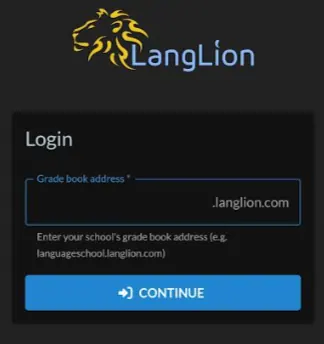
Next, use your access data (login and password) to sign in to the application.
Two interface languages are currently available: Polish and English.
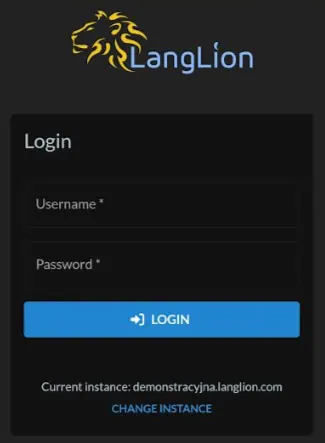
The application menu is available in the upper right corner.
In the menu you will find, among others, the „Change language” and „Logout” options. In the application you can also view and change your profile („Profile”, „Edit profile”) and change your password („Change password”).
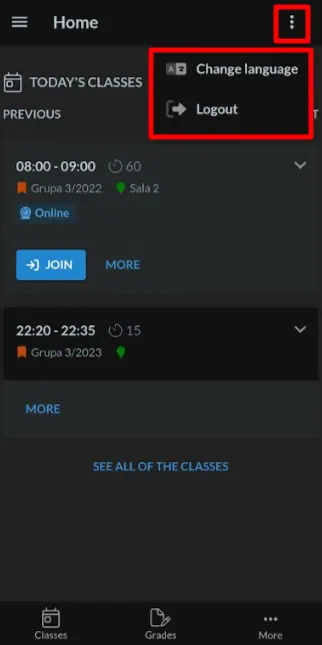
After logging in, the main view in the application is the current day. If the lesson will be online, you can join the class thanks to the „Join” button.
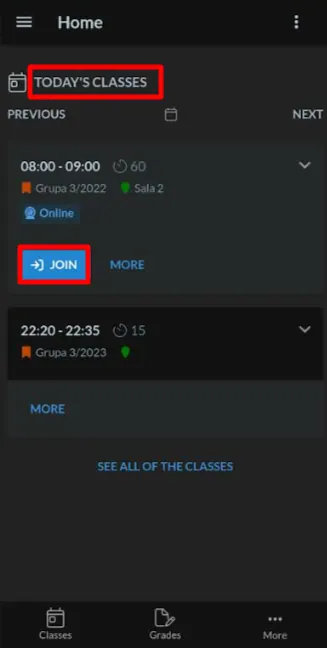
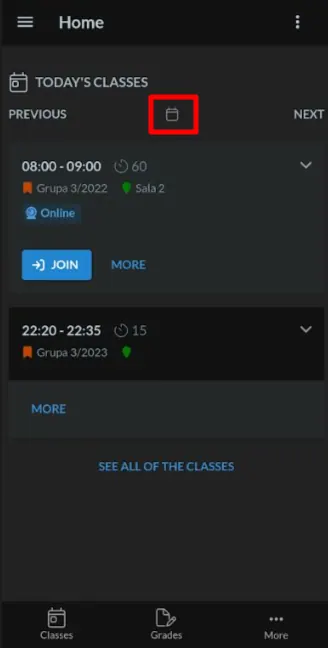
After selecting a list of classes on a relevant day, you can go to the lesson details. From here you will be able to check on attendance, and homework, and add lesson details (for example, subject, homework assignments, etc.).
Click the „More” button to see the lesson details.
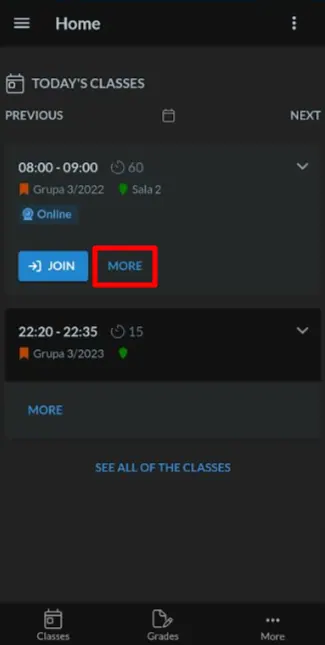
How to enter class details?
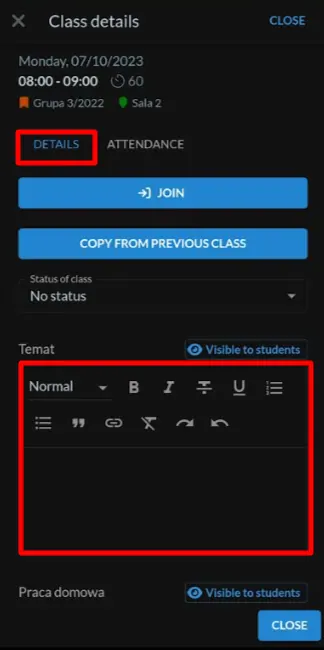
Would you like to add a topic and give another homework? You can do this in the app. After selecting a lesson, go to the „Class Details” tab.
Click on the chosen field and enter the information.
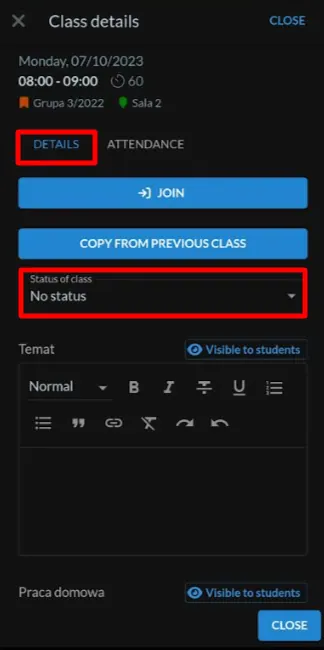
You can also cancel the lesson here. Click the „Status of class” option, and choose the status of the class.
How to check attendance?
The rule is very similar to that used in the E-gradebook.
First, go to the „Attendance” tab.
If you want to indicate that the attendance has been verified and all students were present, you can use the „Attendance checked” slider.
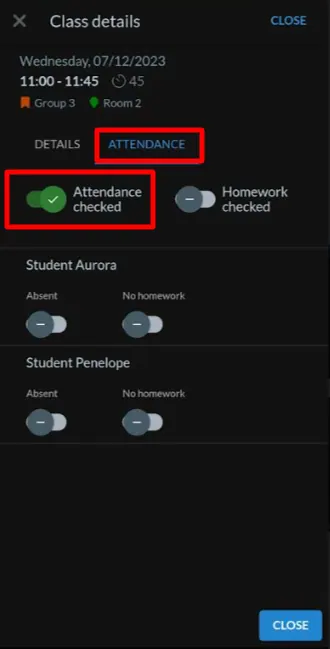
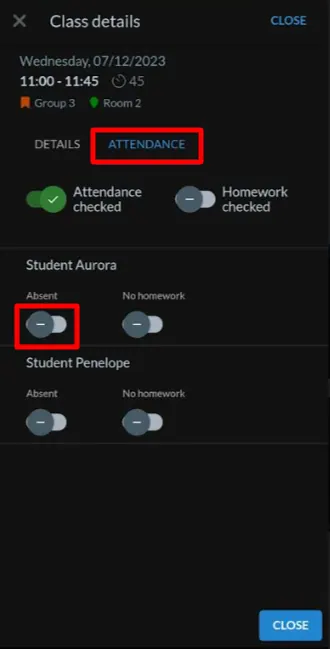
If any of the students were absent, just mark such information under their name.
How to check homework?
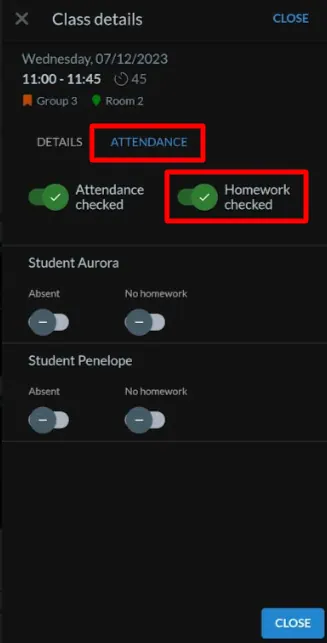
If you want to indicate that the homework has been checked and all is done, use the „Homework checked” slider.
If you want to indicate that the student did not make homework, use the „No homework” slider under his name.
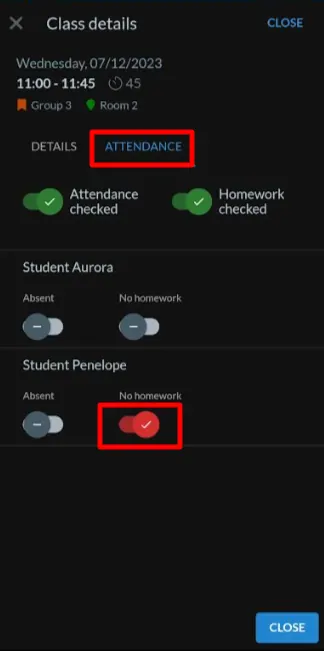
Done. Attendance and homework have been checked, and details of classes completed.
To return to the main class list view, click the „Close” button.
Next to the completed lesson, you can see icons meaning that the attendance and details were entered correctly.
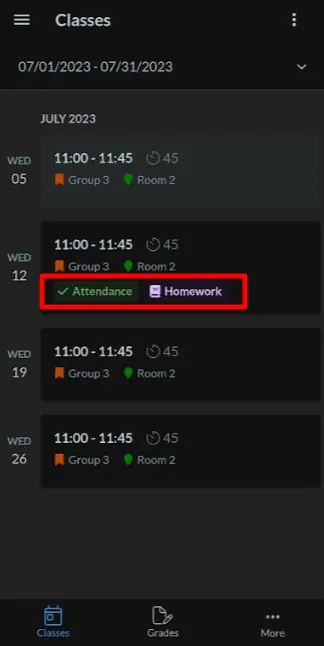
Additionally, you can choose the time period from which you want to display the classes.
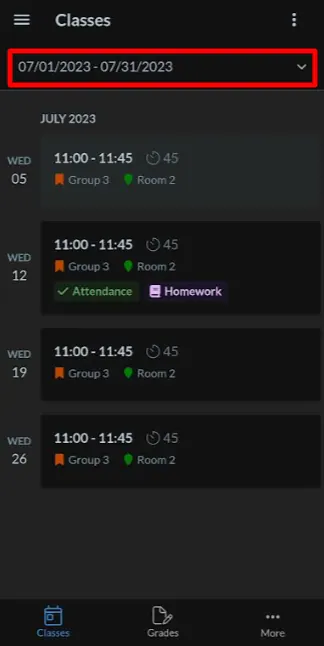
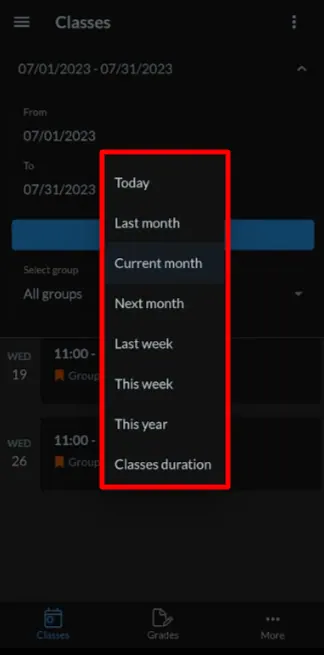
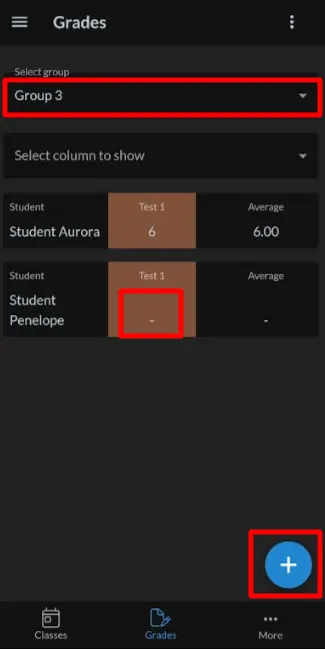
How to add student grades?
First, click on the „Grades” option at the bottom of the application or from the side menu.
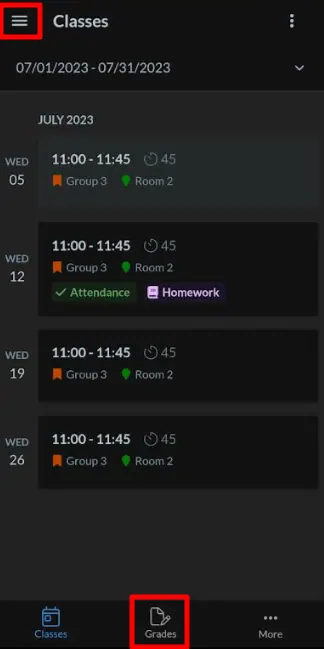
Next, select the group, and add the grades.
What else is in the application?
Besides classes and grades, the application has other tabs:
- „Messages” – inbox, outbox and trash; write a new message with „New message”,
- „Students” – students' data, their attendance, notes and descriptive grade,
- „Settlements” – the settlement of your classes, which you can download with „Download settlement”,
- „E-documents” – documents to sign, e.g. contracts.
If you have finished using the application, you can log out. Go to the menu in the upper right corner and click „Logout”.