Do you have access to the e-gradebook on the LangLion Platform? You can also use it on your phone – in the “LangLion for Students” app for students and parents.
Before you start#
- The app works on devices with Android 8.0 or later and iOS 15 or later.
- You need your login (or e-mail address) and password – the same ones you use to log in to the e-gradebook in a web browser.
How to start using the app?#
- Download the app from Google Play or the App Store and install it.
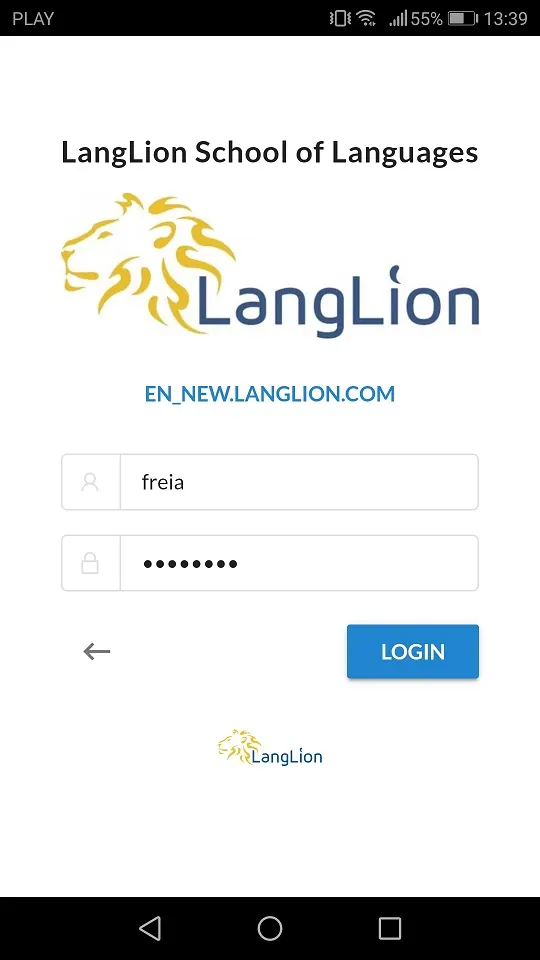
- Open the app. On the login screen, enter your login or e-mail address and password – the same as in the browser version. Make sure you use the correct uppercase and lowercase letters. You no longer need to enter your school's address.
- If your account belongs to several schools, the app will ask you to choose one (“Select school”).
Forgot your password? On the login screen, click “Forgot password?”.
What happens after the first login?#
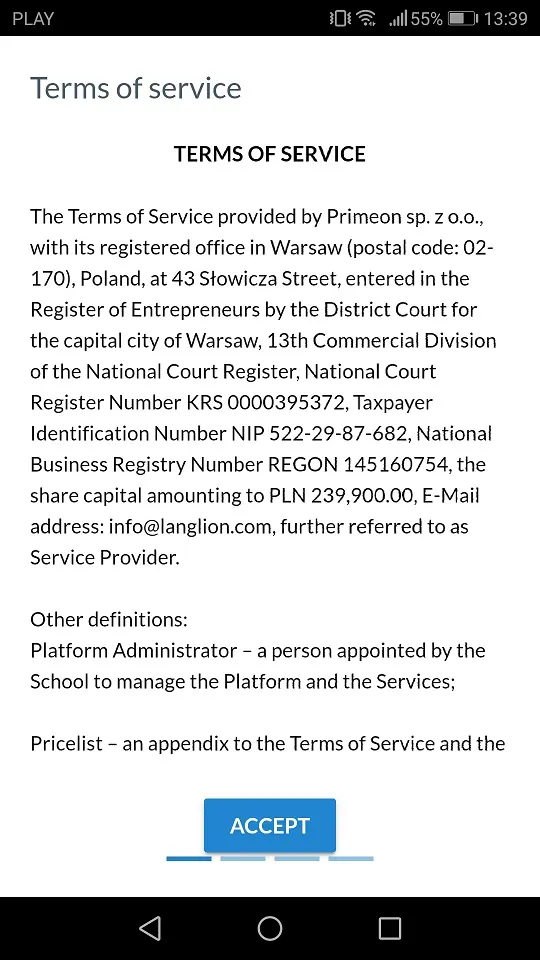
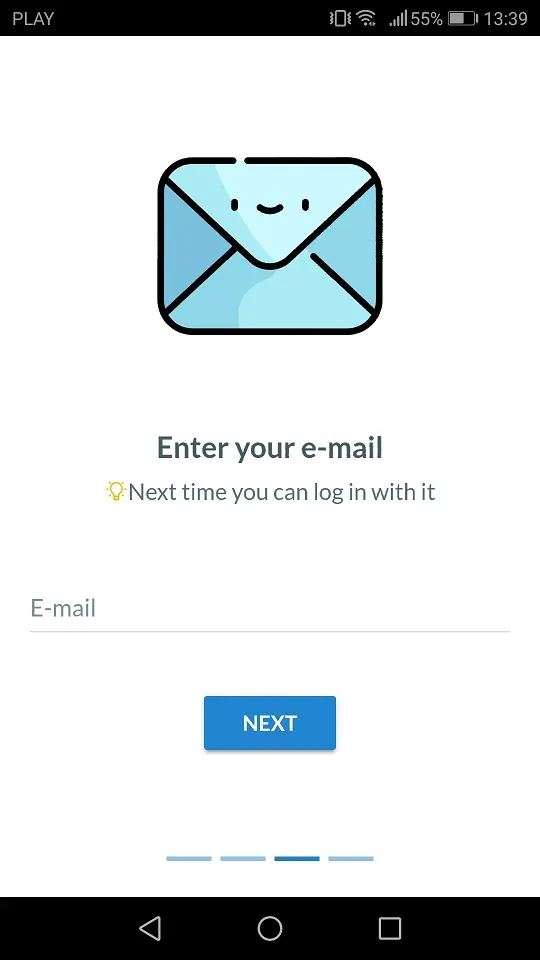
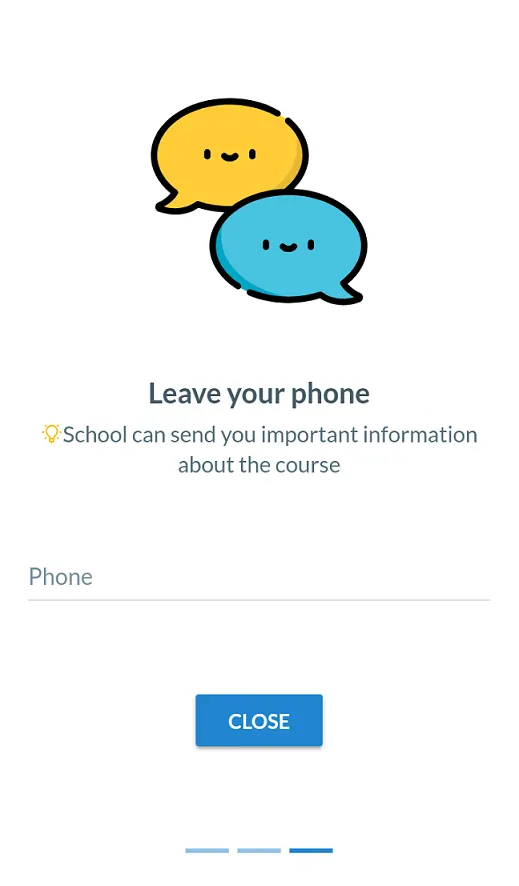
After your first login, the app guides you through a few steps: accepting the terms of service and consents, completing your e-mail address and phone number and – on devices that support it – turning on biometric unlock (fingerprint / Face ID).
What can you find in the app?#
The app gives you access to the same data as the e-gradebook in the browser. The home page shows your upcoming classes and, below them, a list of news: new grades, messages and announcements from the school.
The main sections are in the bottom bar: “Home”, “Classes”, “Attendance” and “Payments”. The others – “Marks”, “Messages”, “Files”, “Tests”, “E-library”, “Surveys”, “Documents” (depending on the modules your school uses) – open with the “More” button. On tablets and other wide screens, the same sections are in the side menu.
Where to change your profile, language and settings?#
Click your avatar (photo or initials) in the header. The account menu opens:
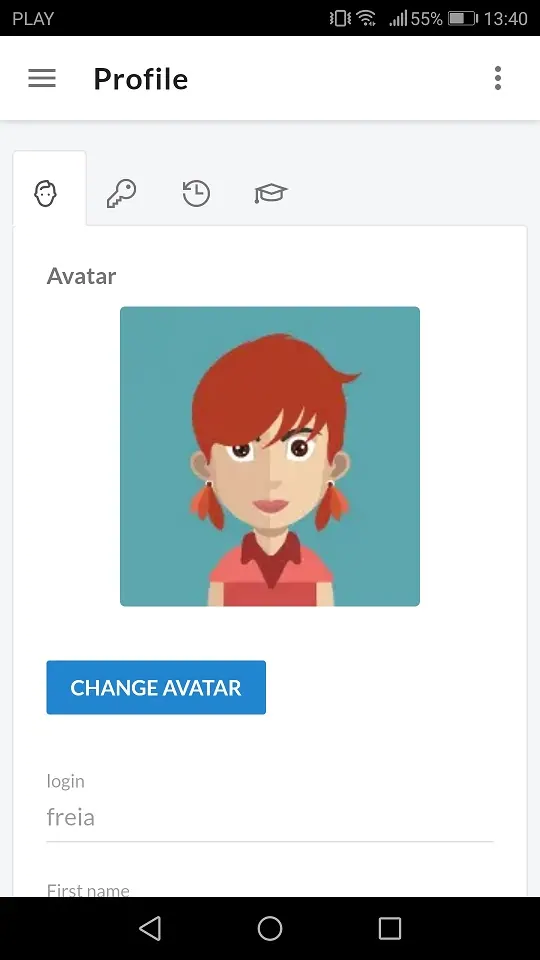
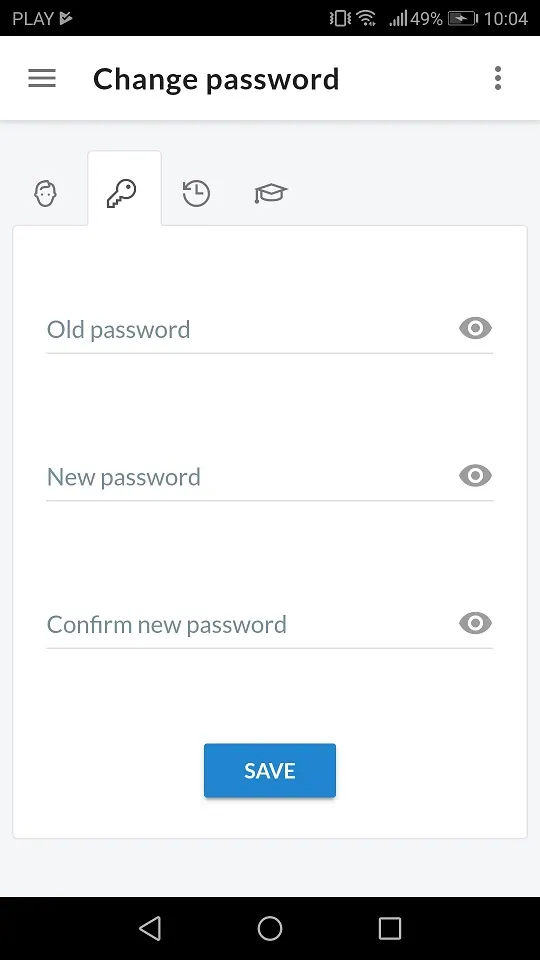
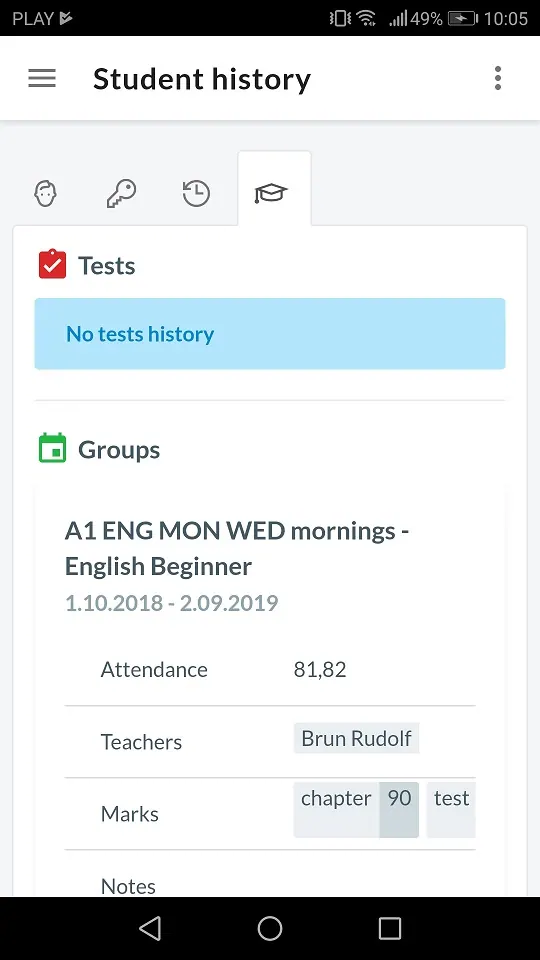
- “Profile” – add a profile picture, edit your contact details, update your consents to the processing of personal data, read the terms of service and privacy policy. This is also where you change your password and see your login history and learning history.
- “Language” – the app is available in Polish, English, Spanish, Russian, French, German and Romanian.
- “Settings” – including notifications and “Biometric unlock”.
- “Theme” – “Light”, “Dark” or “System”.
- “Logout”.