Almost every single school has classes for children, and during the registration process, it is important to create an account for parents also.
To activate the parents’ accounts, write to our support at support@langlion.com.
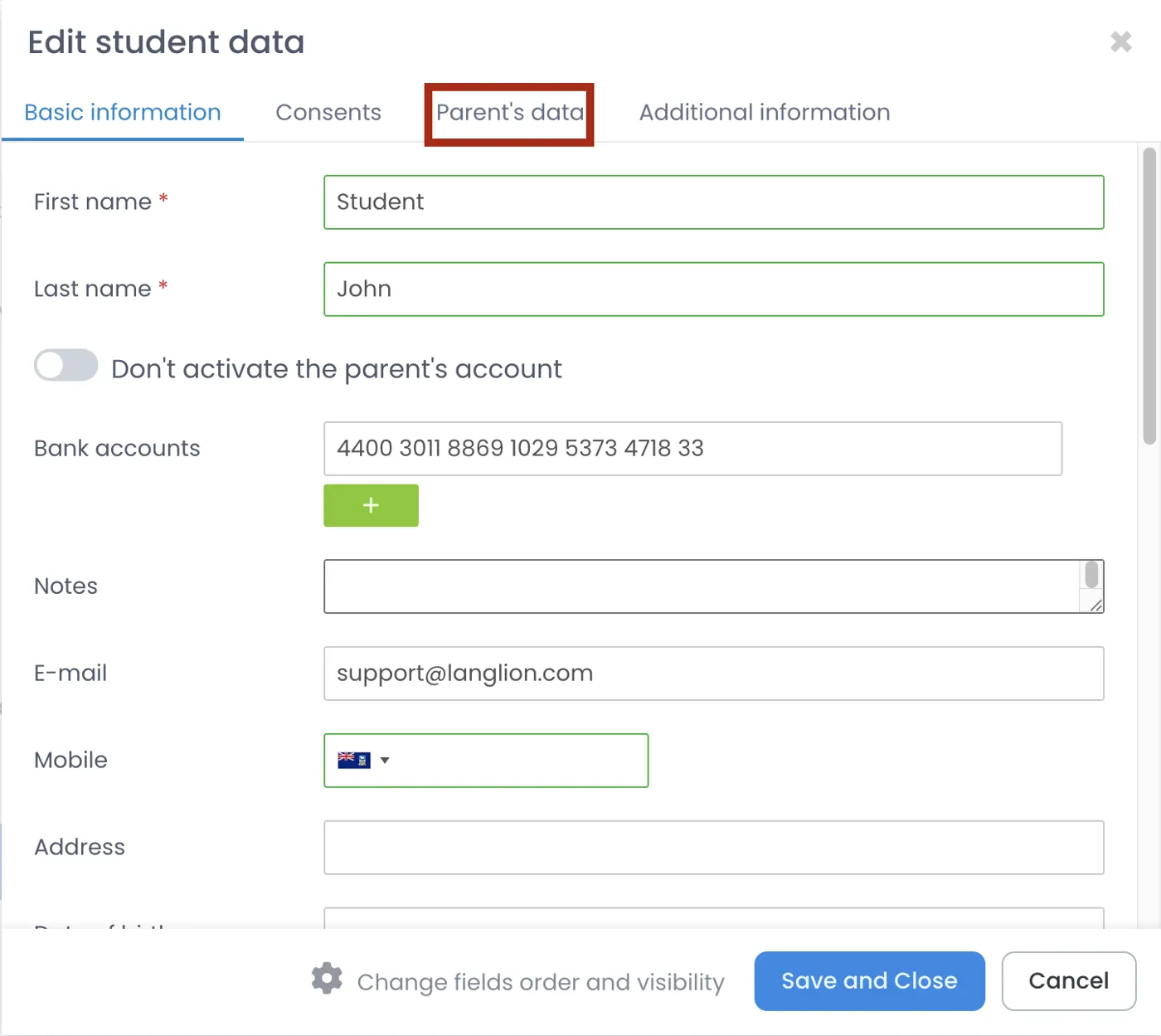
When this option is enabled, the system will create a separate account with login and password and there will be a tab Parent’s data added to each student, where you have to fill out the fields with data (i.e. first and last name, telephone number, e-mail address).
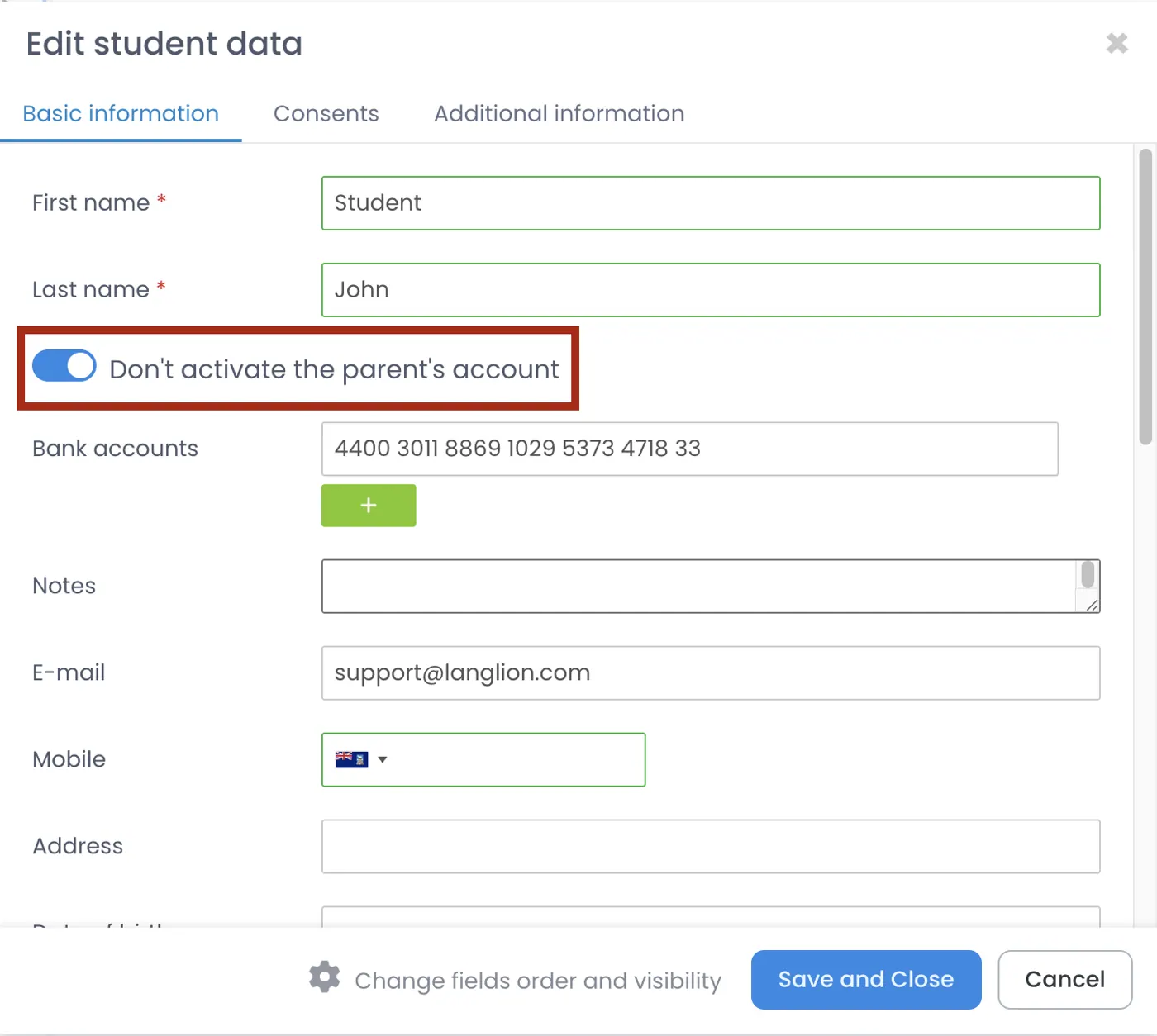
What if a student is an adult and there’s no need for creating parent’s account?
In student’s form select option Don’t activate the parent’s account.
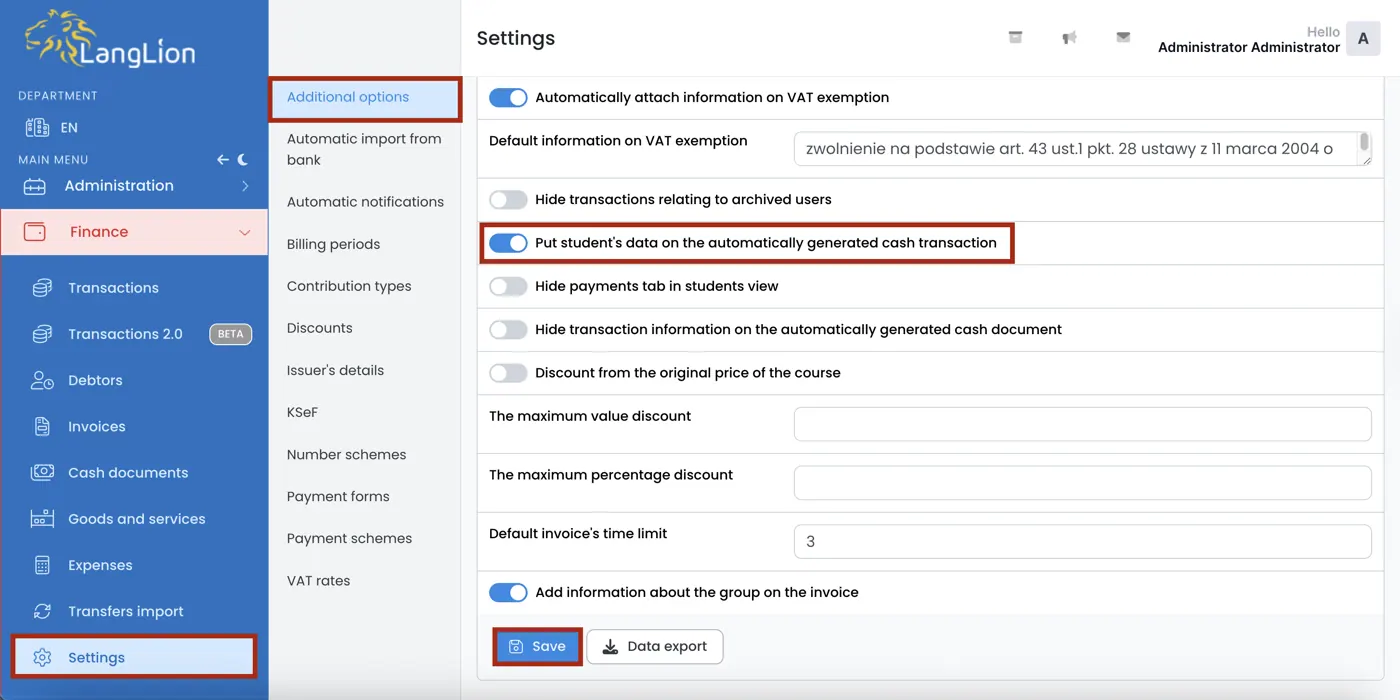
If the parent account has been enabled, but you want to insert the student’s data on the cash document, change the settings in the Finance module.
Go to the Finance module and then Settings and Additional options tab. Now, enable the Put student’s data on the automatically generated cash transaction option and save changes.
Siblings – one parent account for several children#
When siblings study at your school, a parent can view all their children's accounts with one parent login and switch between them without logging out. The „Link accounts” option appears only if the student has a parent account.
How to link siblings' accounts?#
- Open the student's card and go to the „General” tab.
- In the „More” menu, select „Link accounts”.
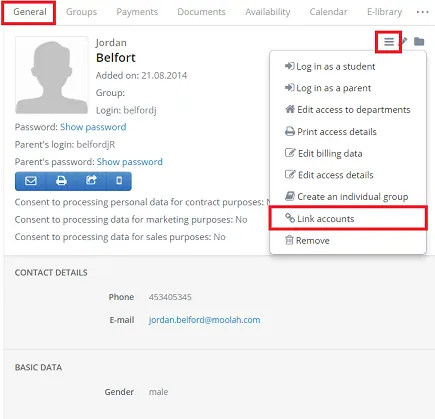
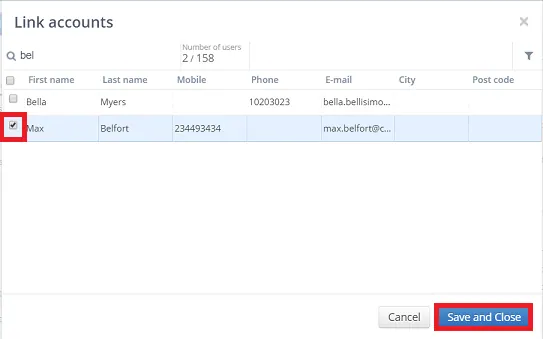
- Select the student (sibling) whose account you want to link to the selected student and save the changes.
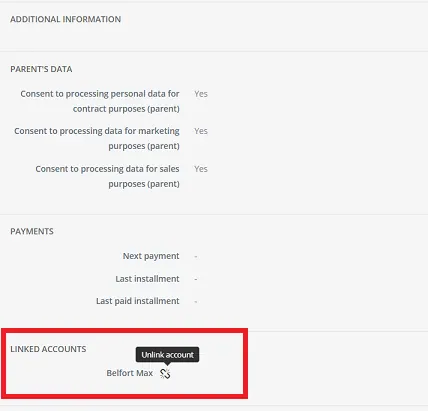
Done! The system shows the linked accounts in the „Linked accounts” section of the „General” tab. If an account was linked by mistake, unlink it with the „Unlink account” icon next to its name.
The parent sees all children's data after logging in with the parent login of the student to whom the siblings were linked.
How does a parent switch between children's accounts?#
The parent panel shows buttons with the avatar and first name of each child: on a computer in the top right corner, next to the parent's avatar, and on a phone below the header. The highlighted button is the child whose data you are viewing – click another name to switch accounts.
How to check what the parent sees?#
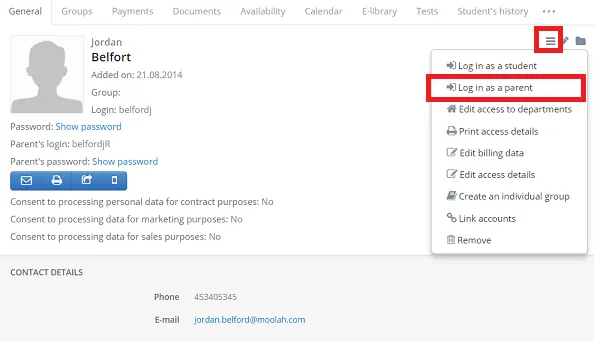
Open the card of the student to whom the siblings were linked, go to the „General” tab and in the „More” menu select „Log in as a parent”. The option is available only if the student has a parent account.