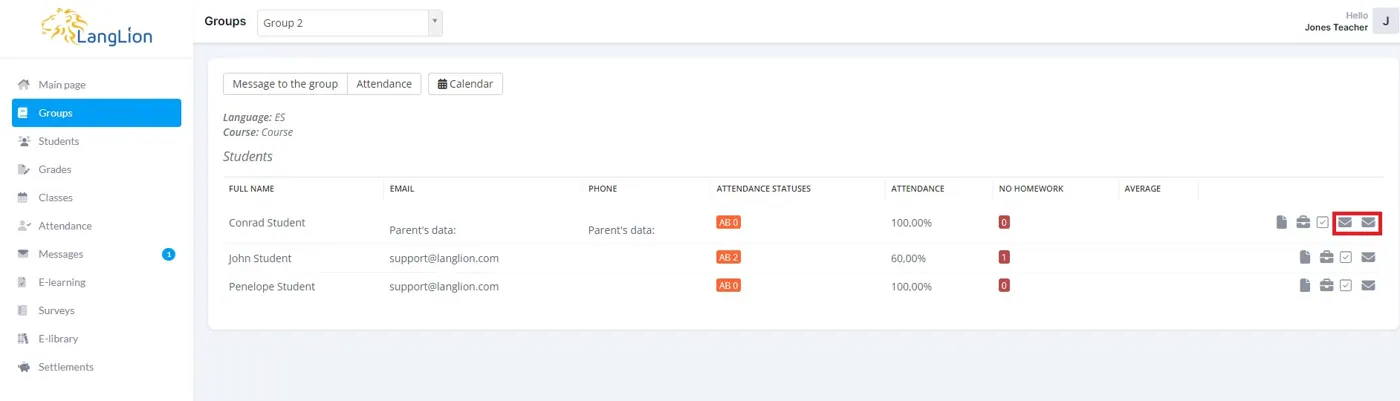
In the Groups tab, information about students attending all the groups in which you teach is available. You can view their achievements and attendance. At the level of this tab, you can also send a message to students.
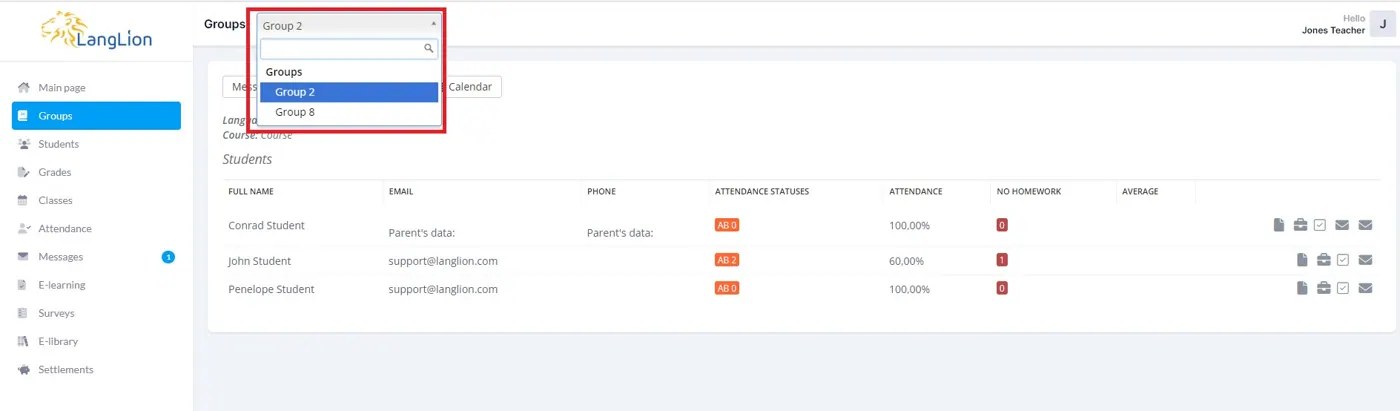
How to display the list of students of the selected group?
It’s simple, just select the group from the drop-down list and the information will be displayed.
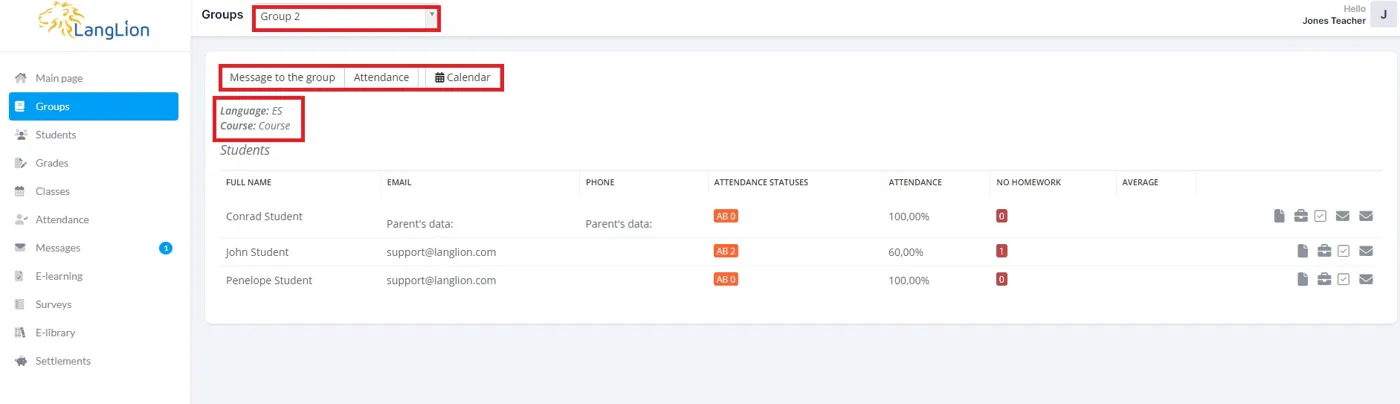
The Groups tab contains the following functions:
- Message to the group – send a system message to the students from this group.
- Attendance – after clicking this button, the Attendance tab will be displayed and you can easily mark the attendance statuses.
- Calendar – you will see the class schedule on the calendar.
Under the group name, you will find the course assigned to the group and the coursebook used by students.
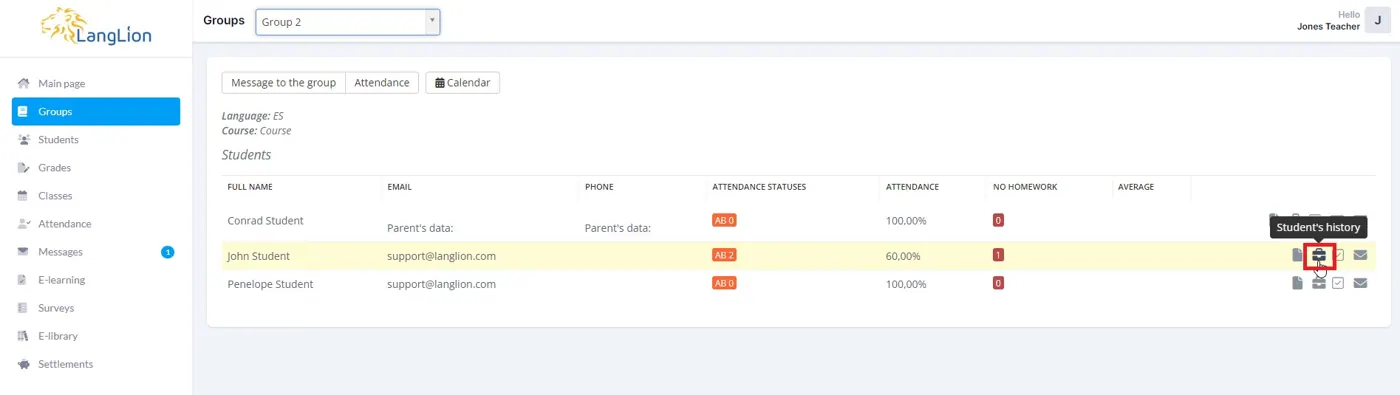
In the Groups tab, you can also view information about the student’s grades, attendance and student’s history in the school. To open a student’s grades, click the Grades icon (a sheet icon) next to the student’s name on the list. Do you want to add a descriptive opinion? Use the option to add notes.
How do I add a note to a student?
Click on the Student’s history option and select the Add note button.
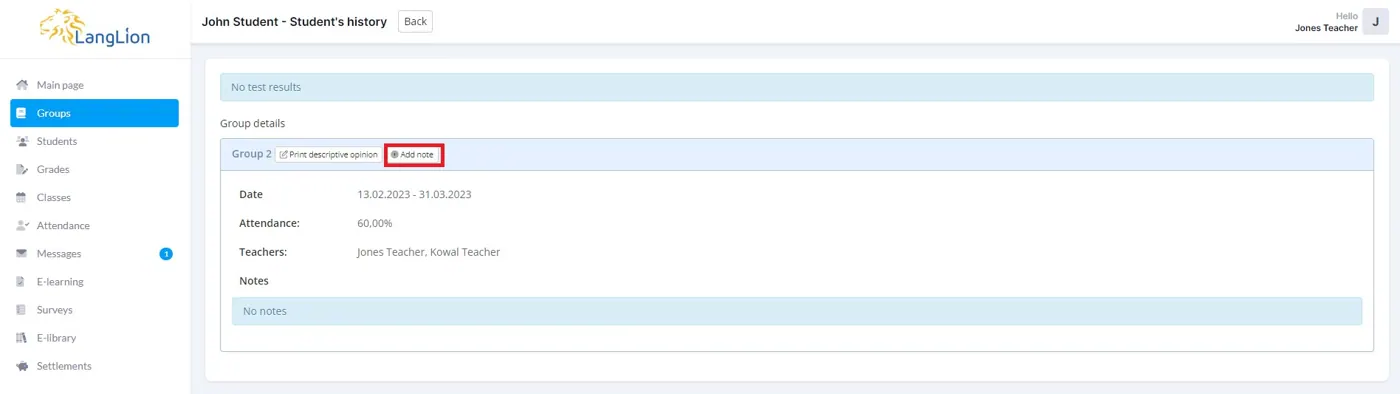
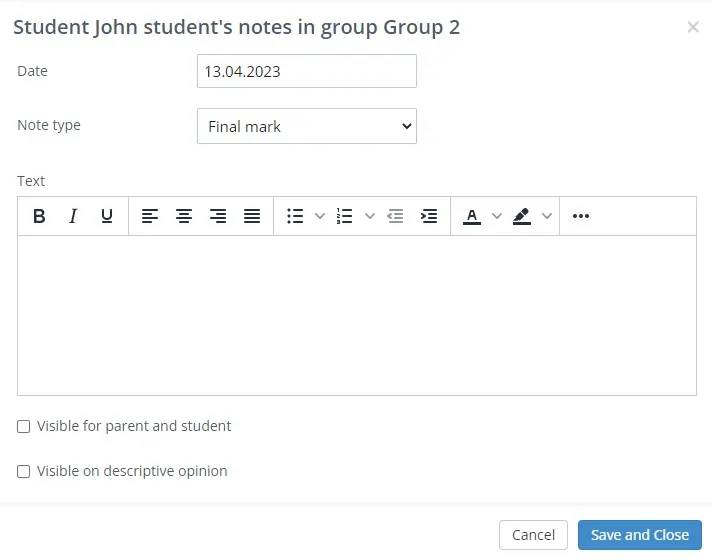
In the note editing window, enter the date you create the note, select the note type. Then enter the text of the note and select the attributes:
- Visible for student (or Visible for parent and student, if your school uses parent accounts) – the note will be displayed in the student’s (and parent’s) account,
- Visible on assessment report – the note will be included in the printout of the assessment report.
Click Save and close button to save the changes.
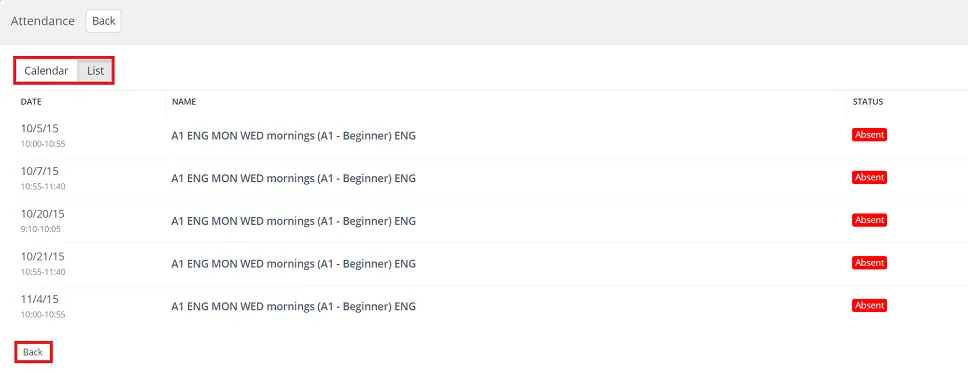
When viewing the list of students, you can check the attendance of the selected person and for this purpose, click on the option Attendance.
You can view this information on the calendar. To do this, use the Calendar option.
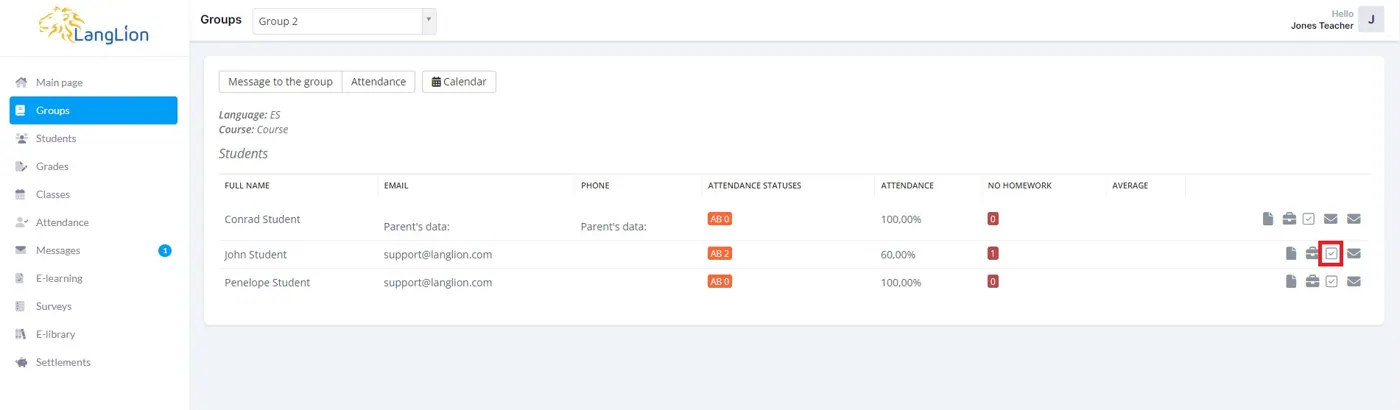
There is also an option to send a system message to the student or student’s parent. To this, click on the Send message option to create and send a message to the student or Send a message to the parent to contact the parent.