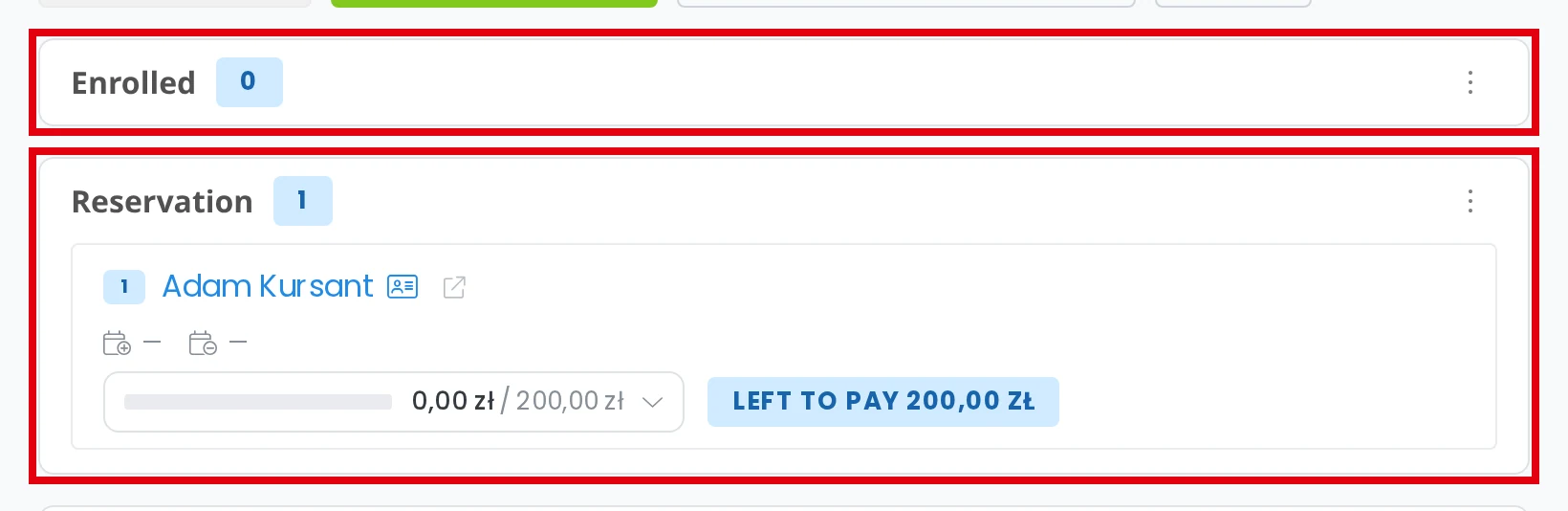
The teacher cannot check attendance and homework – there are no names on the list of students in the group. The teacher sees only students from the “Enrolled” list, so there are two possible reasons: the student is not in the group, or the student is on a different list.
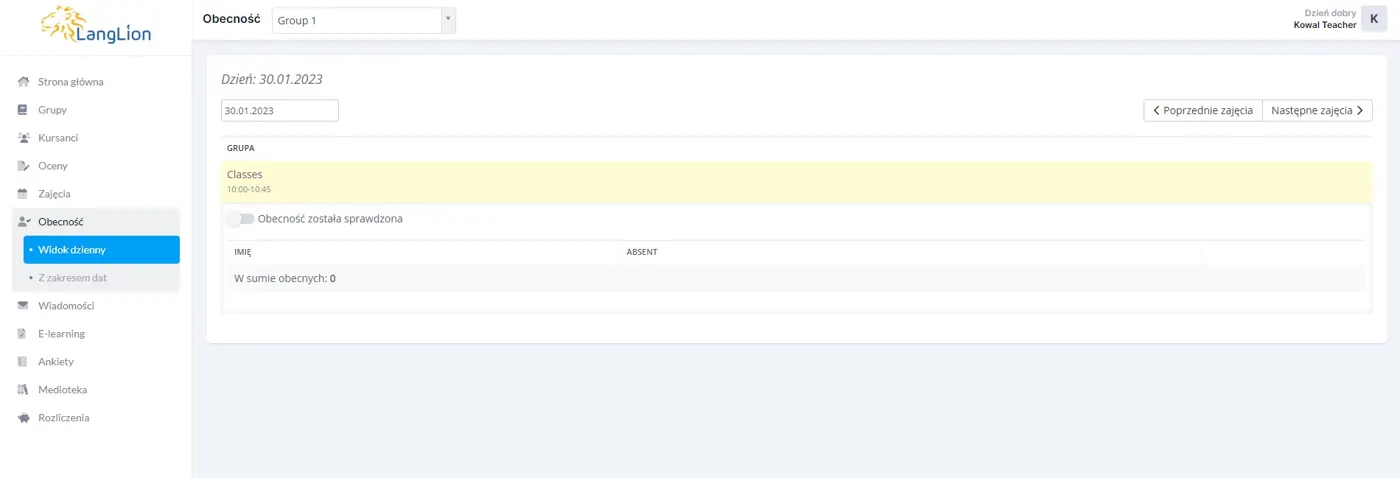
How do I check if a student is enrolled in the group?#
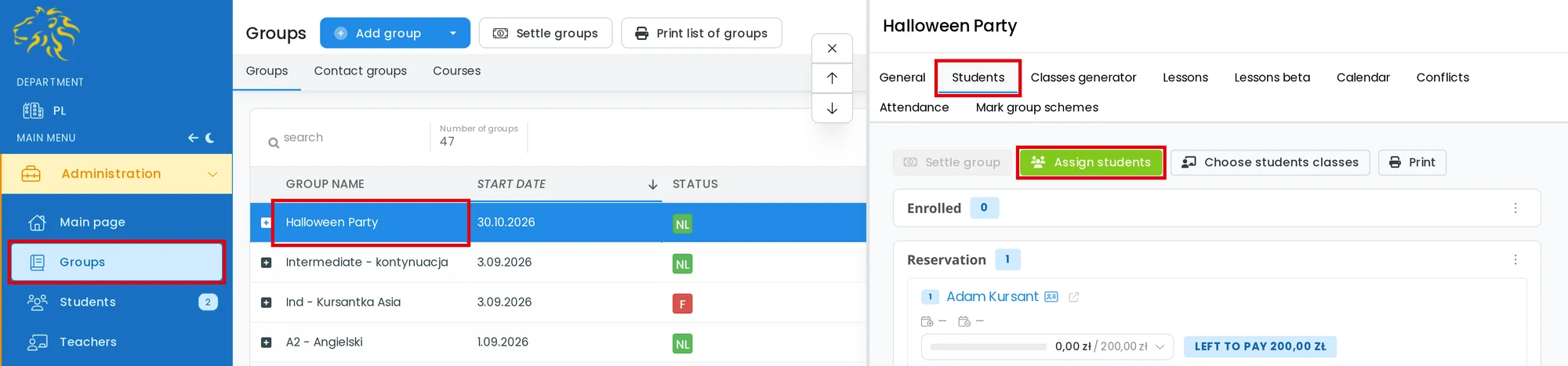
- Go to the “Groups” tab.
- Select the appropriate group and go to the “Students” tab.
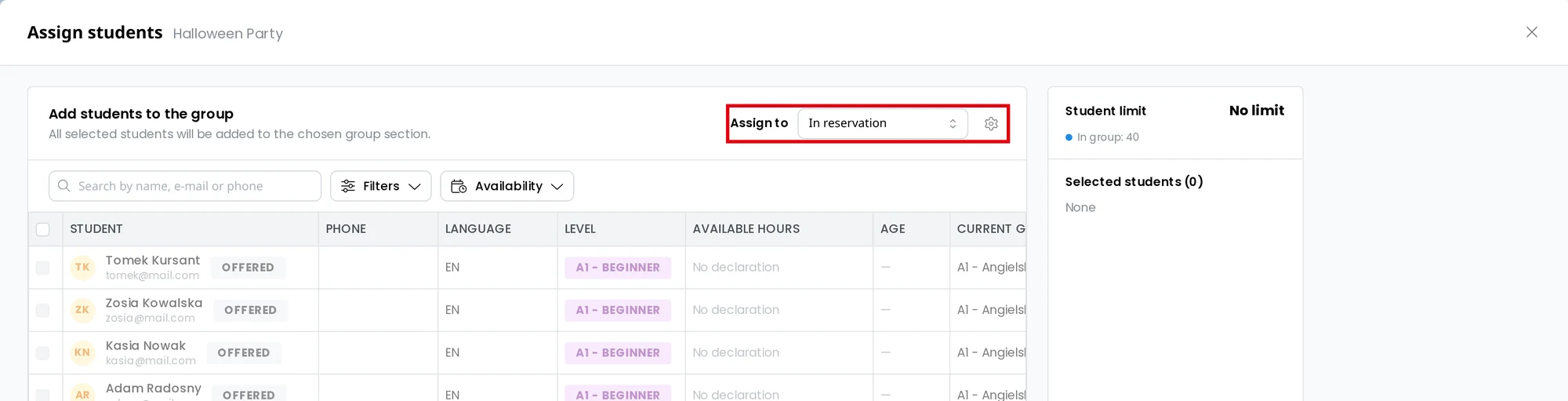
- If the people you expect are missing from the lists, click “Assign students”.
- In the “Assign to” field choose the “Enrolled” list straight away – the student will then be visible to the teacher immediately.
- Select students from the list and save the changes.
The student is in the group but the teacher still cannot see them – why?#
Most likely the student is on a list other than “Enrolled” – e.g. “Reservation”, “Awaiting” or “Offered”. You can see the lists in the group’s “Students” tab.
If the Spots reserved and awaiting in the group option is enabled in the system configuration, any newly assigned student is placed on the “Reservation” list by default and stays there until the contract is signed (system option Marking the participant’s contract state (signed/unsigned) enabled) or the first payment is made.
How do I move a student to the “Enrolled” list?#
You can do it in four ways:
- In the group’s “Students” tab, drag the student with the mouse from the “Reservation” list (or another list) to the “Enrolled” list.
- In the student’s card go to “Students” → “Groups”, click the coloured status button next to the group (“Change status”) and choose “Enrolled”.
- Mark the contract as signed (system option Marking the participant’s contract state (signed/unsigned) enabled).
- Add a payment for the student (system option Marking the participant’s contract state (signed/unsigned) disabled).