One of the main advantages of the Finance module is automatic payment notifications.
Automatic notification settings are separate for each department. If you have several departments, select a department first – in the all-departments view you will only see a message asking you to select one.
In Finance → Settings → Automatic notifications you can turn on:
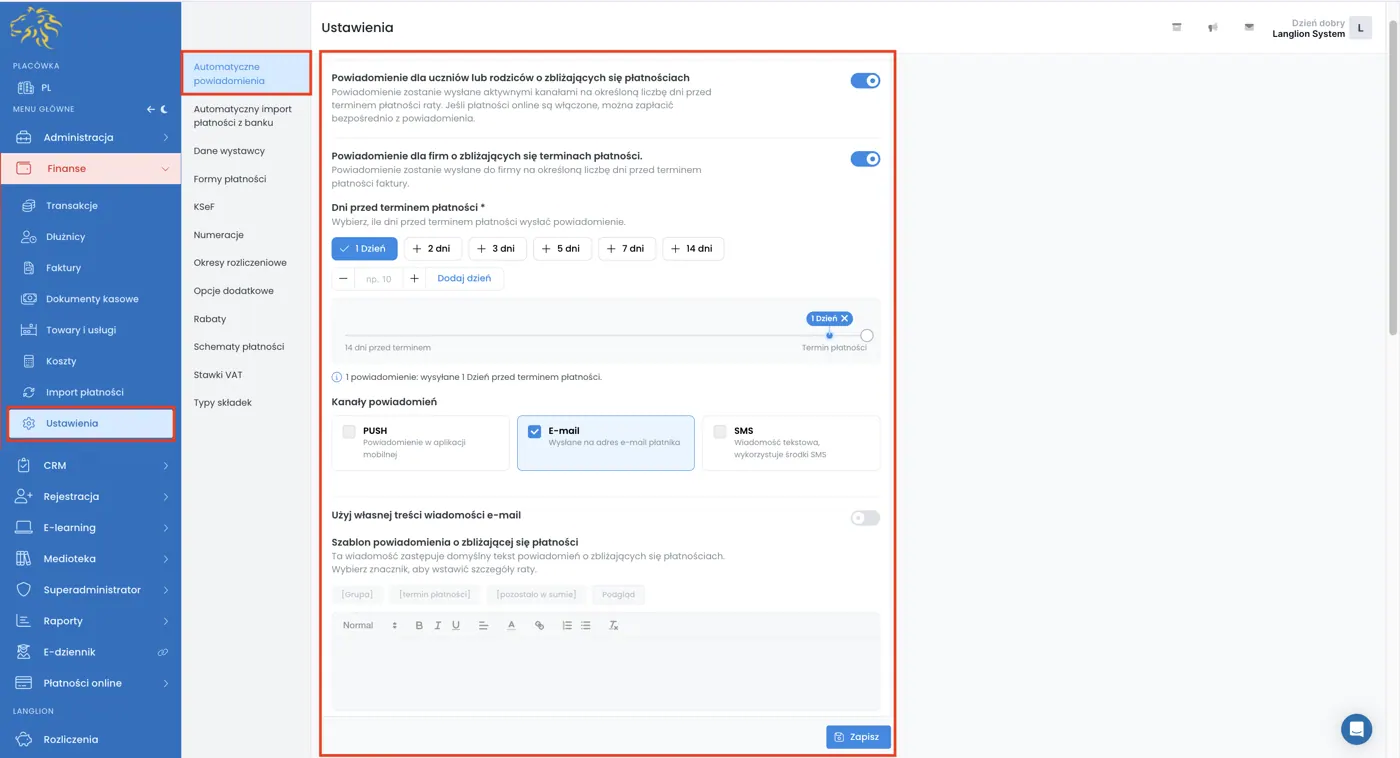
- Notification for students or parents about upcoming payments - the notification is sent through the active channels a set number of days before an instalment is due. If online payments are turned on, the recipient can pay directly from the notification.
- Notification for companies about approaching payment due dates - the notification is sent to the company a set number of days before the invoice due date (the same days as for students).
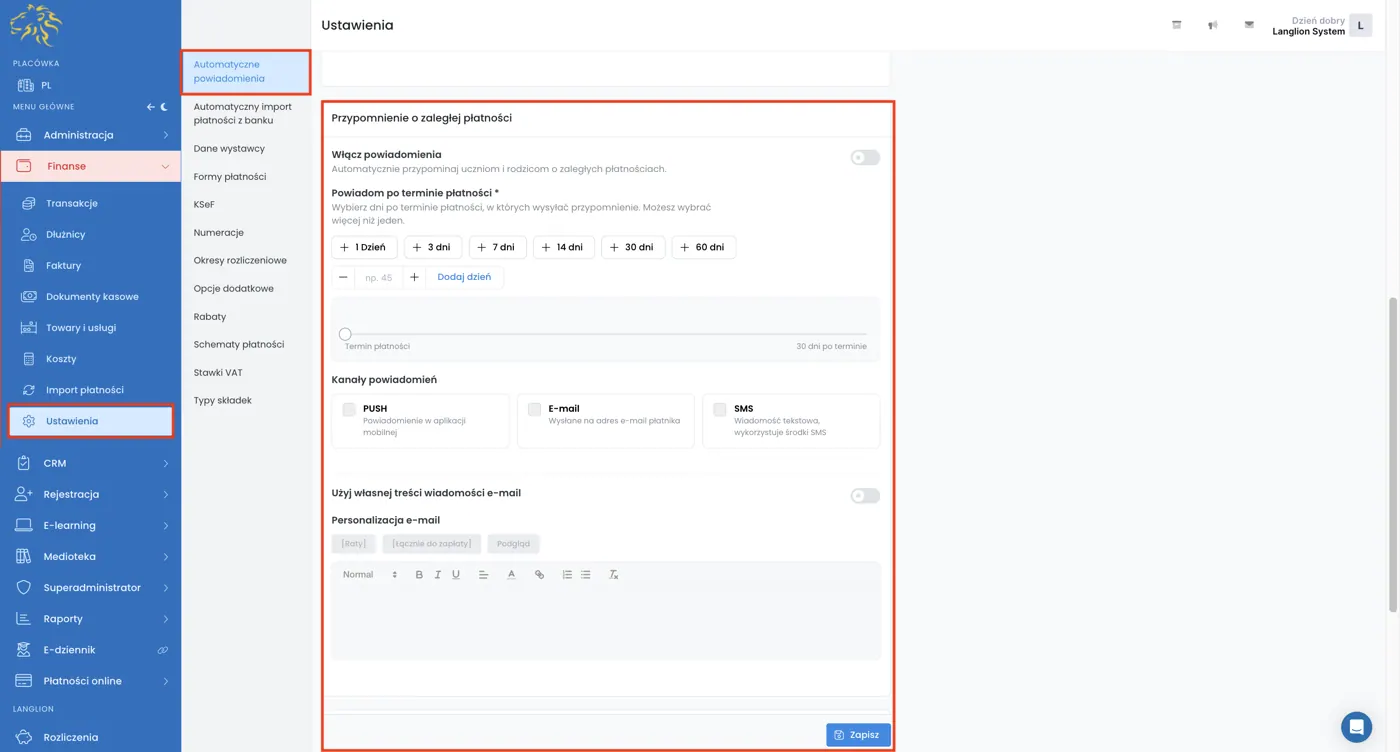
- Overdue payment reminder - a notification is sent to students and parents about overdue payments.
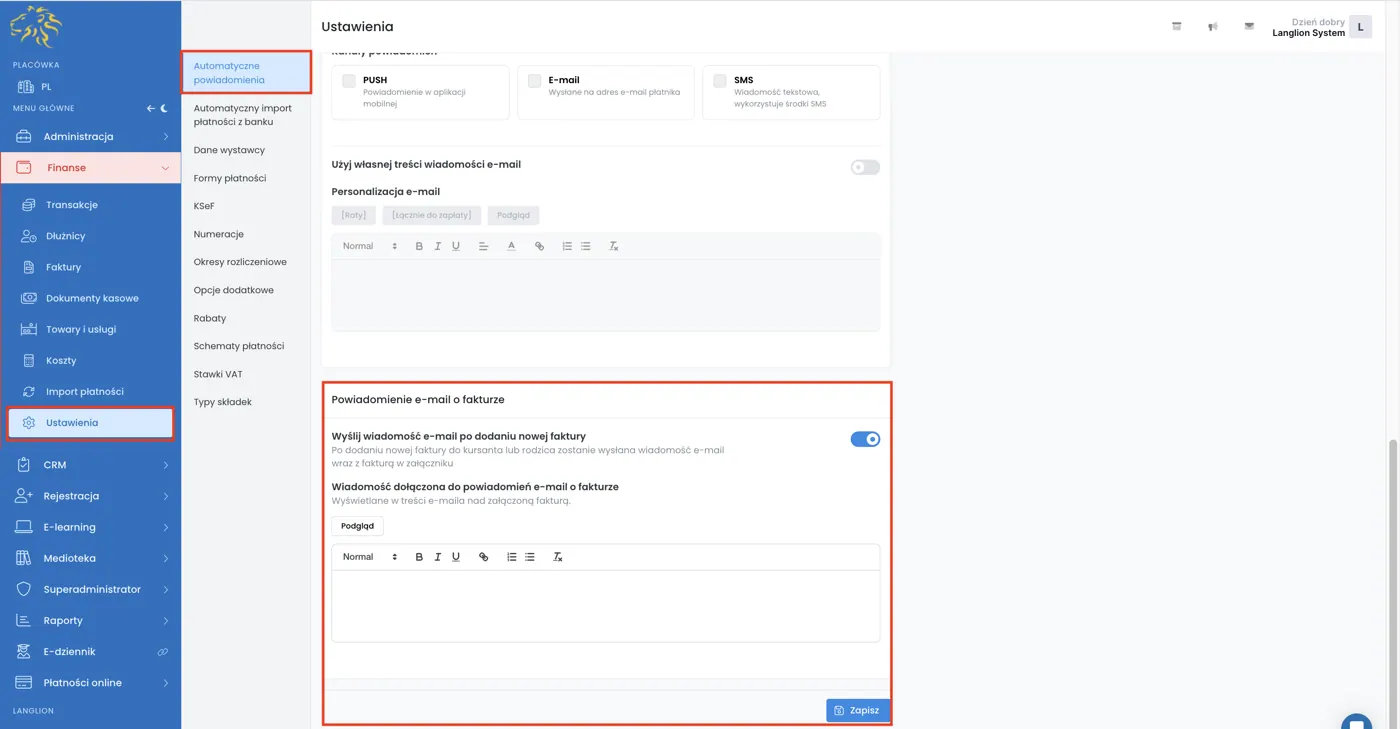
- Invoice email notification - when a new invoice is added for a student or parent, an email is sent with the invoice attached.
After making changes, remember to click "Save".
Upcoming payment notification
This notification reminds students and parents that an instalment or settlement is about to fall due. The message can include the group name, the due date and the amount to pay. If online payments are active, the recipient can go straight from the notification to the payment.
The SMS text depends on whether the student can pay online. When the school has online payments available to students, the SMS ends with "Pay online:" and a link to the payment. When it does not – with "Payment details:" and a link to the "Payments" tab in the student panel. The button in the email is "Check payments".
After turning on the notification, choose how many days before the instalment due date it should be sent. You can use the preset values: 1, 2, 3, 5, 7 or 14 days, or add your own. The allowed range is 1 to 365 days. You can set up to 10 dates.Next, select the channels the notification is sent through. You can choose the student panel, email, SMS or several channels at once.
The reminder covers only instalments from groups the student is enrolled in. It is not sent for instalments from a group the student has been removed from, or from a group the student has only been offered.
You can also turn on notifications for companies. This is a separate switch that lets you remind companies about upcoming invoice due dates – the same number of days before the due date as you set for students.
How do I set my own text for the upcoming payment email?
Instead of the default text, you can send students and parents your own reminder email.
- In the "Upcoming payment reminder" section, turn on "Use custom mail content".
- In the "Upcoming payment notification template" field, type the message.
- Click the place in the text where the instalment details should appear, then click a tag button:
- "[Group]" – the group name,
- "[installment due date]" – the instalment due date,
- "[remaining value]" – the amount to pay,
- "[Student]" – the student's full name (also when the email goes to a parent).
- Click "Preview" to see the message with sample data.
- Click "Save".
Done! In the emails sent, the tags are replaced with the instalment and student details.
Overdue payments
This notification automatically reminds students and parents about unpaid instalments. Reminders are sent on selected days after the due date and repeated according to the schedule you set until the amount is paid.
You can set how many days after the due date the notification should be sent. Choose one or more days, e.g. 1 and 7 days after the due date. You can use the preset values or add your own day. The allowed range is 1 to 365 days, and you can set up to 10 dates.Next, choose the sending channels. Select at least one of the available channels. Emails are sent to the payer's address, and SMS messages use your available SMS credits.
The reminder is not sent for instalments from a group the student has only been offered.
Example schedule
If an instalment is due on 20 May and you set reminders for 1 and 7 days after the due date, the system will schedule them for 21 May and 27 May. Once the instalment is paid, no further reminders about it will be sent.
How do I set my own text for the overdue payment email?
The overdue payment reminder can also use your own text.
- In the "Overdue payment reminder" section, turn on "Use custom mail content".
- In the "Custom e-mail" field, type the message.
- Click the place in the text where the details should appear, then click a tag button:
- "[Installments]" – a table of overdue instalments,
- "[Total due]" – the total overdue amount,
- "[Group]" – the names of all groups in which the student has overdue payments, separated by commas,
- "[Payment due date]" – the oldest overdue due date,
- "[Student]" – the student's full name (also when the email goes to a parent).
- Click "Preview" to see the message with sample data.
- Click "Save".
Done! In the emails sent, the tags are replaced with the overdue instalment and student details.
Invoice email notification
Switch on E-mail notification after adding new invoice, and when a new invoice is added for a student or parent, an email is sent with the invoice attached.
Optionally, enter text in the Message included in invoice email notifications field – it is displayed in the email body above the attached invoice. Click "Preview" to see the message.
If you have an active KSeF configuration, an invoice with a NIP number will be sent by email only after it has been sent to KSeF.