
Reports in the LangLion Platform come with filters that make it easier to find the results you need. Each report has its own set of filters. The number of filters depends on the number of columns, because every column contains data you can filter.
How do I use filters?
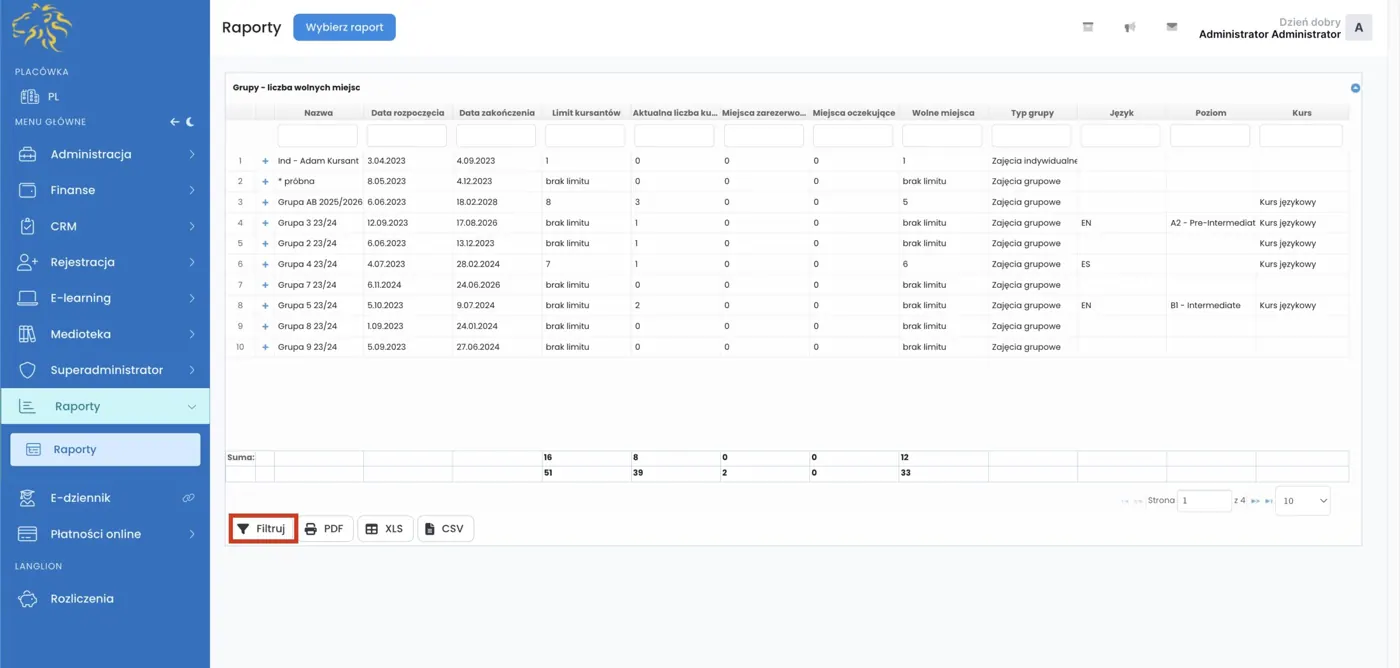
It's simple – just click the "Filter" button below the report.
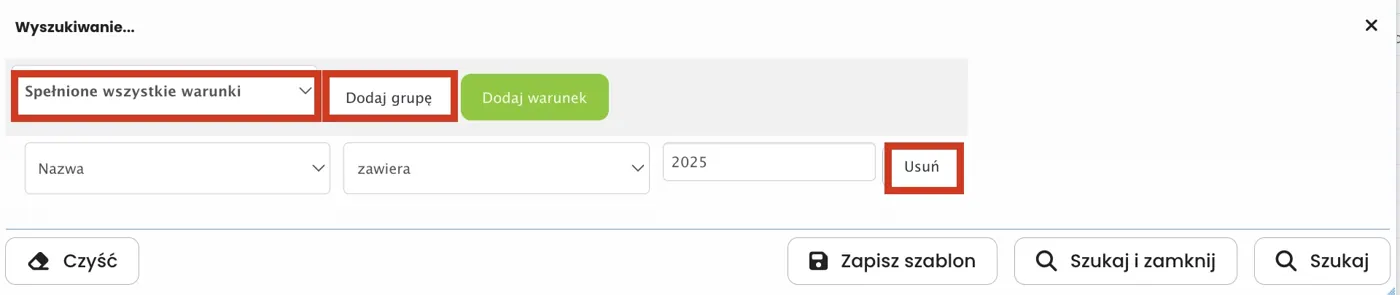
You can set how strictly the filter matches information by choosing whether all conditions or any one condition must be met.
If you want to display more complex results, use the option to add a condition group. This makes the filter search more precise. You can remove condition groups you have added with the "Delete" button.
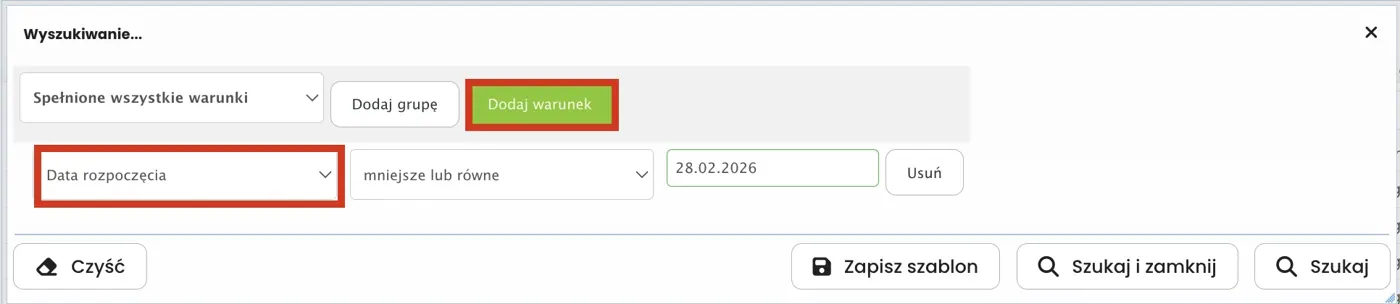
To enter search criteria, click the "Add condition" button. Each condition has three parts. In the first part, you choose the name of the column whose data you want to filter.

The second part contains the list of filters. The filters available depend on the type of information shown in the column (numbers or text). For numerical data, the following filters are available:
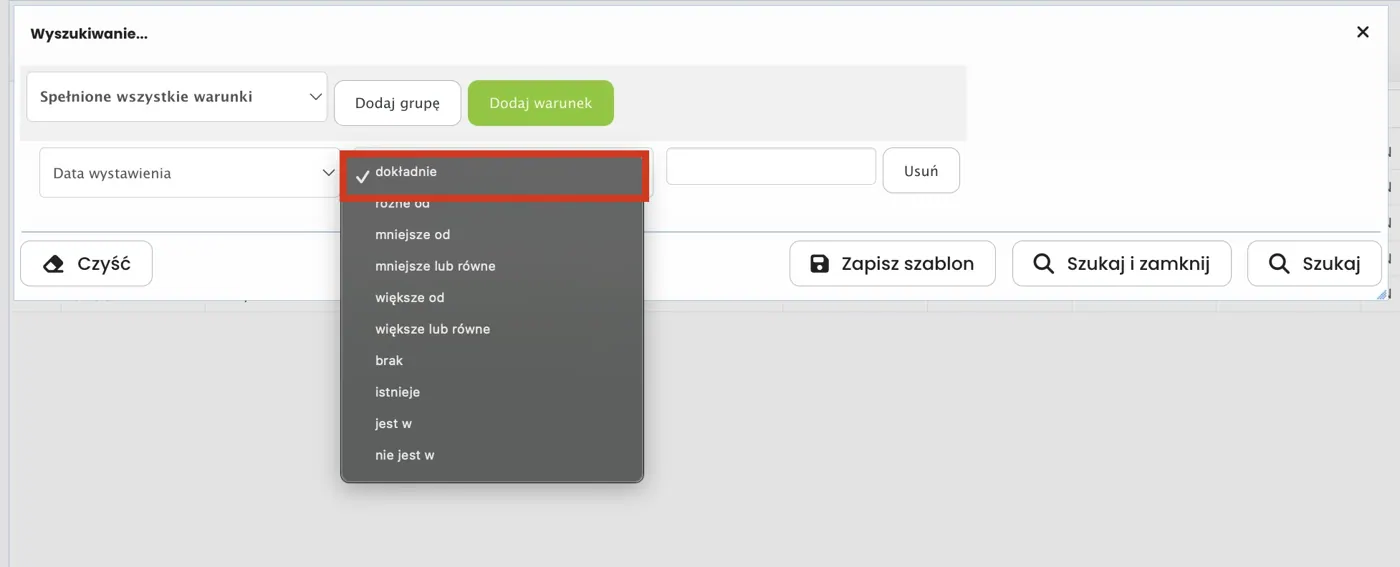
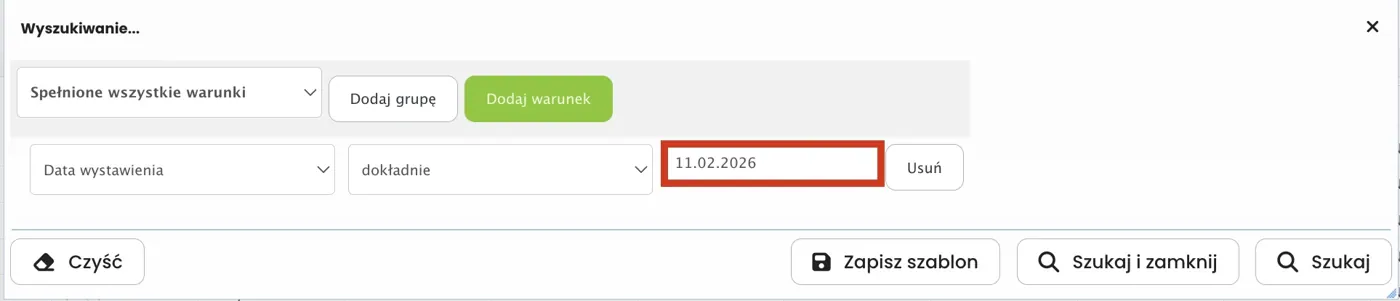
- equal – choose this filter if you want to display results matching a specific value, e.g. invoices issued only on 7 December 2025

- not equal – use this filter if you want to exclude some results, e.g. all issued invoices except those from 7 December 2025
- less – use it if you want to display results lower than the given value; this filter does not include the value itself, e.g. displaying all invoices issued before 7 December 2025
- less or equal – use this filter if you want to display results lower than the given value, including the value itself, e.g. displaying all invoices issued up to and including 7 December 2025
- greater – use this filter if you want to display results higher than the given value, without the value itself; for example, it shows all invoices issued after 7 December 2025
- greater or equal – a filter that displays results higher than the given value, including the value itself, e.g. displaying all invoices issued from 7 December 2025 onwards
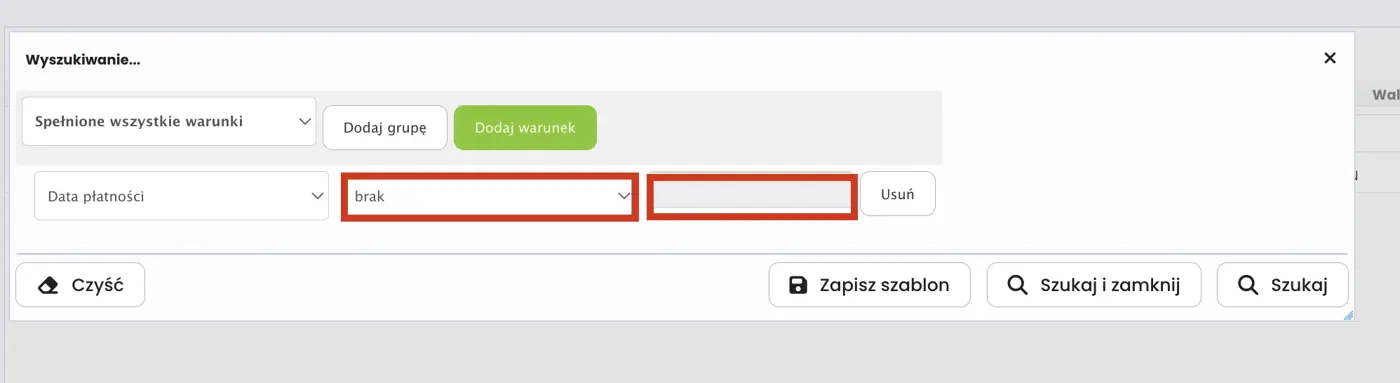
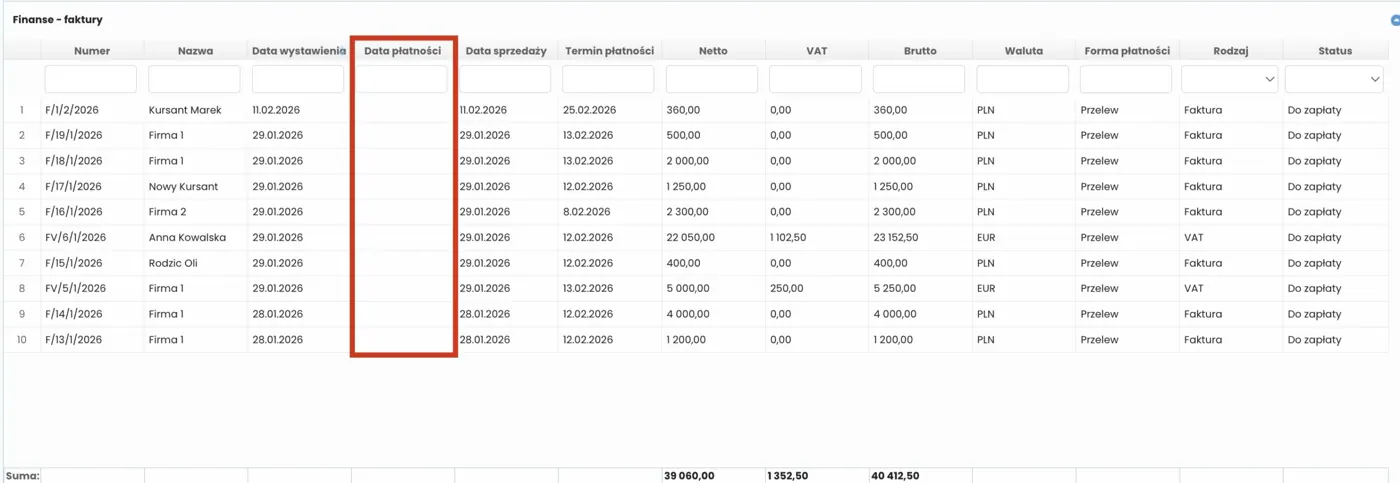
- empty – use this filter if you want to display results with missing information, e.g. invoices with no payment date set. When you choose this filter, the last field of the condition is greyed out and you cannot enter any information about the results you are looking for.
For text data (e.g. student surname, group name) there are also filters such as begins with, does not begin with, ends with, does not end with, contains, does not contain, is in and is not in.
Depending on how complex your search is, you can also define several filter conditions.
How to save the filters you set?
In the filter window click “Save template” to save the filters as your own custom report, so you don't have to set them again each time.