
Checking whether fees are paid on time is an important task for the finance department of every language school. It lets you see whether students are behind with their payments or are late paying for their lessons.
The LangLion Platform lets you create a report of students in debt.
The quickest way to check overdue payments is the "Finance" → "Debtors" list – it shows students with overdue payments without building a report (see Debtors). If you need a report with your own filters, use the Reports module as described below.
How do I create a report of students in debt?
It's easy – all you need to do is:
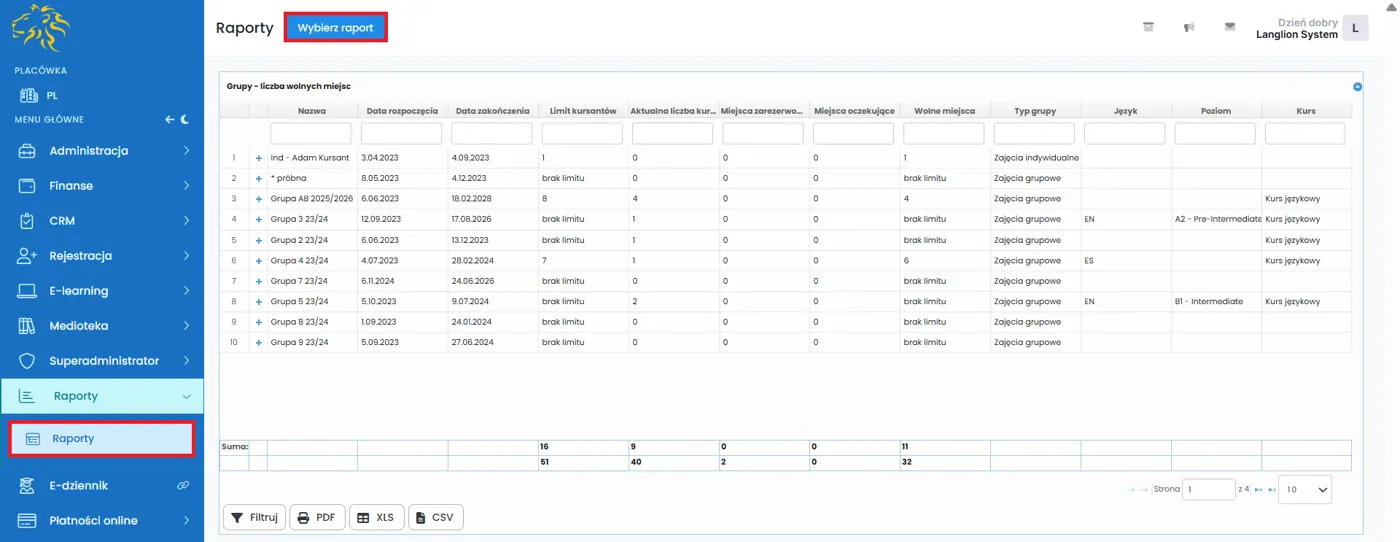
1. Go to the "Reports" tab.
2. Click the "Select report" button.
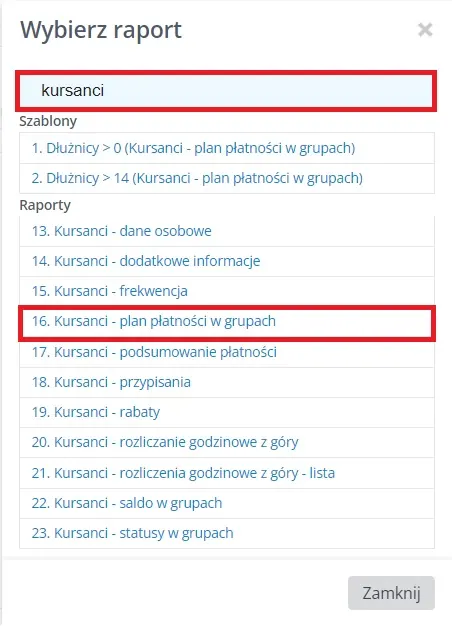
3. From the list of reports, choose "Students - payment plan in groups".
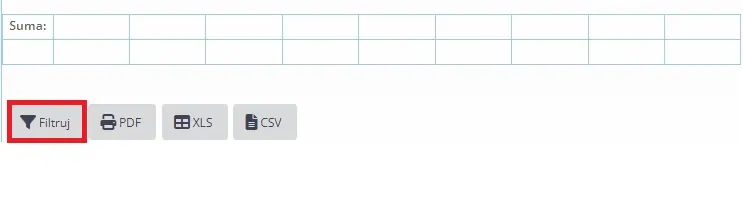
4. The report is now displayed. To make it show students in debt, add filters by clicking the "Filter" button.
Which filters should I use to make the report show students in debt?
5. In the search window, enter:
- "Payment due date" - "Greater than or equal to" - pick a date from the calendar - this sets the start date of the search range.
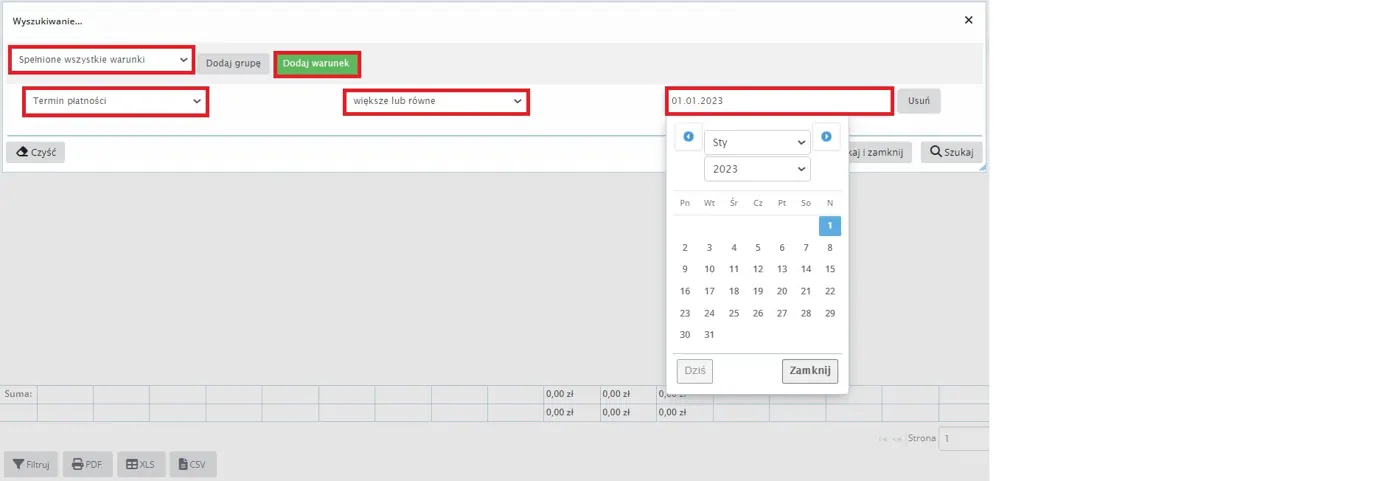
6. Add another filter by clicking the "Add condition" button:
- "Payment due date" - "Less than or equal to" - a date from the calendar - this sets the end date of the search range.
- "Remaining" - "Greater than" enter 0 - this excludes students who have paid the instalment in full, so the report shows the people who have not paid it.
7. Click "Search and close" to display the results.
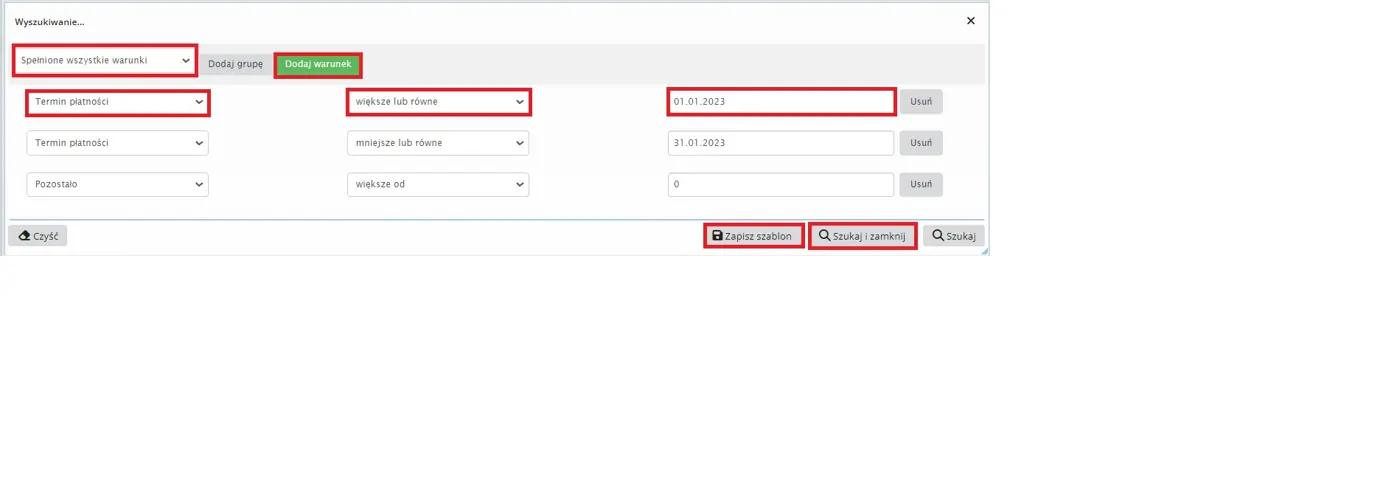
8. Done – the report of students in debt has been created.
There is also a second way to create a report of students in debt. The "Reports" module has default templates "Debtors > 0" and "Debtors > 14". You can run them in exactly the same way as "Students - payment plan in groups".
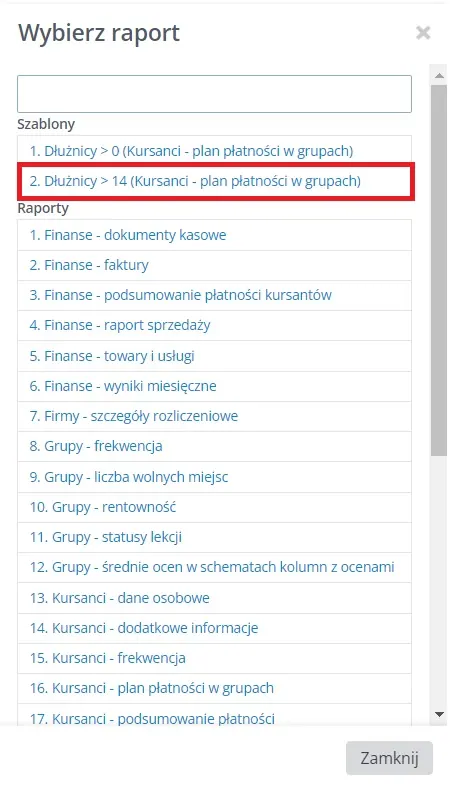
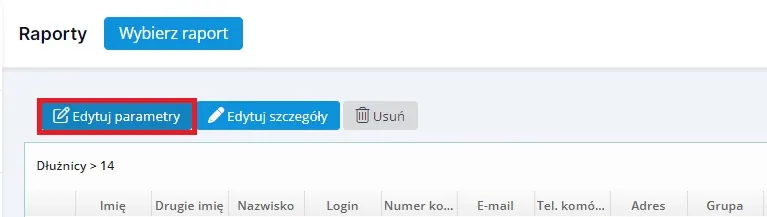
This report already has filters set up, but you can edit them as you like. To do this, click the "Edit parameters" button and change the search criteria, e.g. from 14 days to 7.
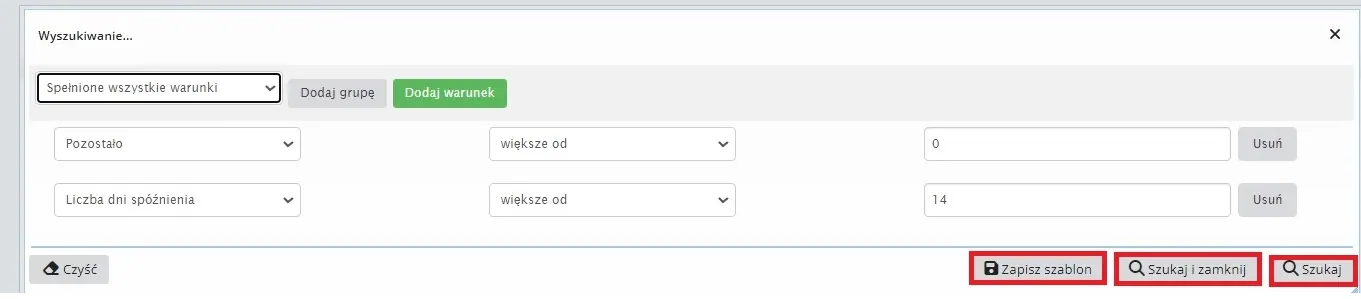
When you have finished editing the filters, click the "Search and close" button to display the results – the filter changes will not be saved in the template. If you want the system to remember the filters you changed, click the "Save template" button.