
Summer holidays are coming to an end? It’s time to think about how to prepare the LangLion Platform for the new school year so there will be no surprises.
Prepare new payment schemes with proper payment due dates#
Do students pay for a course in instalments? Add new, convenient payment schemes. How to do it?
- Go to the Settings tab in the Finance module,
- Select Payment schemes tab,
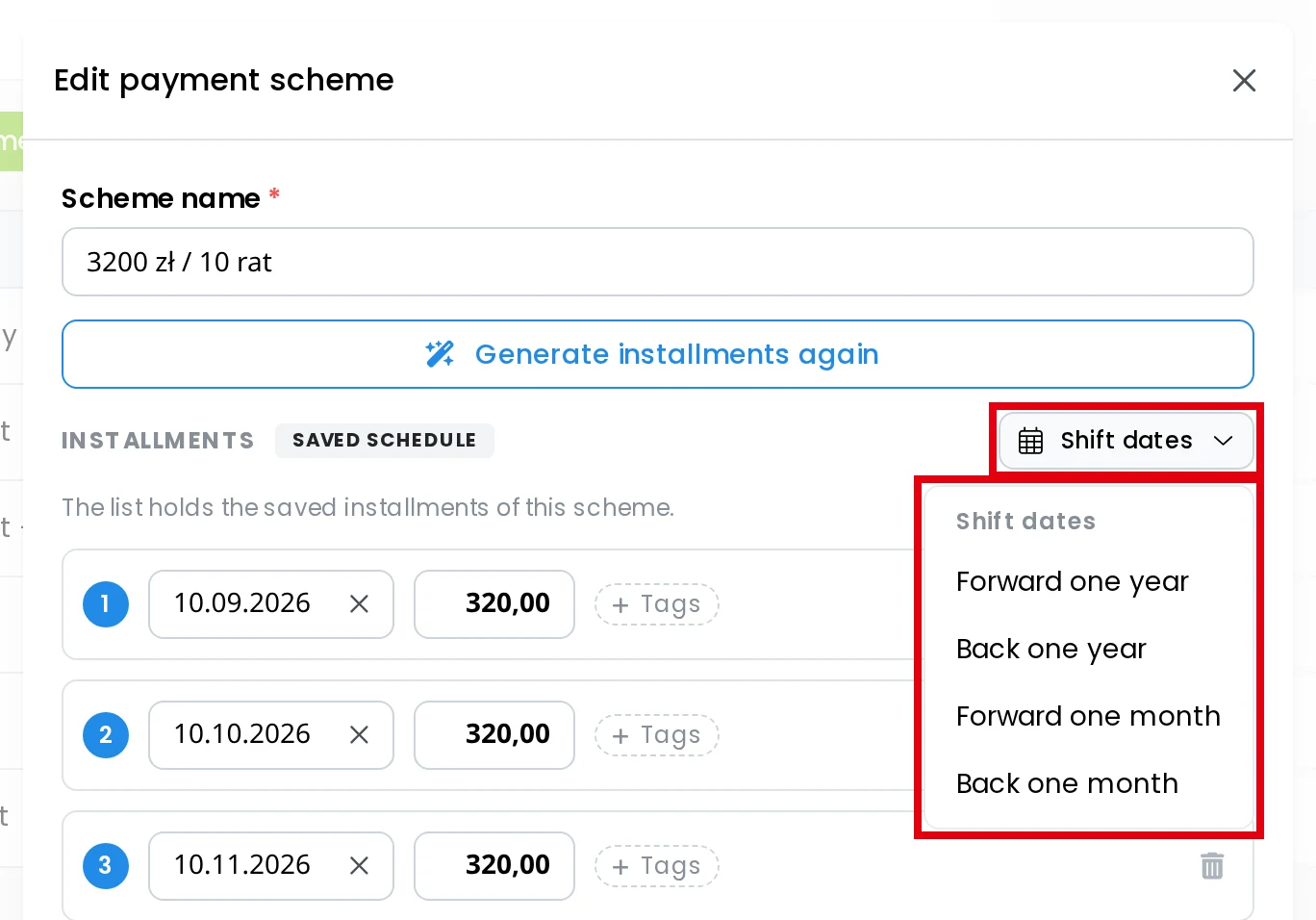
- Edit payment schemes and change their payment due dates. In the Edit payment scheme window, click Shift dates and choose Forward one year (there are also Back one year, Forward one month and Back one month),
- Once you finish editing, click on the Save button.
If you want to generate completely new payment schemes use the option to automatically generate new instalments. For more info click ⇒ HERE
Add new discounts#
Do you want to encourage the student to sign up for the course from the new year? Add some new discounts, for example, continuation of course, recommendation – maybe the student will bring a friend or colleague.
How do you add new discounts?
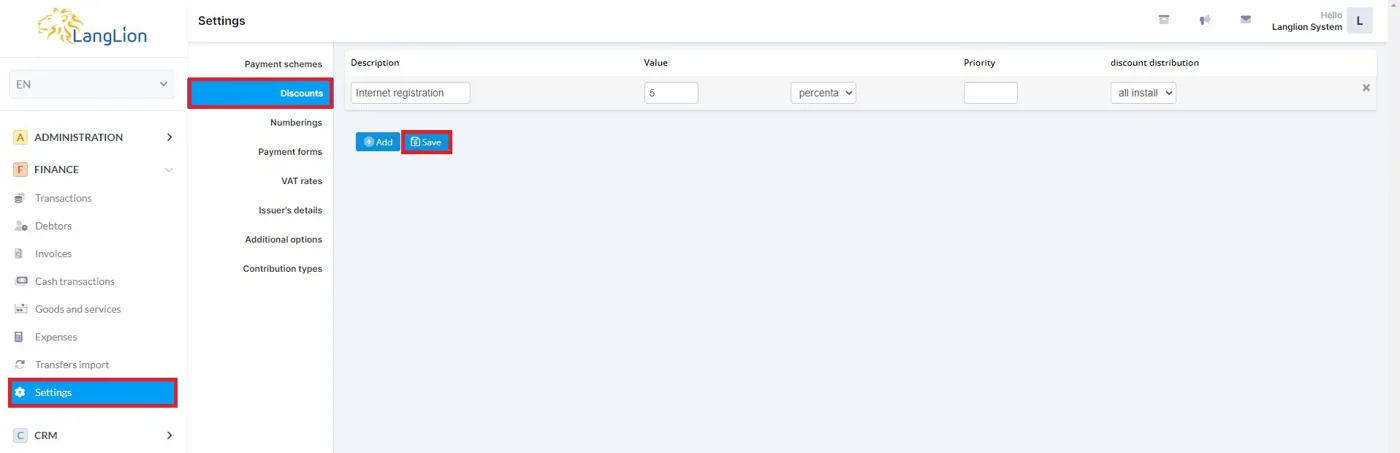
- Go to the Finance module and Settings tab,
- Select the Discounts tab and click on the Add button,
- Once you finish editing, click on the Save button.
Read the full instruction HERE
Discount attributes:
1. Discount type:
- value discount - reduces the price of the course by the amount entered in the "Value" window,
- percentage discount - reduces the price of the course by a percentage, entered in the "Value" window,
2. The priority is the order in which the discount is calculated.
3. Distribution of the discount:
- all instalments- the discount value is divided into the number of instalments and the amount of each instalment is reduced by a part of the discount value,
- first instalment - the value of the first instalment will be reduced by the discount
- last instalment - the value of the last instalment will be reduced by the rebate
- from each instalment - each instalment in the payment scheme will be reduced by the discount,
- hourly rate - the discount will decrease the hourly rate of the student. This discount works for hourly and hourly in advance settlement only.
Update the schedule#
Why do you need to enter holiday days early in the year? This will make it easier for you to later manage classes in groups. At the beginning of the school year, there are no modifications to the lessons lists yet and the system will help you to organize groups’ calendar.
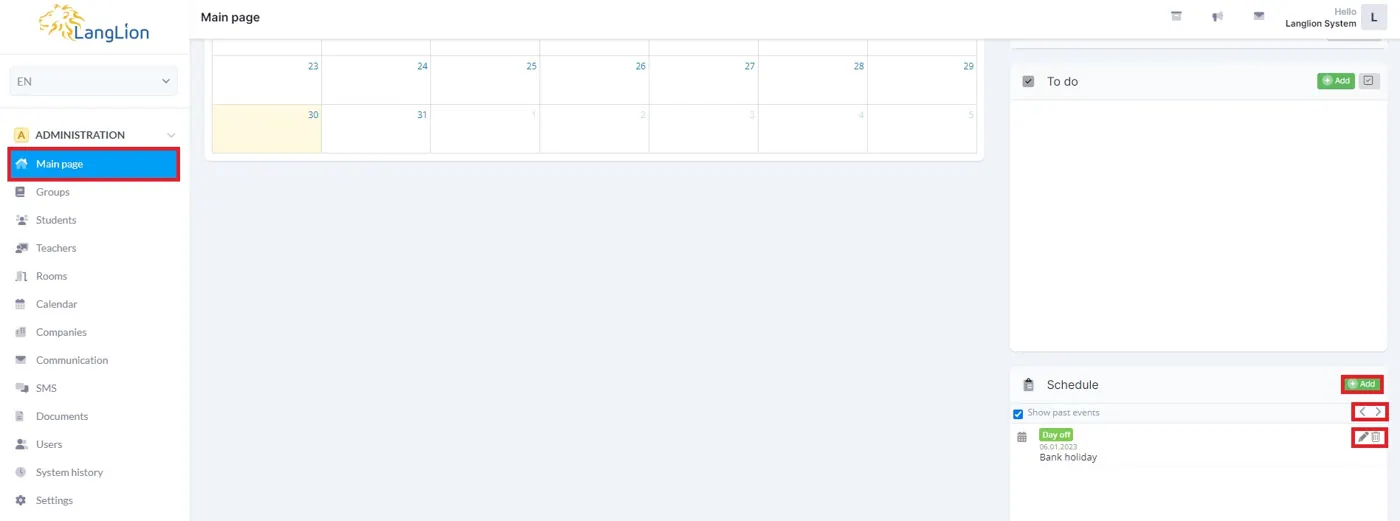
- Go to the Main page tab in the Administration module and scroll down to the Schedule window (bottom right corner of the site).
- Click on the Add button and enter events and days off.
- Now enter the title of the event, define its duration by entering dates in the Date from and Date to fields. If the event lasts one day, enter the same date value. Select the attribute Free of lessons if it is a day off.
- Once you finish editing, the system displays a message Event free of lessons has been added. Do you want to consider this event for generating classes in all groups? It can take a while.
- If you have already generated classes in groups, please confirm the message. The classes generator will go through the calendar and will move the lessons previously generated in the defined free time to a different date. Each new event has the attribute Applies to all groups selected by default but you have the option of deciding which specific groups should have days off.
Read more about how to use the Schedule options HERE
Create new courses#
When preparing for the new school year, expand the school’s offer and add a few new courses.
How to add courses?
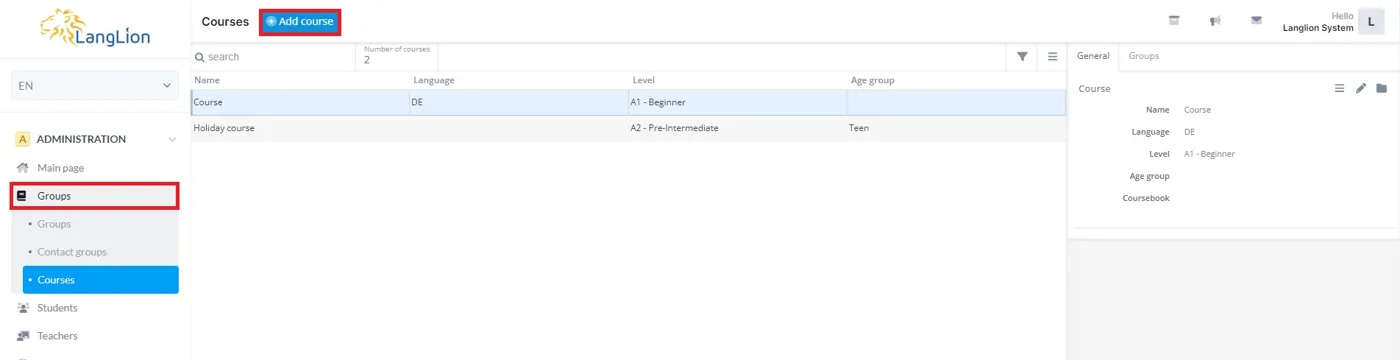
It’s easy, go to the Administration module and select the Groups, then Courses tab and click on the Add course button. Add a course name, assign the language, level even age group or a coursebook.
Create new groups by copying existing ones#
Are you planning to create new groups at the beginning of the school year? Check out the interesting function that the LangLion Platform offers you. You can copy groups that are active or already in the archive. What’s more, they can have identical properties and a class schedule.
How to copy a group?
- Go to the Groups tab and select the one you want to copy, (if it is an archived group, turn on the Archive first),
- In the General tab, select the Copy and activate function.
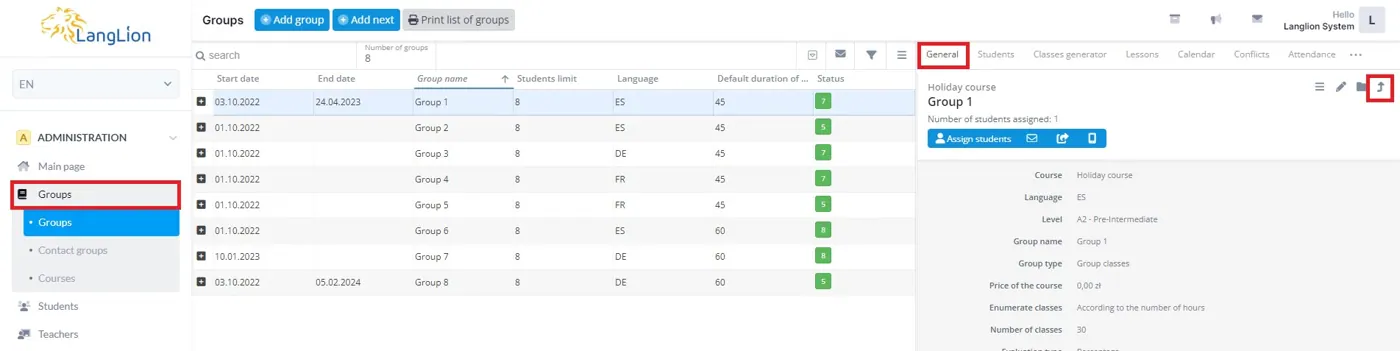
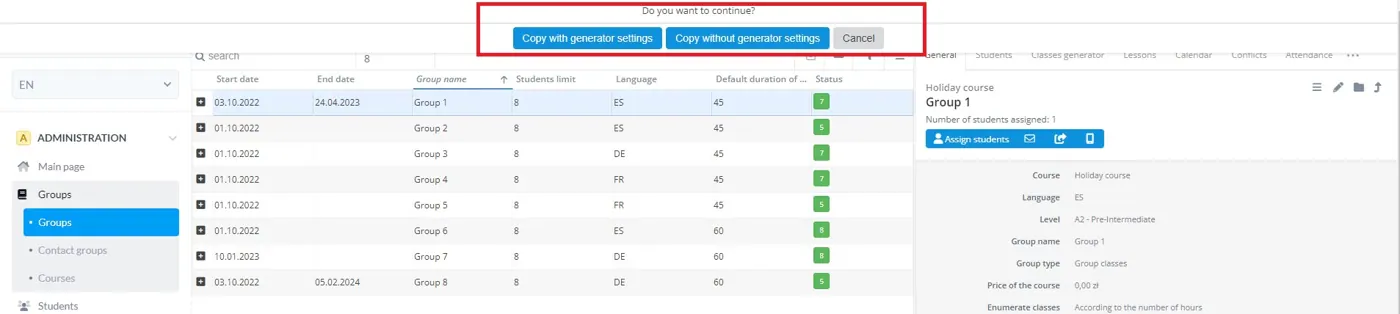
Do you want the new group to have the same class schedule?
Select the option Copy with generator settings.
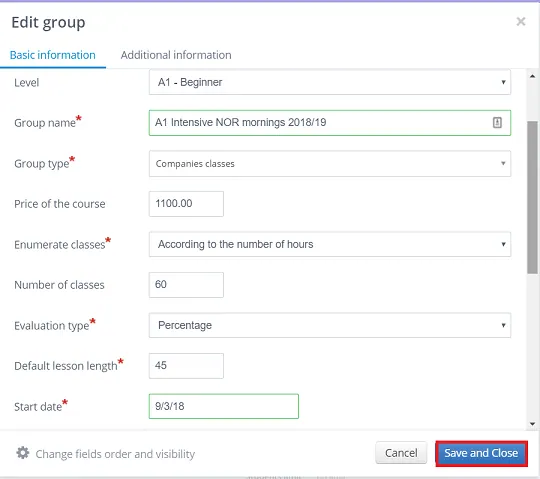
The new group has the same properties as the one copied, but you can make any changes to its settings. Set the appropriate start date and the number of classes, modify the name of the group to be able to easily distinguish between groups, etc. After finishing editing, click on the Save and close button.
A new group is now created and it has the same students assigned. The old group can be moved to the Archive.
Create new documents templates#
If you have not created contract templates yet, then the end of the holiday is a time that you can use to prepare a good contract with the student. In the LangLion Platform, you can create templates for student contracts and each contract will be automatically personalized (the variables contained therein will be supplemented with the data of the selected student).
How do I create a student contract template?
- Open the Documents module and go to the Templates tab.
- Click the Create a new template button.
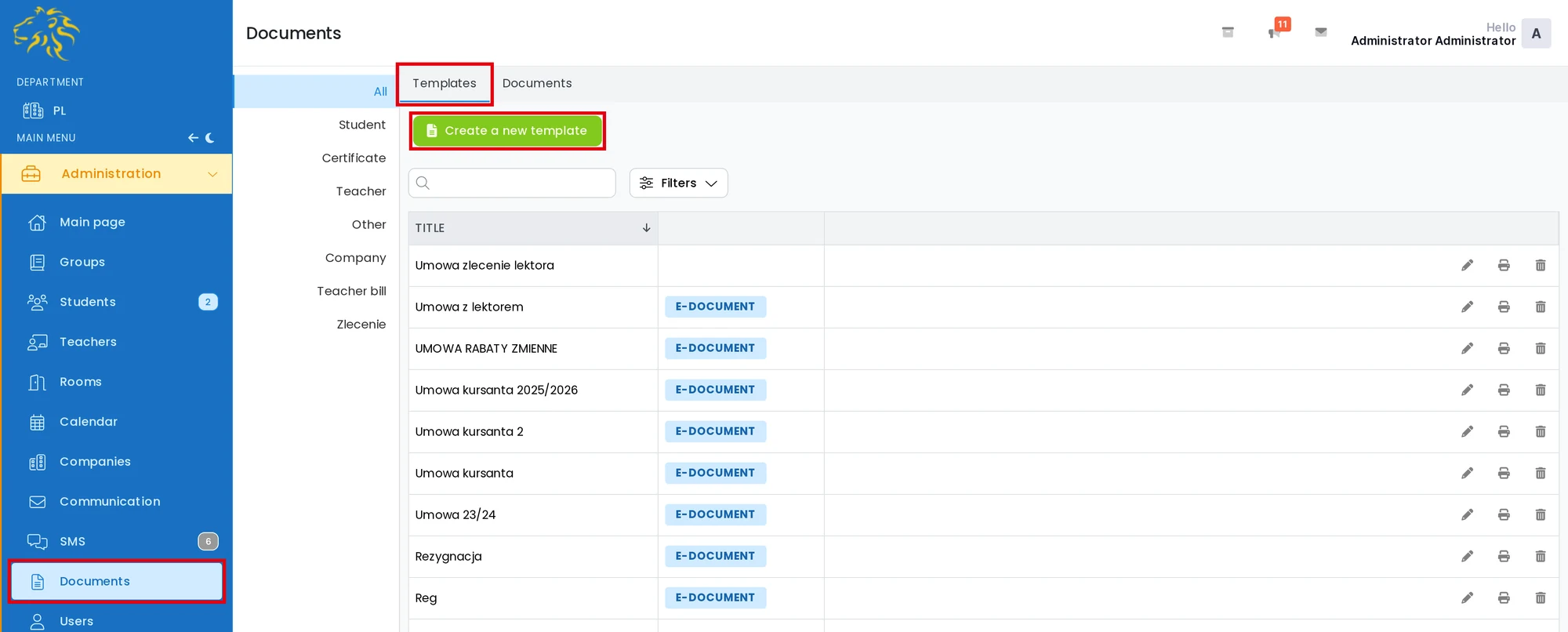
- In the Type of document field, choose the student contract. Enter the title of the document, assign the numbering if you use it. Information on how to create numbering for documents can be found -> HERE
- If you want the student/parent to be able to sign the contract online, mark the template as „E-document”.
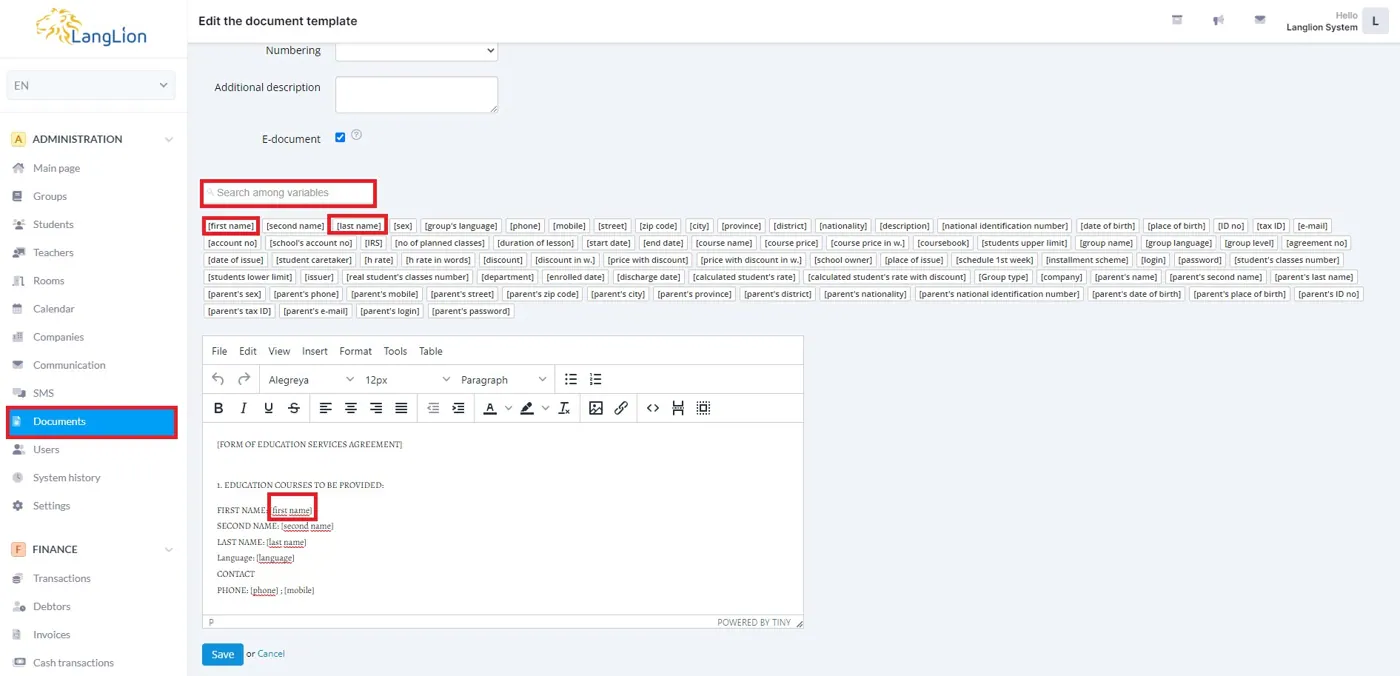
- Enter the contract content and use variables instead of gaps.
What are the variables and how do they look?
Variables are functions that retrieve specific student data for a contract printout. They are located above the text editor and are in the form of square brackets, such as [name].
To place a variable on the contract, position the cursor in the appropriate place in the text and click on the variable above the editor.
You can also move the variable to the content of the contract using the catch and drop method.
See how you can include your school logo on your student contract.
When you have finished editing the contract template, click Save.
Update the online registration form#
The online registration form allows your potential clients to sign up for the course on your website. If you place the registration form on the website, you will certainly increase the customer base.
Send mailing to archived students#
It is possible to send mailings to the archived students. This mailing can be an encouragement to continue learning at school or may include offers of other courses.
How to send a mailing to students from the archive?
Go to the Students tab and turn on Archive. Next, use the filters above the list of students and define the criteria of Archivization date
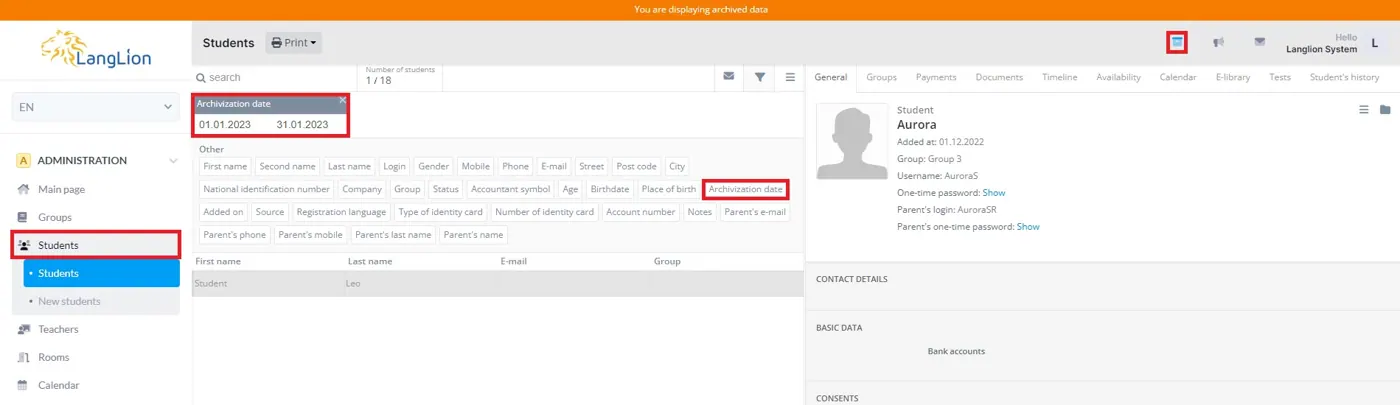
When the results are displayed, click on the Send a message to the filtered users button and select the Send an e-mail to users or Send an e-mail to parents option.
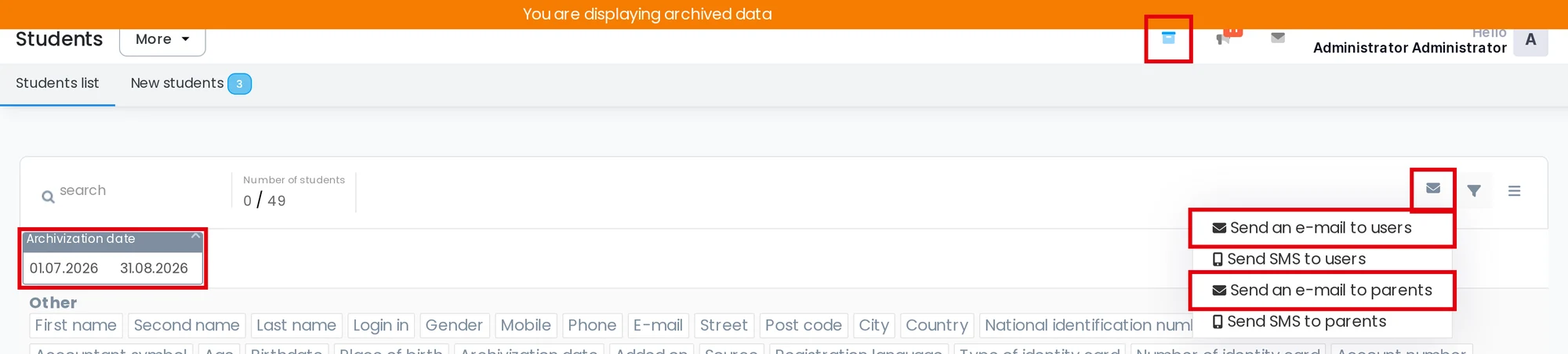
The recipients of the mailing have been automatically selected, now enter the text of the message and send it to recipients.
If it is an offer or an invitation to enrol, choose the relevant consent (for example, marketing) in the Consent field – the message will only be delivered to people who gave that consent. Read more about creating mailing and consents to processing personal data HERE.