
The financial module in the LangLion Platform is equipped with the option for creating discounts. Thanks to this tool we can give discounts to our students.
To add a discount:
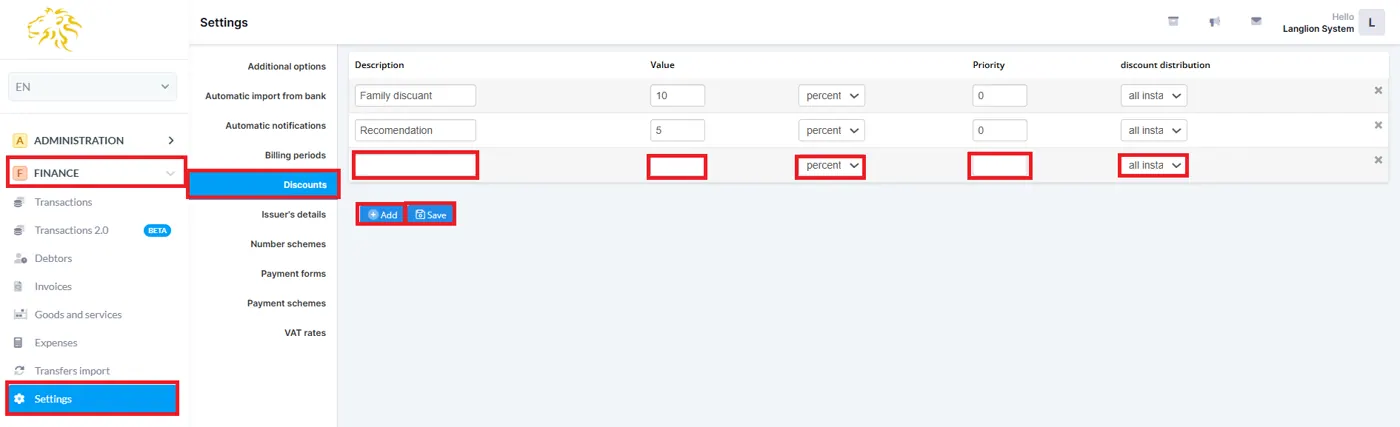
1. Go to the Finance module and choose Settings and then Discounts.
2. Click on the Add button.
3. Enter all needed information in the fields:
- Description – a name of our discount,
- Value
- determine its value and define whether it is to be a quota or a percentage.
- insert Priority – by setting the priority, you set the order in which the discount is calculated. Set the distribution of discount. The following options are available:
– All instalments – the discount value is divided into the number of instalments and the amount of each instalment is reduced by a part of the discount value,
– First instalment – reduction of the amount of the first instalment,
– Last instalment – reduction of the amount of the last instalment,
– For each instalment – the amount of each instalment is reduced by the discount value.
– Hourly rate – the amount or percentage discount will reduce the hourly rate of each student’s lesson. This discount fulfils its function in hourly and hourly billing from the top of the course. Its quota cannot exceed the hourly rate. This is the only type of discount you can apply to students settled hourly.
4. When you finish creating discounts, click on Save.
If the discount has been entered incorrectly, you can remove it by clicking the bin icon (Remove) next to the selected discount.
How to assign a discount to a student?
For this purpose:
1. Click the Students tab.
2. Select the appropriate person from the list.
3. Go to the Payments tab.
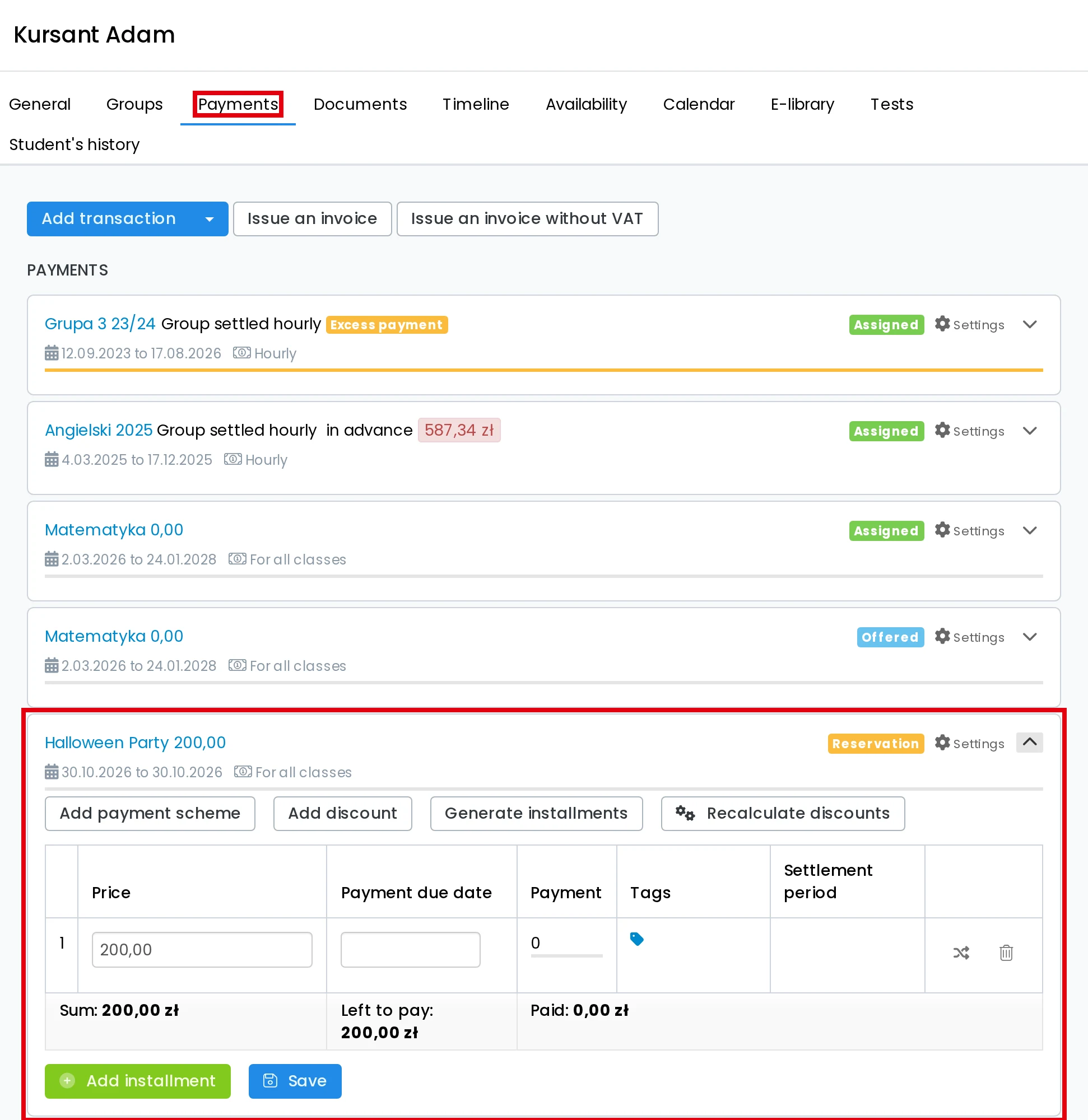
4. Click the Add discount button and in the Select discount field choose the discount you would like to give. In a group settled hourly or hourly in advance, only hourly rate discounts can be selected – the others are greyed out.
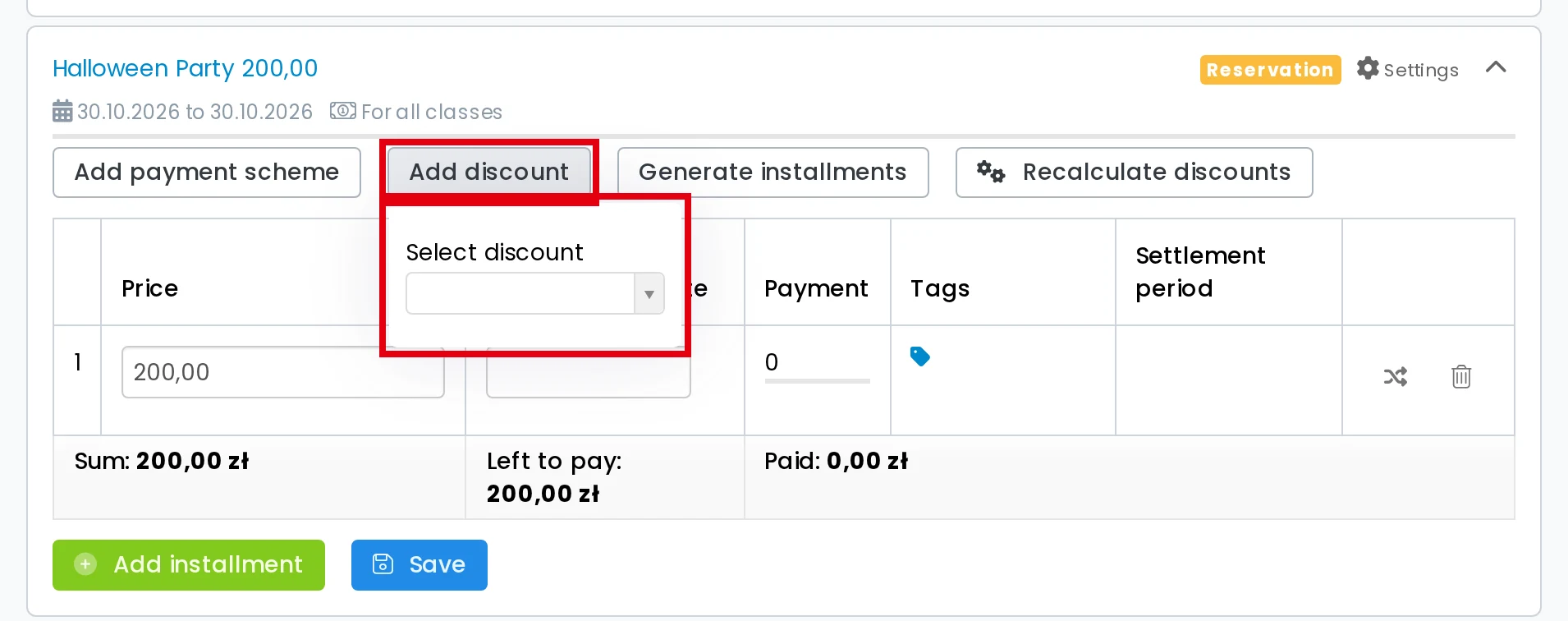
5. Confirm the system message Are you sure you want to apply a discount for selected course?
6. You also have an option to assign this discount to the student, so if he will be assigned to another group, the discount will be automatically calculated in the new groups as well. to use this option, confirm the Do you want to assign a discount to the student, so that it will be assigned automatically for next installments in all groups? system message.
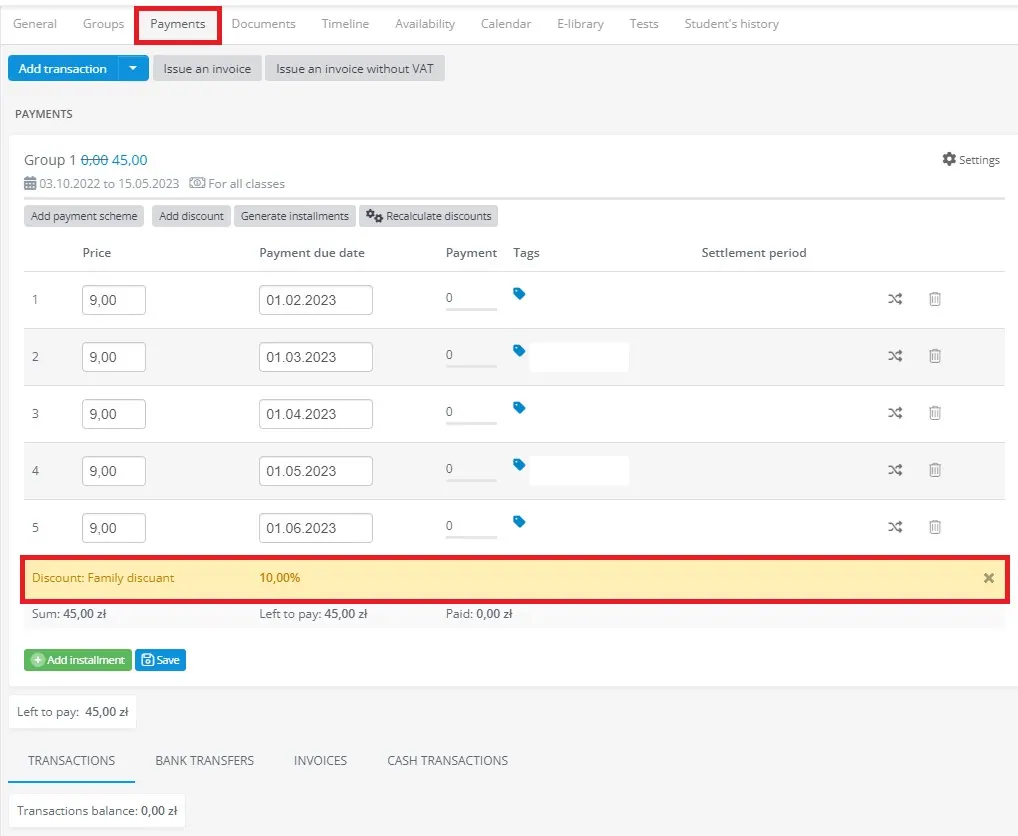
Done, a student received a discount. The price of the course was crossed out and the price of the course (including the discount) was displayed. The last instalment has been reduced – the discount applied has the attribute – Discount distribution – Last instalment. Under the payment scheme, there is a discount that has been applied. You can remove the discount with the delete icon (Remove).
If you change the instalments in a group settled for all classes, you can recalculate the discounts with the Recalculate discounts button.
Removing the discount does not return the original amount. You need to assign the payment scheme once again and overwrite the existing scheme.