
The “Billing periods” feature lets you limit editing of transactions, invoices, invoice corrections and cash documents. Items dated before the period boundary can no longer be edited (how the boundary is calculated – see below).
How do I set billing periods?
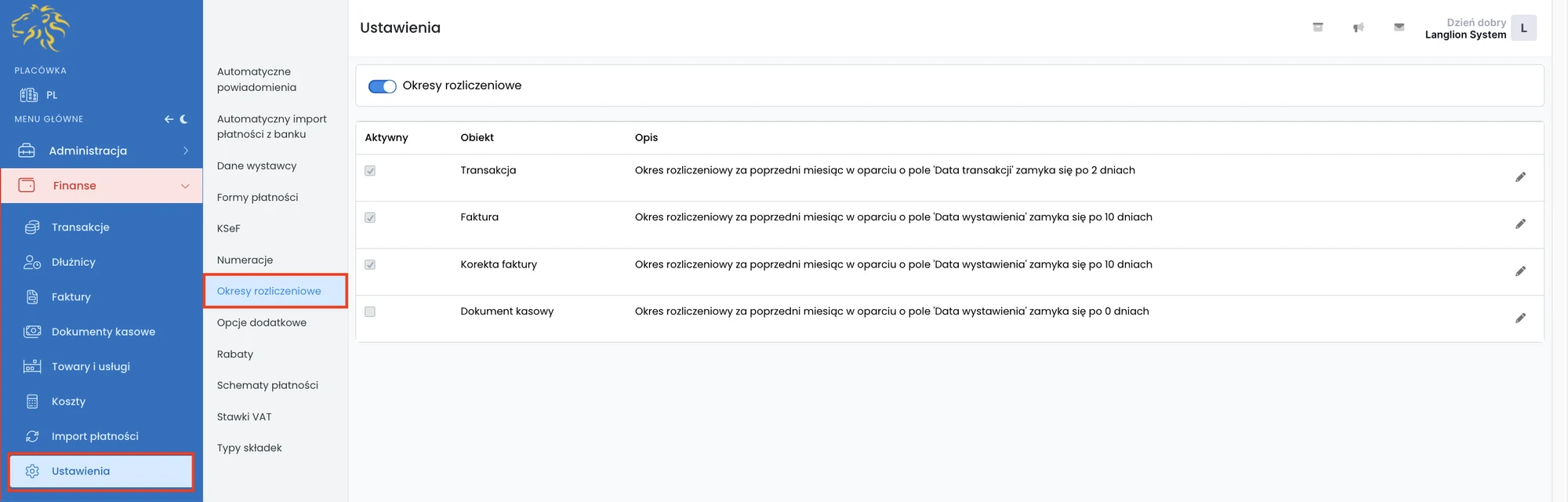
- Go to the “Finance” module → “Settings” → “Billing periods” tab.
- Turn on the “Billing periods” switch at the top of the tab. Without it, the settings for individual items do not work.
- In the table, choose the item (e.g. invoices) whose editing you want to limit and click the edit button on the right.
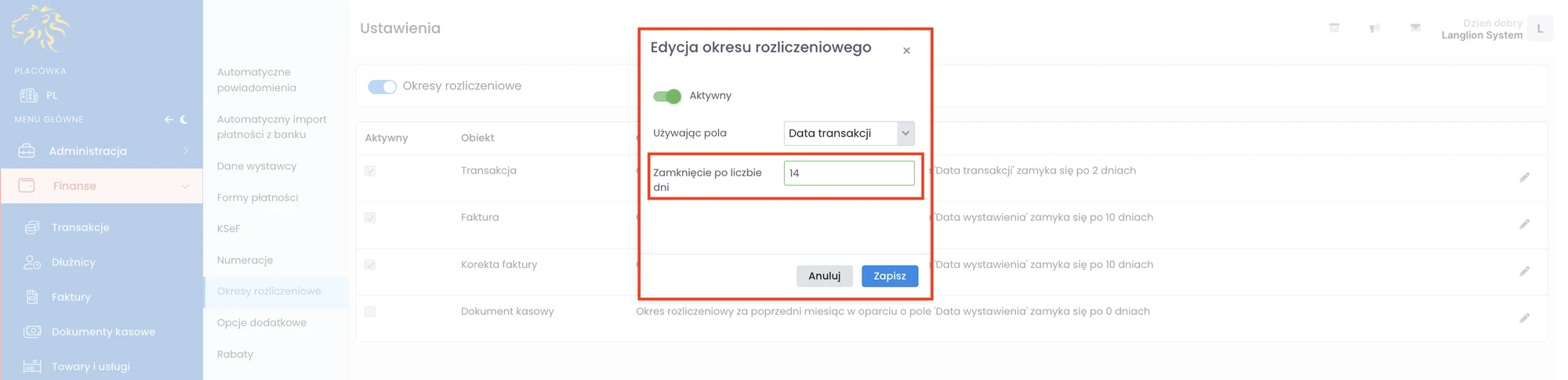
- In the “Edit billing period” window, fill in the fields:
- “Active” – turn it on so that the billing period applies to this item,
- “Based on field” – the date used to assign the item to a period: “Date of issue” or “Date of sale” (invoices and invoice corrections), “Date of transaction” (transactions), “Date of issue” (cash documents),
- “Close after days” – the number of days (N) by which the lock boundary is moved into the previous month.
- Save the changes.
Done! In the table, next to the item, you will see a description such as “Billing period for previous month based on field 'Date of issue' closes after 10 days”.
How is the lock calculated?#
The system blocks editing of items whose date (from the field selected in “Based on field”) is earlier than day N+1 of the previous month. The boundary moves on the 1st of each month.
Example for N = 10: throughout November, items dated up to 10 October are locked, while items dated 11–31 October can be edited until 30 November. On 1 December the lock extends to items dated up to 10 November. With N = 0, everything before the previous month is locked.
A date before the boundary also cannot be selected when you create or edit a document – the system shows the message “Date is outside billing period”.
The description in the table (“…closes after N days”) does not exactly reflect how the feature works: the previous month is not closed as a whole after N days – the boundary described above applies.
The “Billing periods” feature blocks editing an item, but it does not block deleting it.