
One of the handy features of the LangLion Platform is student settlement. It will certainly save you time, as the settlement process is largely automated. Use student settlement to record your students' payments.
You can choose from three types of student settlement:
Agree the most convenient type of settlement with the student.
This guide is also available as a video.
How do I assign a settlement type to a student?
It's simple, just:
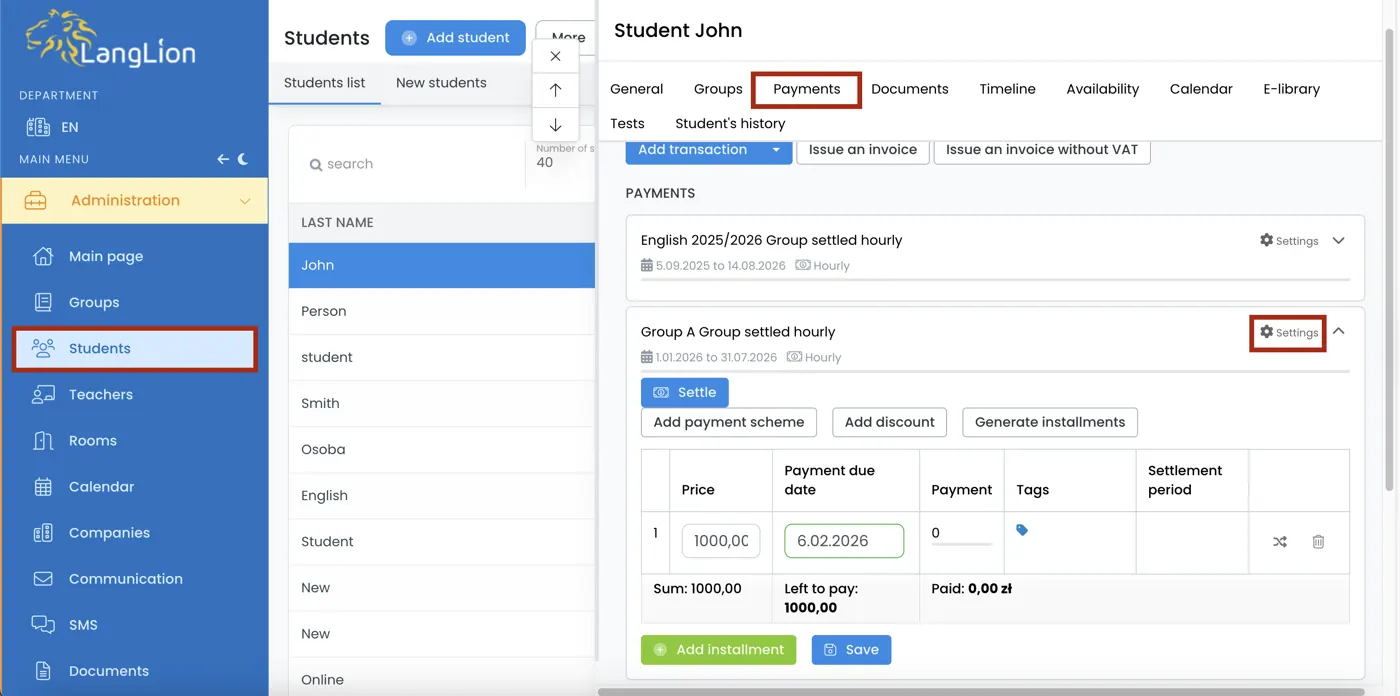
1. Go to the "Students" tab and select the student.
2. Click the "Payments" tab and then "Settings" next to the selected group (cog icon, tooltip "Change method of settlement").
3. In the window that opens, select the appropriate "Settlement". For hourly settlement and hourly settlement in advance, you also need to choose the price calculation base and enter the rate.
4. Save the changes.
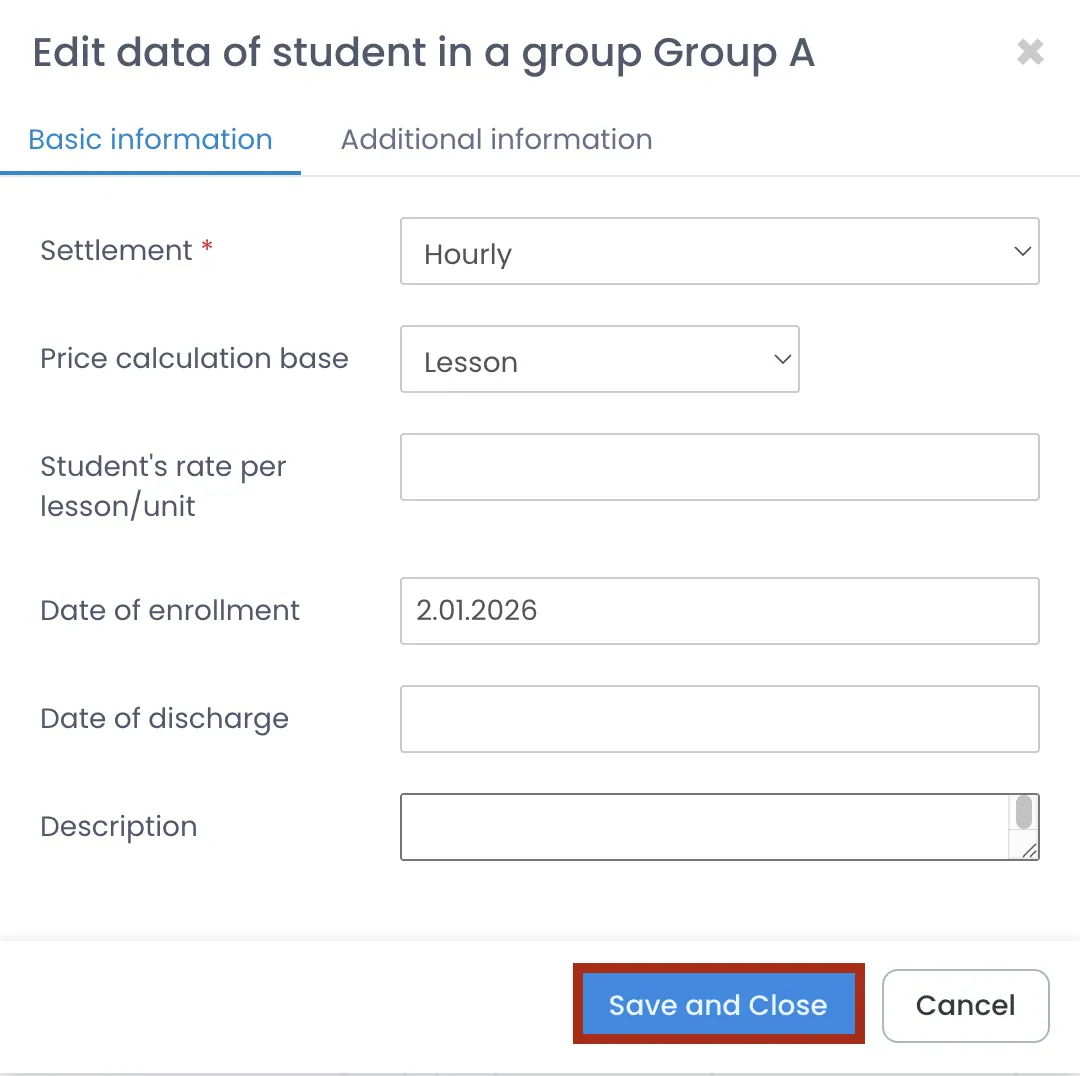
Done – the settlement type has been assigned to the student.
If the student has been added to a group with a specific settlement type, it will be applied to the student straight away. You can of course change it as described above.
If you edit the default settlement type in a group, it will not change automatically for students already enrolled in that group. After editing the group, you need to update the payment settings separately for each student assigned to it.
Upcoming payment reminder
If you use the Finance module, you can have notifications sent automatically to students about upcoming payment deadlines.
You choose how many days before an instalment is due the reminder is sent. If the Online payments module is enabled, the student can pay for the course straight from the e-mail.
To turn reminders on:
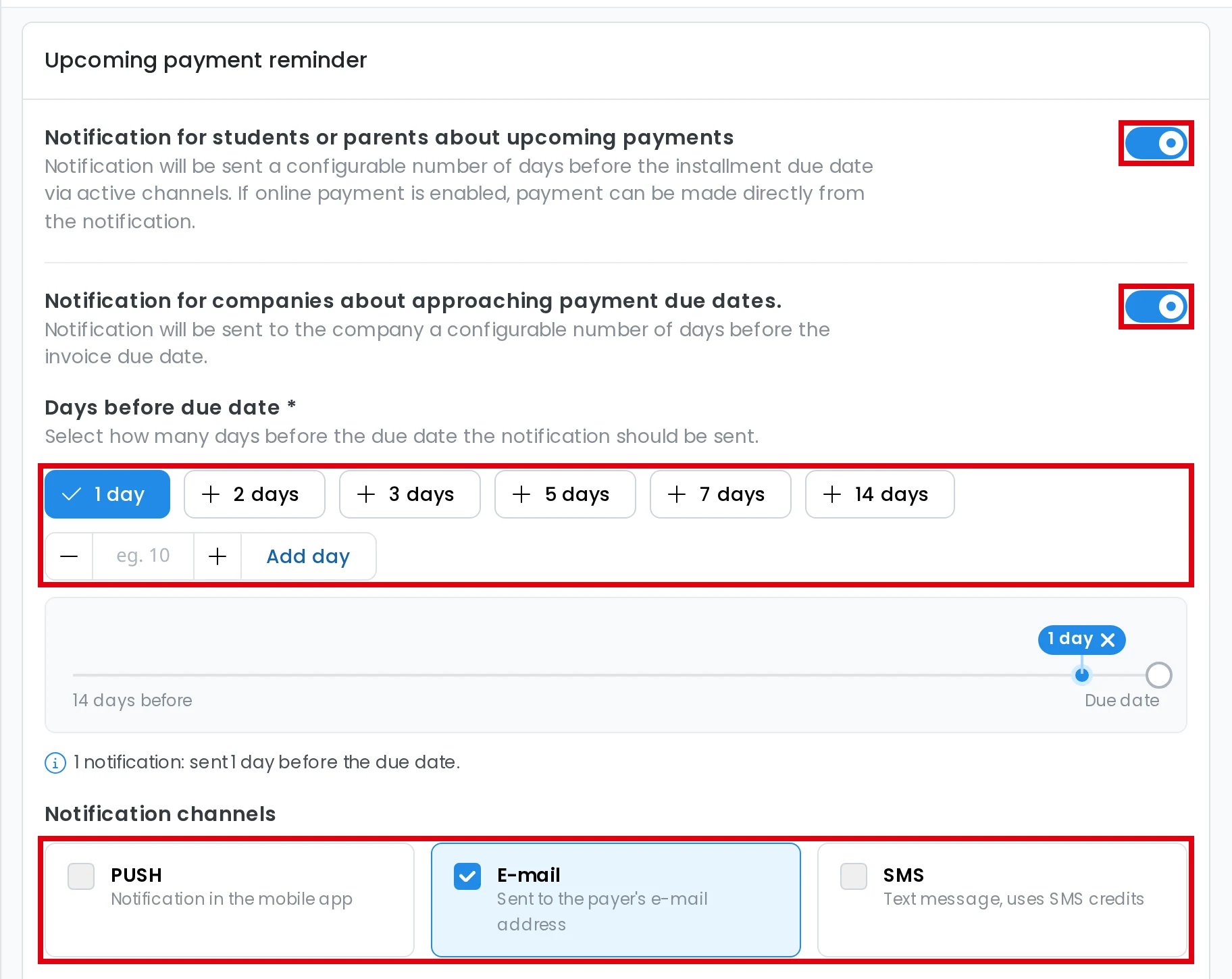
- Go to "Finance" → "Settings" → "Automatic notifications".
- In the "Upcoming payment reminder" card, switch on "Notification for students or parents about upcoming payments". To remind companies as well, switch on "Notification for companies about approaching payment due dates."
- In "Days before due date", choose how many days before the due date the reminder is sent – you can pick several values (e.g. 7 and 1 day).
- In "Notification channels", select how the reminder is sent: push notification, e-mail or SMS.
- Optionally switch on "Use custom mail content" to write your own e-mail text (with a preview).
- Save the changes.
Once saved, the system starts sending reminders to students and parents automatically. SMS messages are charged.
Reminders will be created for instalments created or updated after this option is enabled. Any change to a student's payments, including adding a payment or an invoice, will also refresh the instalments and generate notifications. You can also do this manually by clicking the "Save" button below the selected student's instalments.