
When you settle a student for all classes, the starting point is the course price. Depending on what you have agreed with the student, you can split the course price into instalments (by assigning a payment scheme to the student or by adding instalments of different amounts).
How do I settle a student for all classes?
You can do this easily.
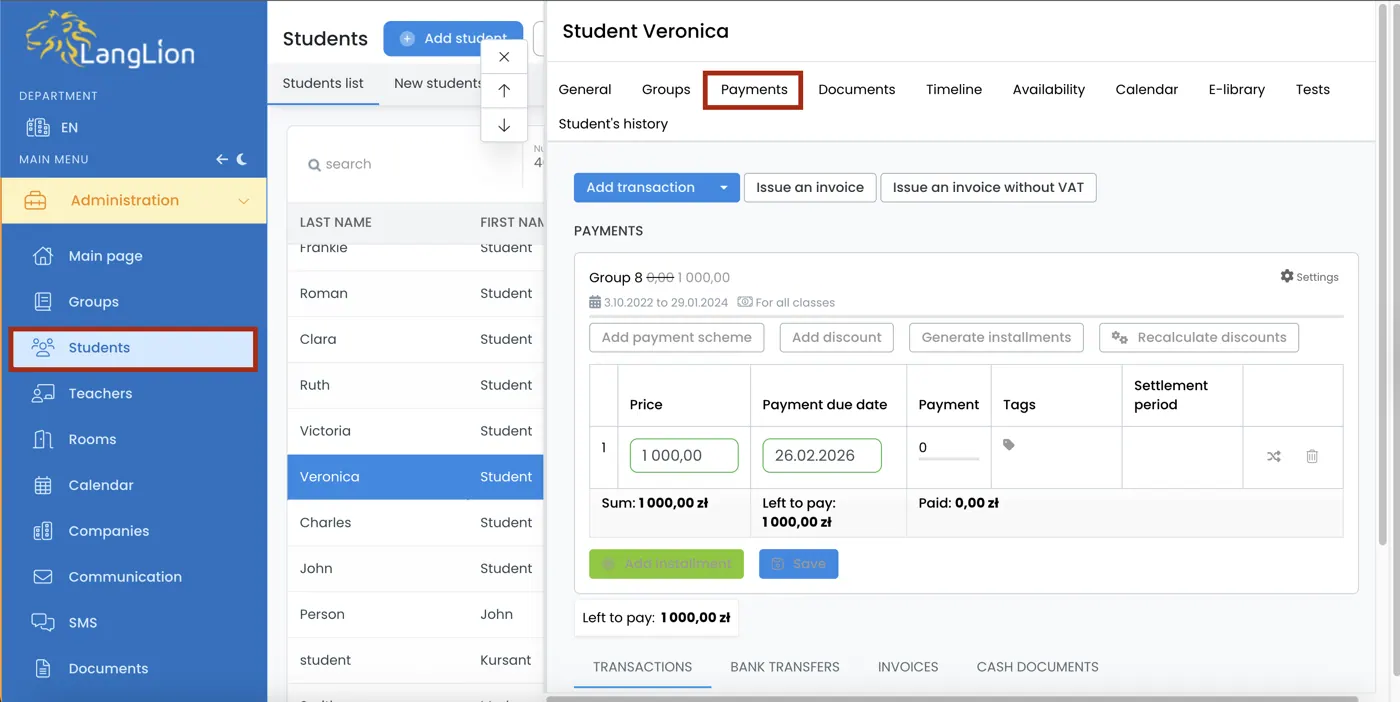
1. Click the "Students" tab in the "Administration" module.
2. Then find the person you want to settle in the list of students.
3. Select the "Payments" tab.
4. Click the "Add transaction" button.
5. In the payment edit window, select the payment method (e.g. cash or bank transfer) and the product; you can also add a description of the transaction. The amount to be paid is automatically taken from the next instalment, but you can enter a different amount when adding the payment for the student.
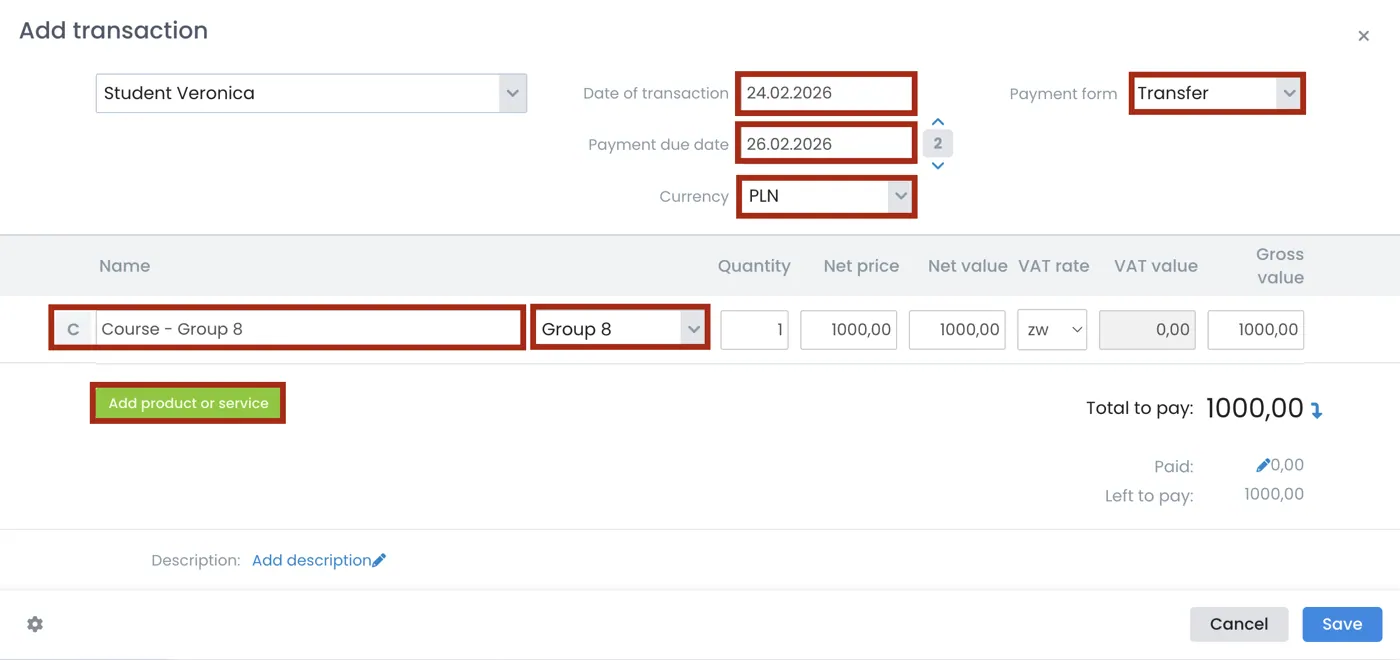
6. Click "Save and close" or press Enter.
Done – the student has been settled and a transaction has been created, for which you can issue an invoice.
How do I issue an invoice to the student?
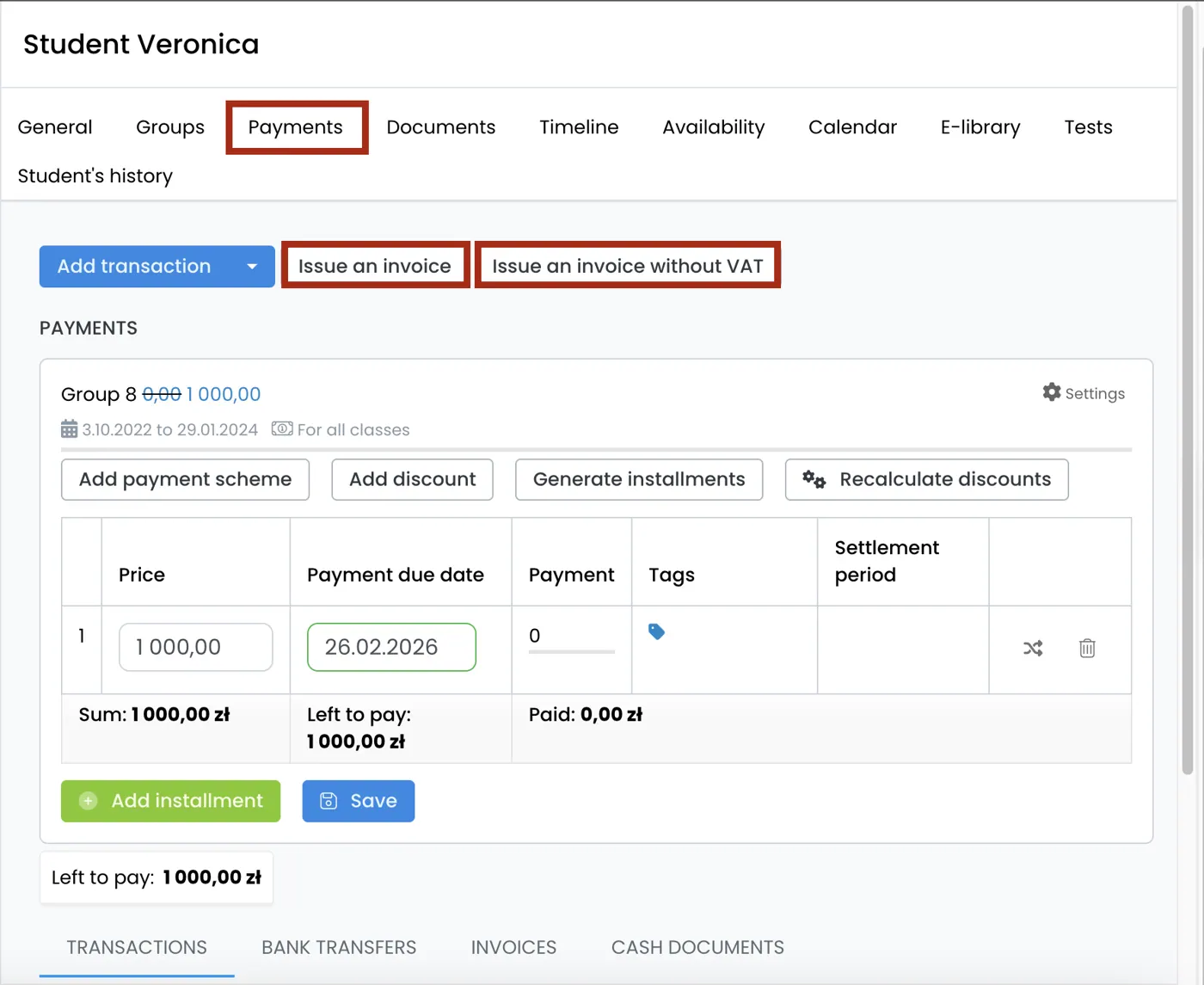
It's easy – in the "Payments" tab, click the "Issue an invoice" or "Issue an invoice without VAT" button.
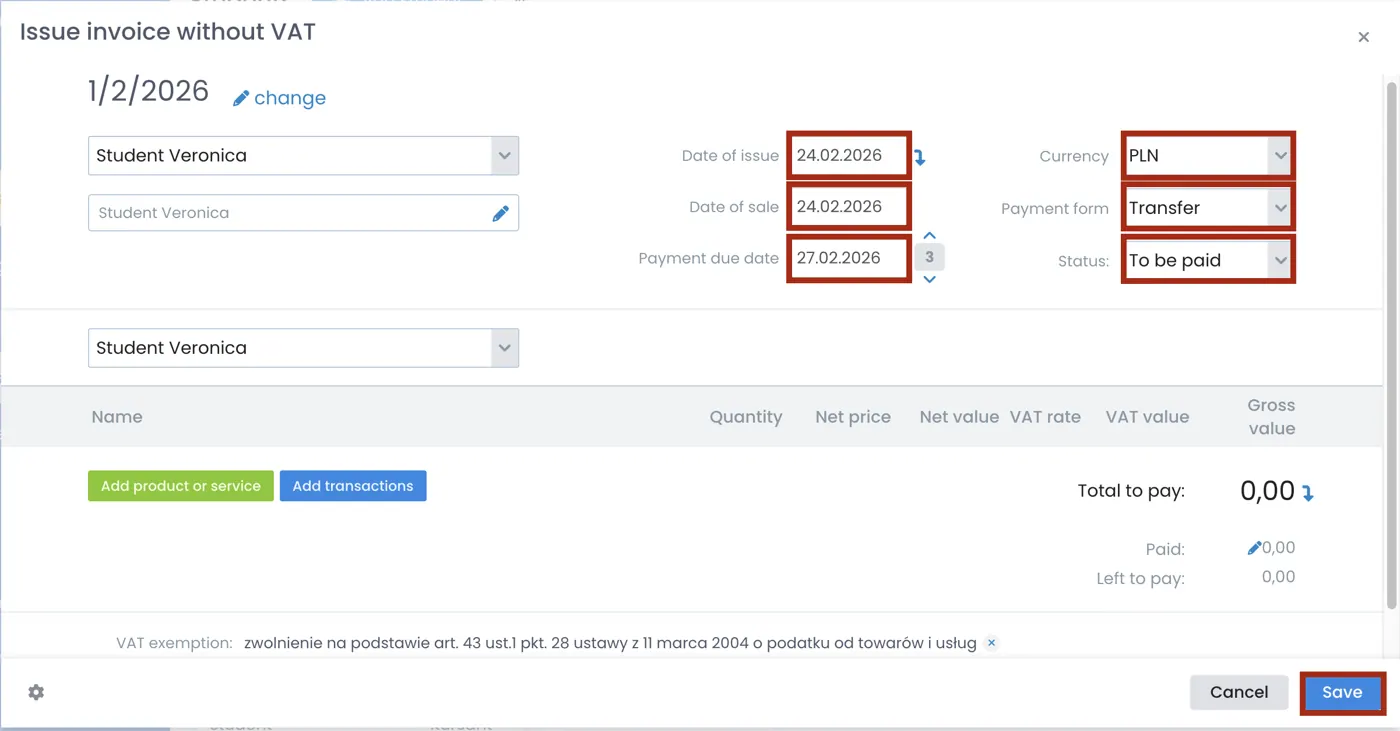
In the invoice edit window, select the same payment method that was assigned to the transaction and select that transaction. Also set the correct invoice status on the printout: To be paid or Paid. Then click "Save and close".
You will find full details of creating invoices in our guide:
Remember that if you add a payment with a deferred payment method, e.g. bank transfer, the instalment/amount due will be marked as paid only after you confirm that the payment has been made. Read more: The payment made by bank transfer does not reduce the amount to be paid by the student.
Notification about upcoming payments
If you use the Finance module, you can have notifications about upcoming payment deadlines sent to students automatically.
The notification is sent a chosen number of days before an instalment is due (e.g. 1, 3 or 7 days – you can pick up to 10 reminder days, from 1 to 365 days) through the channels you choose: in the student panel, by e-mail or by SMS. For details, see Automatic notifications. If the Online payments module is enabled, the student can pay for the course straight from the notification.
To turn this on, go to the "Settings" tab in the Finance module. Then go to the "Automatic notifications" tab and turn on "Notification for students or parents about upcoming payments".
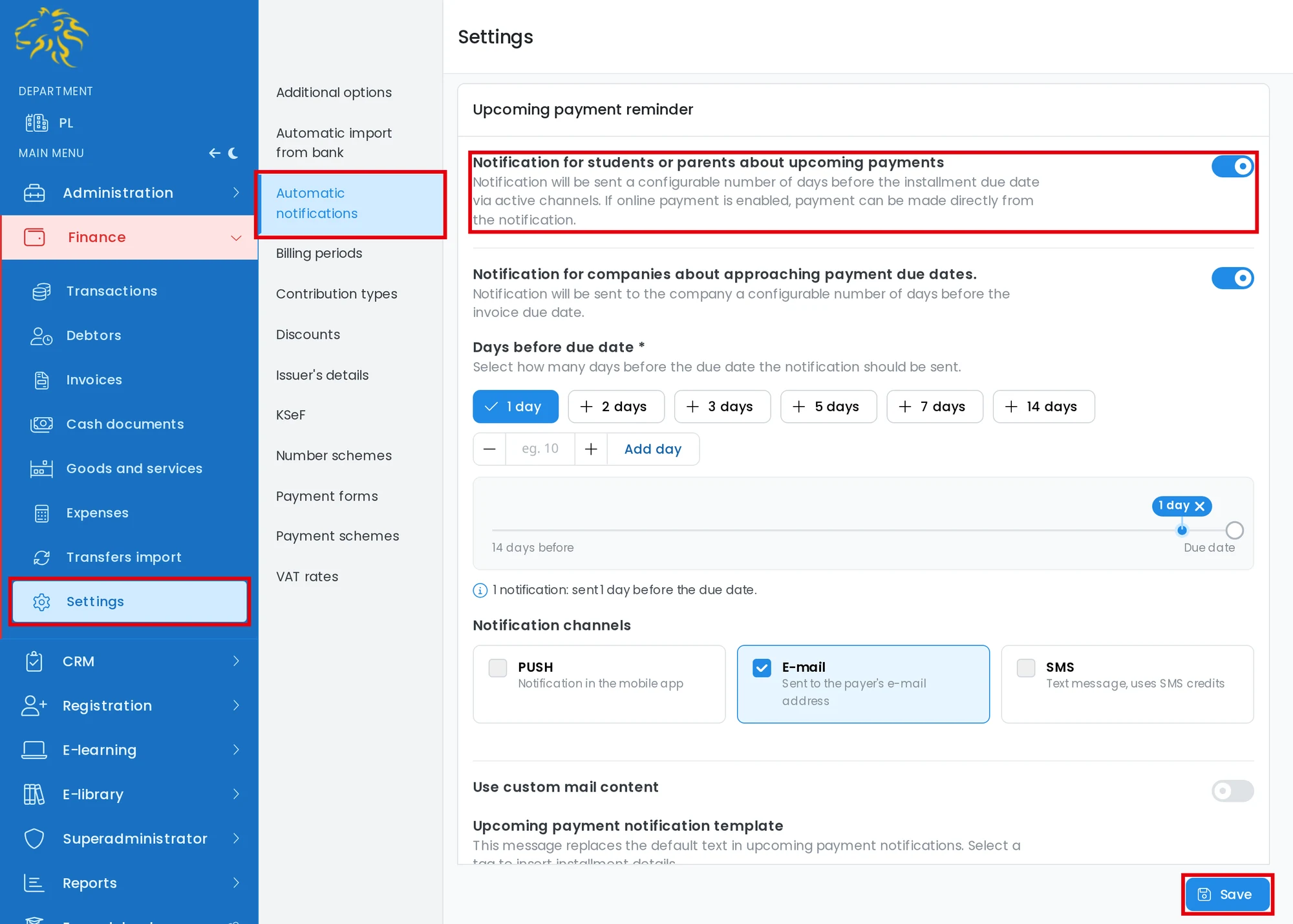
Reminders will be created for instalments created or updated after this option is turned on. Any change to a student's payments, including adding a payment or an invoice, will also refresh the instalments and generate notifications. You can also do this manually by clicking the "Save" button under the selected student's instalments.