
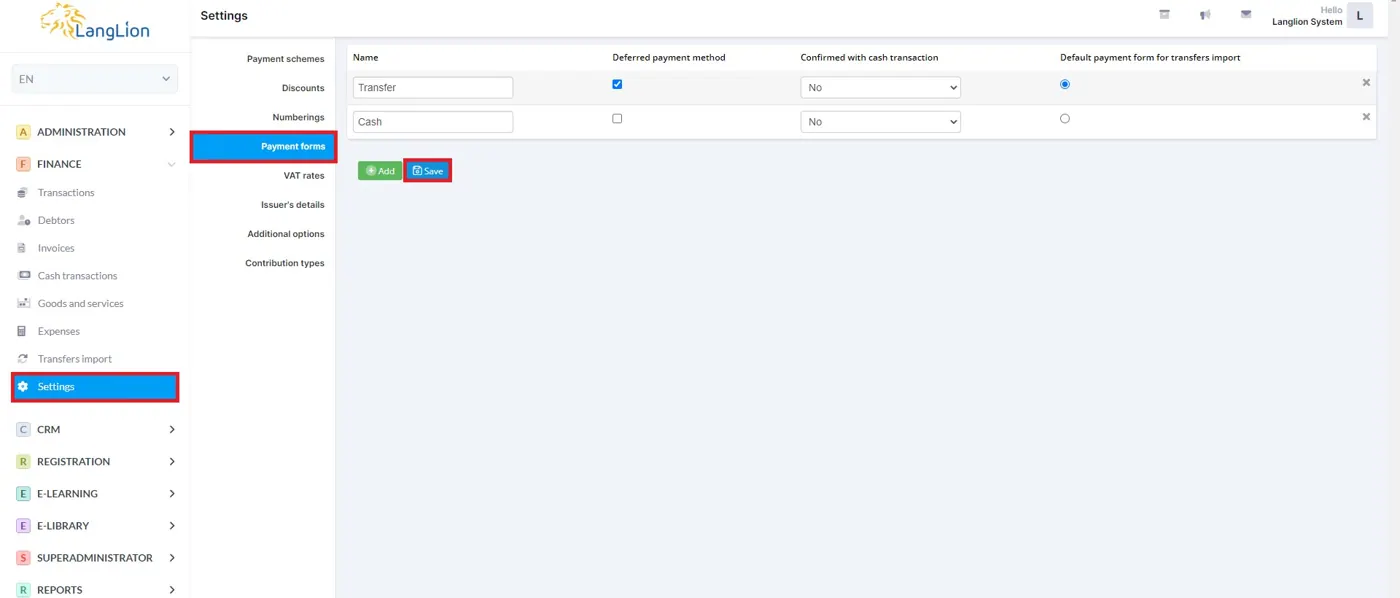
Most probably, the form of payment, which is a transfer, was defined as deferred. If the transaction is created with a deferred form of payment, you must confirm the date of payment of the transaction.
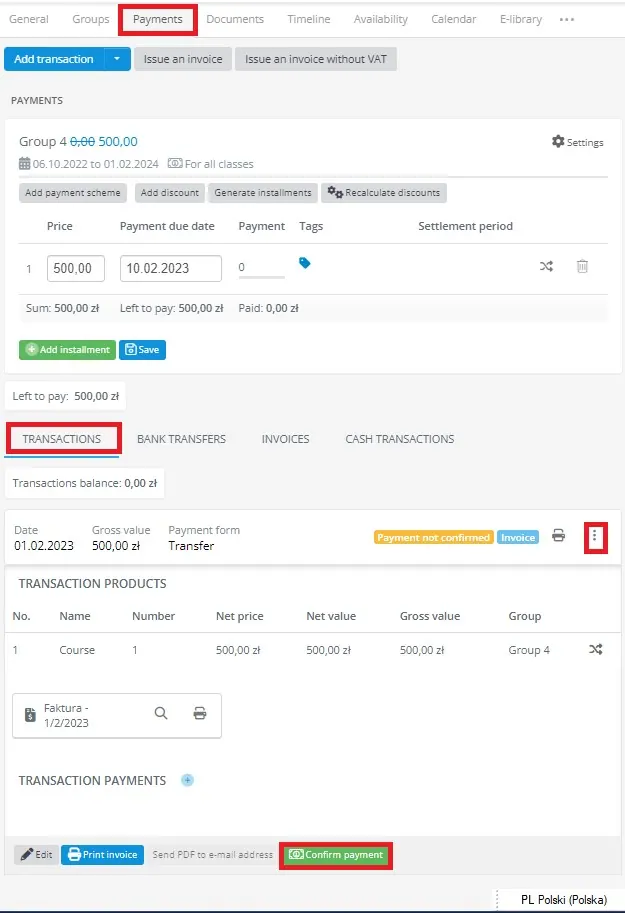
How can I confirm the date of payment of the transaction?
Go to the Payments tab of a given student, find the transaction awaiting confirmation and click the Confirm Payment button.
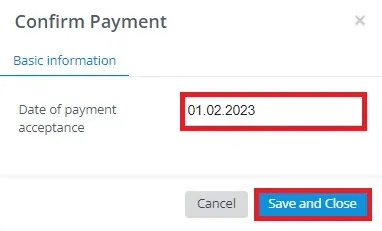
The current date will appear in the new window, but if necessary, select another one from the calendar (to display the calendar, click in the field with the date) and save the changes.
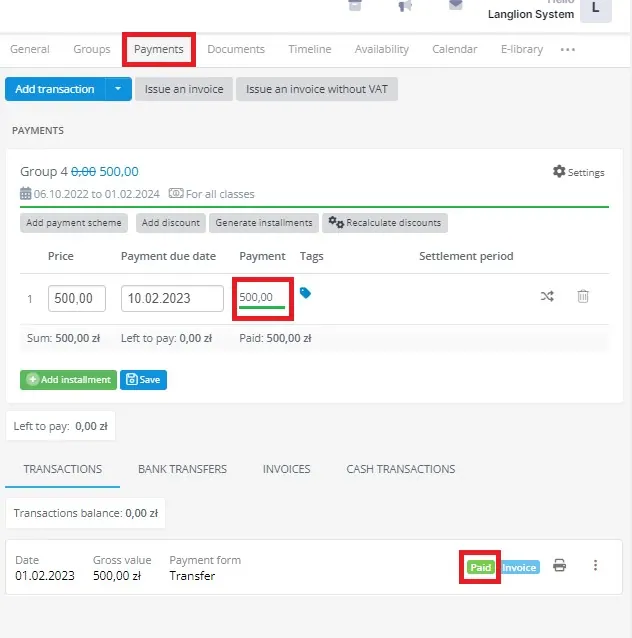
The system will deduct the paid instalment from the total amount to be paid. The payment status of the student will be presented graphically – the bar next to the instalment will turn green.
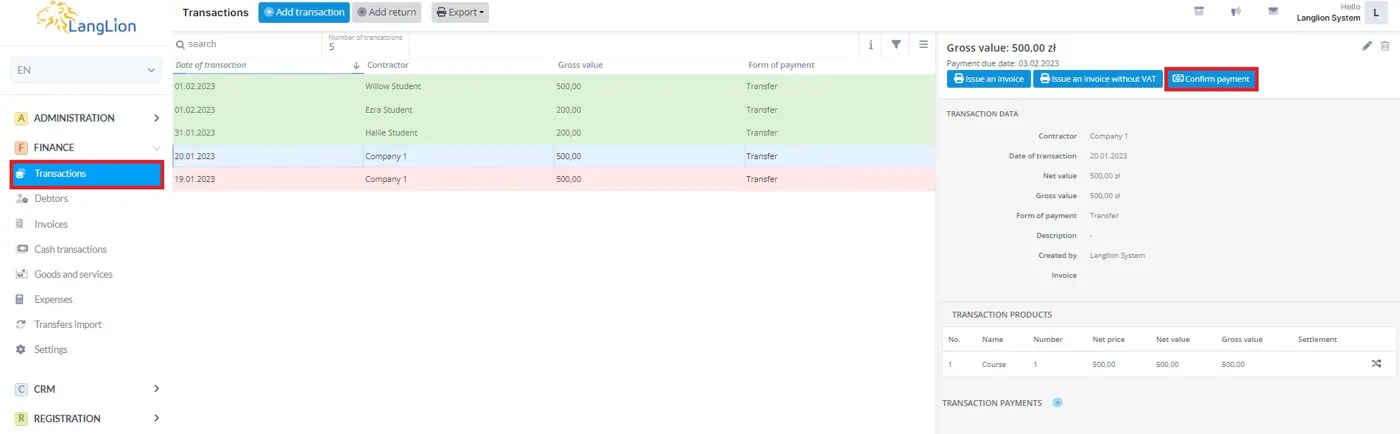
You can also confirm the transaction in the Finance -> Transactions tab.
Of course, the settings of the LangLion Platform allow you to fully edit the payment methods and you can make changes at any time so that at the time of adding the payment, the instalment was automatically paid without the need to confirm the transaction. To make the payment decrease the amount to be paid just after entering it into the system, disable the Deferred payment attribute.