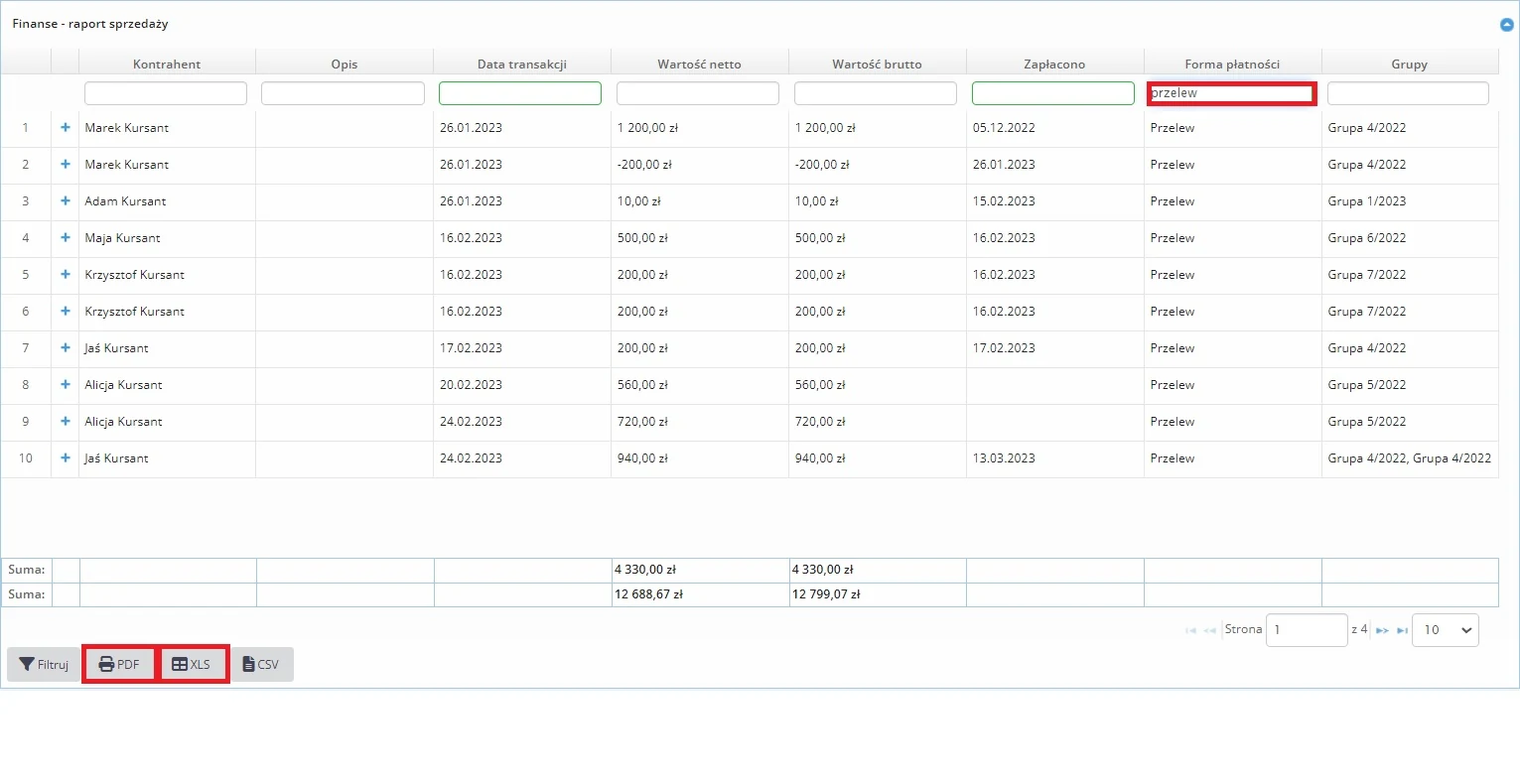
You can prepare a summary of bank transfer payments in two simple ways. The steps are described below.
Export the list of transactions to a spreadsheet.
How do I do it?
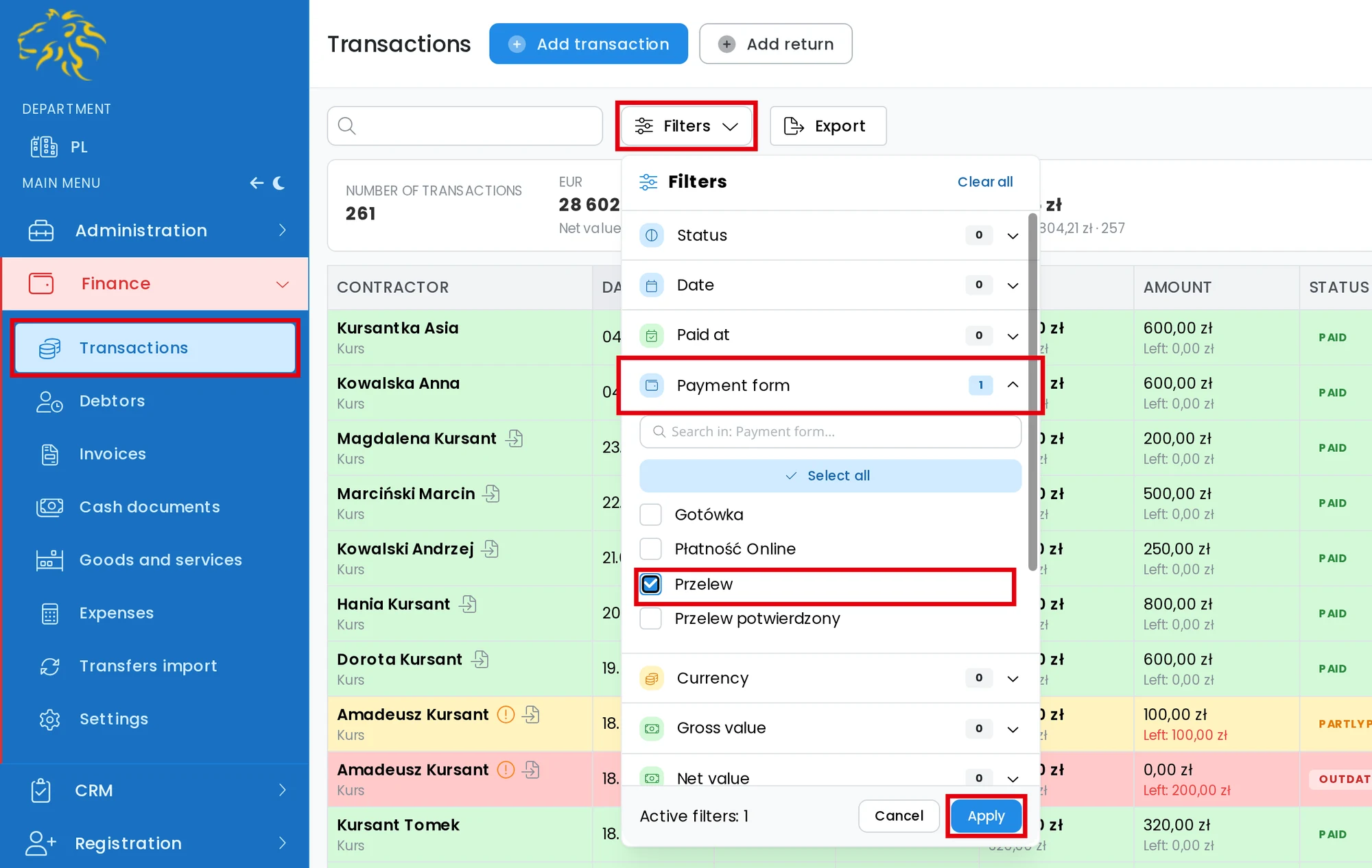
- Go to "Finance" → "Transactions".
- Click "Filters", in the "Payment form" filter tick your school's bank transfer payment form (e.g. "Przelew") and click "Apply". If needed, also add a date filter to limit the summary to the chosen period.
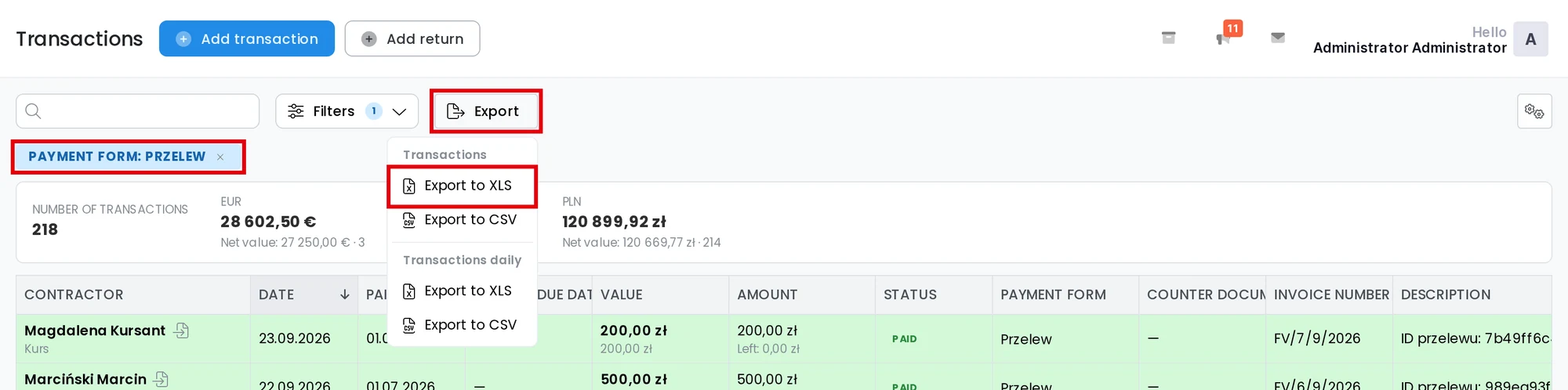
Done – the list shows only bank transfer payments. To move them to a spreadsheet, click the "Export" button and under "Transactions" choose "Export to XLS" (or "Export to CSV"). The export includes the filters you set.
If you prefer the second method, use reports.
How do I prepare the report?
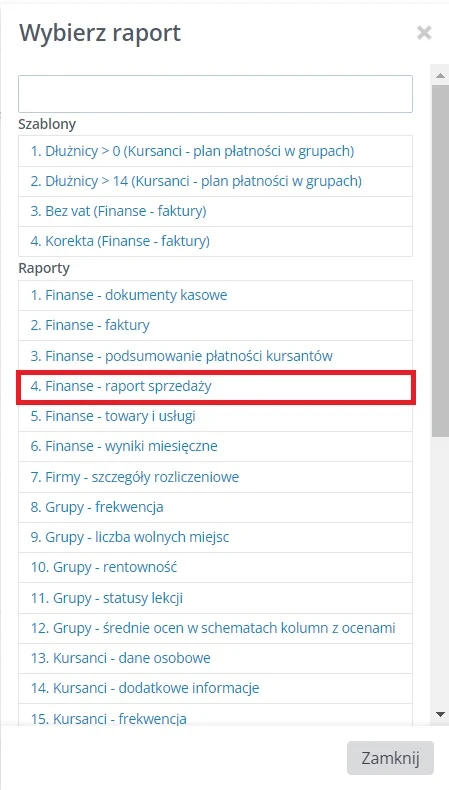
Open the "Reports" module and click the "Select report" button.
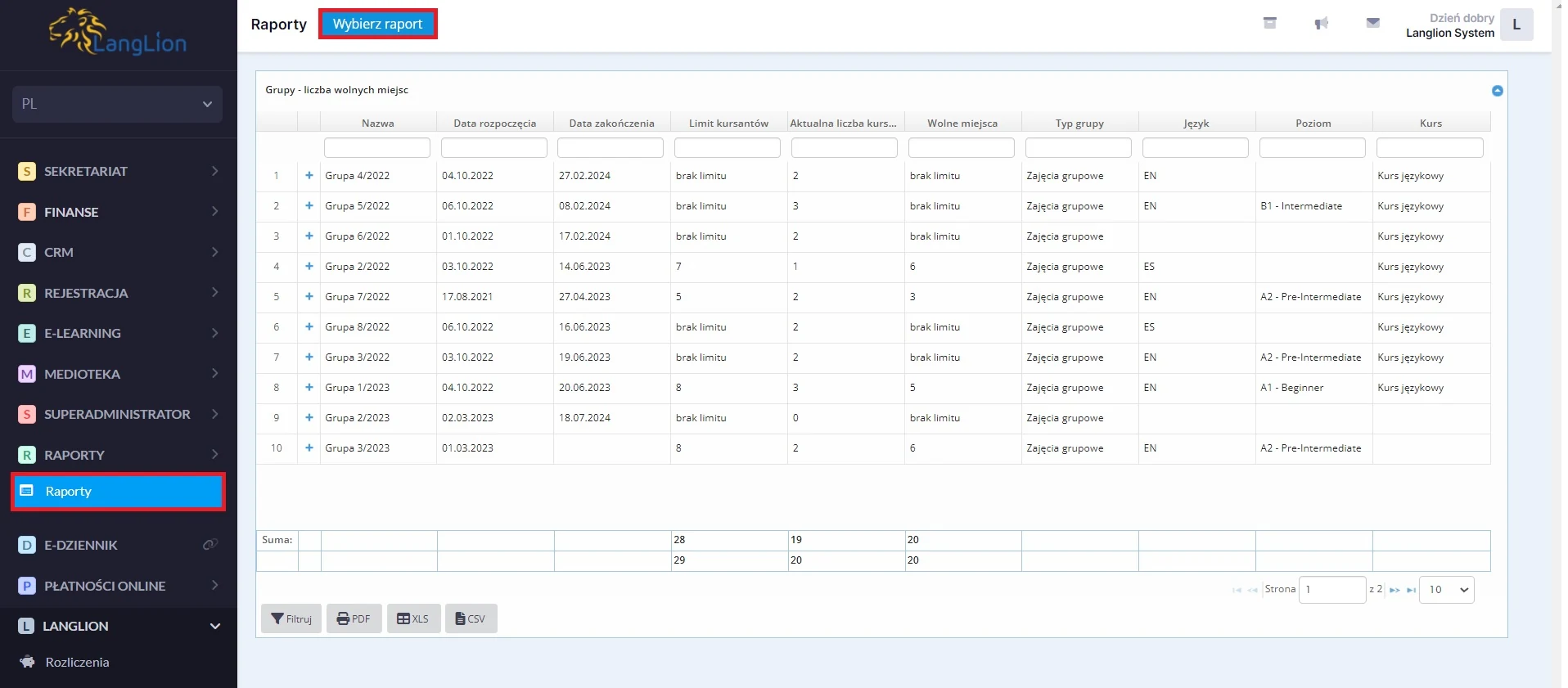
Then select "Finance - sales report" from the list of reports.
Apply a filter to the results: under the "Form of payment" column name, type przelew (transfer).
Done – the report is displayed. You can now print the results or move them to a spreadsheet.