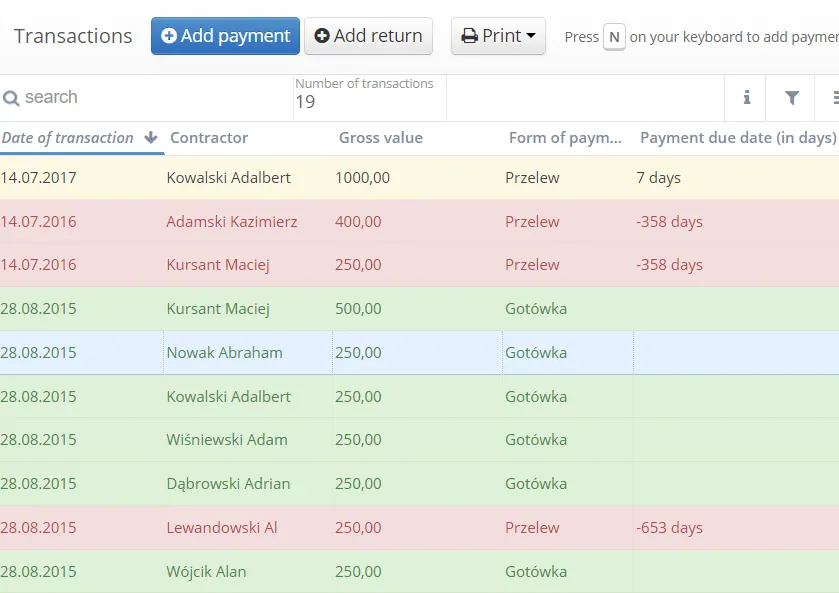
The Transactions tab contains all payments and returns recorded when settling students and companies. In this tab you can:
- add transactions (Add transaction button) and returns (Add return button),
- search for transactions – the search box looks through the contractor, invoice numbers and amounts,
- filter the list, e.g. by status, date, payment date, payment form or currency, to get the summary you need,
- sort the list – click the column name (by default the list is sorted by date, newest first),
- export the list to an XLS or CSV file.
What information does the transactions list show?#
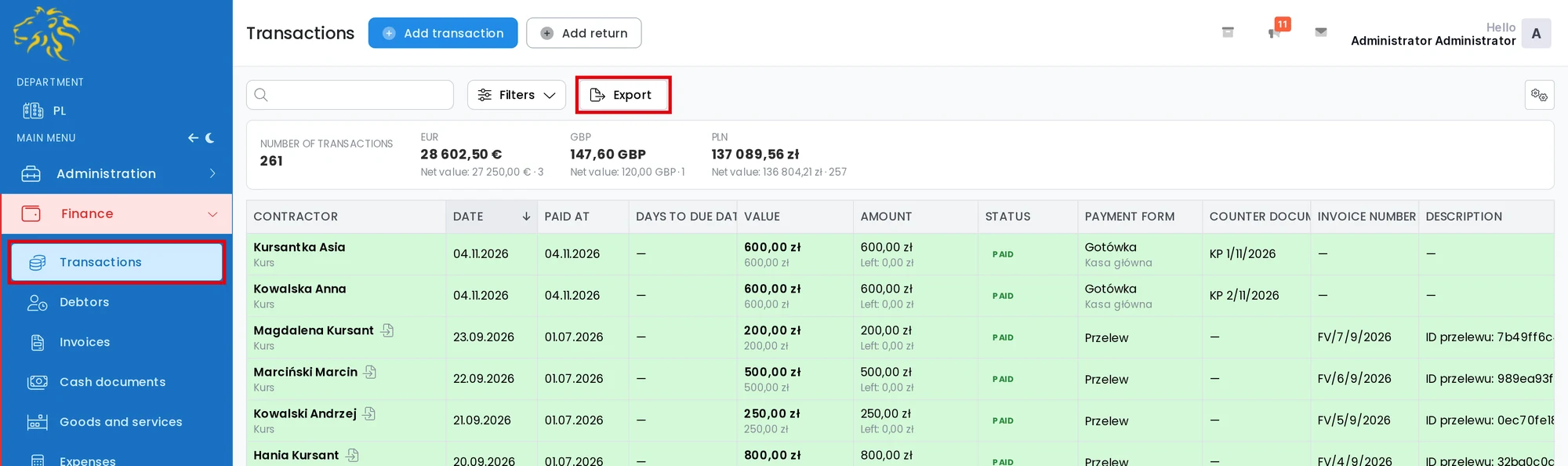
Above the list there is a summary bar: Number of transactions and the Gross value and net value of the transactions shown after applying the filters. The list has these columns:
- Contractor – the student or company,
- Date – the transaction date,
- Paid at – the payment date,
- Days to due date – how many days are left until the due date or how many days have passed since it,
- Value – the gross value of the transaction,
- Amount – how much has been paid and how much is left,
- Status – the payment status,
- Payment form,
- Counter document and Invoice number – numbers of the documents issued for the transaction,
- Description.
The Amount and Status columns cannot be sorted.
How do I export the transactions list?#
- Set the filters, e.g. a date range – the export includes the transactions shown on the list after applying the filters.
- If you want to choose the columns in the file, click List settings and hide or reorder the columns. The file will contain only the visible columns, in the same order. Restore defaults brings back the initial layout.
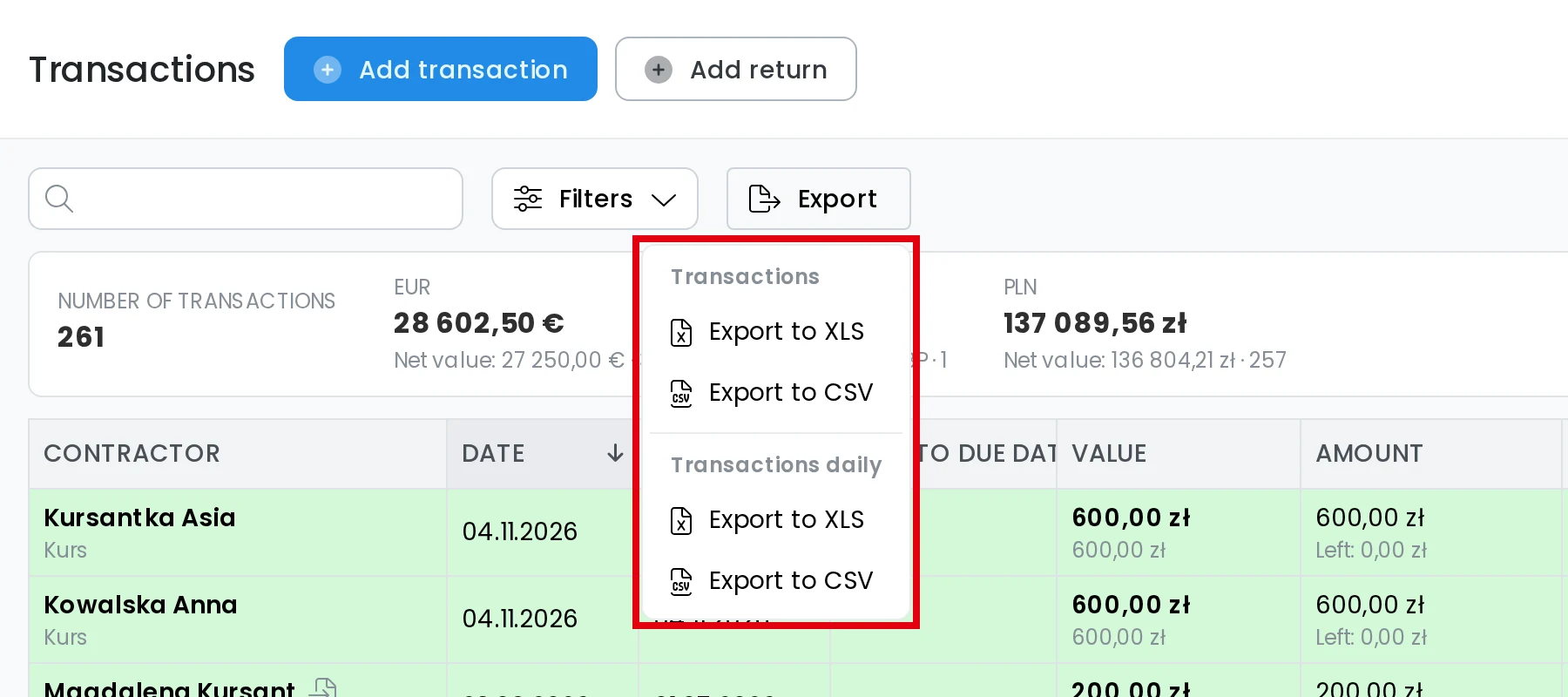
- Click Export.
- In the Transactions section (the whole list) or the Transactions daily section (daily summary), choose Export to XLS or Export to CSV.
Done! The file will be downloaded to your computer.
Where can I see the details of a transaction?#
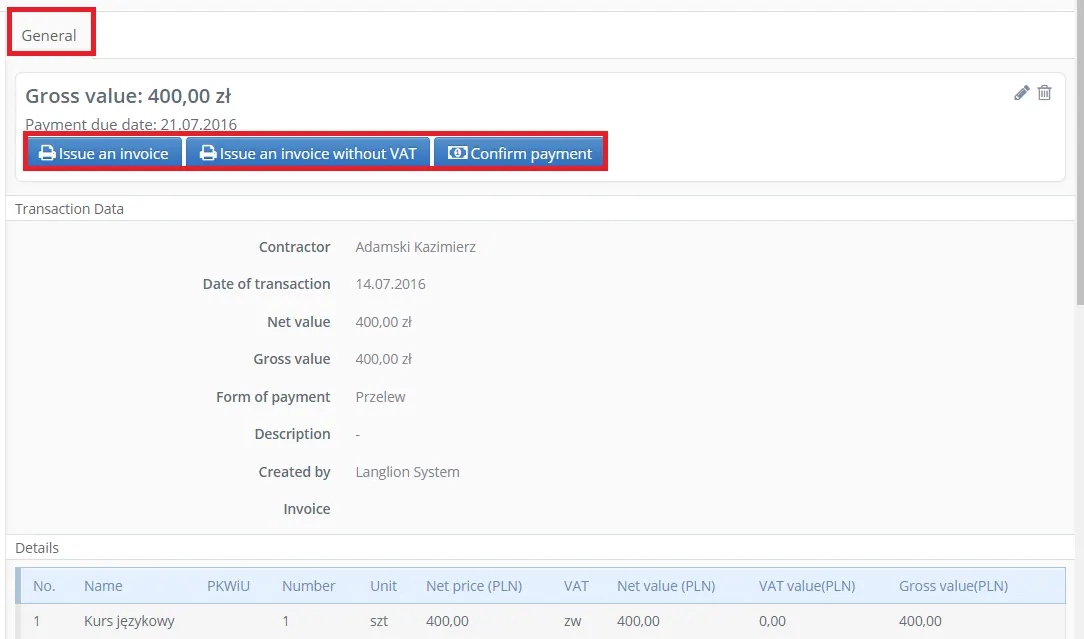
Click the transaction on the list. The tab on the right shows information about the transaction, such as:
- contractor,
- date of transaction,
- net amount,
- gross amount,
- transaction description (if any).
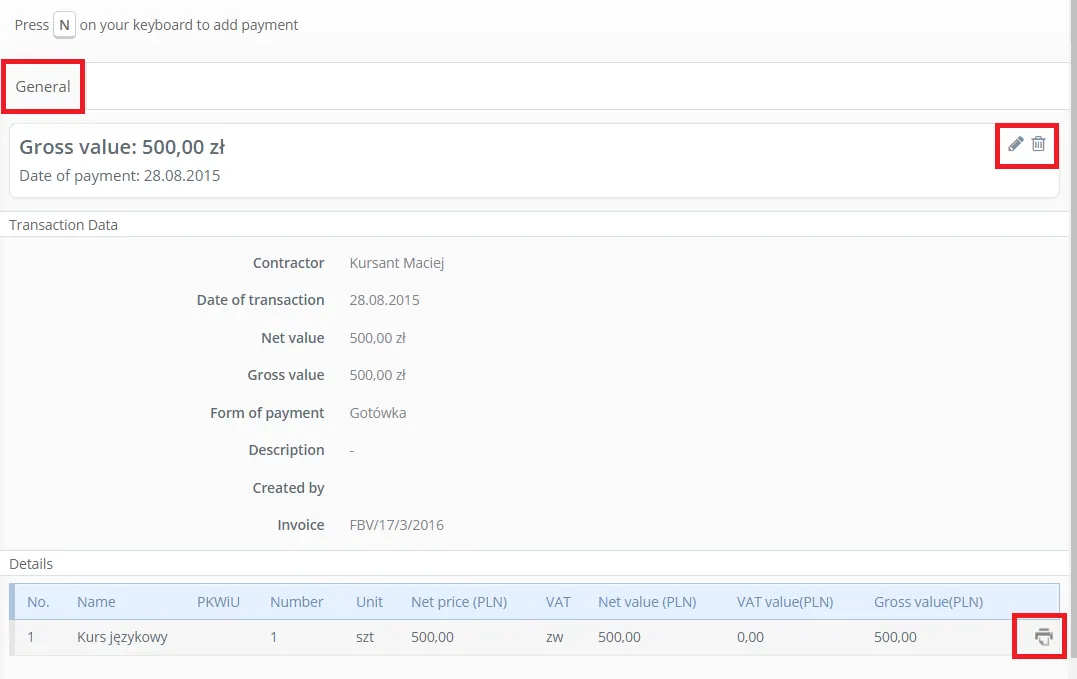
From this tab you can also edit or delete the transaction. You can also issue an invoice for the transaction and confirm its payment if a deferred payment form is used.
What do the transaction colors mean?#
Rows are colored by payment status:
- green – Paid,
- yellow – Partly paid,
- pink – Unpaid (the due date has not passed yet),
- red – Outdated (the due date has passed).
You can turn off the coloring in List settings – the Color rows option (By payment status). The status is also always shown in the Status column.