
On the Platform, it is possible to generate a debtors’ report, but in order to make it easier, we have added a new "Debtors" tab in the Finance module.
You can now easily filter out people who are in arrears with fees for the course. There are two statuses: Debtor and Not a debtor, thanks to which you can filter only people who you want to inform about the arrears or send a reminder about the upcoming payment.
Students charged hourly in advance will not be displayed on the list of debtors. They do not have a fixed schedule of instalments with payment due dates. If you want to send notifications to students with this type of settlement, please use the "Students - settlement in advance" report from the Reports module.
The default filter is set in the list. Thanks to it, the system displays a list of people in arrears with a payment of at least 1 day. You can delete the filter to see the full list of students or change the filter values.
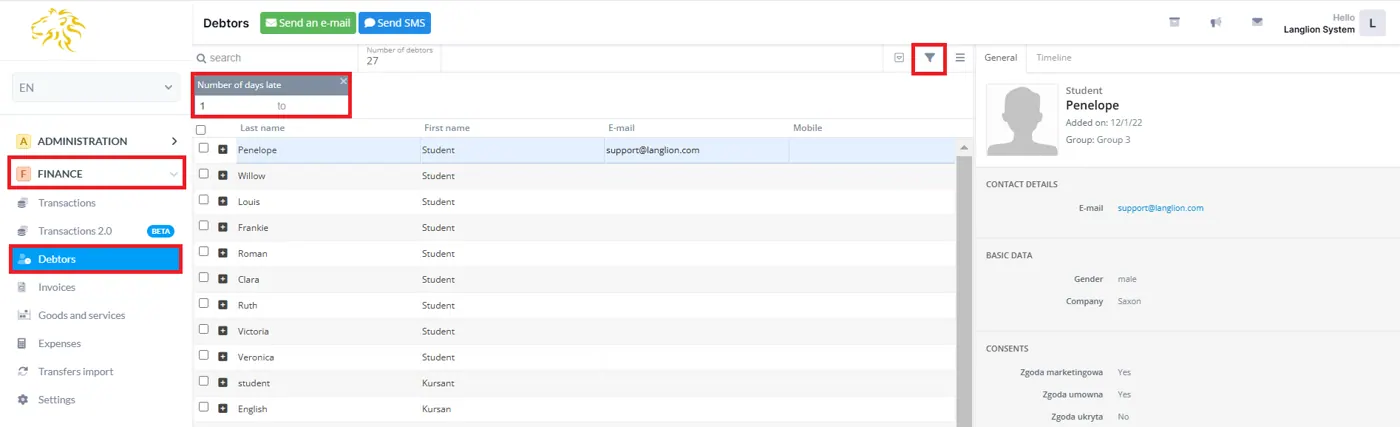
If you want to check the details of the receivables, click on the + icon next to the student’s name.
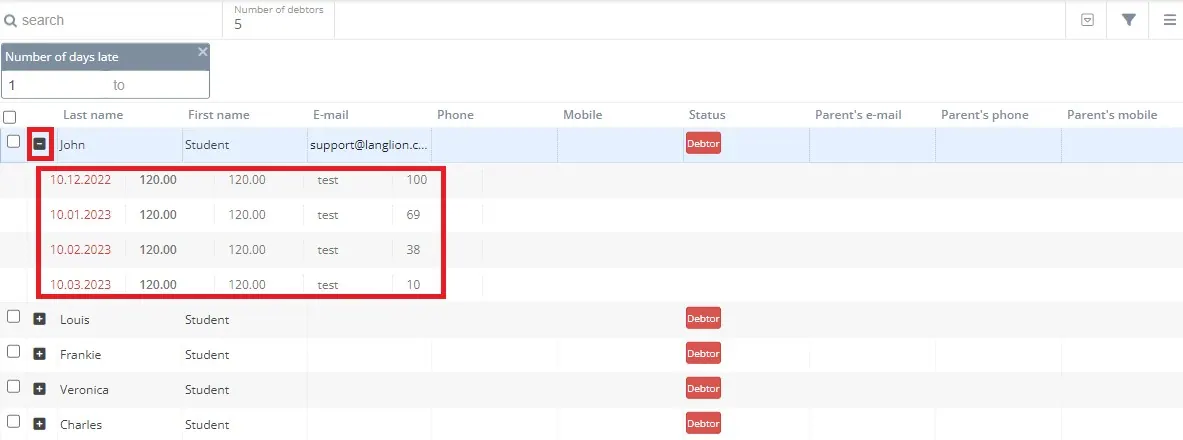
I want to notify students about overdue payments. How can I do it?
You have two options:
- e-mail notification
- SMS notification
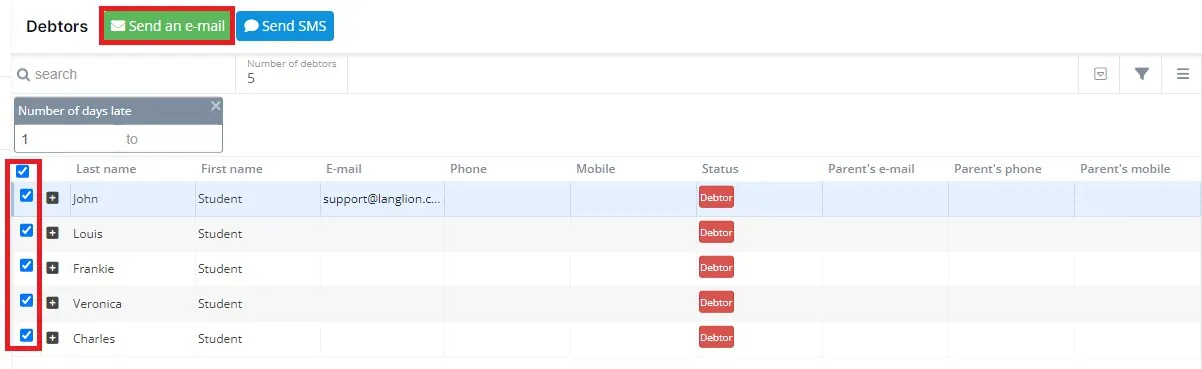
First, filter out the students, e.g. those who are in arrears with payment over 7 days. Now mark the people you want to notify on the list. You can choose all debtors or only particular students.
Click Send an e-mail.
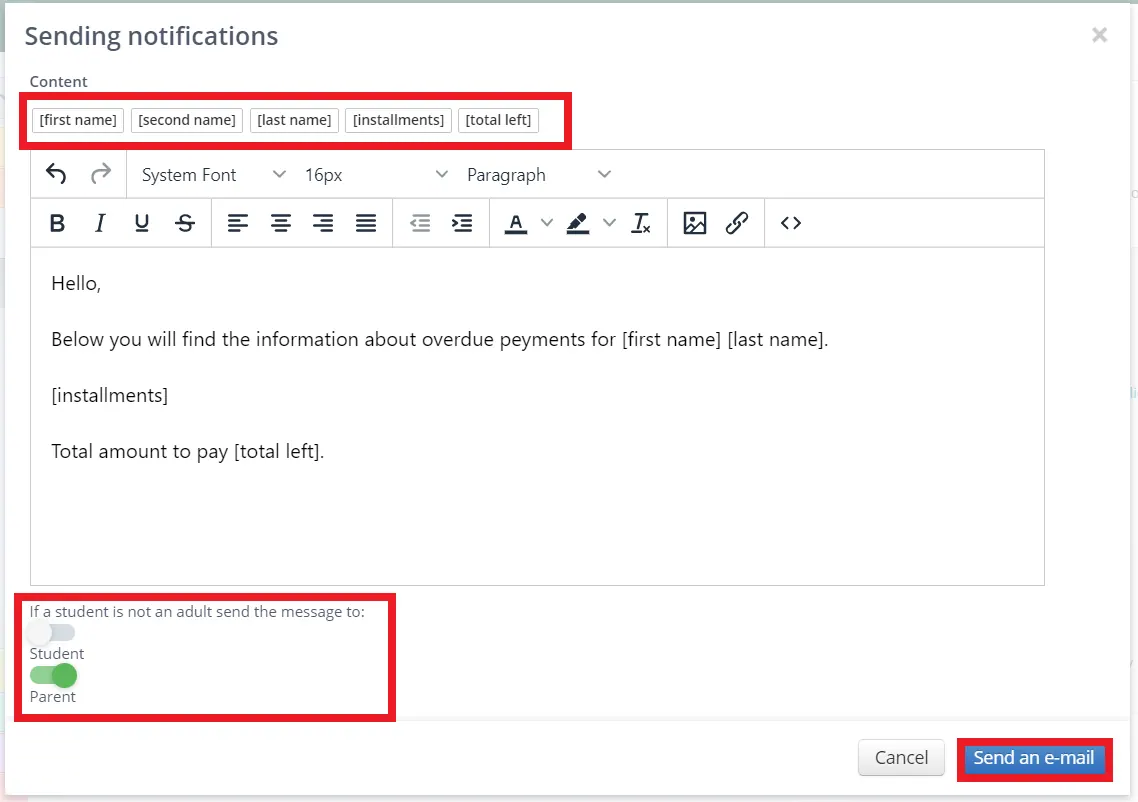
The default notification will appear in the message editor window. You can change it as needed, using variables placed above the editor. Specify whether in the case of minors the system is to direct the message to the address of the parent.
After editing, click Send an e-mail or press Enter.
If you do not have email confirmation turned off in the communication settings, a message will appear at the top of the page asking you to confirm or cancel the notification.
Now the message has been sent.
How do I set up automatic notifications for debtors?
You can set up automatic reminders about upcoming and overdue payments directly from the list of debtors – click the "Settings" button above the list. The "Automatic notifications" panel opens. Read more in the Automatic notifications article.
If you decide to send a notification via SMS, make sure you have sufficient funds in your account (learn how to top up your SMS account).
After selecting the recipients on the list of debtors, click on the Send SMS button. If you have no SMS funds, the button is inactive and hovering over it shows the hint "No SMS funds available".
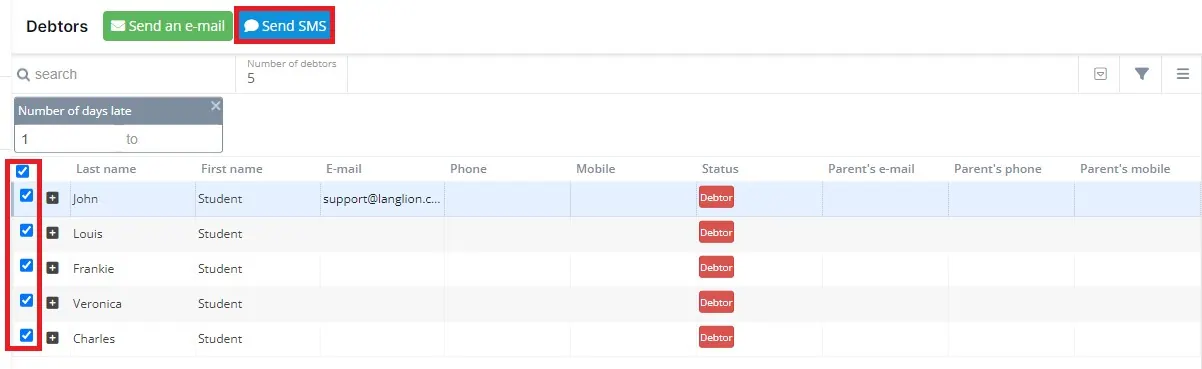
The content of the message can be freely edited, just like in the case of an email. You can also decide whether, in the case of minors, the message should be sent to the parent.
After editing, click Send SMS or press Enter.
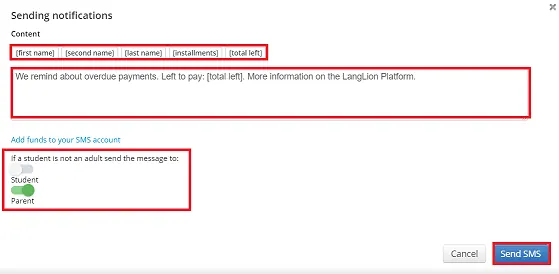
If you do not have SMS confirmation turned off in the communication settings, a message will appear at the top of the page asking you to confirm or cancel the notification. You will also be able to decide which type of SMS to send – ECO or PRO.
You can also use the list of debtors to send information about the upcoming payment due date. To do this, change the list filters. You can delete the default „Number of days late” filter and use, for example, the „Payment due date” filter to indicate a specific date or range of dates. Thanks to this, the list will include students who have a payment date for the next installment, e.g. between the 1st and the 15th day of the following month.
Mark the people you want to send a message to, modify the message and confirm it. Proceed exactly as in the case of sending emails and SMS messages to the debtors.