
If you use the Finance module, the system can automatically remind students or parents about an upcoming installment due date.
How to turn on the automatic reminder?#
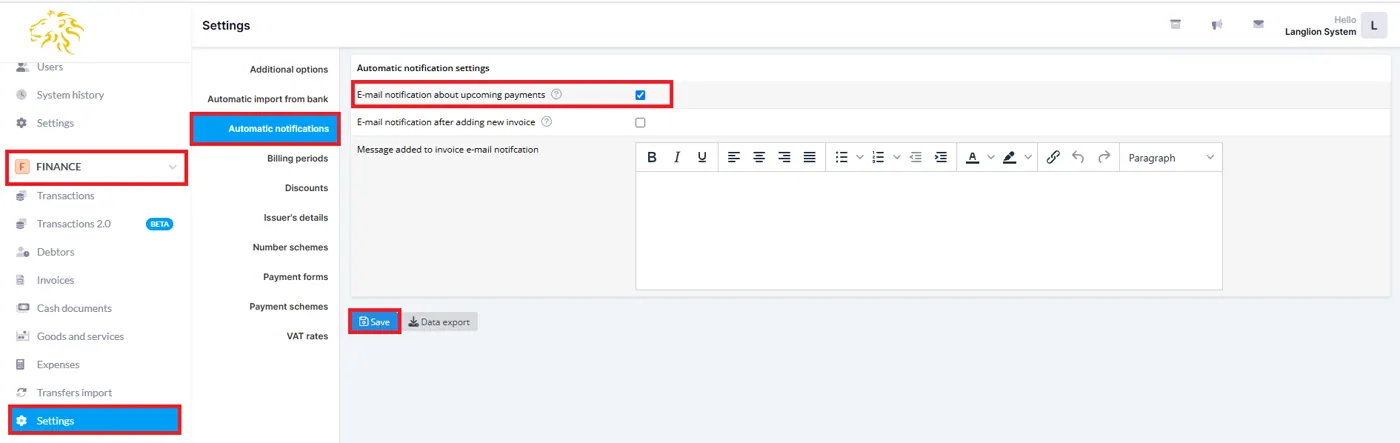
- In the “Finance” module go to “Settings” → “Automatic notifications”. You can also open the same settings with the “Settings” button on the “Debtors” list.
- In the “Upcoming payment reminder” section turn on “Notification for students or parents about upcoming payments”.
- In “Days before due date” choose how many days before the due date the reminder should be sent (1, 2, 3, 5, 7, 14 or a custom number). You can choose several days – up to 10.
- In “Notification channels” select at least one channel: PUSH, E-mail or SMS.
- Click “Save”.
SMS messages use the school's SMS credits.
In the same section you can also turn on “Notification for companies about approaching payment due dates.” – the company will be reminded about the invoice due date on the selected days.
If you have several departments, the settings are separate for each department. They are not available in the all-departments view – select a department first.
If the Online Payments module is enabled, the student can pay directly from the notification.
How to change the reminder content?#
Turn on “Use custom mail content” and enter your text in the “Upcoming payment notification template” field. Click the tags above the editor to insert installment details (e.g. due date, remaining value). The “Preview” button shows the final message. Save the changes with “Save”.
Reminders are created for installments created or updated after the option is turned on. Any change in the student's payments, including adding a payment or an invoice, also refreshes the installments and generates notifications. You can also do it manually by clicking “Save” under the installments of the selected student.
How to send a reminder manually from the debtors list?#
If you prefer to send a reminder manually, use the list of debtors. In the “Finance” module go to the Debtors tab and remove the default filter displayed above the list.
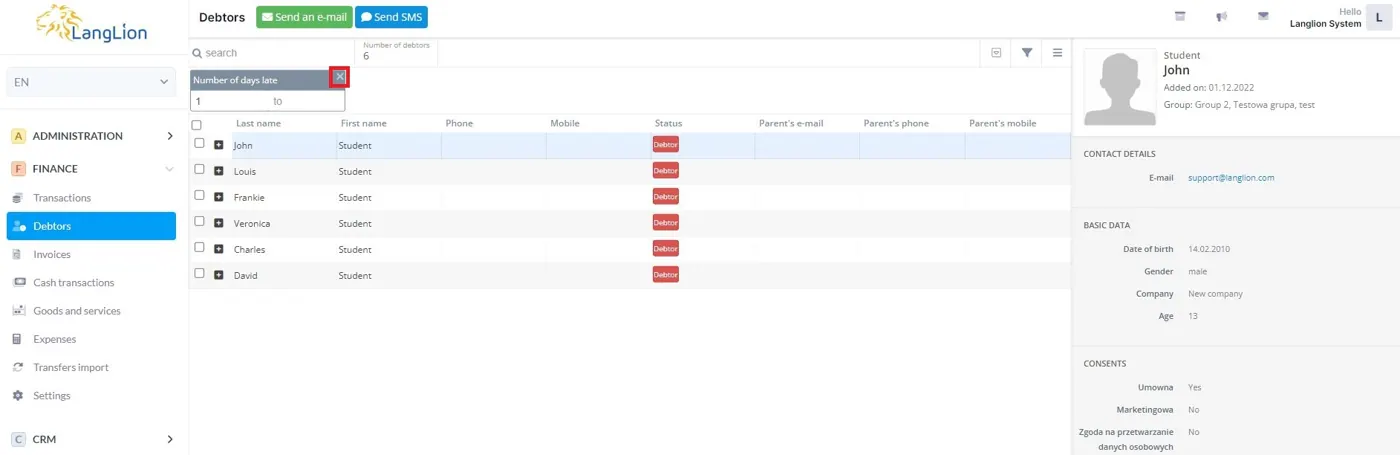
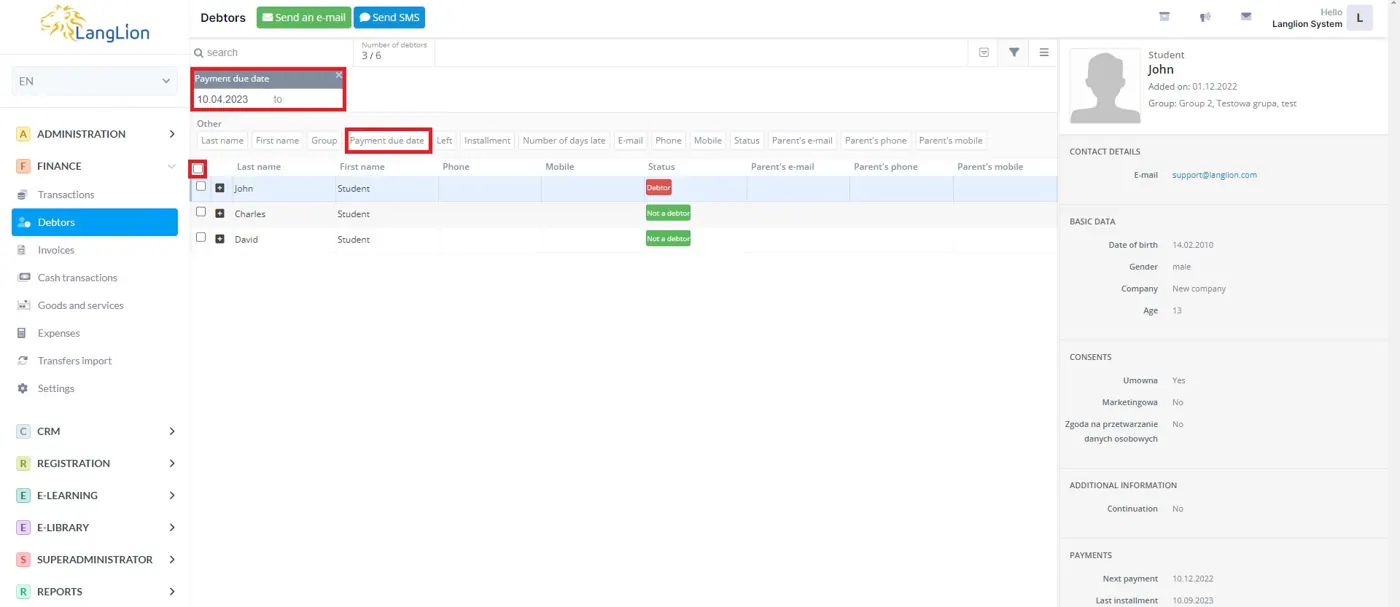
Then choose a filter that will allow you to choose the appropriate recipients of the notification. For example, if you want to send a notification to people whose due date falls on a specific day, select the Payment due date filter.
Specify the date (or date range you are looking for). The list will display people with the status Not a debtor, but there may also be debtors. Just because you are looking for people who have an instalment assigned in July does not mean that one of them is in arrears in June.
Select the persons on the list, as in the case of sending emails to debtors and click on the Send an email button.
Customize the content of the message to your needs and send to recipients.
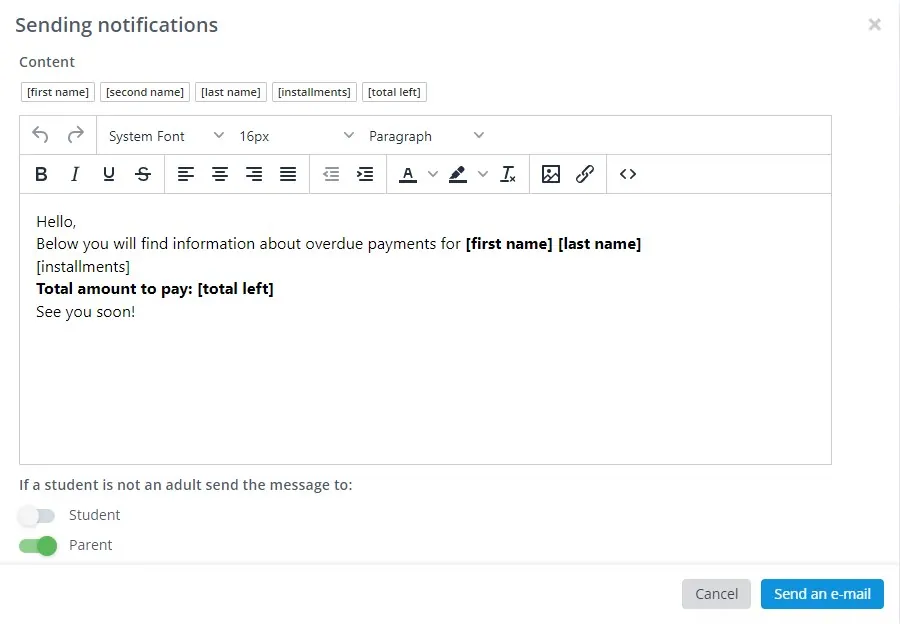
Follow the exact same procedure if you decide to send notifications via SMS.
You can also read detailed information about the list of debtors and sending notifications to debtors.