Of course. In addition to sending access details by email, the LangLion Platform also lets you send them by SMS.
Besides sending a login and password to an individual student, you can also send access details to the students of a selected group. It is important that the student has a mobile phone number assigned, has given consent to the processing of personal data for the purposes of the contract, and that the SMS account is topped up with enough credit to send messages to students.
How do I send a login and password to a student by SMS?
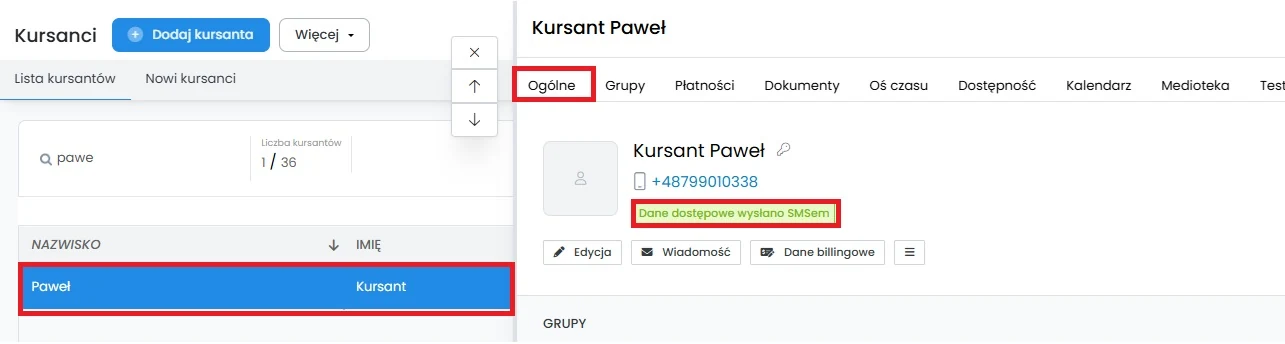
It is easy: select the person in the "Students" tab and go to the "General" tab. Then click the second button – "Send access details to student" (or "Send access details to student and parent", "Send access details to parent") with the phone icon. The option is available only until the user changes the one-time password. If the access details have already been sent by email, you will see the "Access data sent via email" label instead of the button, and you can send the SMS from the "More" menu (the icon with three lines). If the student is not an adult, the SMS also goes to the parent.
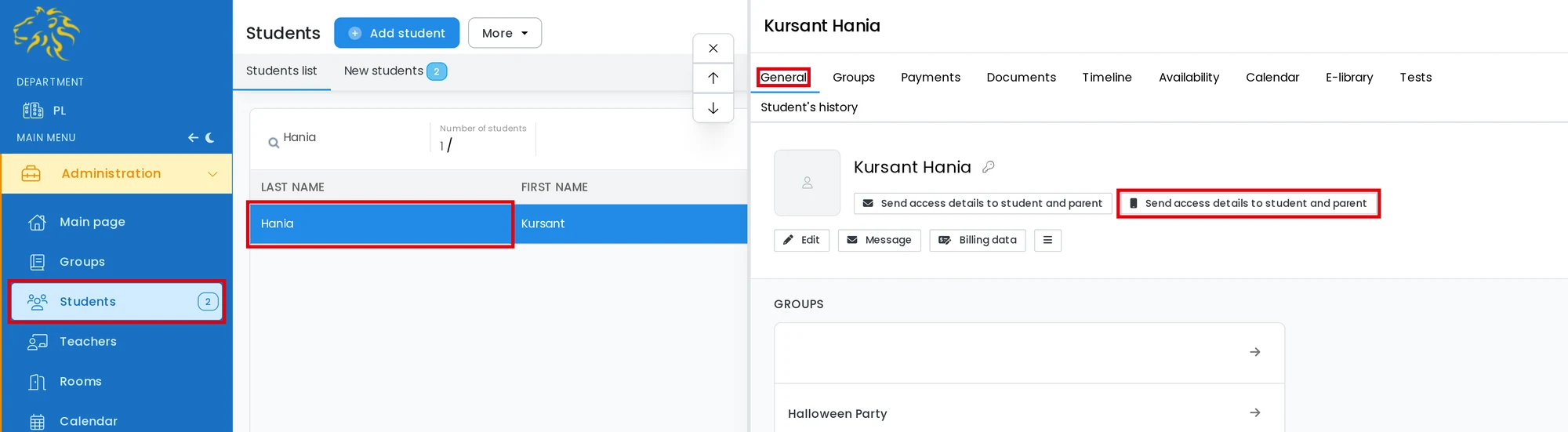
After you click the button, a new window opens where you can enter additional information to include in the SMS. The message with the access details has a predefined text by default, but you can also add something of your own.
Default text of an ECO message:
School name: From now on, you can use e-gradebook. Your access details: address: https://schoolname.langlion.com/, login: login, password: password
For PRO messages, the school name is displayed as the SMS sender, so the message starts with the words "From now on, you can use e-gradebook (...)"
Any additional text you enter will be added on a new line at the end of the default text.
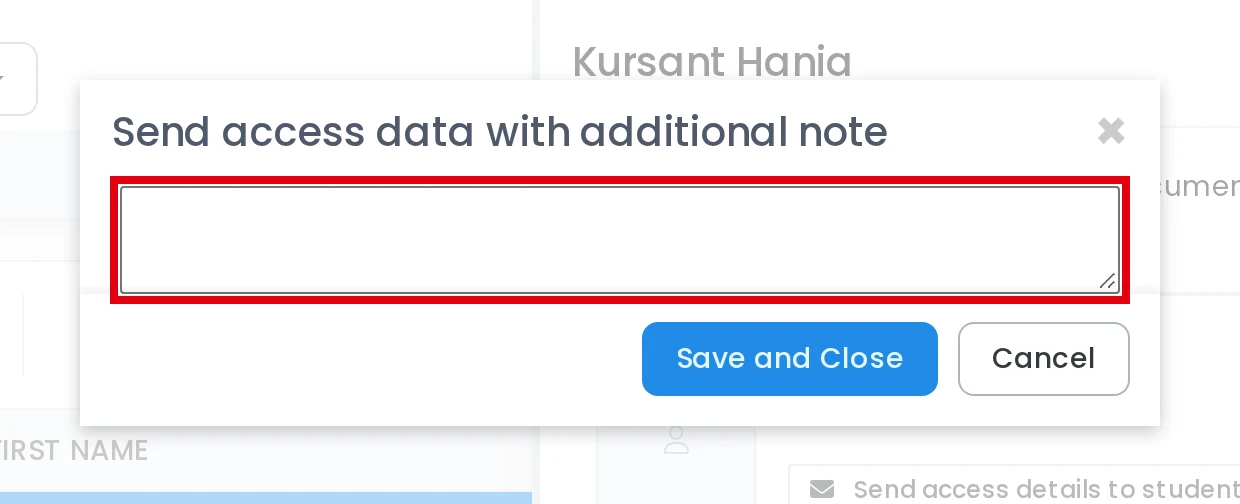
Remember that additional text increases the number of characters and therefore the cost of the SMS. It may also exceed the maximum number of characters allowed in an SMS, in which case the message will not be sent.
If you want to send a longer message, it is better to use the Email option.
If your account is configured with both types of SMS (PRO and ECO), select the one you want to use to send the access details.

Done – the access details have been sent to the selected person.
How do I send access details to the students of a selected group?
This is easy too. Select the group, go to the "General" tab and then, in the "More" menu, choose "Send access details to all students by SMS".
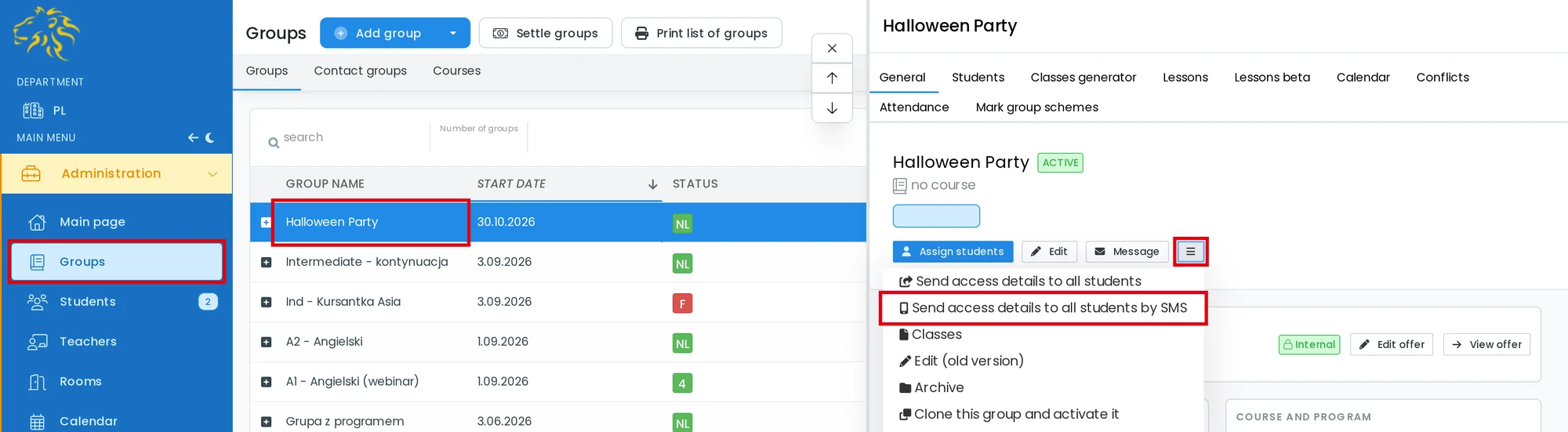
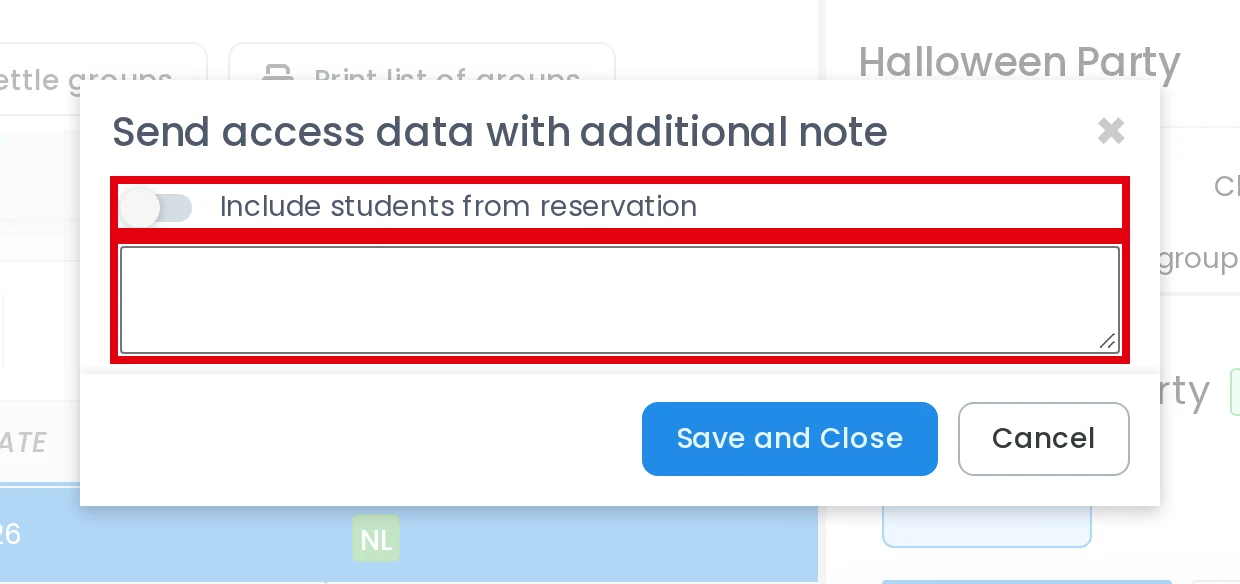
In the window you can add extra text and select "Include students from reservation". Once you choose the SMS type (PRO or ECO), the access details will be sent to the students of the group.