
Sending access details in an email
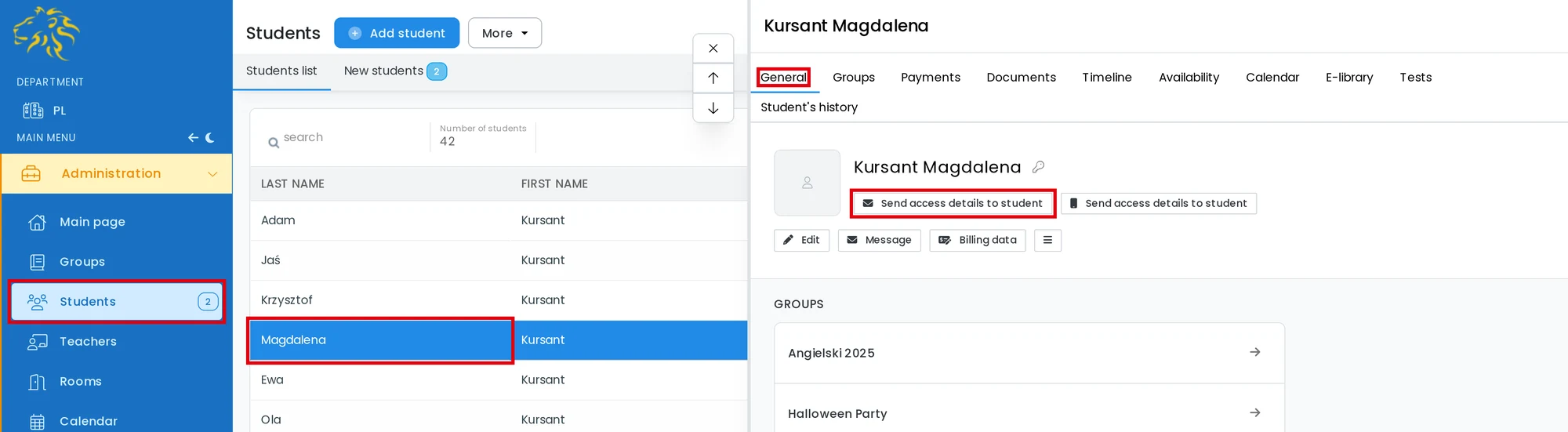
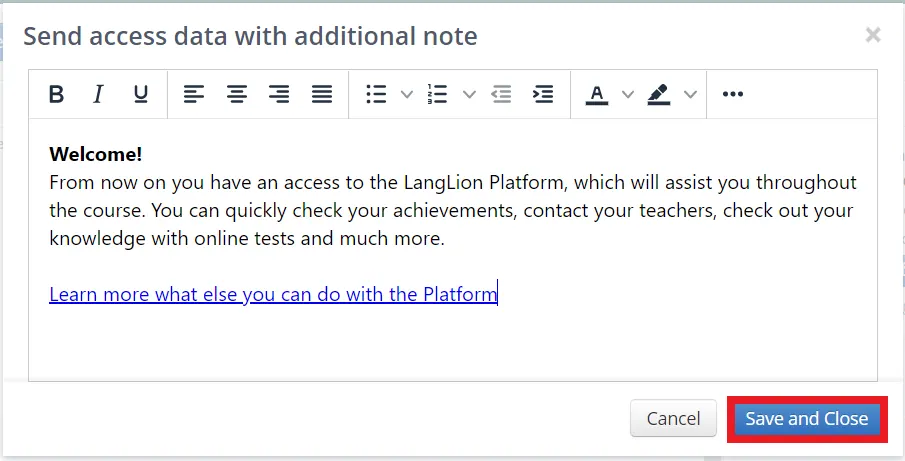
You can send student’s access details in an email. Remember that you must complete the e-mail address on the student’s and/or student’s parent’s form for this purpose. If you want to send an email with access details, go to the Students tab in the Administration module and select the appropriate student from the list. In the General tab, under the student's details, click the Send access details to student button (or Send access details to student and parent / Send access details to parent – the name depends on who the details can be sent to). The same option is also available in the More menu. The button does not appear if the student (and parent) has already changed the password – in that case, change the password manually first. After clicking the button, a new window will appear. Here, you can enter additional information that you want to include in the email. A message with access details has predetermined content, but you can simply add something from yourself.
To confirm (regardless of whether you add additional message content or not), click on the Save and Close button or press Enter.
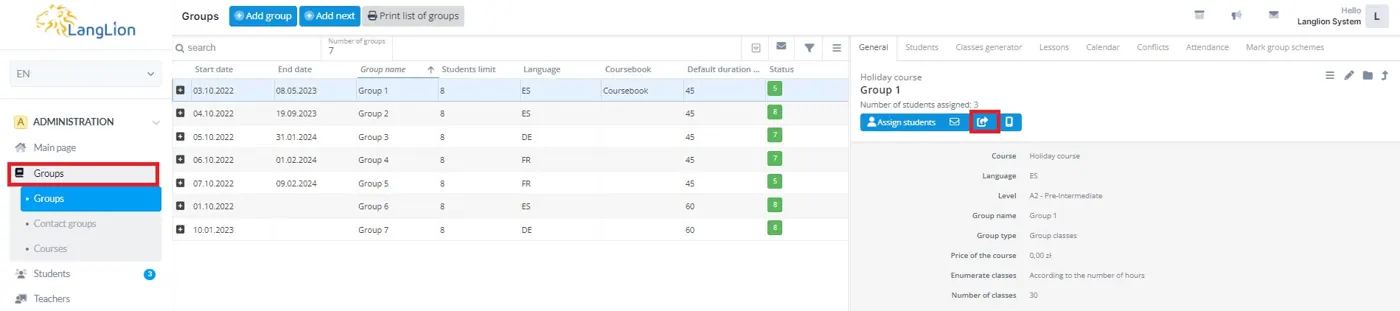
If you want to send emails with access details to all students in a given group, go to the Groups tab, select one from the list and on the General tab, click on the Send access details to all students button.
There is also an option to send access details via SMS.
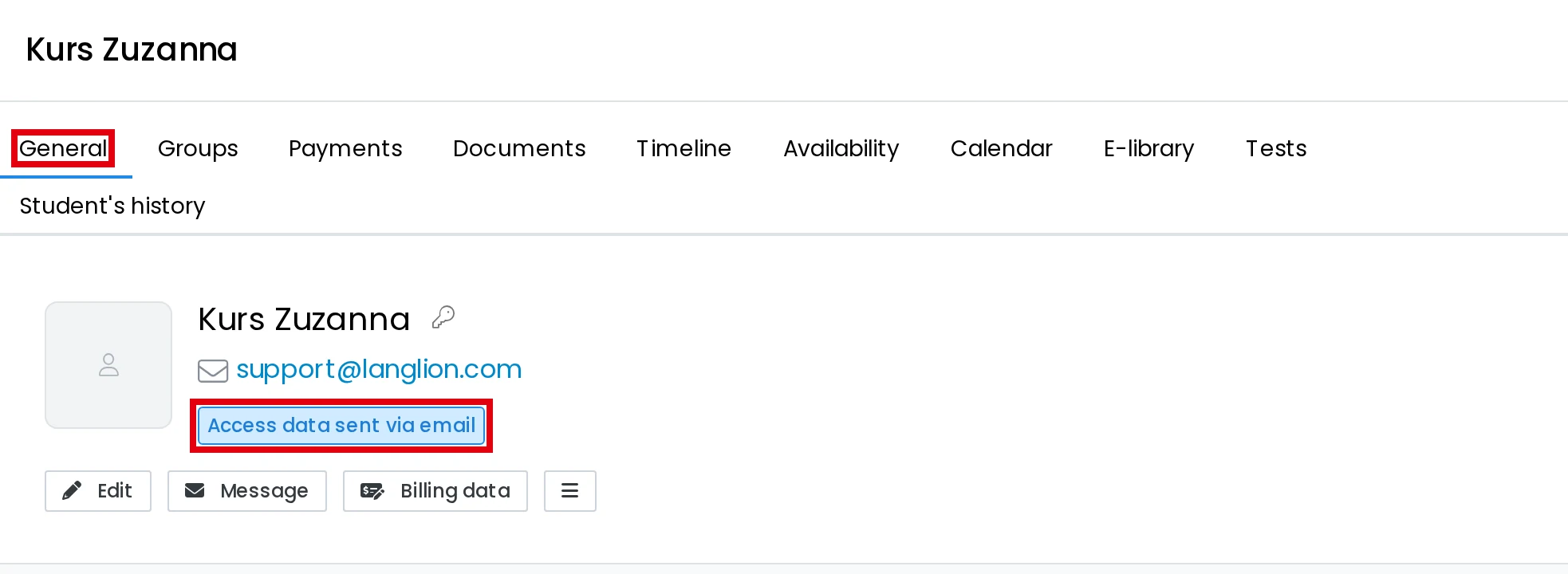
After the message is sent, the button is replaced by the Access data sent via email badge (or Access data sent via SMS). To send the details again, use the More menu.
You can also include data such as login and password in the student’s contract.
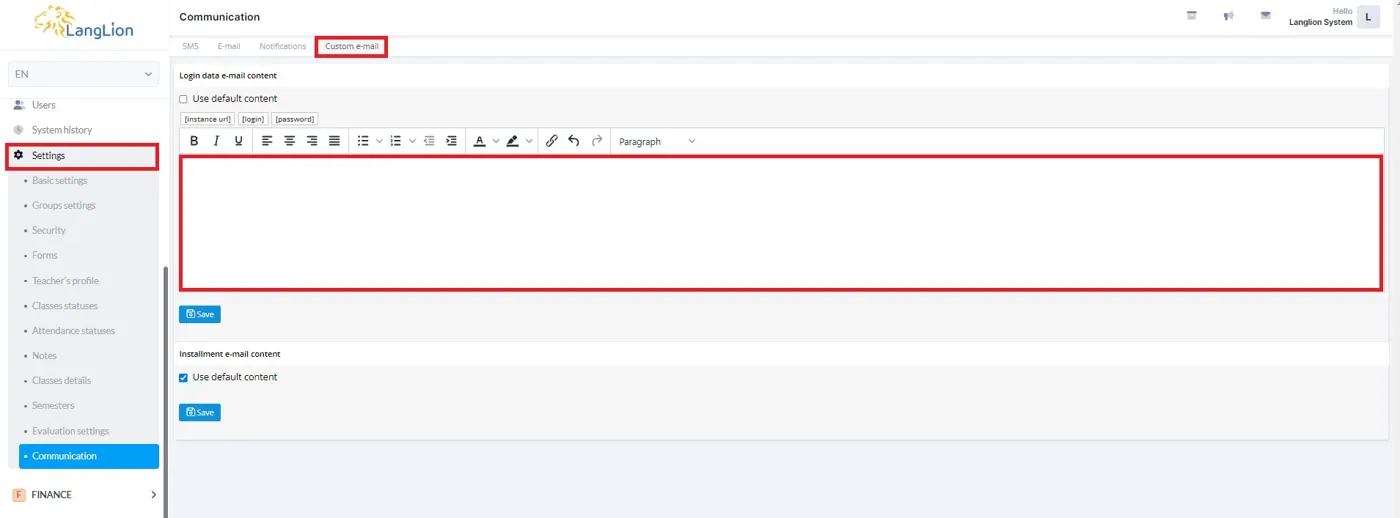
Custom e-mail
In order to personalize the content of the message, go to the Communication tab in the Settings of the Secretariat module. Remember to use the [password] [login] [instance url] variables in the message content. The instance url is the address of the login page, e.g. https://demo2.langlion.com
Mailboxes of recipients are equipped with anti-spam filters, which can block the delivery of notification messages. To avoid such situations, inform users (teachers and students) to add mailing@langlion.com to the white list in the inbox settings. This will create an exception and messages will be served correctly.
Make sure that address and telephone number of the student and the teacher are correct.
- entering the correct address and phone number for the student, parent and teacher,
- user's consent to the processing of personal data for the contract purposes. The system sends notifications only to users who have given such consent and this has been marked on the Platform.