
After you prepare a settlement for the student and add transaction you can easily issue an invoice.
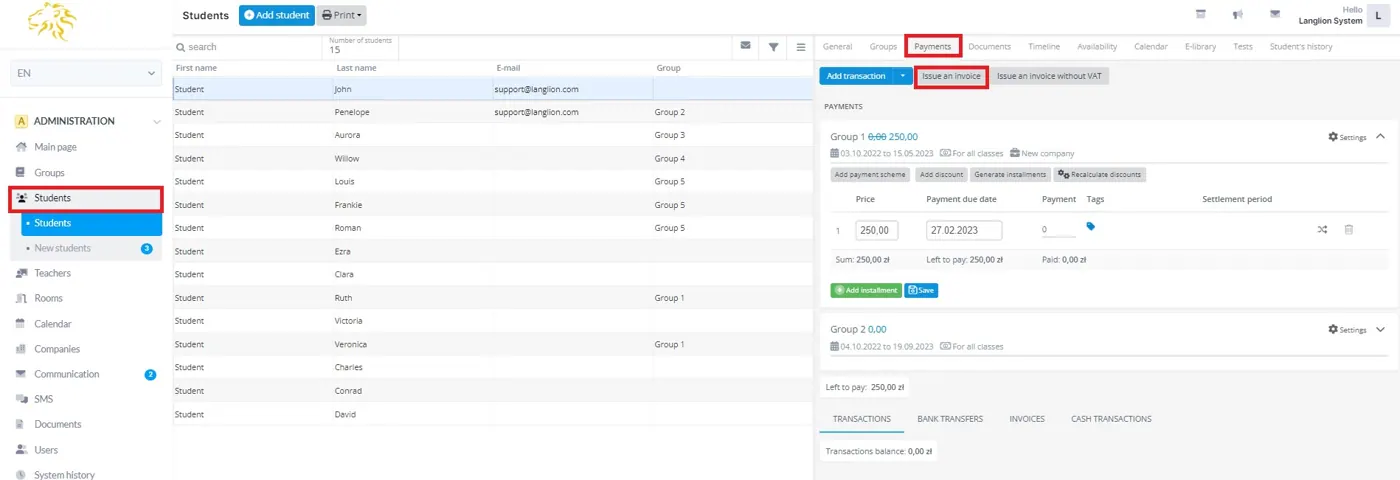
Go to the Administration module and Students -> Payments tab. Click on Issue an invoice
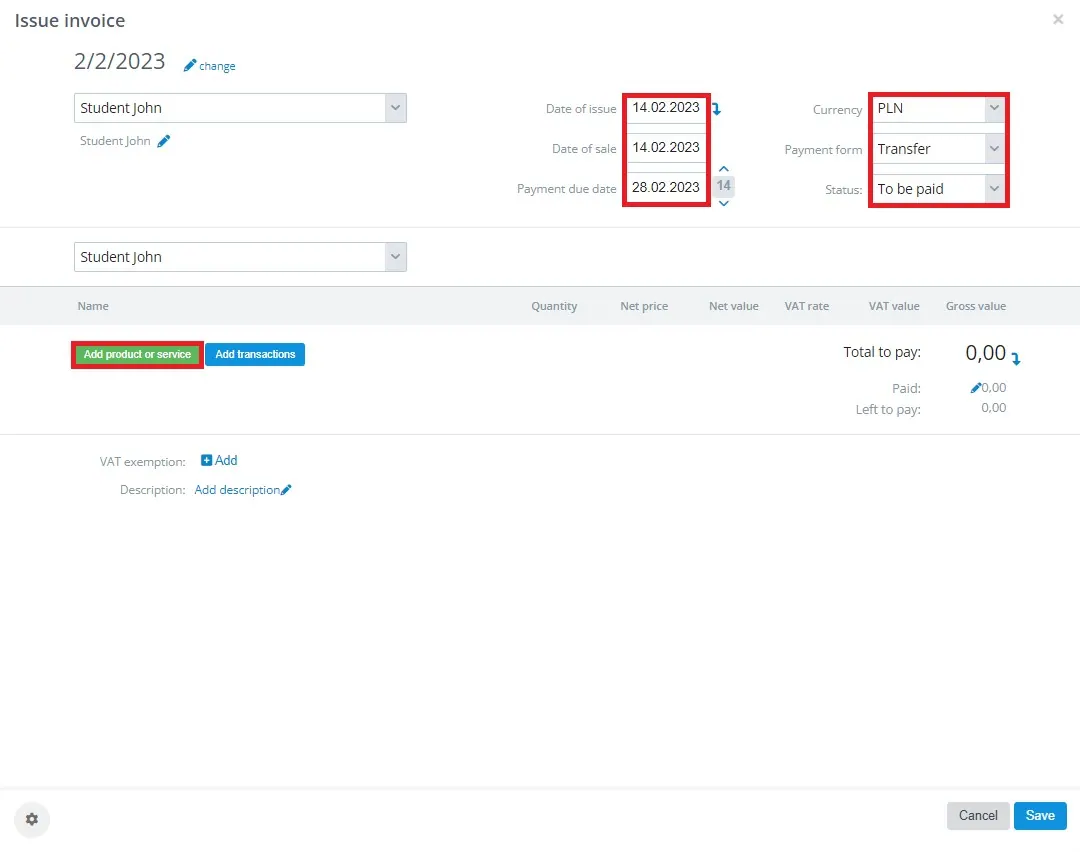
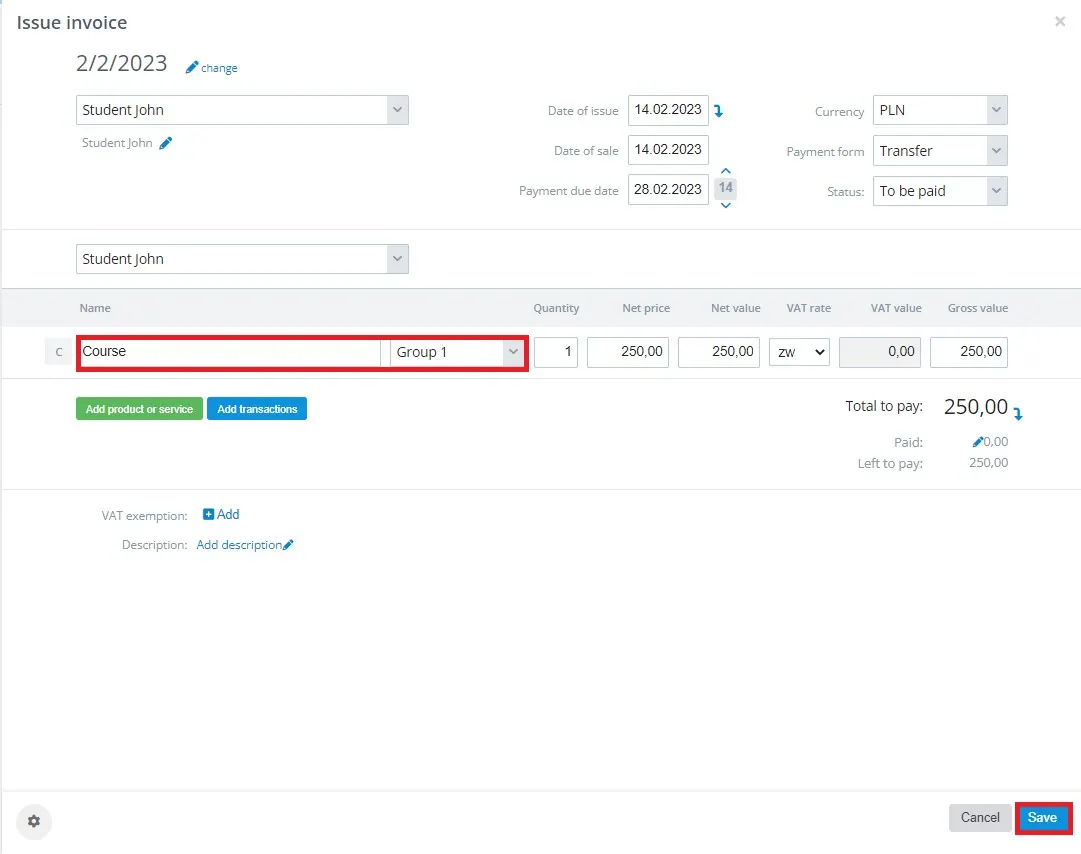
In the invoice editing window, select the identical form of payment that was assigned to the transaction and select that transaction.
Sending an invoice attached to an e-mail is convenient because it does not require a student to visit a school and also saves his time.
The LangLion Platform allows you to send invoices electronically. If you enable automatic invoicing, you will avoid manually sending invoices to the student’s email address.
Do you want to send invoice manually?
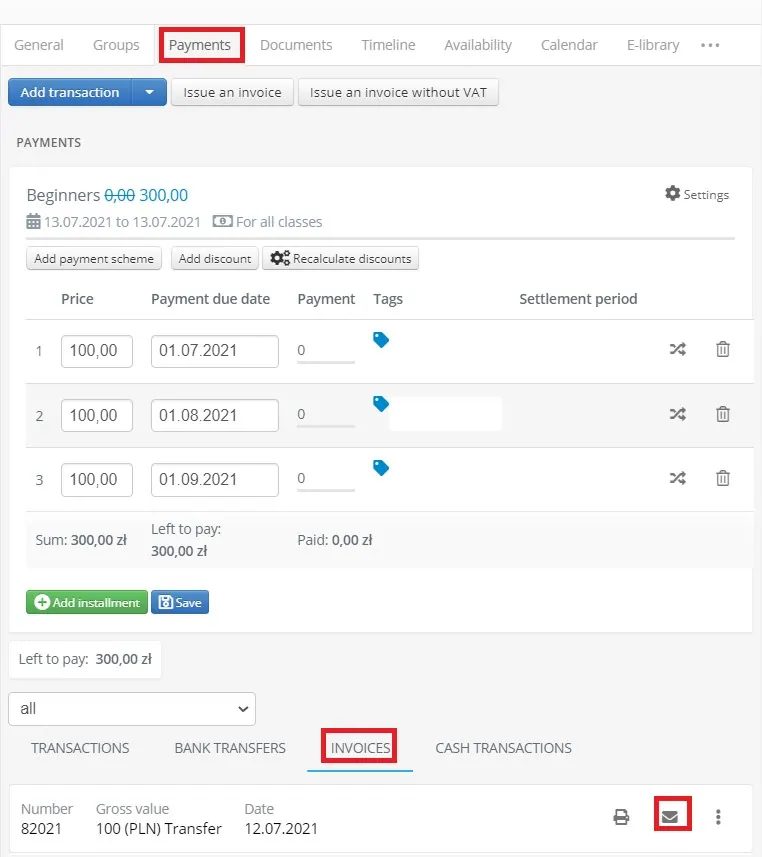
It’s very easy, go to the Payments tab of the student and click on the Send PDF to e-mail address button on the selected transaction.
The invoice was sent. In this case you will also receive a message confirming the invoice dispatch.
How to enable automatic sending of an invoice to a contractor?
It is not difficult:
Automatic notification settings are saved separately for each department. If all departments are selected, choose one department first.
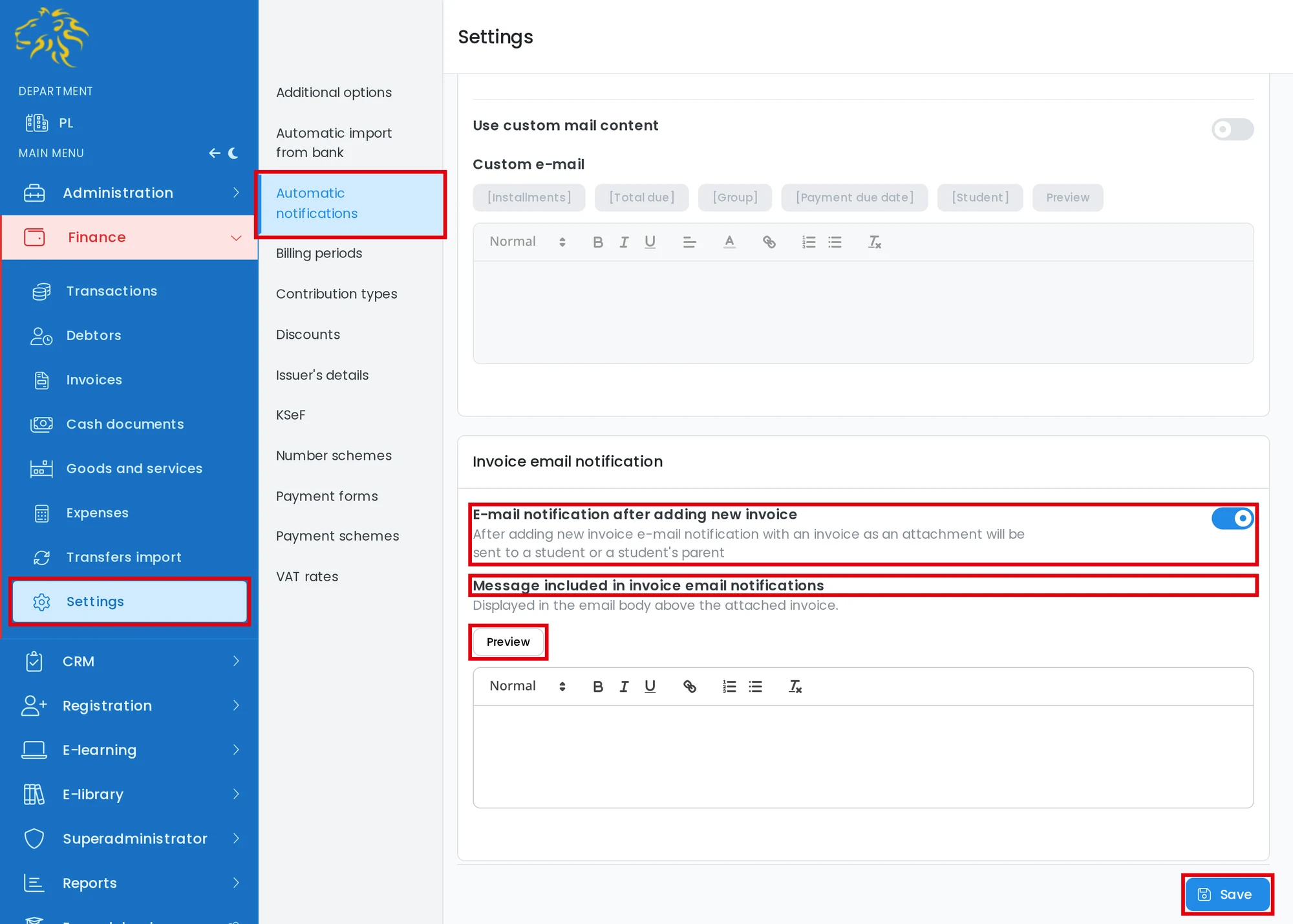
- Go to the Finance module -> Settings.
- Select the Automatic notifications tab.
- In the Invoice email notification card, turn on the E-mail notification after adding new invoice switch. The message with the invoice attached is sent to the student or the student's parent.
- Optionally, fill in the Message included in invoice email notifications field – this text is displayed in the email body above the attached invoice. The Preview button shows what the message will look like.
- Click Save.
From now on, after an invoice is created a message will appear informing you that the invoice has been saved and sent to the contractor.
What if the invoice was not sent?
- Check if the email address of the student is correct.
- If the address is correct, verify if the student has permission to receive this email (in the Students tab -> General -> Edit -> Consent to receiving e-mails)
- Inform the student to add mailing@mailing.langlion.com and payments@langlion.com to his whitelist in the settings of his inbox. By creating an exception for these addresses he will make sure that spam filters in the inbox won’t block these messages.