
Creating pro forma documents is an additional way to confirm a transaction.
Before issuing pro forma, define the numbering for this type of document.
How to create a pro forma?
You can do it in 2 ways:
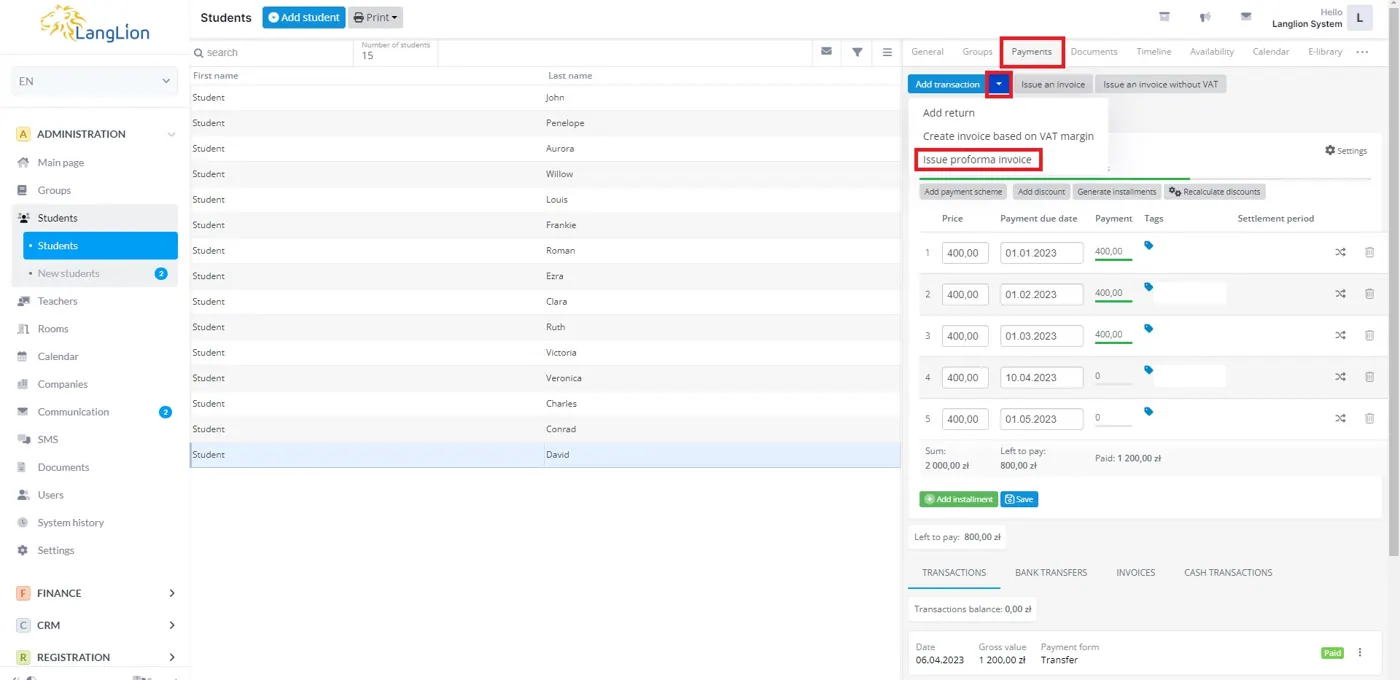
- Choose the student or company on the list and go to the Payments tab on the right-hand side.
- Click on the arrow button and select the Issue proforma invoice option
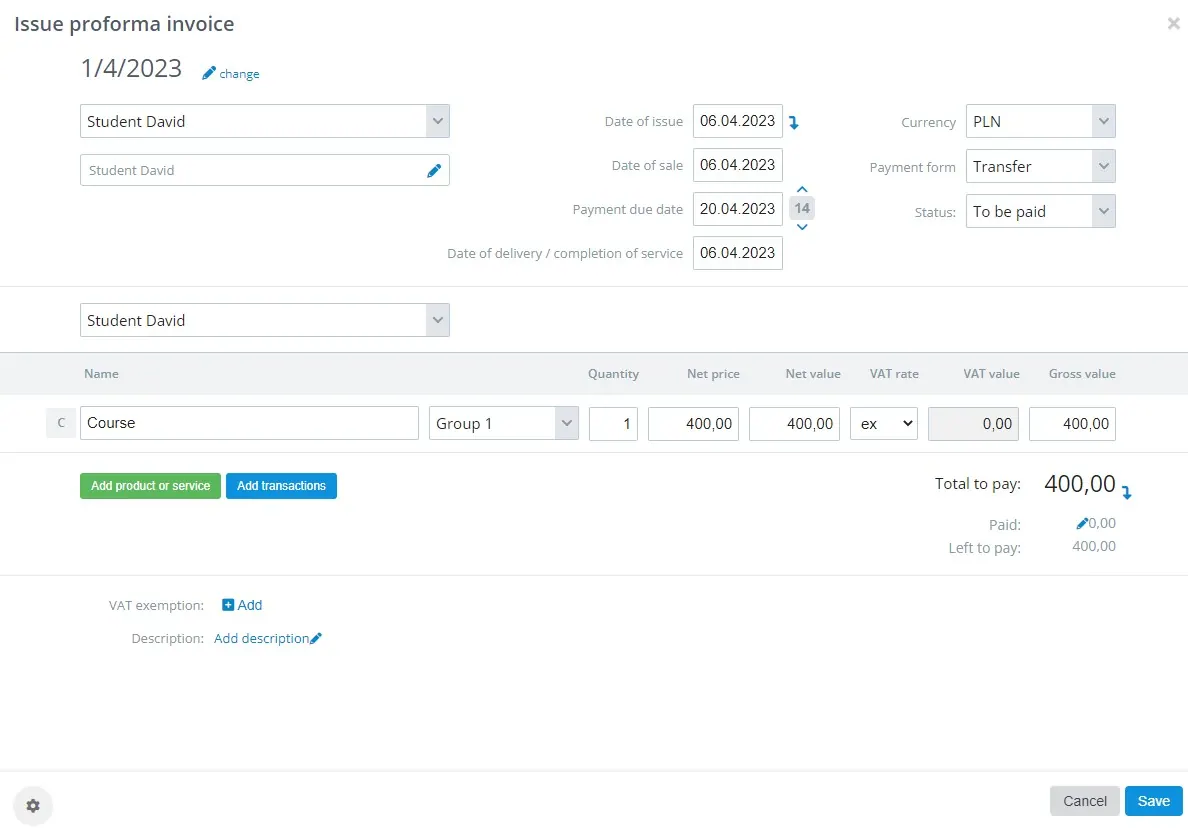
- In the editing window, select the contractor and select the product/service or transaction assigned to him. When finished editing, click the Save button.
Or:
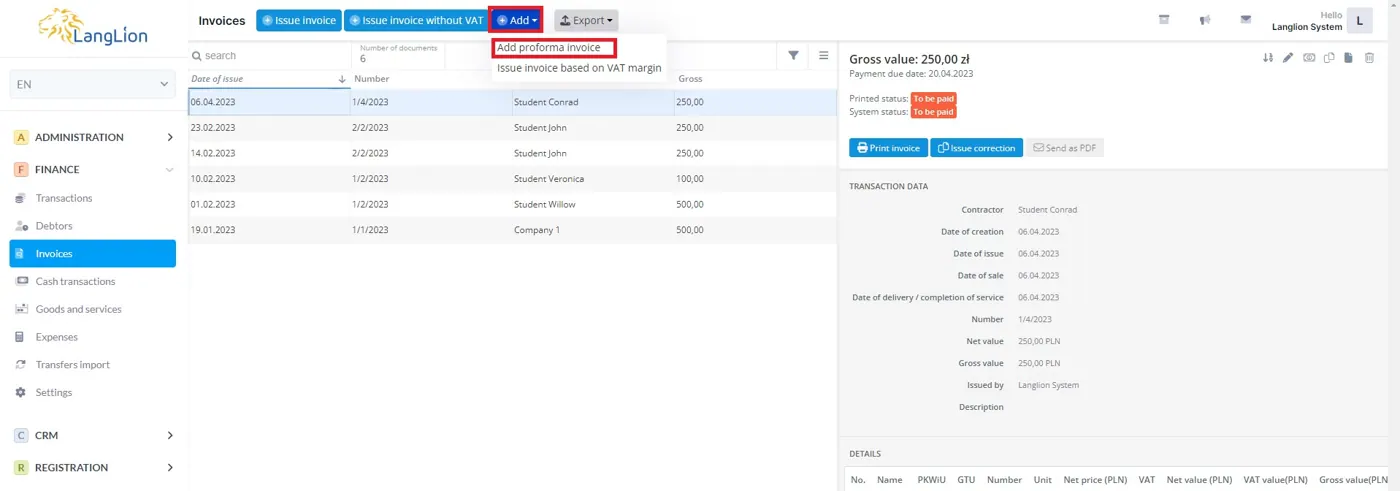
- Go to the Invoices tab and click Add.
- Then, select Add proforma invoice.
- In the editing window, select the contractor and select the product/service or transaction assigned to him. When finished editing, click the Save button.
Done, proforma has been created. Once the student has paid for it, you can create an invoice.
How to issue an invoice for proforma?
Find the saved pro forma and in the General tab, click on the Issue normal icon.
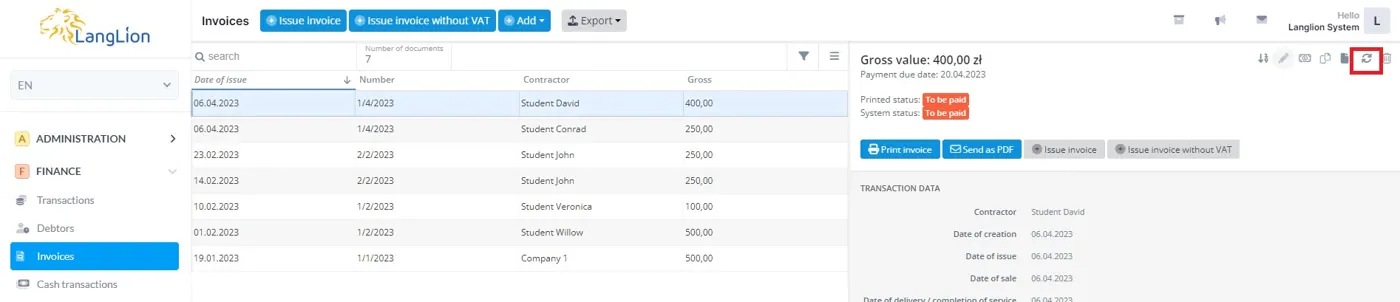
Then select the document type – VAT invoice or no VAT. Accordingly, the appropriate number will be assigned to the selected document type.

The invoice has been issued. On the invoice printout, you will find information about the pro forma and information on the numbers of these documents is also provided.