
LangLion Platform document creator includes a text editor that allows you to embed graphics into your document.
How do I place a logo on a document?
First, copy the URL of the logo graphic. If the school logo has been uploaded to the LangLion Platform settings, it will be displayed in the top right corner, just above the Administration module
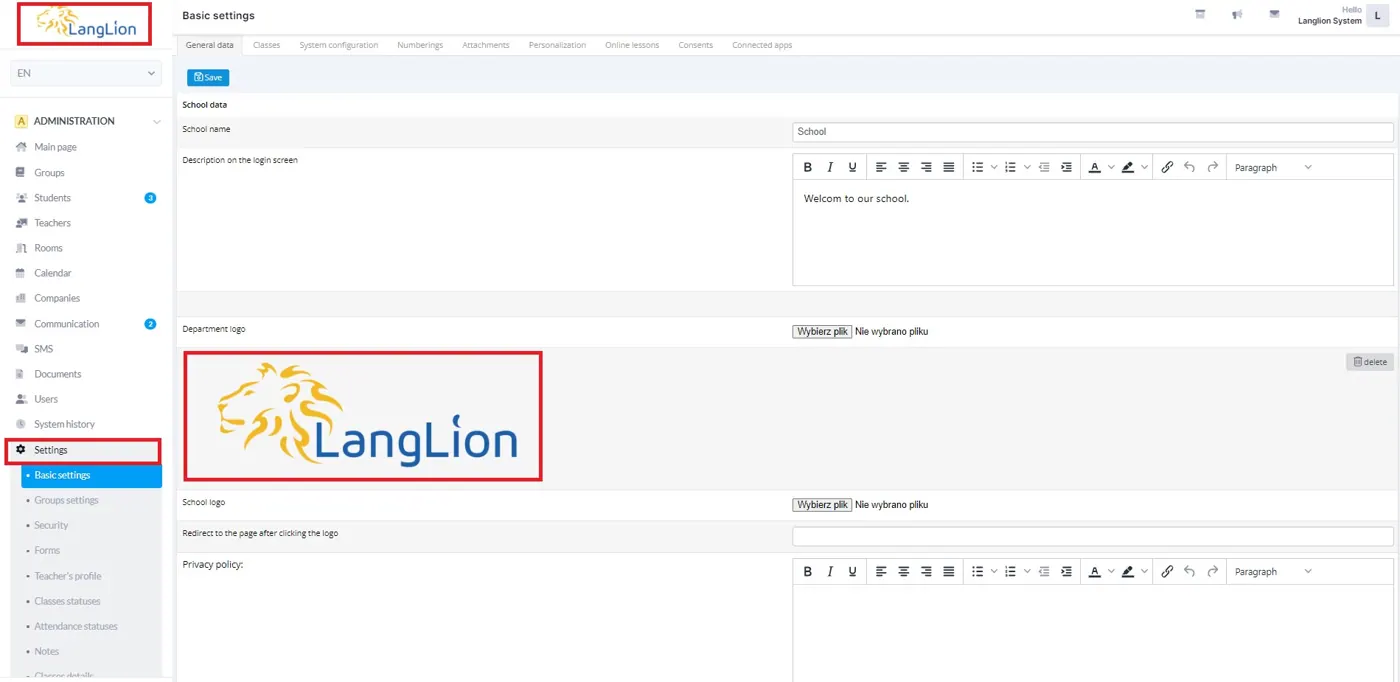
Right-click the school logo so that you can access the web browser menu and select the option to copy the URL.
After copying the address, select the Documents tab and click Create new template or edit existing one.
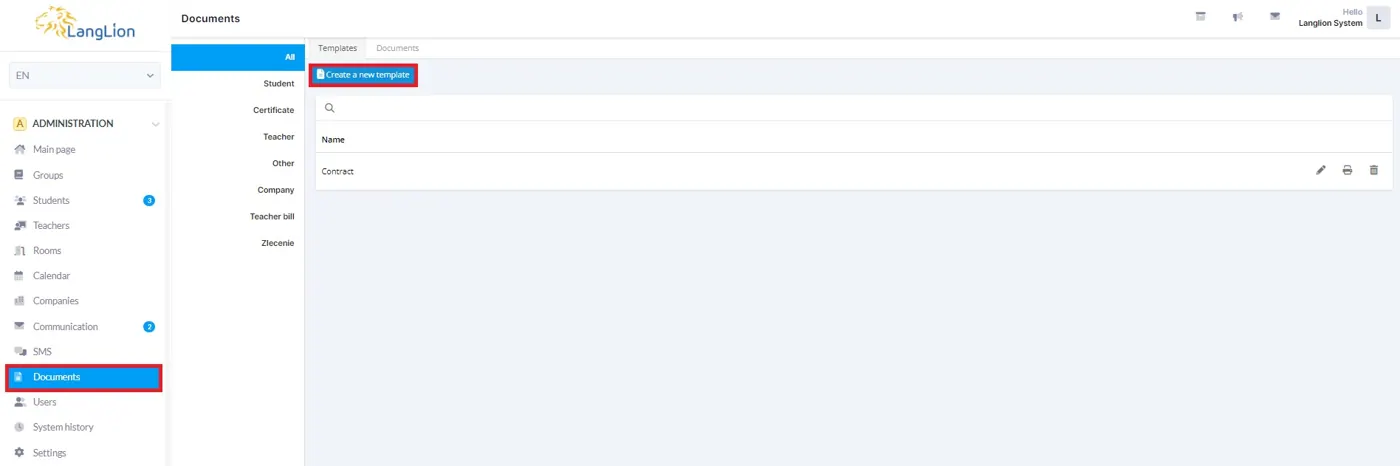
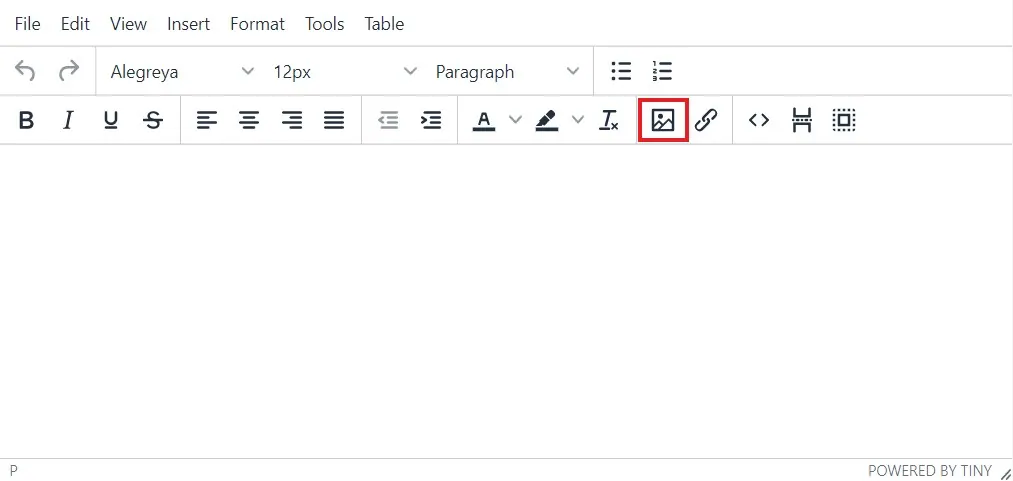
Then, in the document template editing window, click the Insert/edit image option.
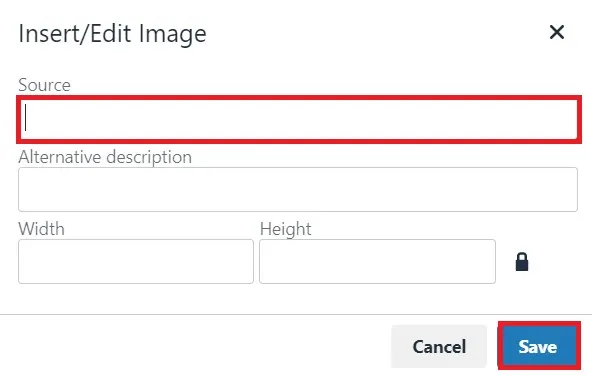
In the graphics editing window, paste the previously copied URL and select the Save button.
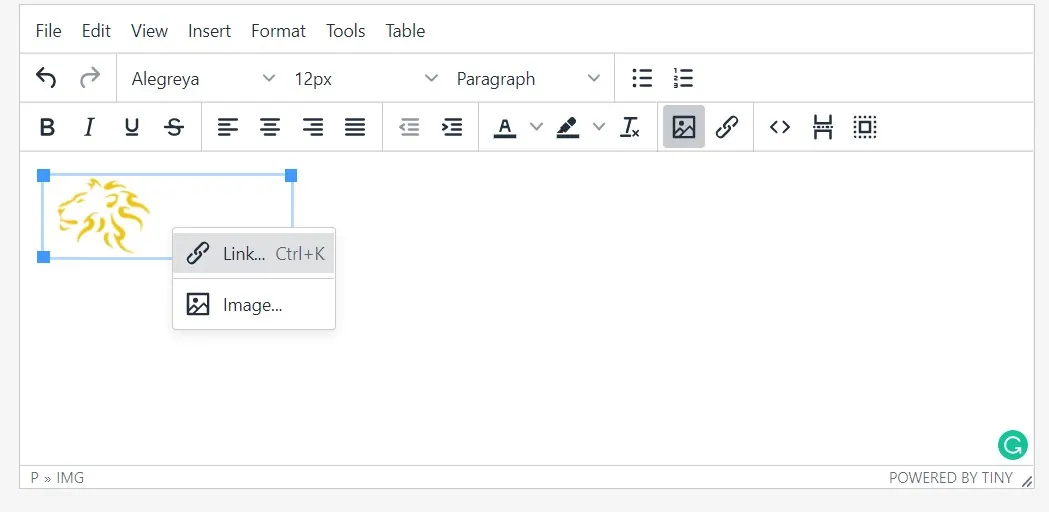
The logo was embedded in the document template. Now you can freely format, change its position, size or add a frame. To edit an embedded graphic, right-click on the object area to display the menu.
You can place the logo on the other document templates in the same way.