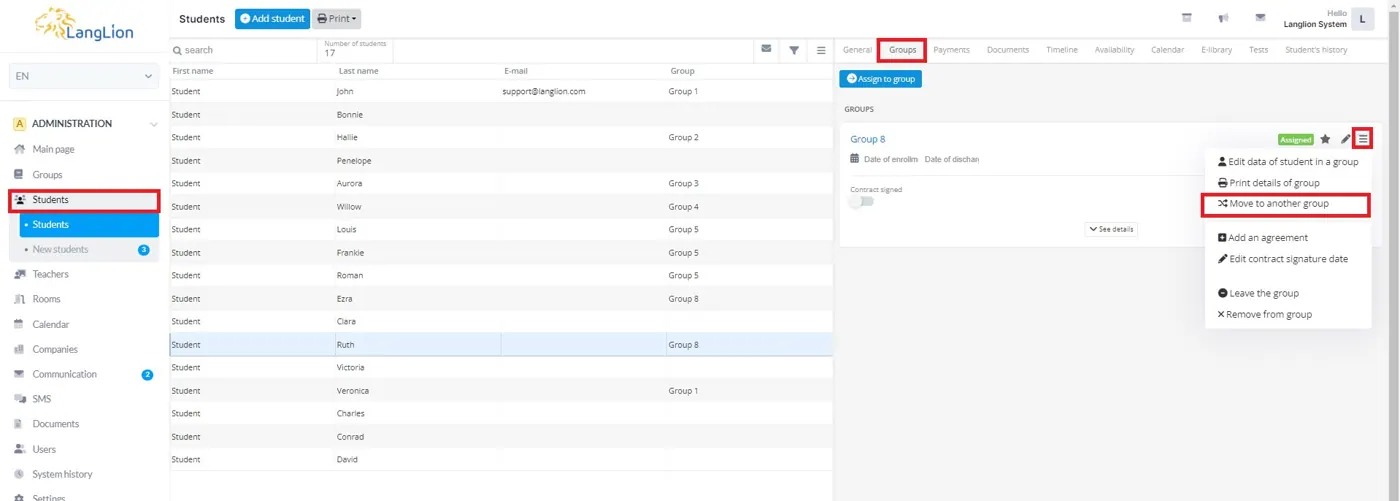
Below we present the difference between the removal function and discharging from the group.
Removing
By attending the group for classes and gaining grades and notes, the student creates his history. His attendance is also part of history. When a student is removed from the group, the system will not link their history (attendance, grades, notes) or payments to the group and will not display them. Any discounts assigned to the student in this group will also be removed.
Discharging
Sometimes the student resigns from the course or completes education earlier in one group and moves to another. In order not to lose the current history of the student, it is necessary to use the discharge option.
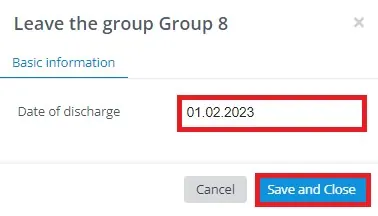
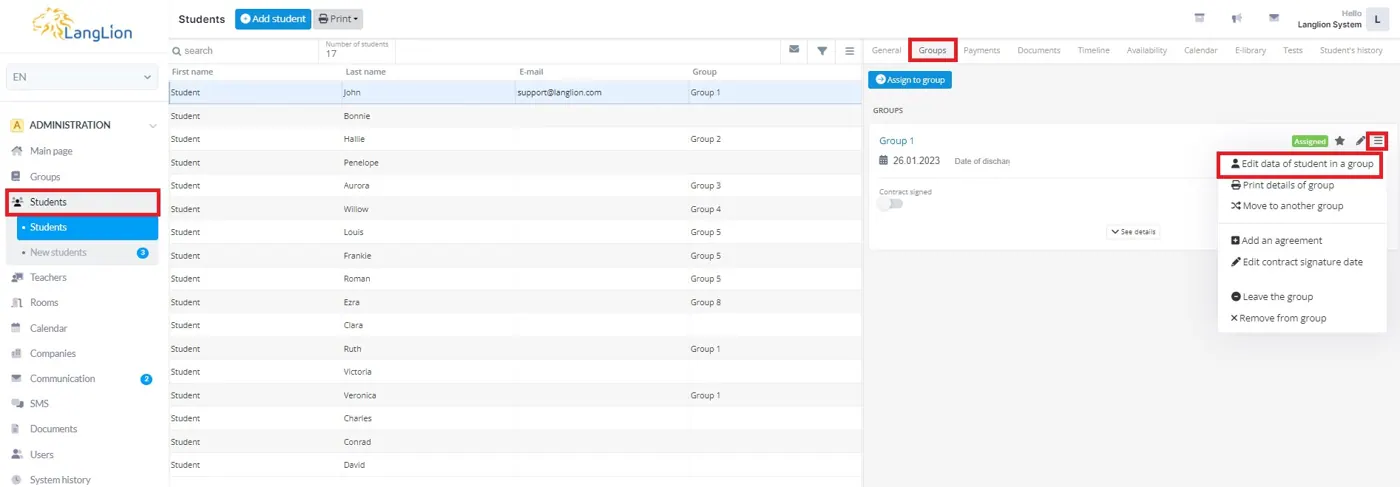
Go to the Students tab, then Groups, then click More and select Leave the group option. Enter the date of the discharge and click on the Save and close button.
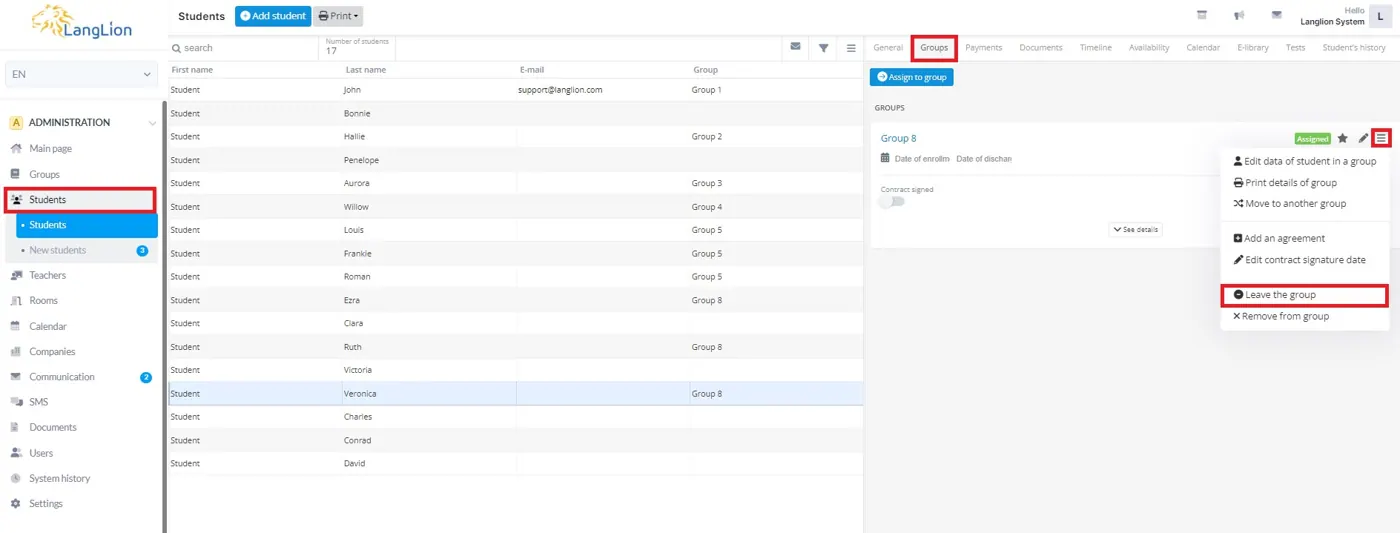
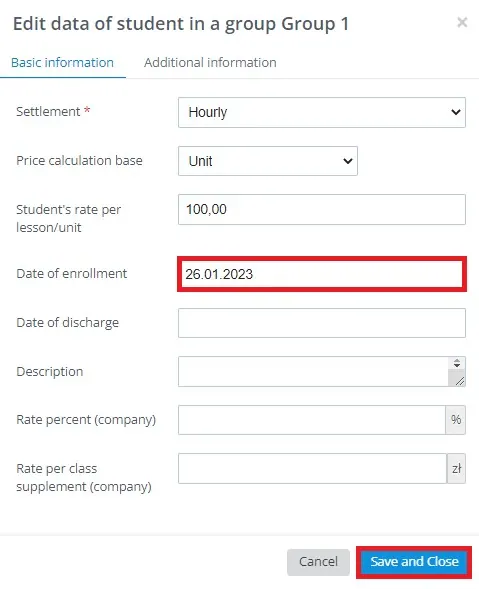
You can enter the date of enrollment to a new group directly in the Date of enrollment field on the group card (the student's Groups tab), or select Edit data of student in a group, fill in the date of enrollment and click Save and close. In the group's Students tab, use the Edit date of enrollment icon.
Please note that if you use the Leave the group option, the student’s transactions and receivables will not be deleted, nor will they automatically move to a new group if he is added to the new group.
Moving to another group
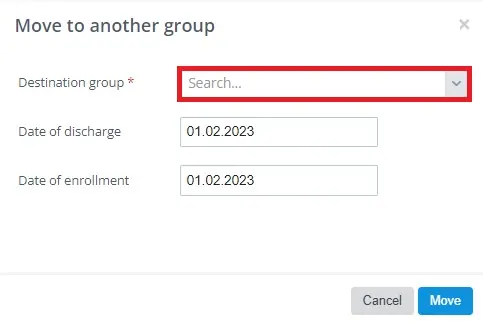
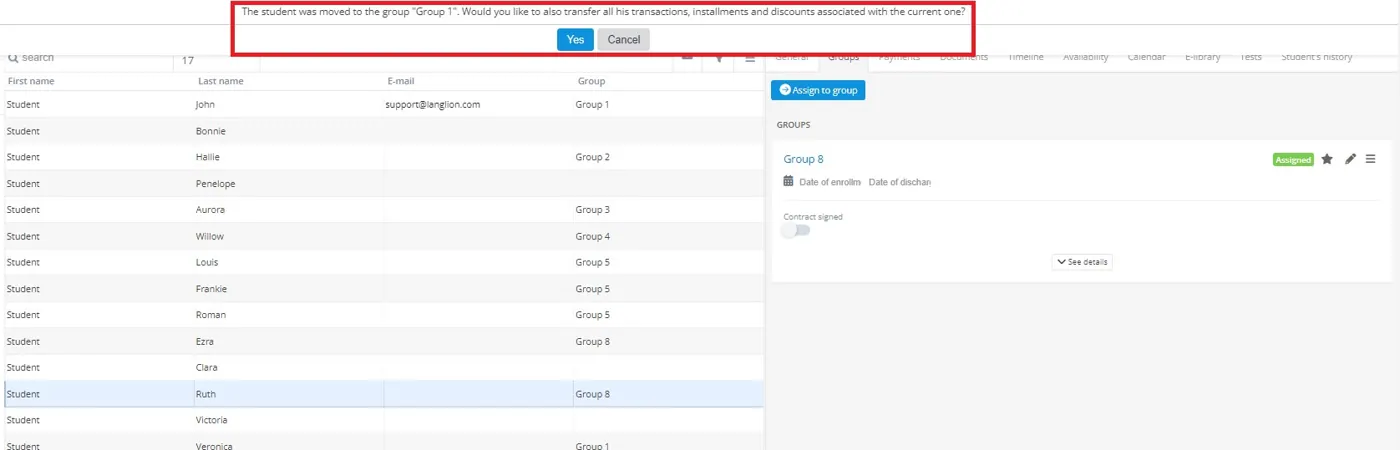
If the student moves between groups and you want his instalments, settlements, transactions or discounts to be transferred to a new group, use the Move to another group option. In the Move to another group window, choose the group in the Select group field, set the Date of discharge and Date of enrollment (today's date by default) and click Move. The system will then ask whether to transfer the transactions, instalments and discounts as well.
If you do not decide to transfer payments, remember to manually edit any schemes of instalments or discounts.