
Notifications for system events are configured, but e-mails or text messages from the platform do not reach the recipients? Most often the cause is one of these:
- a missing or incorrect e-mail address or phone number,
- notifications turned off in the user's settings,
- notifications waiting for confirmation,
- a spam filter in the recipient's mailbox.
Are the e-mail address and phone number correct?#
Check if there is a typo or error in the address. Verify that the phone number is entered in the „Mobile” and „Mobile (parent)” columns. If you notice an error, edit the data. A user without an e-mail address or mobile number will not receive notifications.
The system takes the address and number exactly from the fields of the user edit form: „E-mail address”, „Mobile” and „Mobile (parent)”.
Does the user have notifications turned on?#
A student, parent or teacher can turn off selected notifications in the notification settings of their account – the system then does not send them. A company account receives notifications only if it turns them on. Ask the user to check their notification settings.
Consents to the processing of personal data do not affect system notifications. They matter for mailing and for sending access details. A user can withdraw marketing and commercial consents in their profile or with the unsubscribe link in a mailing – they then stop receiving mailings of that type. A consent marked as irrevocable cannot be withdrawn by the student or parent – you do it as the data controller, at their request.
Are the notifications waiting for confirmation?#
By default, every notification sent by e-mail or text message requires confirmation. This protects users from receiving too many messages, for example after an accidental change in the class schedule.
How do I confirm notifications?
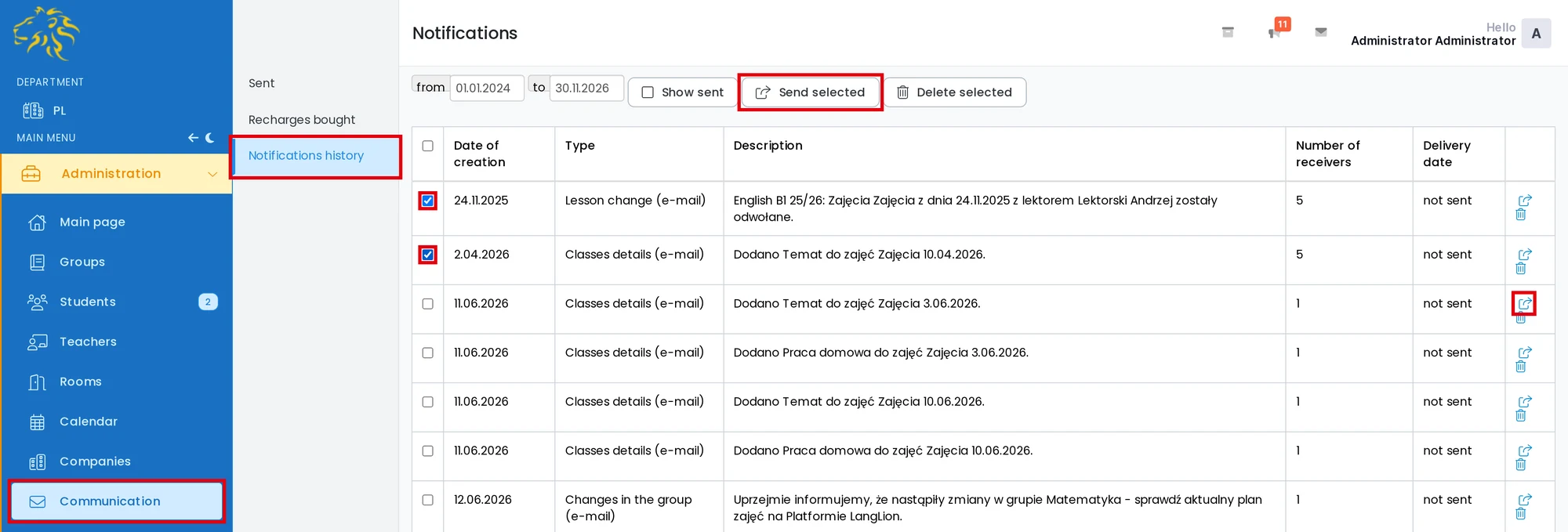
- Go to „Communication” → „Notifications history” (for text messages: „SMS” → „Notifications history”).
- In the list of notifications waiting to be sent, click the send icon next to a notification, or select several notifications and click „Send selected” (for text messages also „Send selected as PRO”). Remove unneeded notifications with „Delete selected”.
How to send notifications without confirmation?
In „Settings” → „Communication”, on the „E-mail” tab select „Send e-mail notifications without confirmation by system administrator”, and on the „SMS” tab select „Send SMS notifications without confirmation by system administrator”, then save the changes.
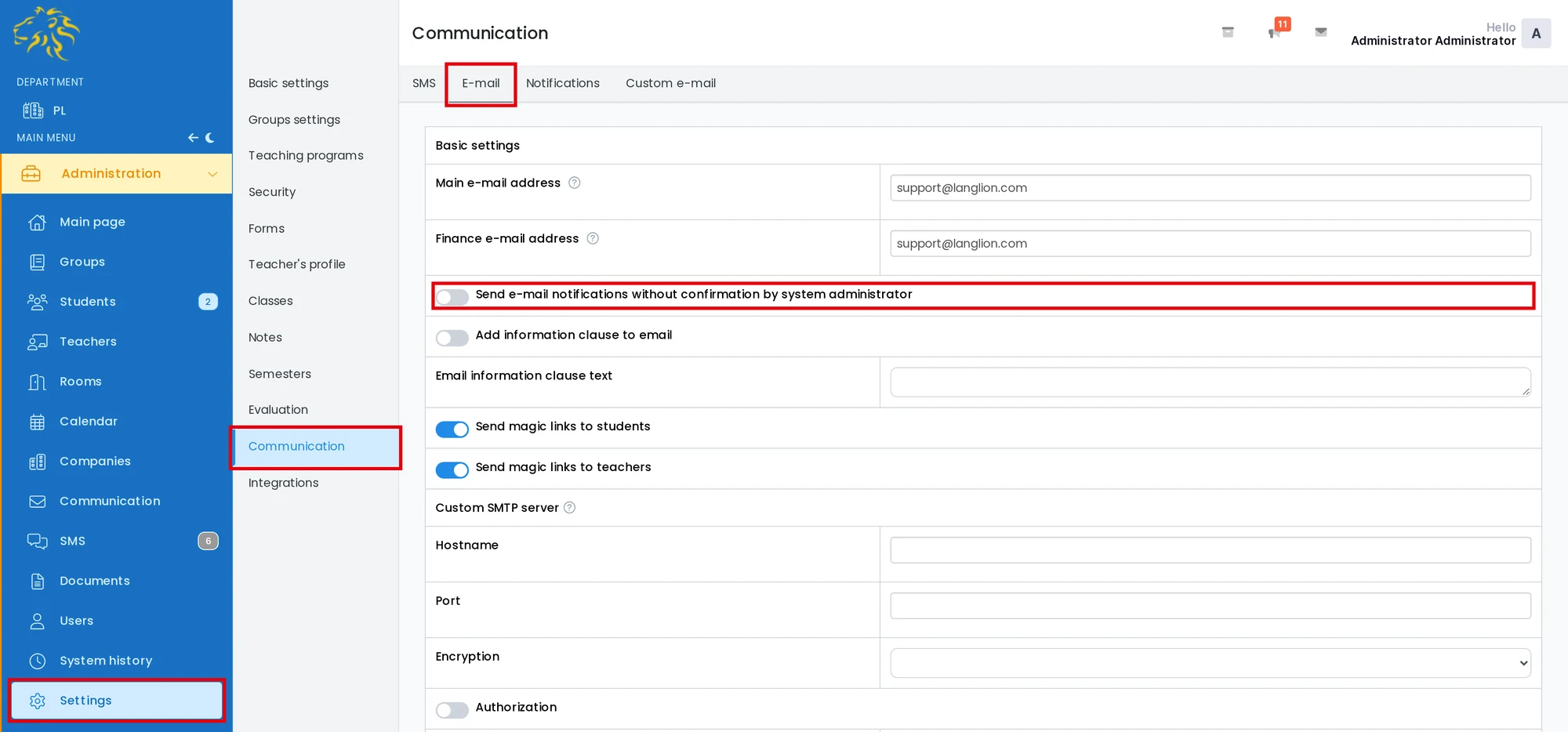
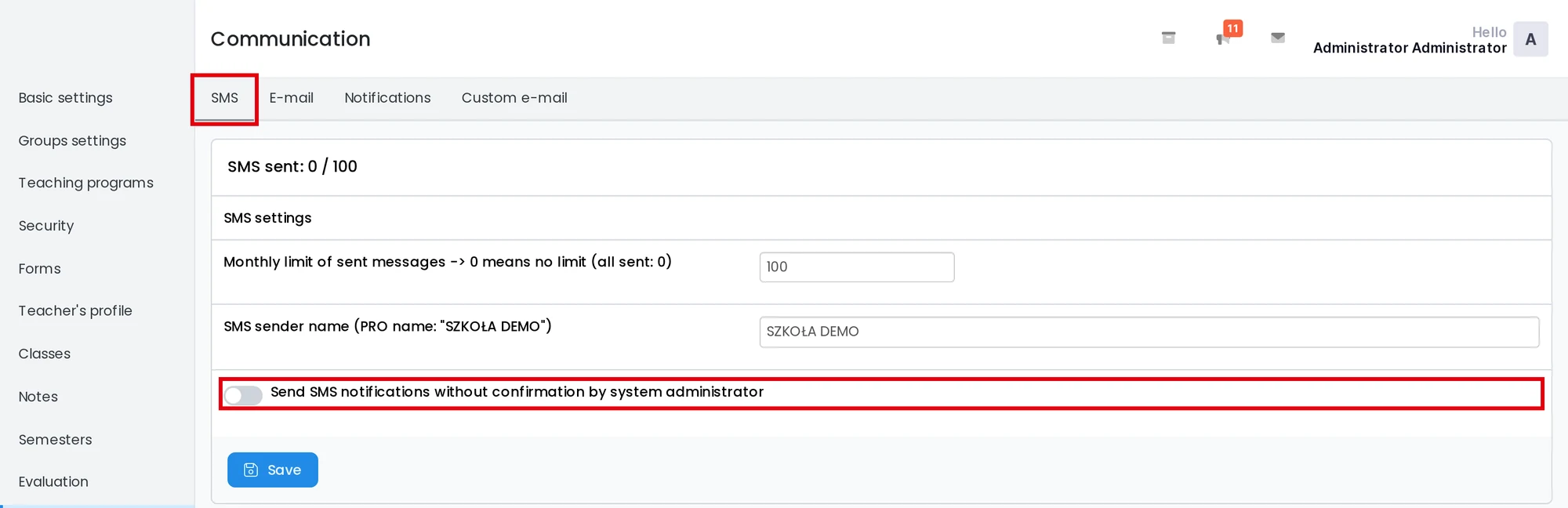
Note: with these options on, notifications go out immediately – also those caused by an accidental change, and every text message costs money.
Are the messages blocked by a spam filter?#
Recipients' mailboxes have anti-spam filters that can block e-mails from the platform – neither the school nor LangLion can control them. Ask users (teachers, students and parents) to add mailing@langlion.com and payments@langlion.com to the safe senders list in their mailbox settings – then the messages will be delivered correctly.
Messages still not arriving?#
You can send e-mails through your school's own mail server: in the „Administration” module go to „Settings” → „Communication” → „E-mail”, fill in the „Custom SMTP server” section (e.g. „Hostname”, „Port”, „Username”, „Password”) and click „Check configuration”. The sender is then your school's address instead of mailing@langlion.com. Read more in Custom SMTP server.