One of the functionality of the LangLion Platform is the dispatch of notifications informing users of a particular event on the system.
You have the option to configure settings so that they are automatically sent or you can decide which notification should be sent.
How to set up notifications so that there is a choice of which should be sent?
It is not difficult, just go to the Settings tab, in the Administration module. Then, select the Communication tab and go to the E-mail tab. In the next step, disable the “Send e-mail notifications without confirmation by system administrator” option and save the changes. If you also use SMS notifications to deactivate automatic sending, go to the SMS tab and disable the option “Send SMS notifications without confirmation by system administrator”, save changes.
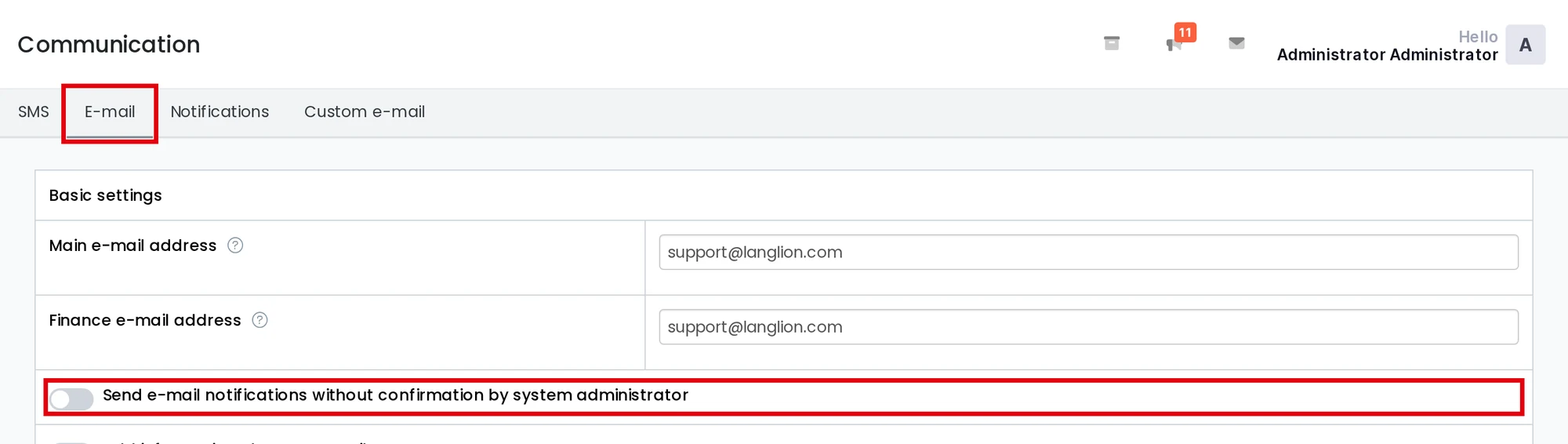
From now on, notifications won’t be sent automatically and you can decide which notification should be sent. In case of a system event, a message will appear asking you to send an email to the students.
Confirm the message if you want an email to be sent.
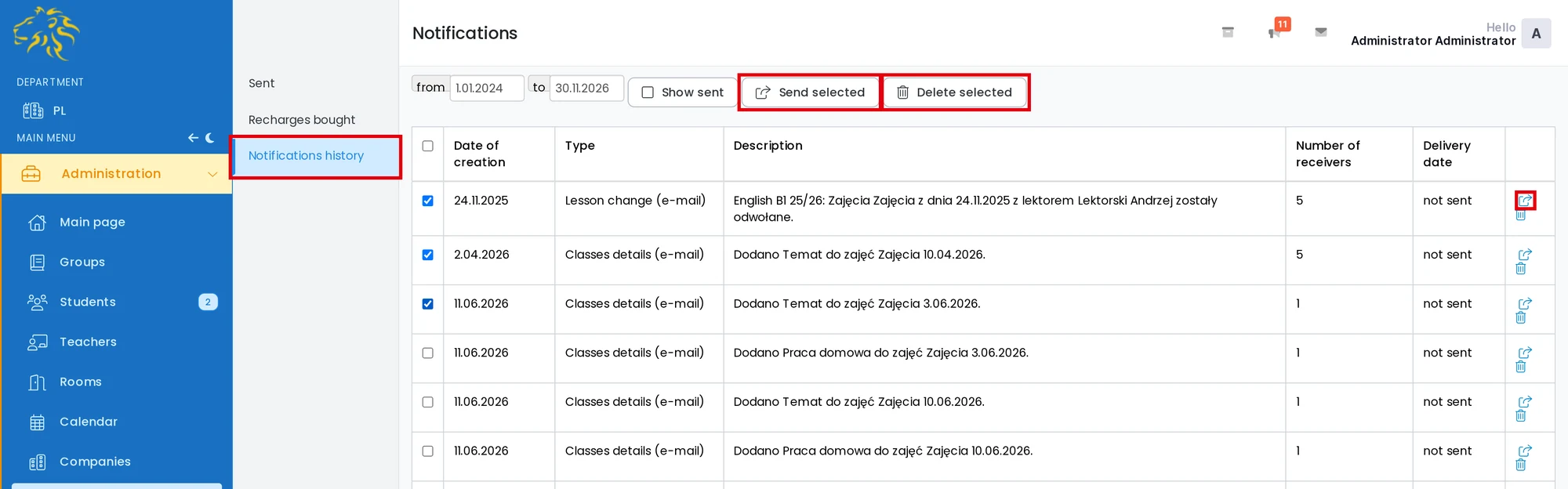
In addition, the system creates a list of notifications and you have the ability to select specific items that should be sent.
How to do that?
Go to the Communication and then Notifications history tab. To send a single notification, click the send icon (tooltip “send”) in its row. To send several at once, select them and click “Send selected”. Notifications you don't need (e.g. about classes deleted by mistake) can be removed with “Delete selected” – they won't be sent.
You can filter the list of notifications by period, and the “Show sent” button displays notifications that have already been sent.
SMS notifications wait separately, in the “SMS” module → “Notifications history”. There you can also send them as SMS PRO (“Send selected as PRO”).