
Adding online lessons gives students the opportunity to learn outside the school.
Online lessons have many features that let you:
- share your camera,
- use the chat,
- display a presentation and attach text and image files,
- add text and geometric shapes, and draw on a virtual sheet,
- share videos from sources such as YouTube, Vimeo, etc.,
- share your screen with a selected application or browser tab.
Hardware requirements
Sound and picture quality depend mainly on the quality of your internet connection. Given the technologies used in the module, the minimum requirements for a user are 0.5 Mb/s upload and 1 Mb/s download. If more people take part in the session and everyone uses a camera and microphone, these values should be correspondingly higher. For the presenter (teacher), the highest possible upload speed is recommended, especially when using screen sharing (at least 1 Mb/s upload). We also recommend using Firefox or Chrome, as they keep better sound quality on slower connections. During the lesson, users should close any extra, unused browser tabs and programs/applications running in the background, as they may affect the quality of the connection.
A user may have a very good experience with wireless internet, but if others hear that their sound is distorted or altered, the user can move closer to the router, try another wireless network or (best of all) connect directly to the router with a cable. Public Wi-Fi is not always the best choice, as it may not be sufficient for real-time audio or video transmission.
We recommend using devices with at least a dual-core processor and 2 GB of RAM. Any operating system that can run the latest browser versions is fine.
On mobile devices, online lessons are available on iOS 12.2 and later (Safari mobile) and Android 6.0 and later (Chrome mobile). The recommended mobile internet connection is 4G LTE (at least 3G). When using a mobile device, it is also recommended to close apps running in the background.
To find out more about the general online lesson settings and the available online lesson providers, click ⇒ HERE
How do I create an online lesson?
As an administrator, you can set up an online lesson in the "Administration" module.
How do I do it?
It's simple: select the right group, go to the "Lessons" tab and choose the lesson you want to edit.
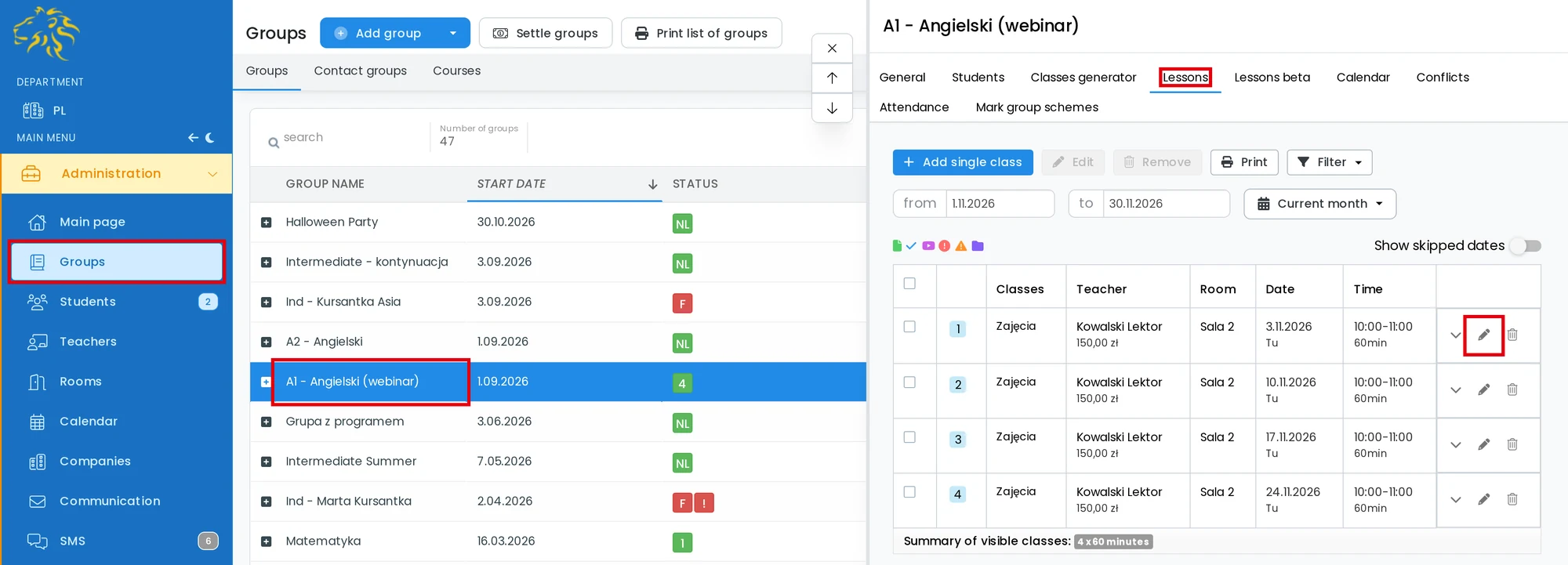
Then, in the lesson edit form, tick the "Lesson available on-line" attribute and save the changes. The provider is automatically the one selected in the general online lesson settings, but you can change it for a specific lesson in the "Online lesson provider" field, and paste your own meeting link in the "Online lesson meeting link" field.
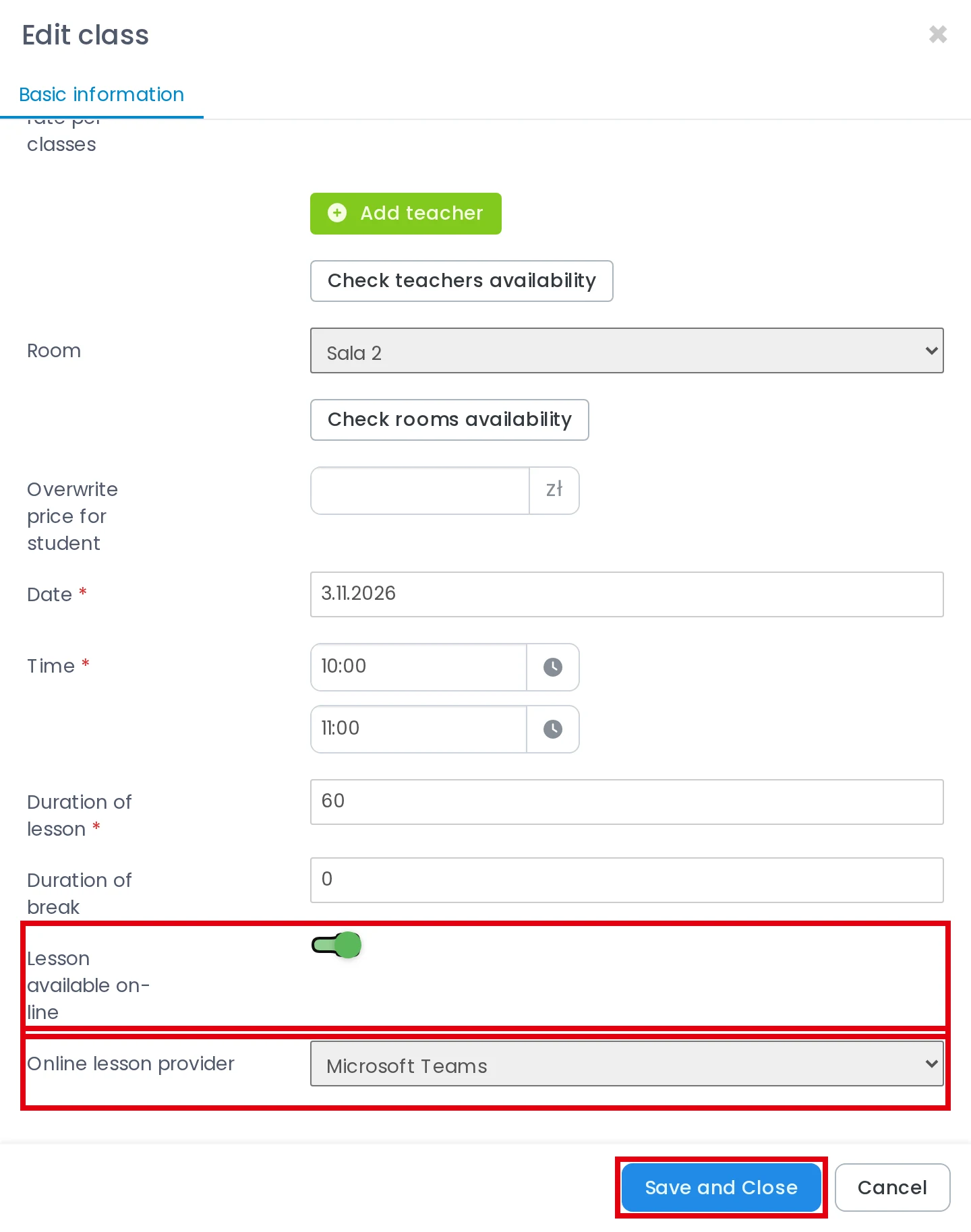
Done – the lesson is now available online.
Do you want the group to have every lesson of the course online only?
It's easy – just generate online lessons in the group.
How do I generate online lessons for the whole course?
Select the right group, go to the "Classes generator" tab, and then edit the defined classes or add new ones.
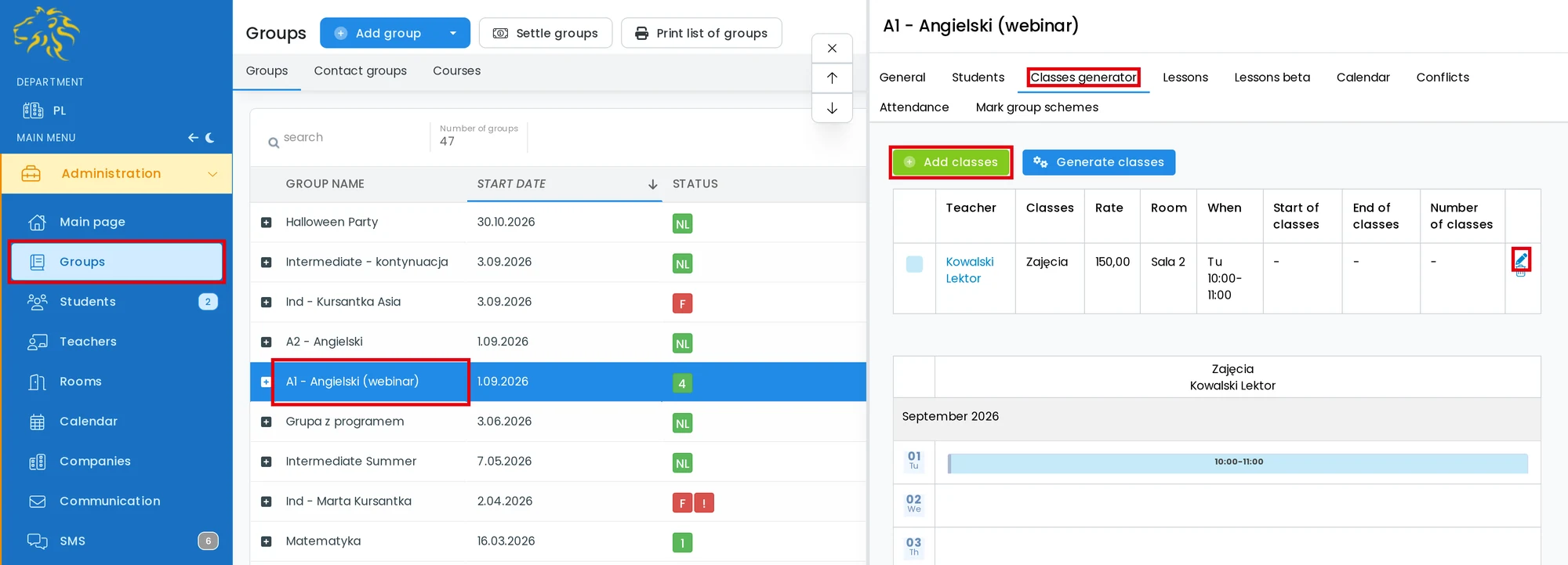
Next, in the class edit form, go to the "Custom settings" tab, tick the "Lesson available on-line" attribute and save the changes. The provider is automatically the one selected in the general online lesson settings, but you can change it for a specific group.
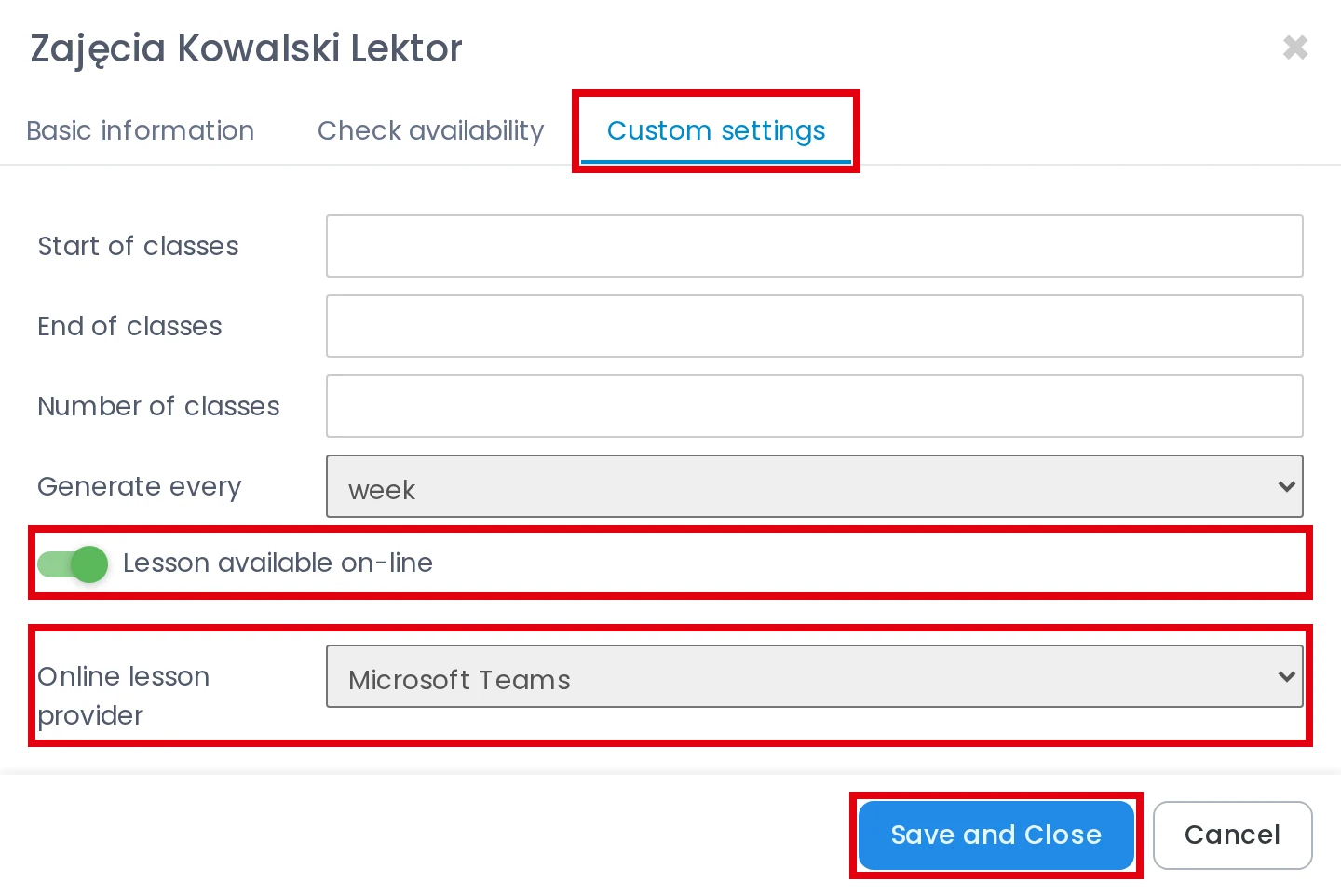
Click the "Generate classes" button and you're done – online lessons have been generated for the whole course in the group.
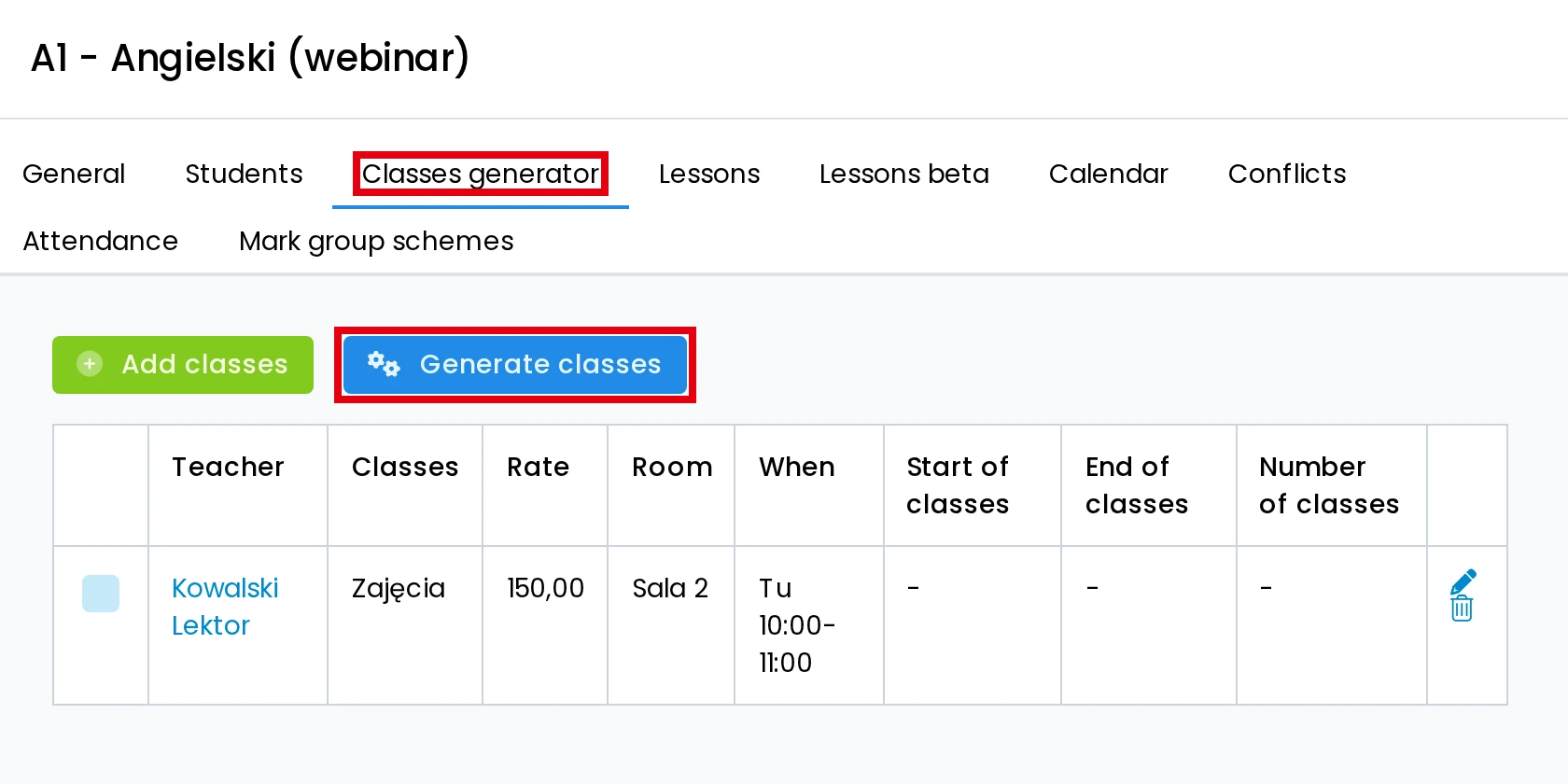
Using the new "Lessons beta" tab? There you turn on online lessons in a generator rule or when editing lessons – also for many lessons at once (bulk edit with the "Lesson available on-line" field).
How do I join an online lesson?
The teacher must join the lesson first. Otherwise, the lesson will not be started yet.
Online lessons are displayed on the home page of the teacher's panel.
You have quick access from the "Home" page, in the "Upcoming on-line lessons" box. To start the online lesson, just click the "Join" button.
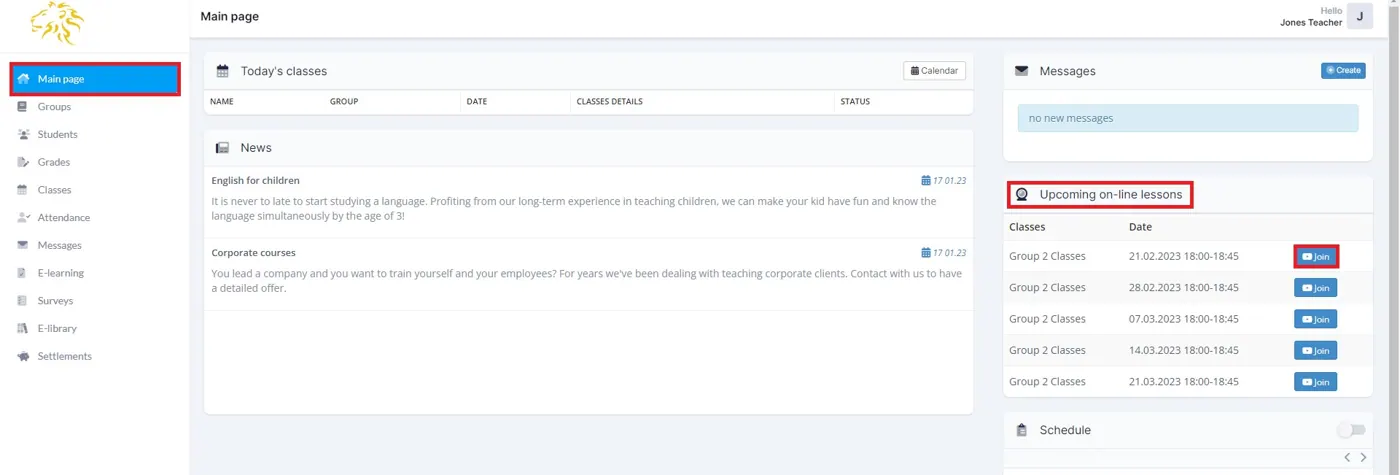
The teacher can also go to the „Lessons” tab and choose the lesson from the list.
After logging in, a student sees the „Join” button on the home page, next to the lesson.
After clicking „Join”, the online meeting room opens in a new tab. If nothing happens, allow the browser to open pop-up windows for the LangLion Platform.