Online lessons are available in the Online lessons module.
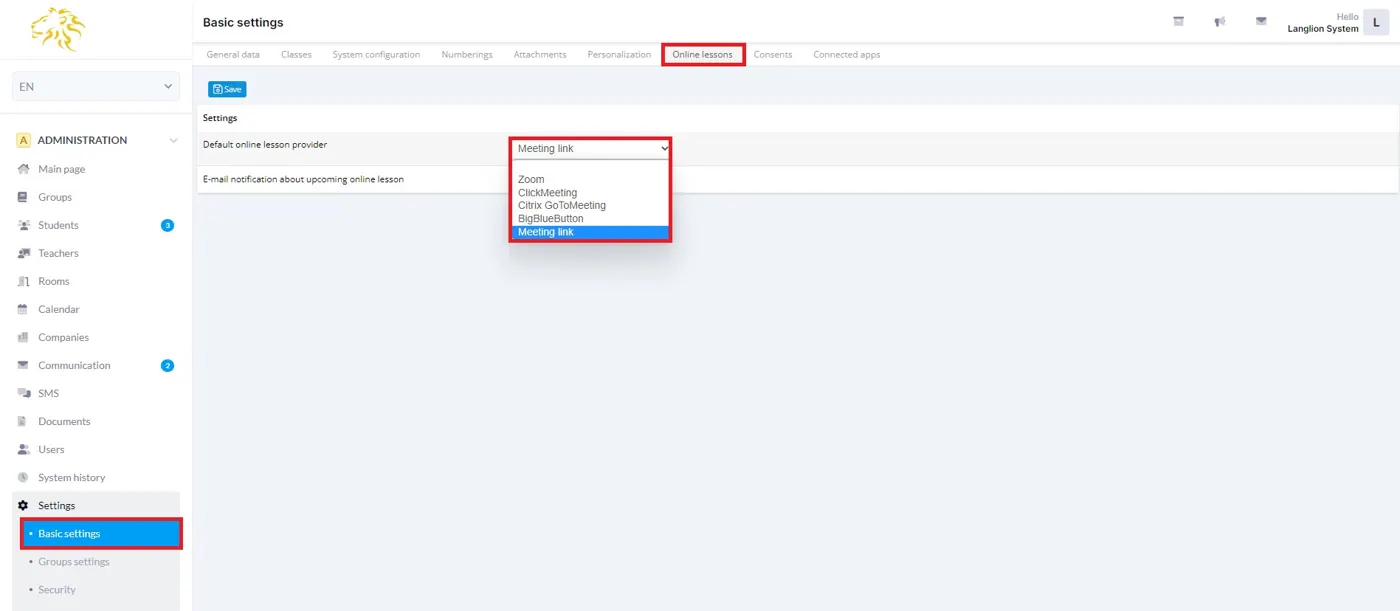
We give you the option of choosing an online lesson provider. There are 5 options available:
- ClickMeeting – it’s external and depending on the chosen plan, paid webinar software, if you have a ClickMeeting account, you can integrate it with the LangLion Platform
- Zoom – it’s external and depending on the chosen plan, paid webinar software, if you have a Zoom account, you can integrate it with the LangLion Platform
- BigBlueButton – external webinar software; if you have it, you can integrate it with the LangLion Platform
- Microsoft Teams – external, paid software; if you have a Microsoft Teams account, you can integrate it with the LangLion Platform
- Meeting link – you can add links to online meetings. Links to meetings can be created in any tool, for example Google Meet.
In order to choose your preferred online lessons provider, go to the Administration module and select the Settings and Basic settings tab and then Online lessons tab.
Select the provider from the drop-down list and confirm by clicking on the Save button.
If you decide to integrate with Zoom, ClickMeeting, BigBlueButton or Microsoft Teams, go to the relevant manual (see links below) and follow it.
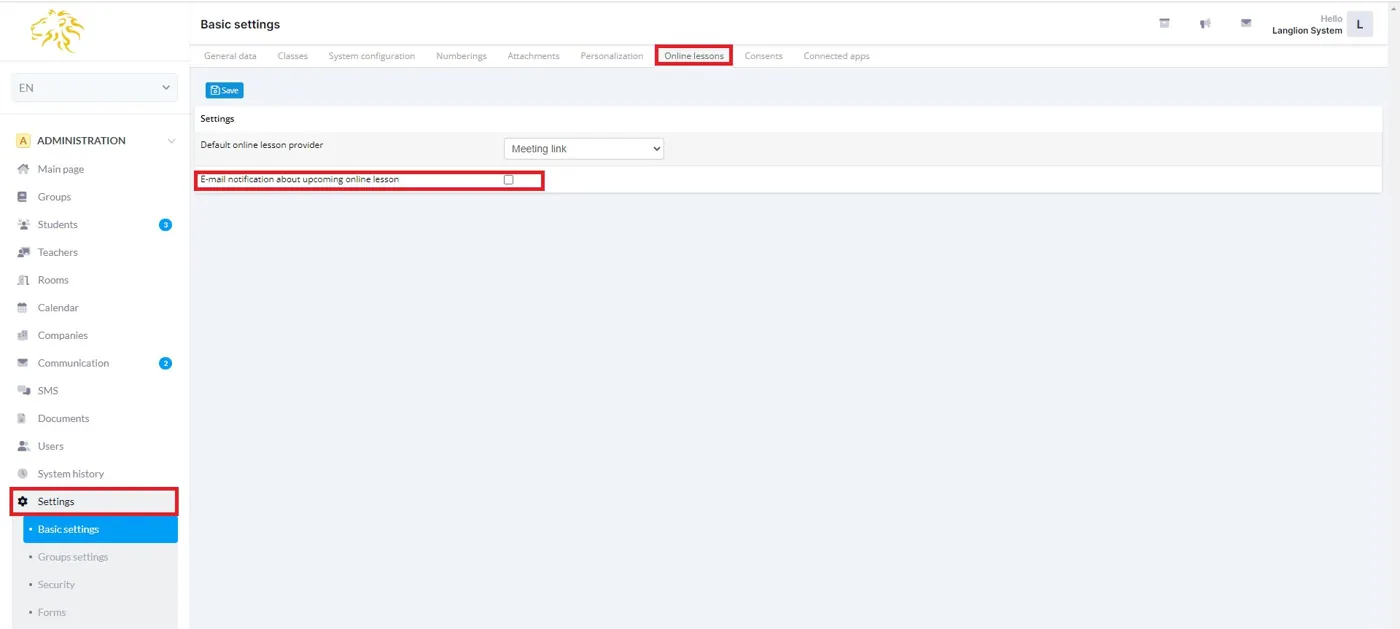
Additionally, the system can send students e-mail notifications about the upcoming online lesson. The reminder can be sent, for example, one hour before the start of the class.
To do this, check the E-mail notification about upcoming online lesson option, choose in the Notification period field how early it should be sent (1, 2, 3, 4 or 6 hours, or 1, 2, 3 or 7 days before the class) and save the changes.
If you have departments, you can choose from which notifications are to be sent.
If you want notifications to be sent from each branch, you should select this option separately in the settings of each of them and save the changes.
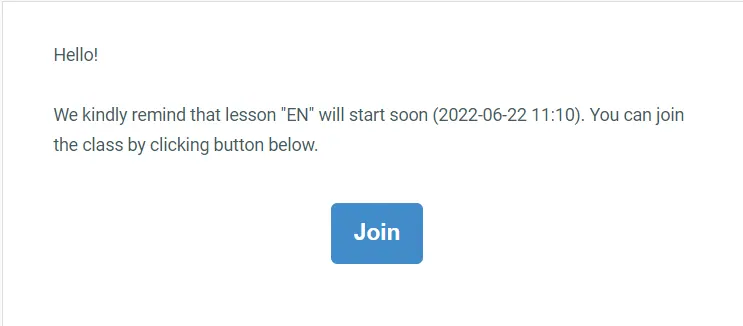
The e-mail that the student will receive will contain information about the start time of the lesson along with a button allowing them to join the lesson.
After clicking the „Join” button, the student will be logged in to his panel immediately and will be able to join the lesson.