
In addition to integration with online lesson providers such as Zoom and ClickMeeting, the LangLion Platform lets you add permanent links to online meetings created with, for example, Microsoft Teams or Google Meet. Microsoft Teams also has its own integration with the LangLion Platform.
To use this feature, you need to create online classes. Go to the "Groups" tab in the "Administration" module. Select the group and go to the "Classes generator" tab. Then click the pencil icon (“Edit”) next to the classes to edit them, or “Add classes” to add new ones.
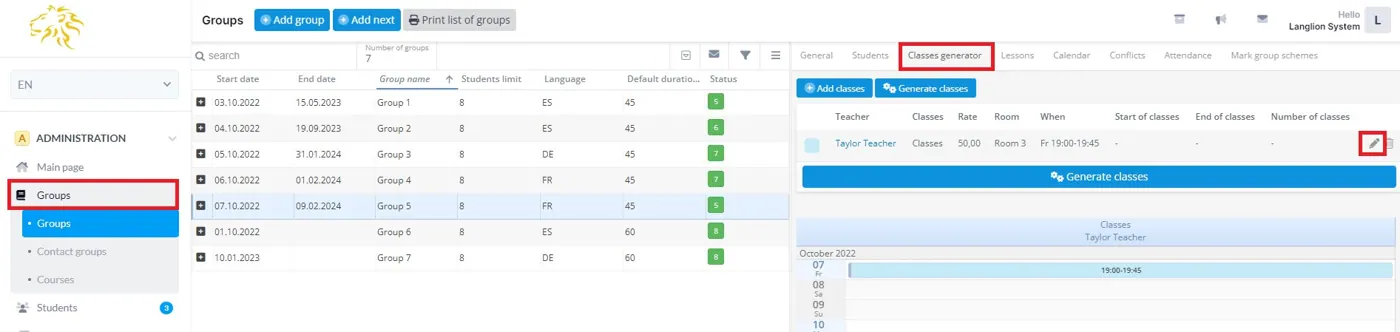
The “Lesson available on-line” option is visible only when online lessons are enabled in your system.
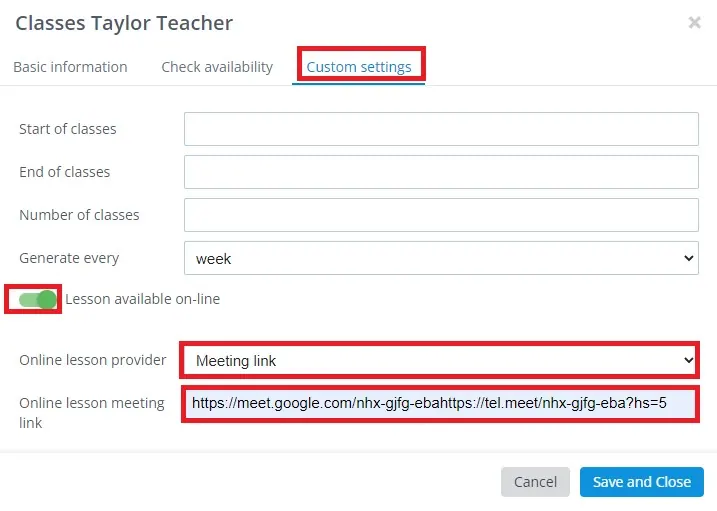
In the window that opens, go to the "Custom settings" tab. Tick "Lesson available on-line", select "Meeting link" in the "Online lesson provider" field, paste the link into the “Online lesson meeting link” field and click "Save and close".
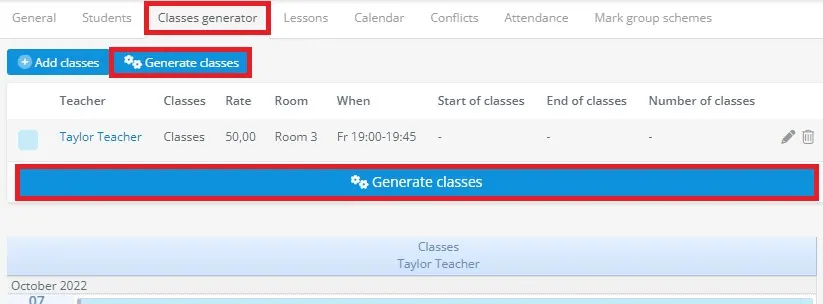
After saving the changes, click "Generate classes".
To join the class, the teacher and the student need to log in to their panels and click the "Join" button next to the relevant class.