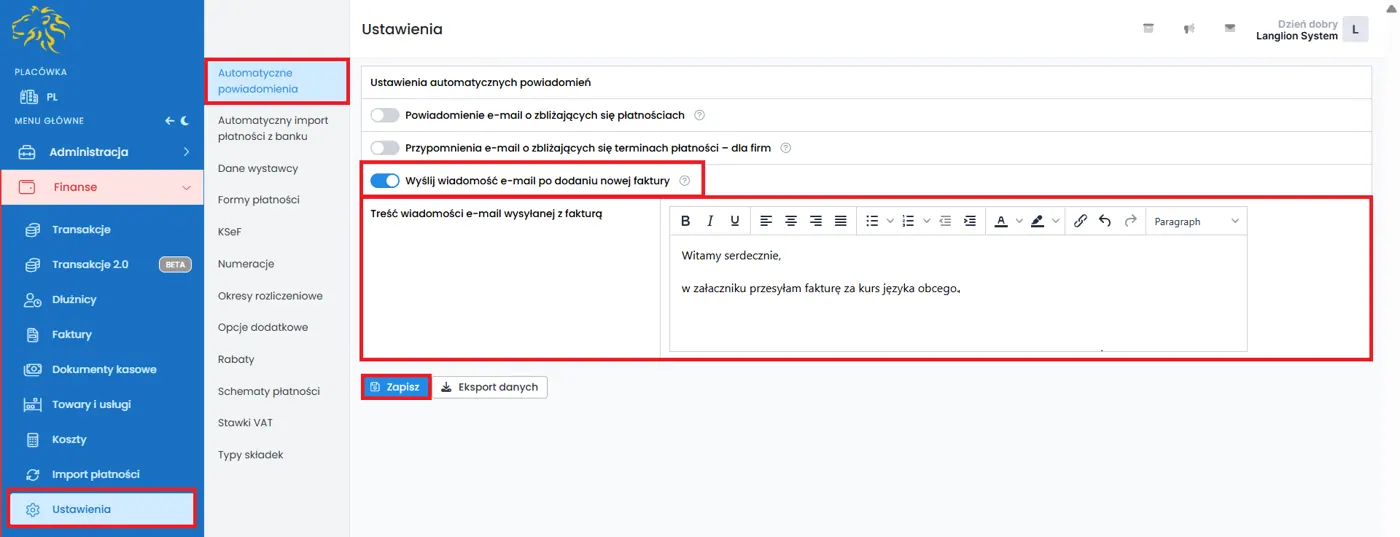
The LangLion Platform lets you handle subscription payments through PayU. With subscription payments, the student's payment card is charged on a recurring basis. The student enters their card details in the Student panel, and each payment is then taken automatically on the instalment due date. Setting up subscription payments is a two-step process:
Configuration in PayU
Recurring payments require special configuration on the PayU side.
Before starting the integration, contact your PayU account manager (salesexcellence@payu.com) or use the contact form.
Configuration in LangLion
To enable subscription payments, go to the "PayU" tab in the "Online payments" module and tick the "Payment subscriptions" checkbox.
How can a student start a subscription payment?
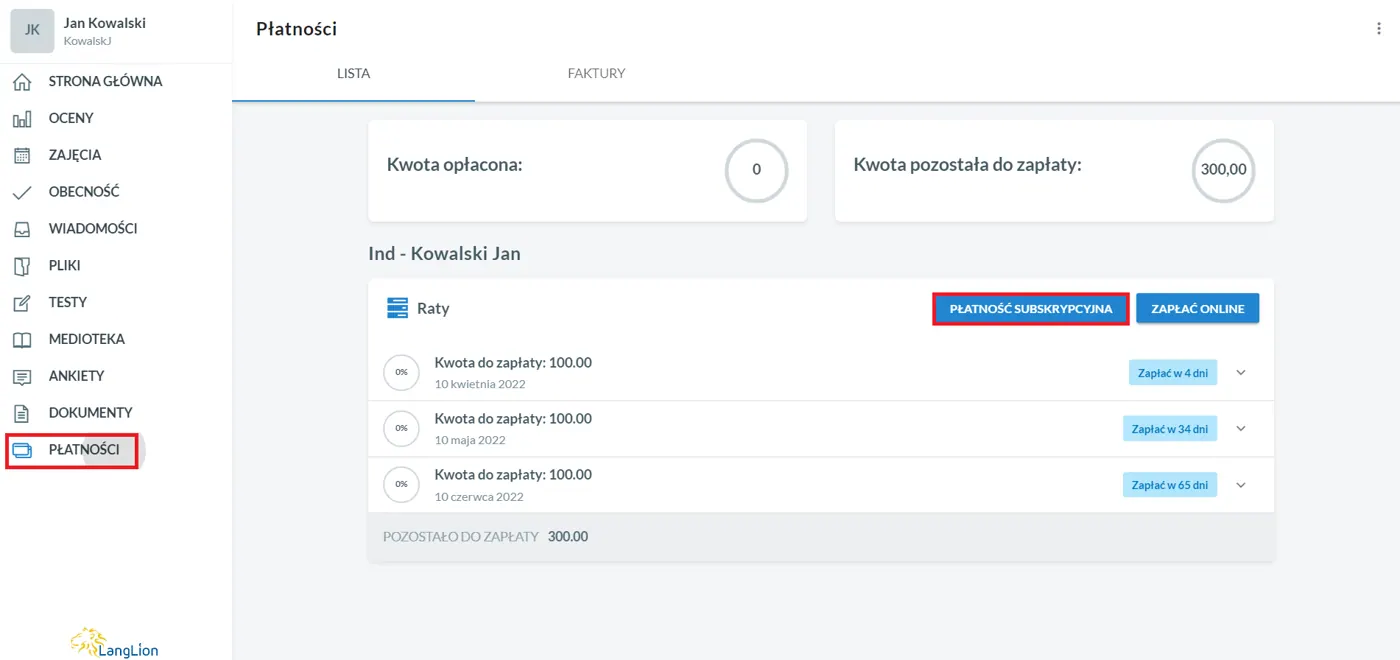
- In the Student panel, go to the "Payments" tab and click "Pay online" next to the group.
- In the payment window, open the "Subscription payments" tab.
- If the account has no email address, the system will ask you to add one first.
- In the "Add card" section, enter your card details and click "Add card".
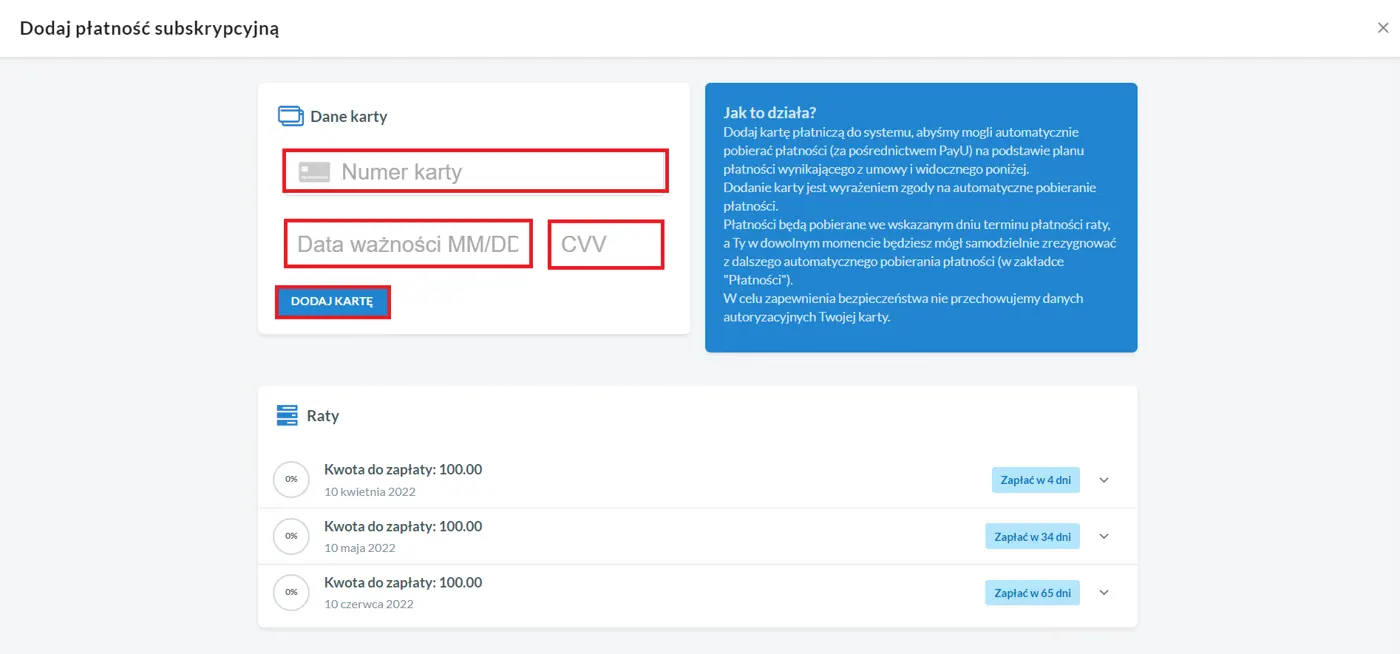
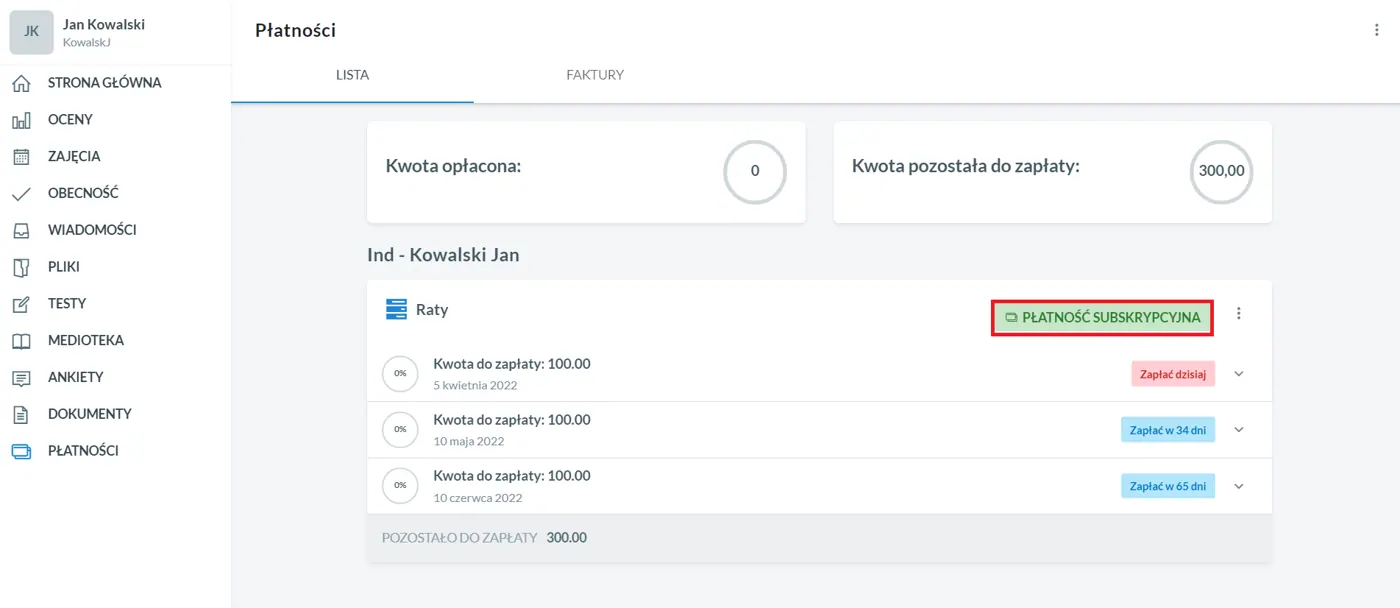
Done! Once PayU verifies the card, a green "Subscription payment" label appears next to the group name. Until then you will see "Waiting for verification". Further instalments will be charged to the card automatically on their due dates.
How do I turn off the subscription payment?
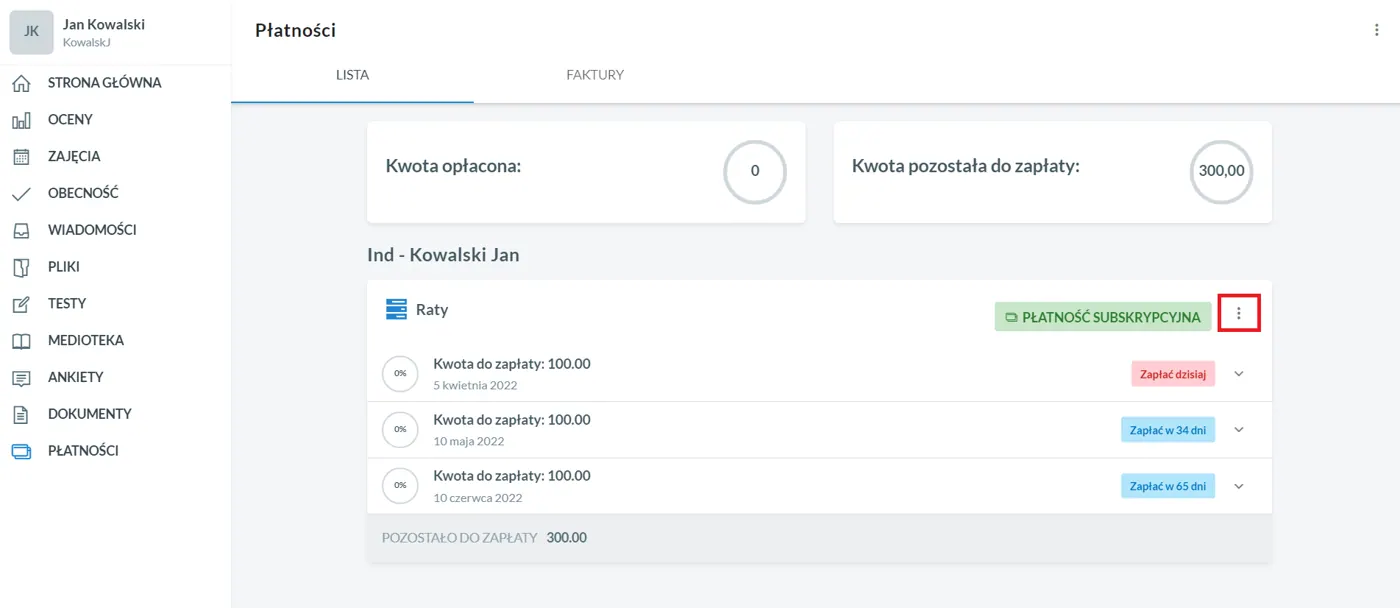
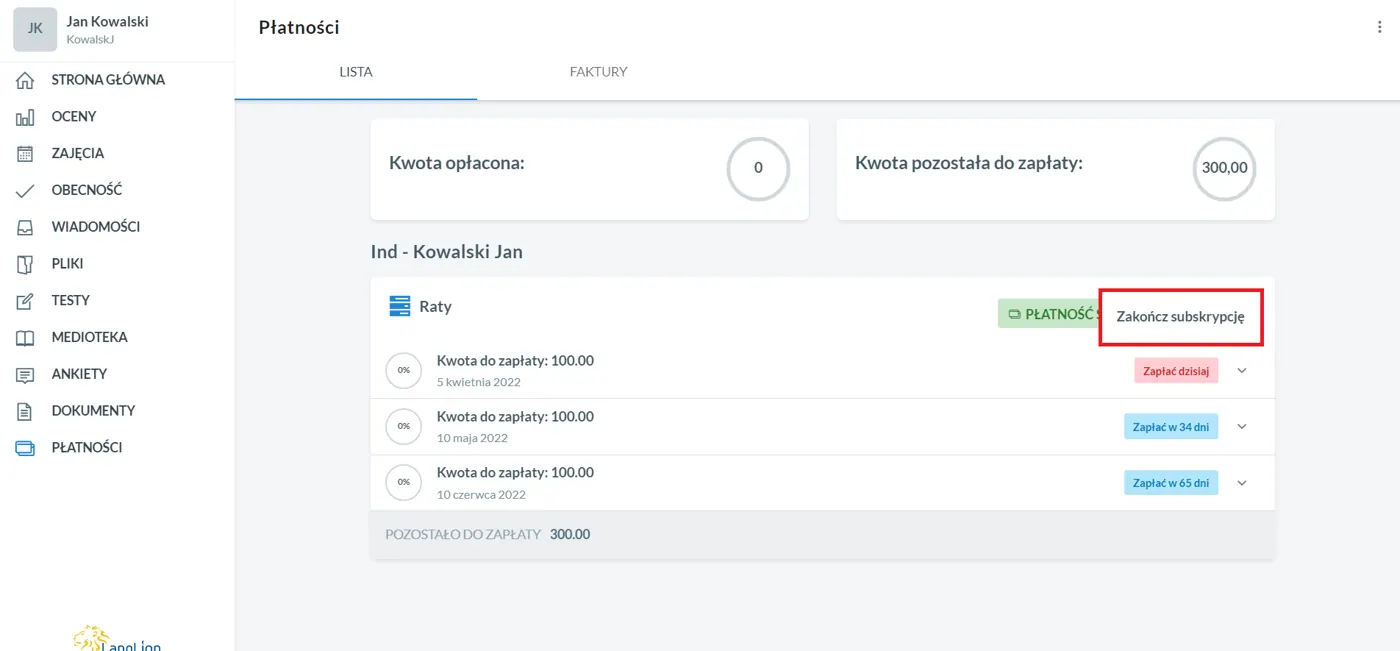
In the "Payments" tab, click the three-dot icon (⋮) next to the group name and choose "Cancel subscription".