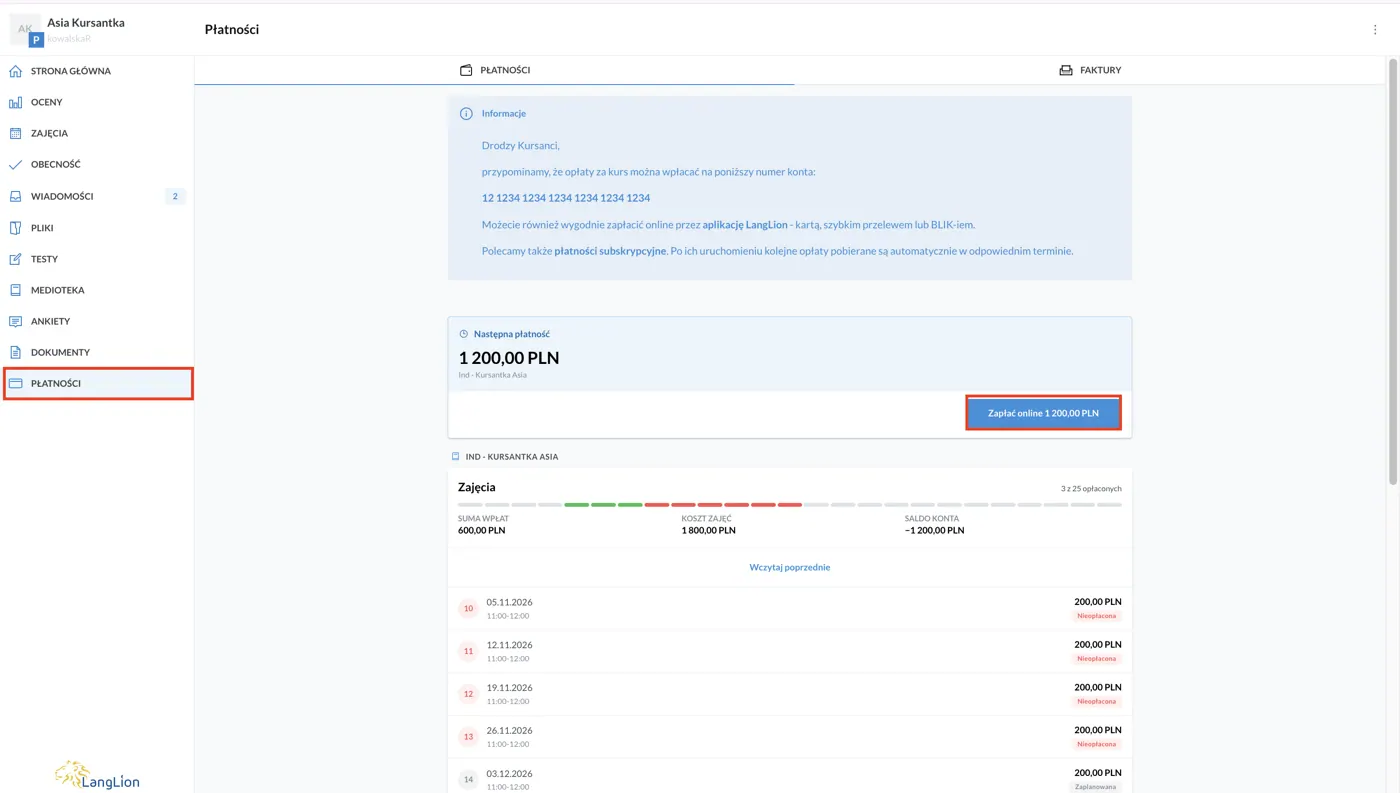
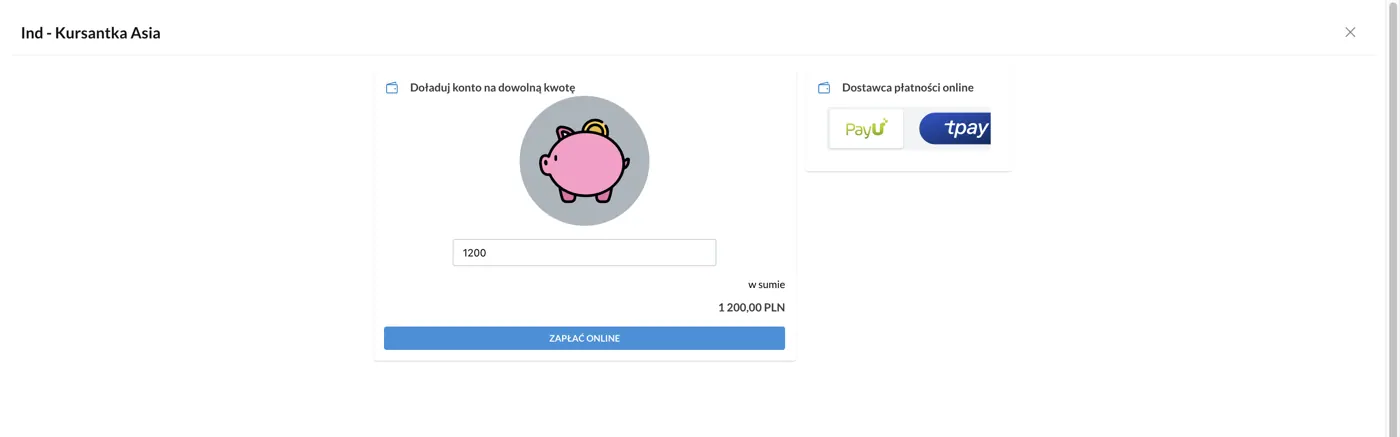
To make paying easier, the LangLion Platform includes a dedicated module – PayU payments. With it, students can pay their course fees electronically, which is far more convenient for them and saves time.
Payments reach your account straight away and the system creates the transaction automatically, which makes your work much easier. Because PayU payments are simple to use, students pay what they owe sooner, so you have fewer debtors.
How does it work?
The time between a student paying an instalment and the transaction being saved in the system is very short – just a few minutes. When a student pays an instalment through PayU, they choose their bank and make the transfer. The payment is then processed by the operator and, once PayU sends its confirmation, the system creates the transaction automatically.
Open a PayU account on preferential terms! Your transaction fee will be only 1.1%, and the one-off verification fee (registration transfer) is only PLN 5.
How do I open a PayU account?
It's easy – just click HERE.
NOTE! You get the preferential terms only if you register using this link!
Registration has 4 steps:
- Fill in your details and your company's details
- Accept the agreement
- Attach the required documents
- Make the activation transfer
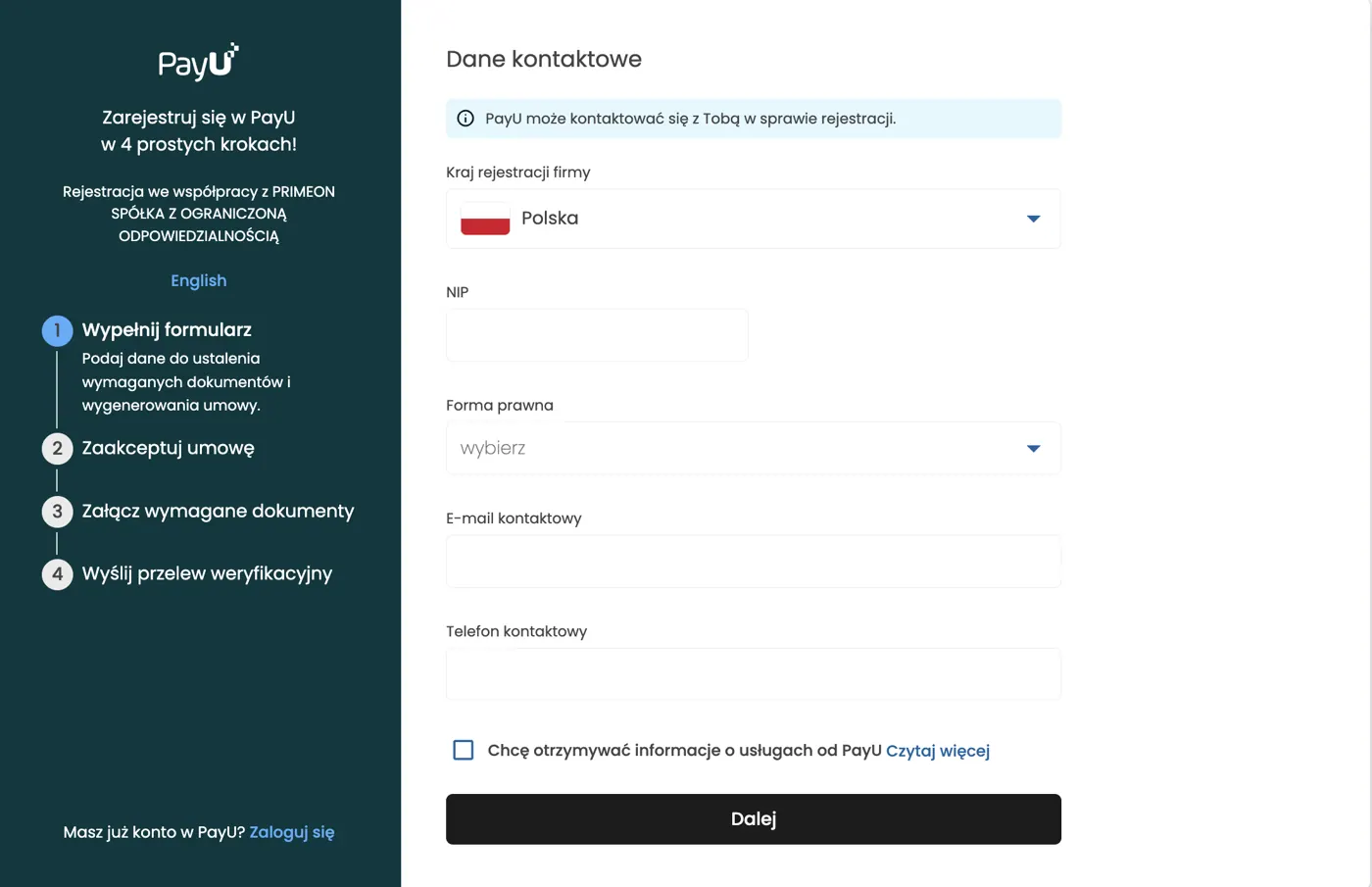
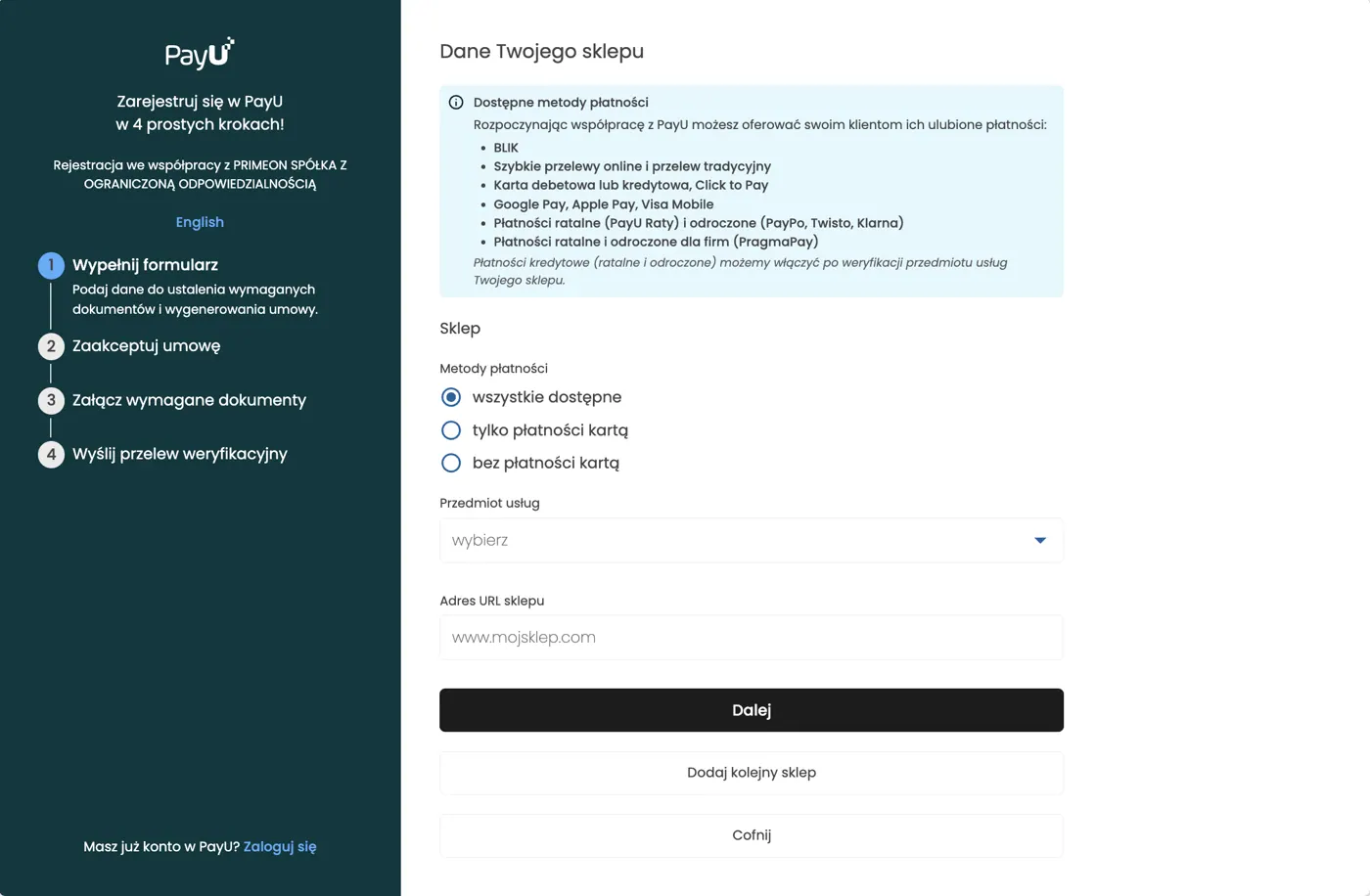
In the "URL" field, enter the address of your LangLion Platform. Once your school is registered, the operator will give you the details you need to configure the PayU module – "Point of sale id", "Second key", "Client id", "Client secret".
An example address is: https://szkola.langlion.com/main/student2#/payments
*If you have signed an agreement with PayU for more than one point of sale, the URLs are still the same for all departments.
Adding a shop
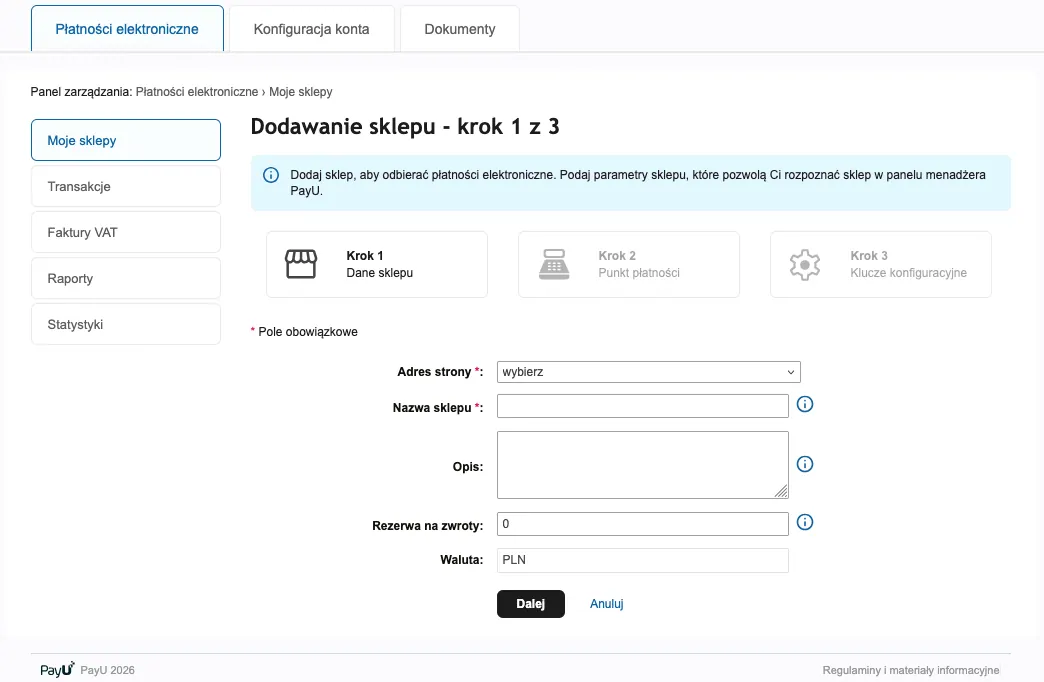
To add a shop, log in to your PayU account and go to the "Online payments" tab. Select "My shops" in the sidebar. Click the "Add shop" button. The first step of a short, three-step process will appear. Follow the instructions and you will soon have access to a new shop with a point of sale and new credentials.
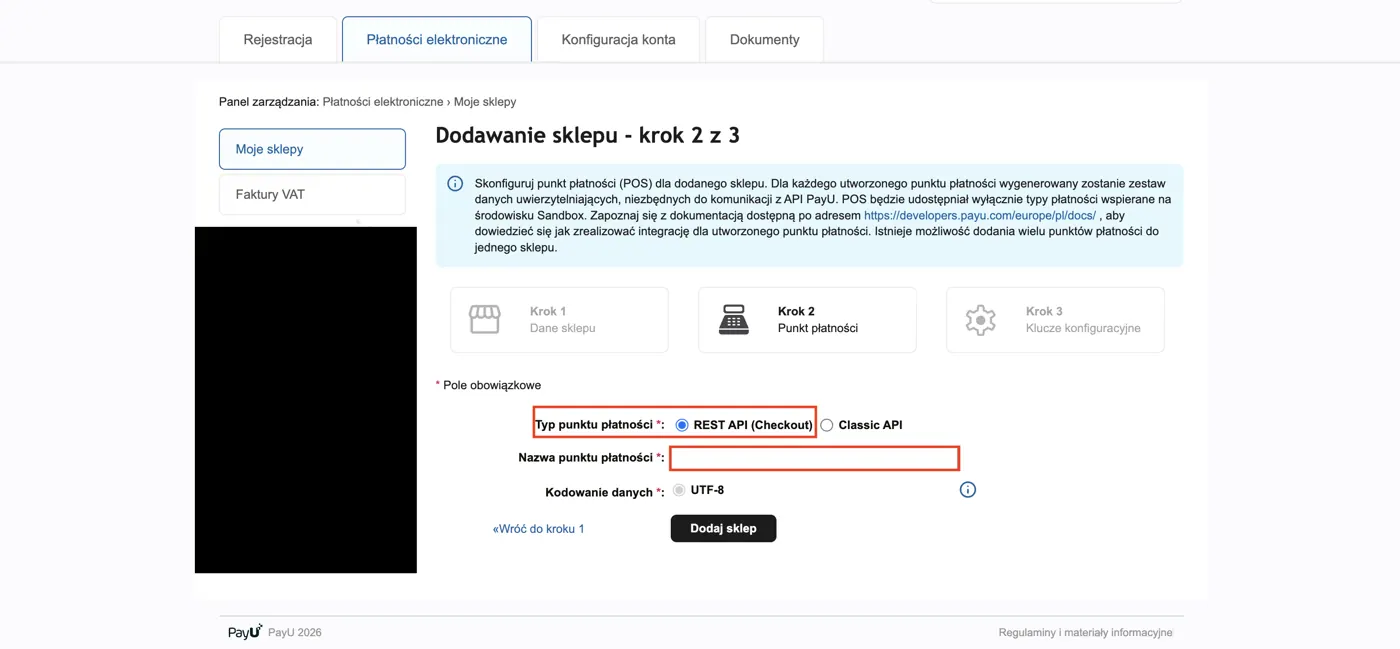
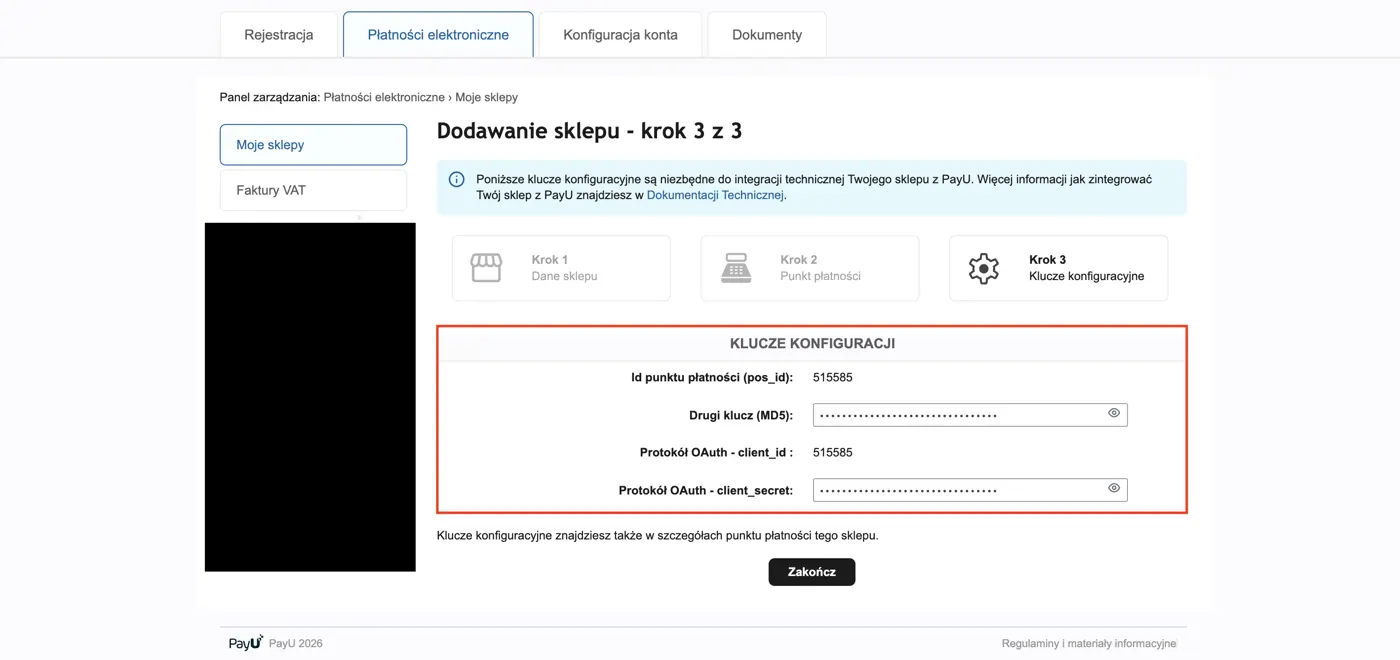
The next step is to add a point of sale – you need it to get the configuration keys. Choose the REST API type, enter a name and select UTF-8 encoding. Confirm by clicking the "Add" button at the bottom of the page. You will be taken to the point of sale page, where you will see the configuration keys in a green box. These are the keys you need to enter in the shop application.
Where exactly can I find the configuration keys?
To see the configuration keys, select the "Online payments" tab, then click the "My shops" section and the "Points of sale" button next to the shop you want.
IMPORTANT - the payment operator may ask you for additional information needed to verify your PayU account. Remember that students must have access to a privacy policy (it must include your company name and full details – NIP, REGON, address). The payment operator also requires you to provide information about your payment terms, refund policy and order fulfilment time.
You can include this information in the privacy policy entered in the system's Basic settings and you can also add links to the terms and privacy policy published on your website in the "Description on the login screen" field. You can also generate additional terms as documents for a given student, as a consent with the appropriate attribute (consents), and add payment information using the "Billing information displayed to students" field in the "Additional options" tab in the Finance module settings.
In the general settings of the Administration module, you can also link your logo to a website. This way, anyone who clicks your logo on the Platform login page can be taken to a page of your choice, where you can publish, for example, your privacy policy and terms.
As part of the PayU account verification, you also need to add information about the types and prices of products (courses) at your school in the documents tab of your PayU account.
I have all the details I need. How do I connect my PayU account to the LangLion Platform?
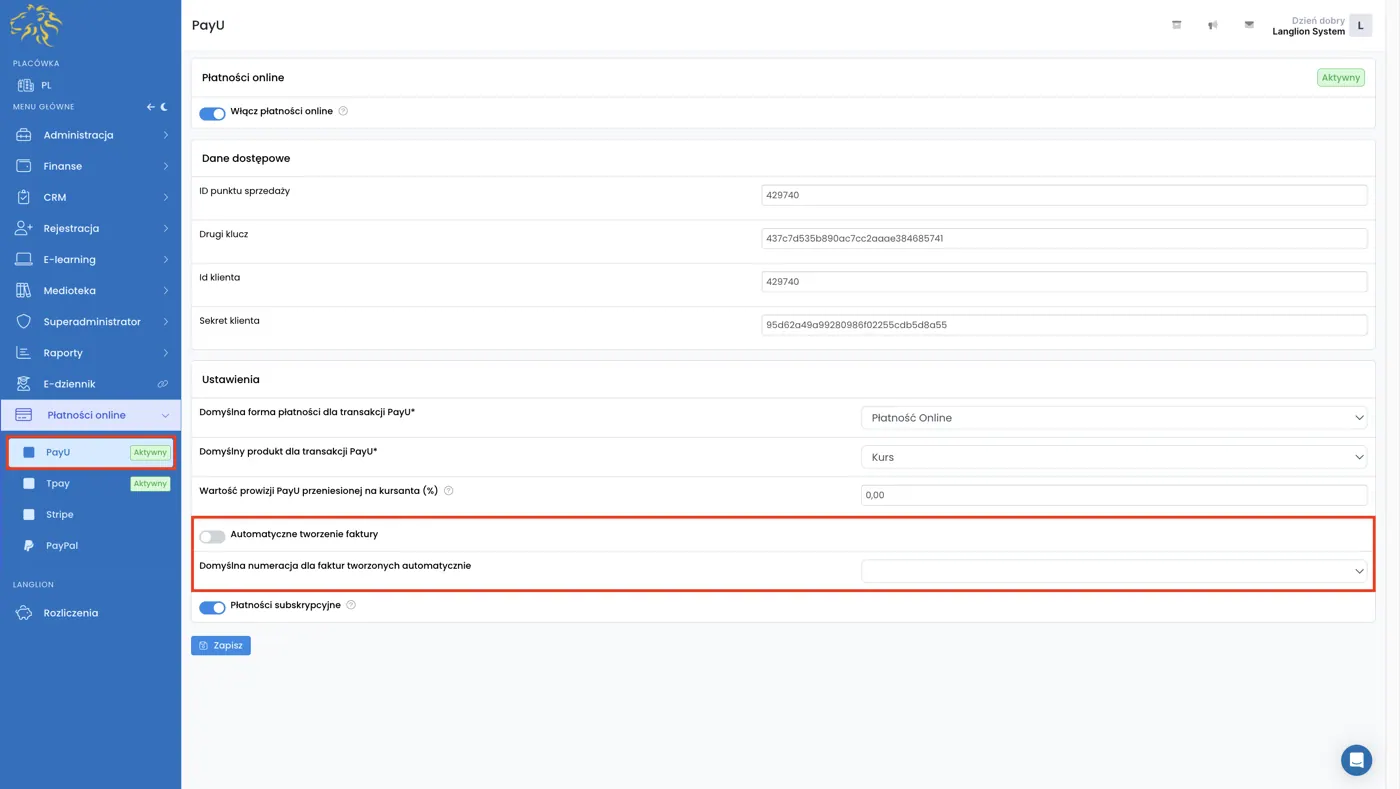
It's easy. To enable PayU payments, go to the "Online payments" -> "PayU" tab.
If you have not enabled the "Online payments" module before, activate its trial period by clicking the "Begin 14 days trial period" button.
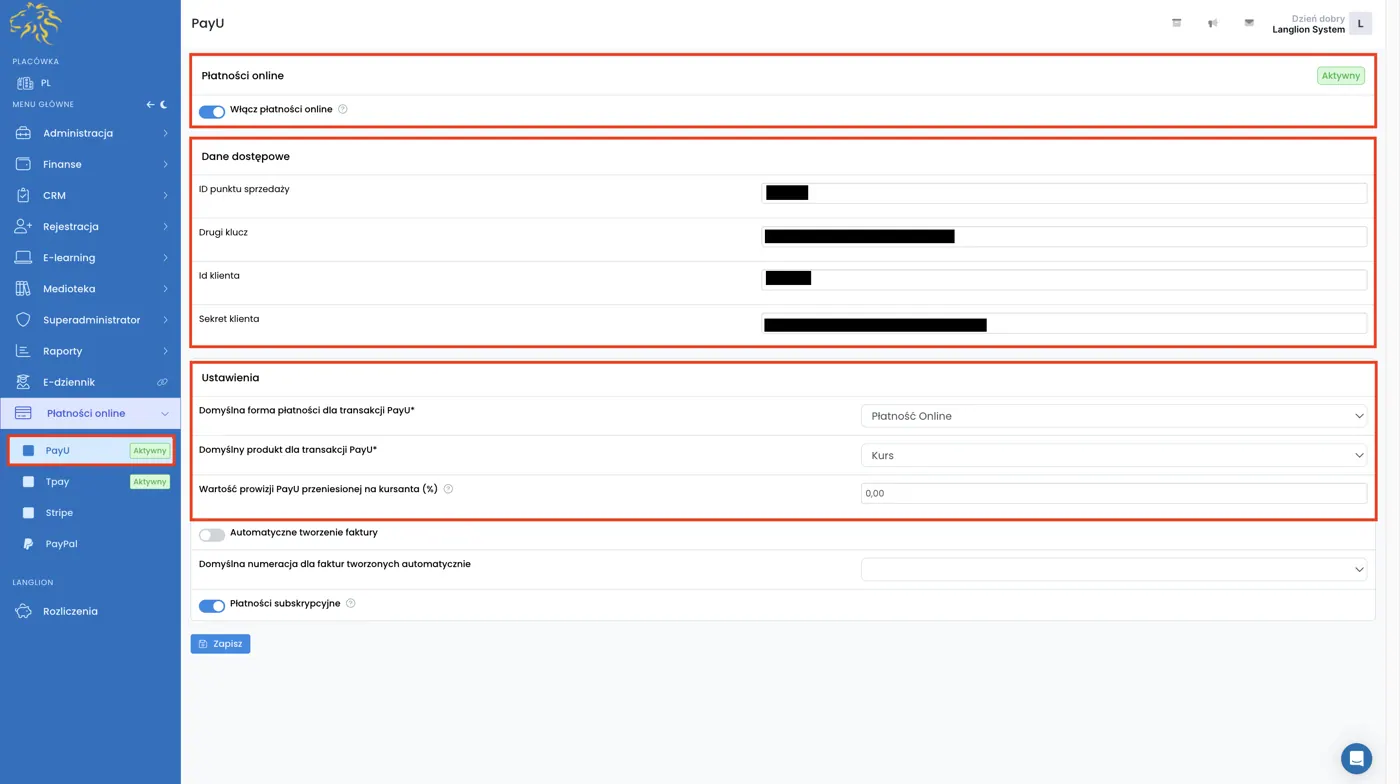
Now connect your account to the LangLion Platform. The Online payments → PayU screen has three cards: Online payments, Credentials and Settings.
Before you start, make sure you have at least one payment form and one product in the Finance module – without them you cannot save the PayU configuration.
- In the Credentials card, fill in the four fields you received from PayU:
- Point of sale id
- Second key
- Client id
- Client secret
- In the Settings card, fill in:
- Default payment form for PayU transaction (required) – the payment form assigned to PayU transactions. This setup lets you, for example, create cash documents automatically.
- Default product for PayU transaction (required) – the product that will be added automatically to PayU transactions.
- Value of PayU commission transferred to the student (%) – by default, the school pays the fee for student payments. If you have enabled passing the fee on to the student in PayU, enter its percentage here, e.g. 1.1.
- Subscription payments – turn this on if you want students to be able to link their card so that instalments are charged to it automatically.
- In the Online payments card, turn on the Activate online payments switch – students will then see the PayU payment button in their panel. Until the credentials are filled in, the switch is inactive (below it you see the message “Fill in all the credentials below to activate online payments.”). If you are still preparing payments and don't want to make them available to students yet, leave the switch off.
- Click Save.
The badge on the Online payments card shows whether payments are Active or Inactive. When the credentials are filled in but payments are turned off, a warning appears at the top of the screen: “Online payments are inactive - students cannot pay online...”.
If you need help during verification, email: salesexcellence@payu.com
Done – your PayU account is now connected to the LangLion Platform. From now on, in addition to a standard bank transfer or cash, your students can pay through PayU.
Creating and sending invoices to students automatically
If you issue invoices to your students, the system can now do it for you! As soon as a student pays online, an invoice is issued to them as well.
Just tick the Automatically create invoices option in the Settings card and choose a numbering in the Default number scheme for automatic invoices field. Then click Save.
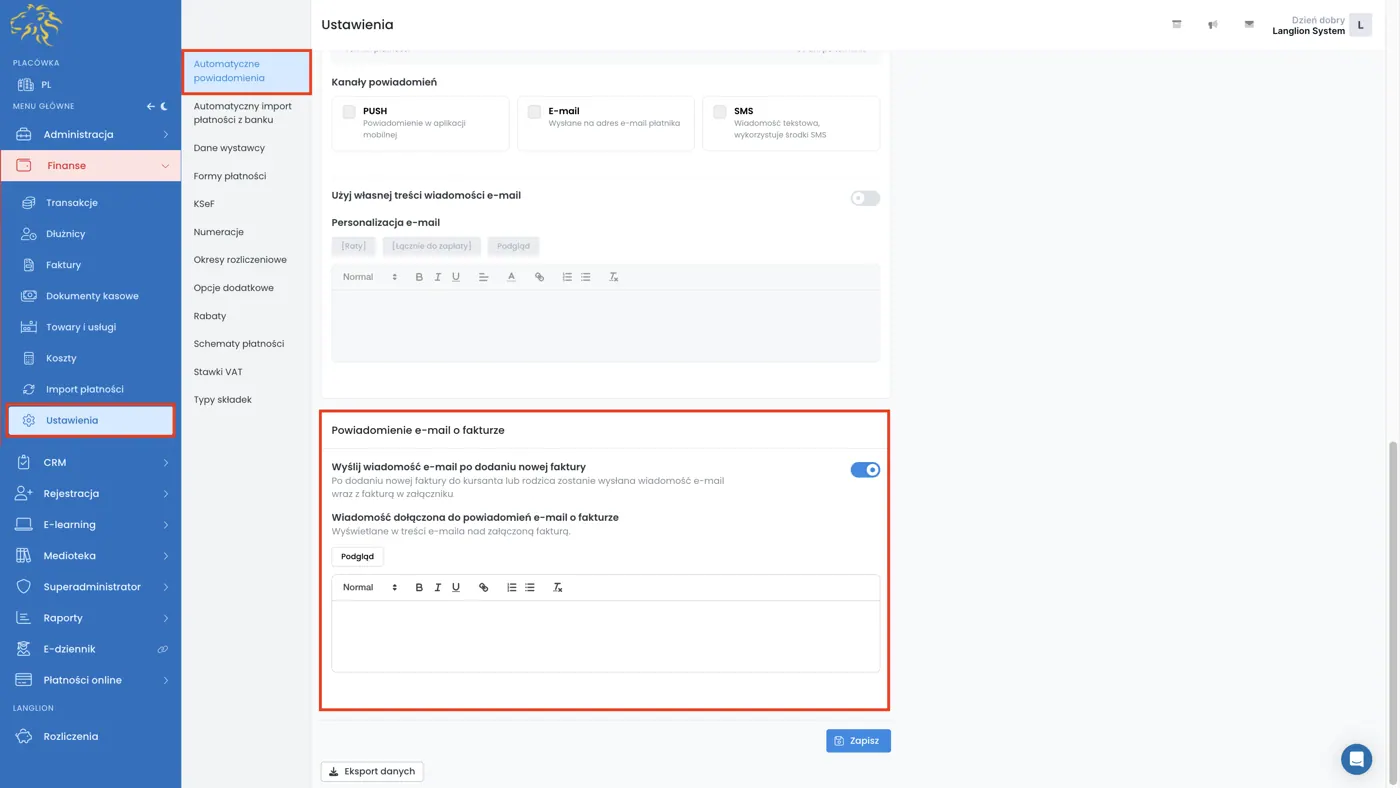
The system can also email these invoices to students straight away. Just turn on the E-mail notification after adding new invoice option in the Finance -> Settings -> Automatic notifications tab and save your changes by clicking the Save button at the bottom of the page.
If your school is divided into departments, you can register each department separately so that each one is a separate point of sale. The payment URL needed to register the PayU account is the address shown in the browser's address bar after clicking the Payments tab in the student panel.
PayU can be used both by students who pay in instalments and by students who are billed hourly (including hourly in advance).
How does a student pay an instalment with PayU?
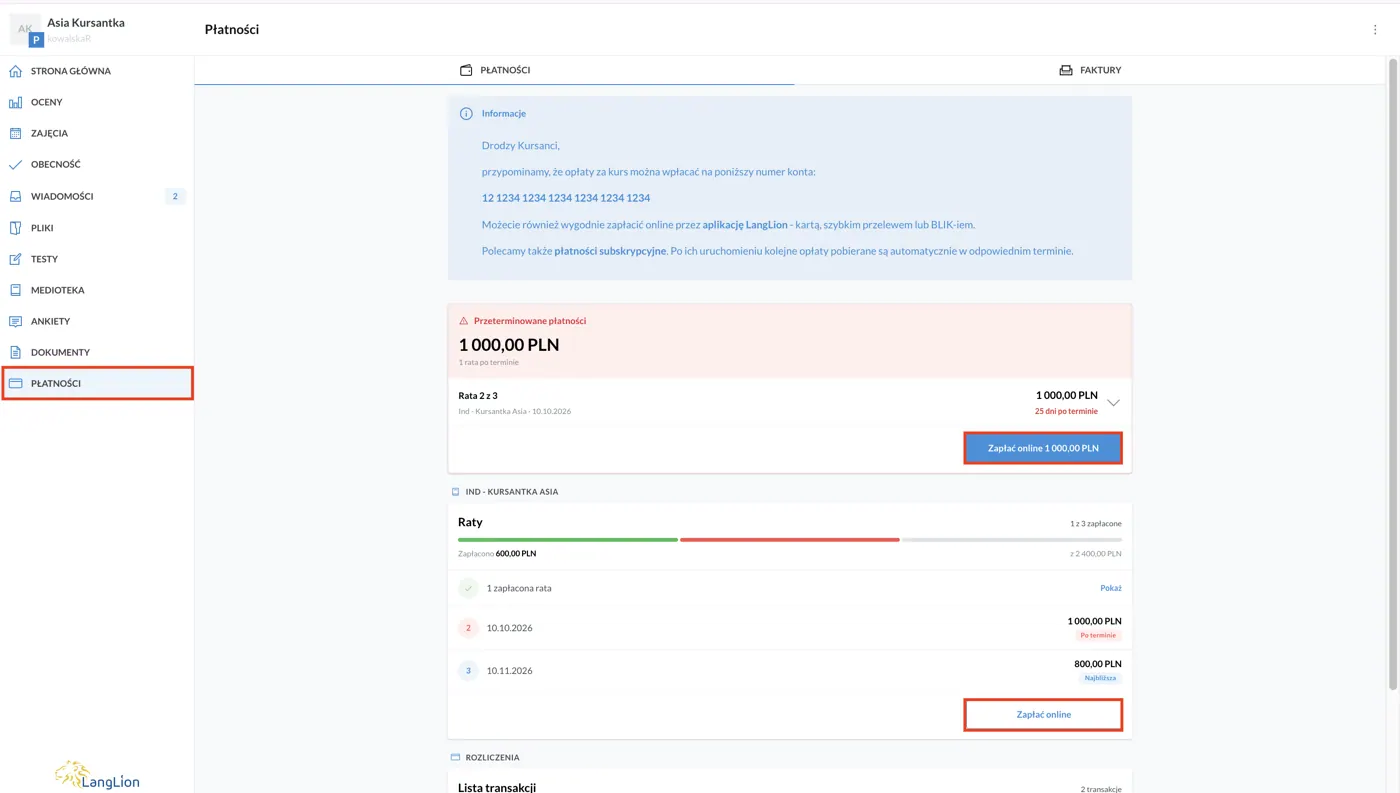
Paying instalments through PayU is available in the "Payments" tab in the student's account, after they display their instalments.
After clicking "Pay online", a list of instalments appears.
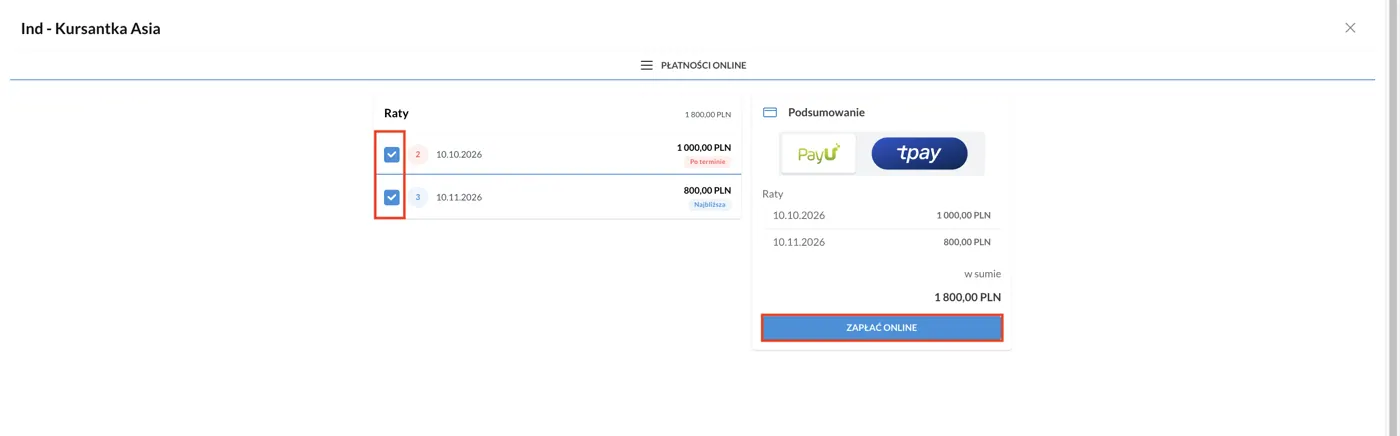
The system lets the student pay the next instalment or the total of all unpaid instalments.
After clicking the "Pay with PayU" button, the operator's page opens with the transaction details. The student chooses a payment method and completes the transaction.
The transfer is processed by the operator, and then a message is sent with a link for tracking the payment's progress. At this point, the student's account shows information about a pending transaction.
Once PayU has processed the payment, the system automatically adds the transaction for the student. Depending on the default payment form set for PayU, a cash document can be created automatically (the transaction is confirmed with a cash document).
After the system saves the transaction, the instalment in the student's account is marked as paid.
For students billed hourly in advance, online payment works slightly differently. After clicking "Pay online" a field appears where the student enters the amount they want to pay. After entering the amount, they click "Pay with PayU" to be taken to the transaction page.