
If you already have a Tpay account, the next step is to verify it.
After logging in to the Tpay Panel, fill in the verification form.
To do this, click the "Verify account" button.
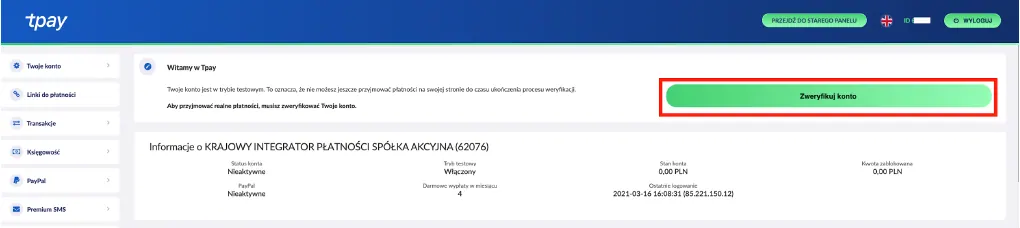
The form is divided into several steps. You must complete them in order. Before moving on to step two, fill in all the fields marked as required in step one.
Step 1. Payee details
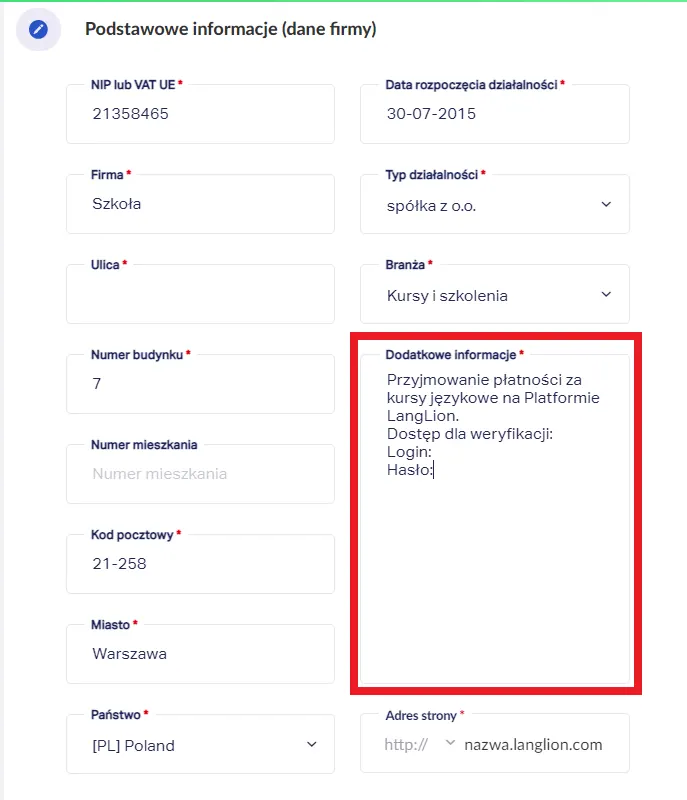
In this step, fill in your company details. For entities registered in Poland, the data is retrieved from the REGON database.The business start date should be the same as the one shown in the GUS/REGON search engine.
You also need to provide two sales websites:
- your own website, where the terms of service for electronically supplied services and the privacy policy are available without logging in
- the address of your LangLion panel -> xyz.langlion.com (where xyz is the name of your school in the LangLion system)
IMPORTANT – the payment operator may ask you for additional information needed to verify your Tpay account. Please note that students must have access to the privacy policy (it must include your company name and full details – NIP, REGON, address). The payment operator also requires information about the payment terms, the refund policy and the order processing time.
You can include this information in the privacy policy entered in the system's Basic settings. In the "Description on the login screen" field, you can also add links to the terms and privacy policy published on your website. You can also generate additional terms as documents for a given student, and add payment information using the "Billing information displayed to students" field in the "Additional options" tab of the Finance module settings.
If you do not have your own website, it is enough to provide schoolname.langlion.com and give the login details in the additional information, as described below.
To allow Tpay to verify the payment process and the payer's access to the terms and privacy policy, create a test student account on the LangLion Platform, then enter the access details for this account in the "Additional information" field together with the following text:
"Accepting payments for language courses on the LangLion Platform.
Access for verification:
Login:
Password:"
Step 2. Personal details
In this step, fill in the required personal details.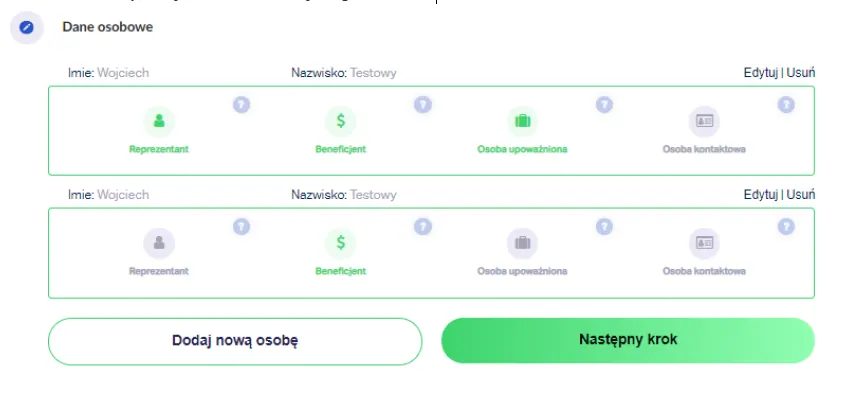
A scan of both sides of the ID card of the company's representatives as listed in the KRS – it may be crossed out, with the photo covered and the note "For Tpay verification only".
Step 3. Required documents
For companies, the system displays Step 3, where you need to attach a scan of the completed and signed Beneficial Owner Statement. As in the previous steps, you can only continue once the required file has been attached.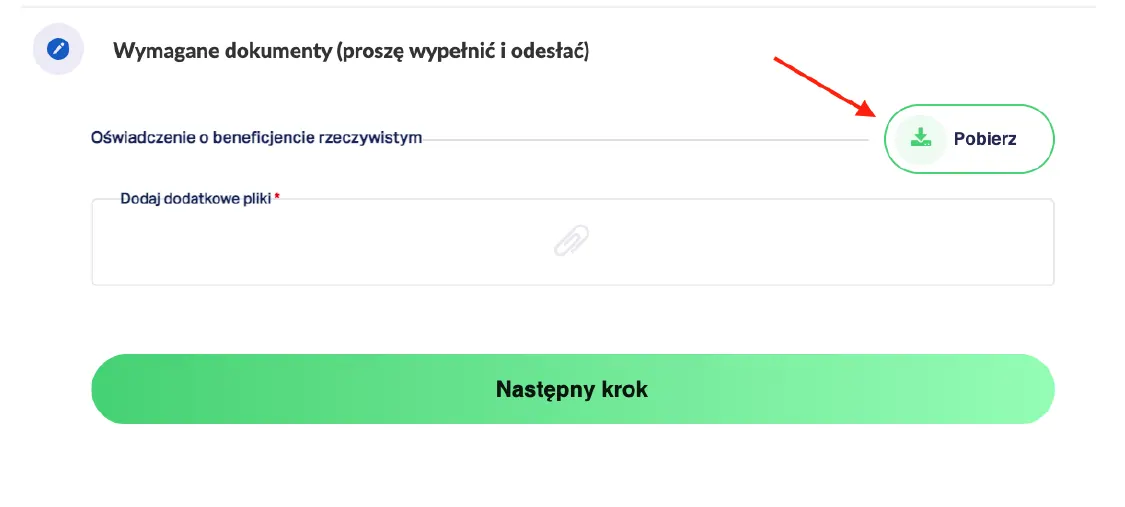
Step 4. Accepting the terms and paying the activation fee
Once all the required details have been filled in, pay the activation fee. This means your data is submitted for verification. The transfer must be made from the Merchant's bank account.In this step, the Merchant also accepts the "General terms and conditions for the provision of payment services", which is equivalent to signing the agreement.
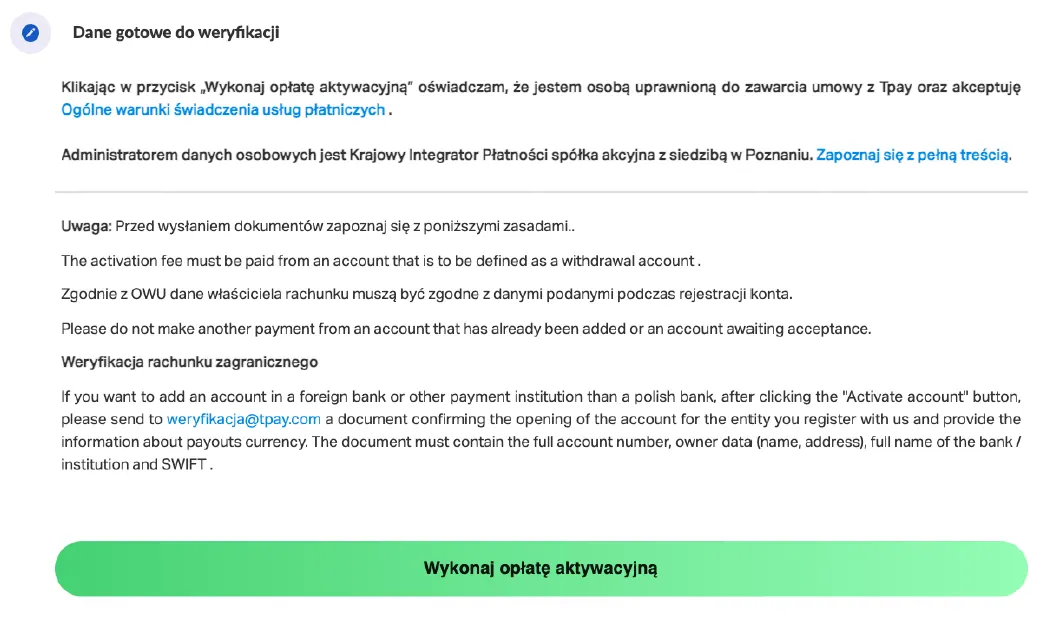
After clicking "Pay activation fee", you will be redirected to the Payment Panel. Until the transfer is posted, the "Verify account" button will still be visible in the Tpay Panel, but clicking it will display a message saying that the transfer is waiting to be posted.
Once the transfer has been posted, the Verify account button will no longer be displayed.
Data verification by the Verification Department – status descriptions
Status Verified Correctly / Test mode
If the documents pass verification, the account status changes to "Active".
Test mode is still enabled. If you want to accept real payments, you need to turn it off in the Tpay Panel → "Settings" → "Test mode".
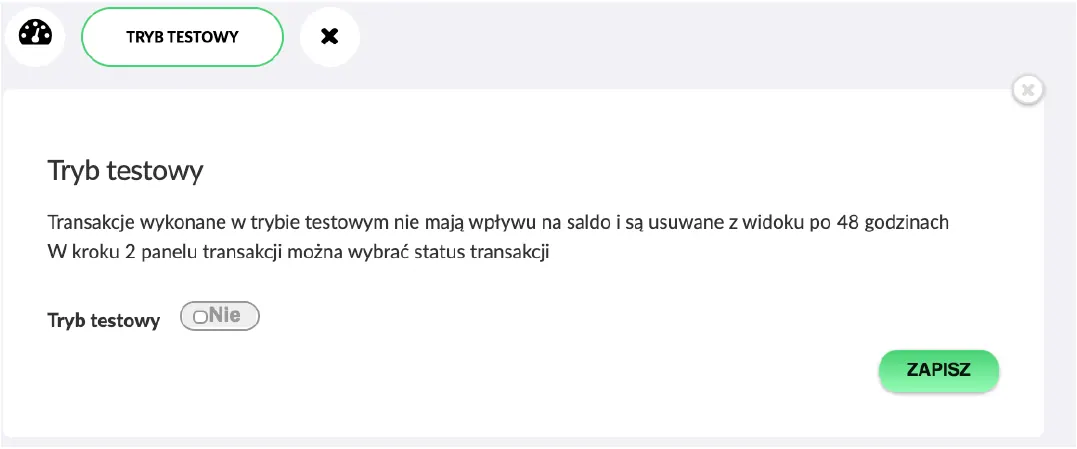
You will receive an e-mail confirming that your account has been verified and that you can
accept payments. The moment your account is successfully verified is the moment the Payment Services Agreement with Tpay is concluded.
Status Required Clarification
If, during verification, it turns out that some details or documents are missing or incorrect, the Tpay Verification Department will reject the relevant section, select the reason for rejection and add a comment
(if the reason for rejection is unclear).
In each section, they can also ask you to upload
a required file.
You will be notified by e-mail that you need to complete the missing details in the Tpay Panel.
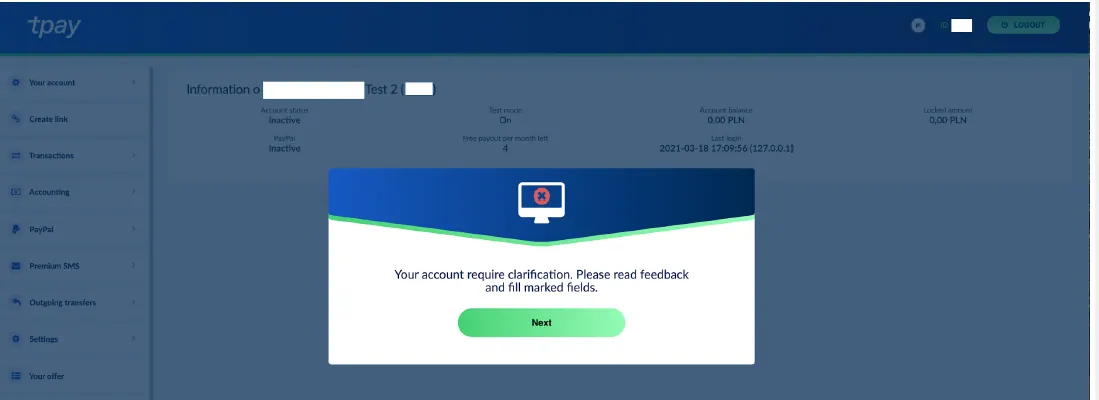
After logging in to the Panel, a message will ask you to complete the details. Once you confirm it, the verification form will open with the fields to be completed marked in red.
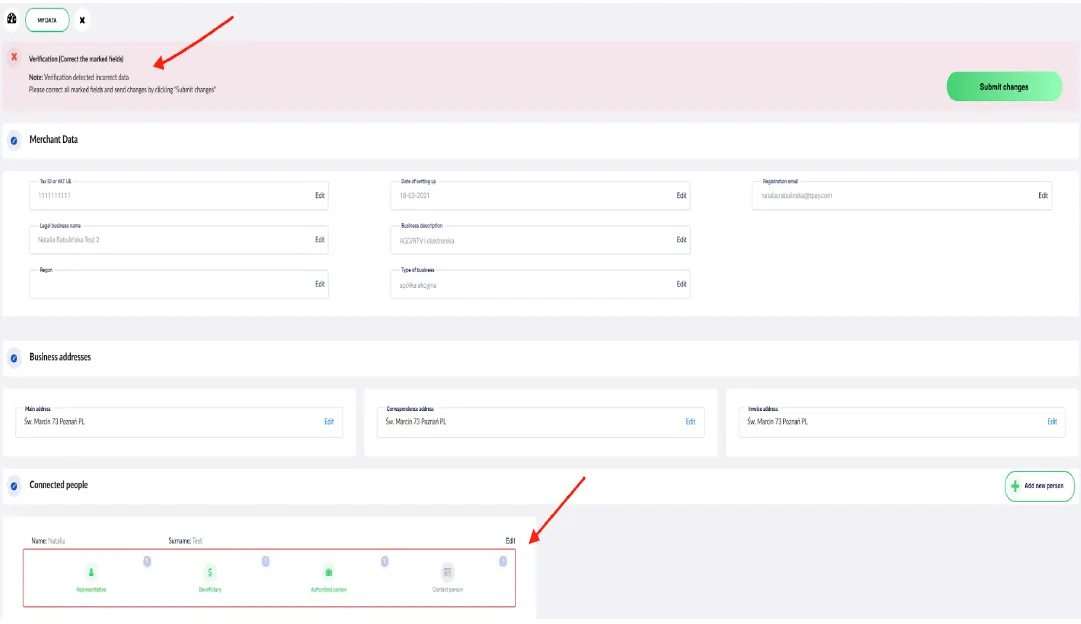
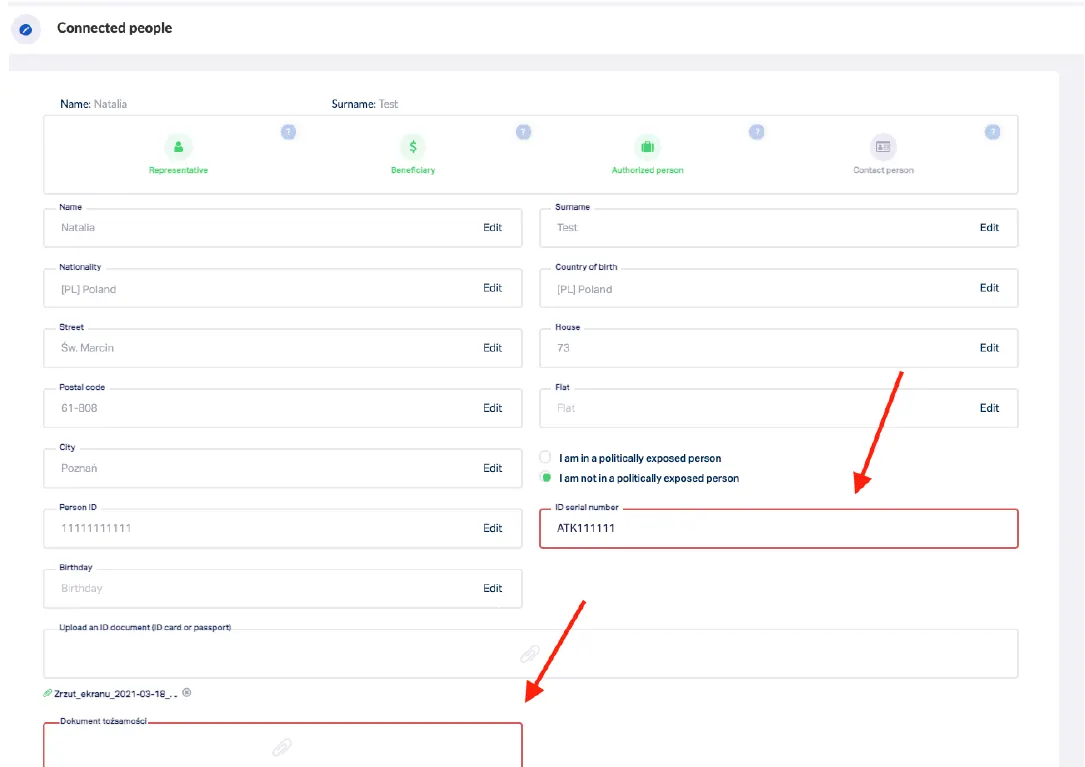
When you have completed the form, confirm it by clicking the "Accept changes" button.
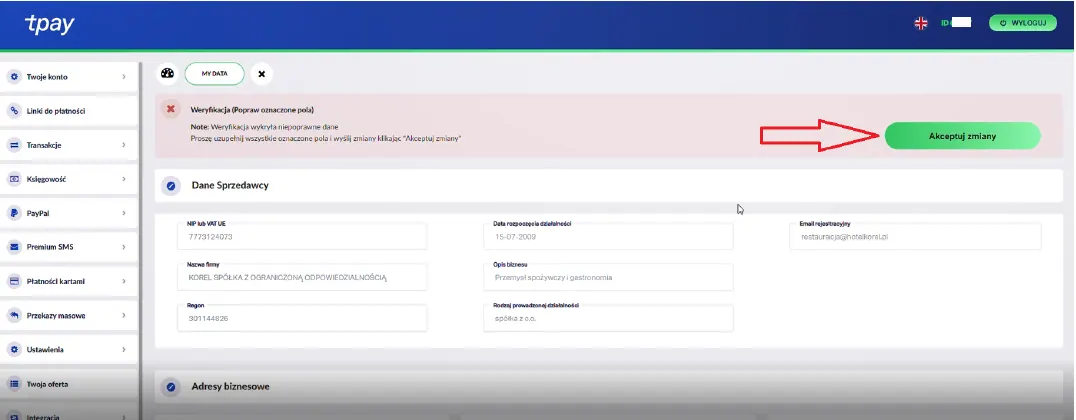
The documents and information sent in this way will be assessed by the Tpay Verification Department.
If you need help with the Tpay registration and verification process, write to partner@tpay.com.
Accounts registered this way may be used ONLY for handling payments accepted through the LangLion Platform.
If you also want to accept payments through your own website, you need to register a new account in the Tpay system (to get preferential terms, also use this link: https://register.tpay.com/?offer=6Q9YY).