The LangLion Platform lets you settle teachers' pay for the classes they teach. The teacher settlement feature allows you to calculate teachers' pay. You can make a settlement based on an invoice or a bill. You can also define the amount of contributions deducted, and the contribution types can be defined separately for each teacher. In addition, while creating a settlement, you can choose the groups to settle and include the teacher's additional orders.
The teacher settlement takes into account:
- the teacher's rates assigned to the classes they teach,
- class statuses, which, once added to individual classes, determine the teacher's rate for those classes,
- the default lesson unit length in the group – this affects the teacher's rate for classes, as the rate is calculated proportionally.
Define the teacher's contributions.
What are contributions and how do I define them?
Contributions are required for a contract of mandate (umowa zlecenie). They are deductions from the teacher's pay, paid by both the employer and the teacher. The net amount is what remains after the contributions are deducted.
You can define a teacher's contributions easily. To do so:
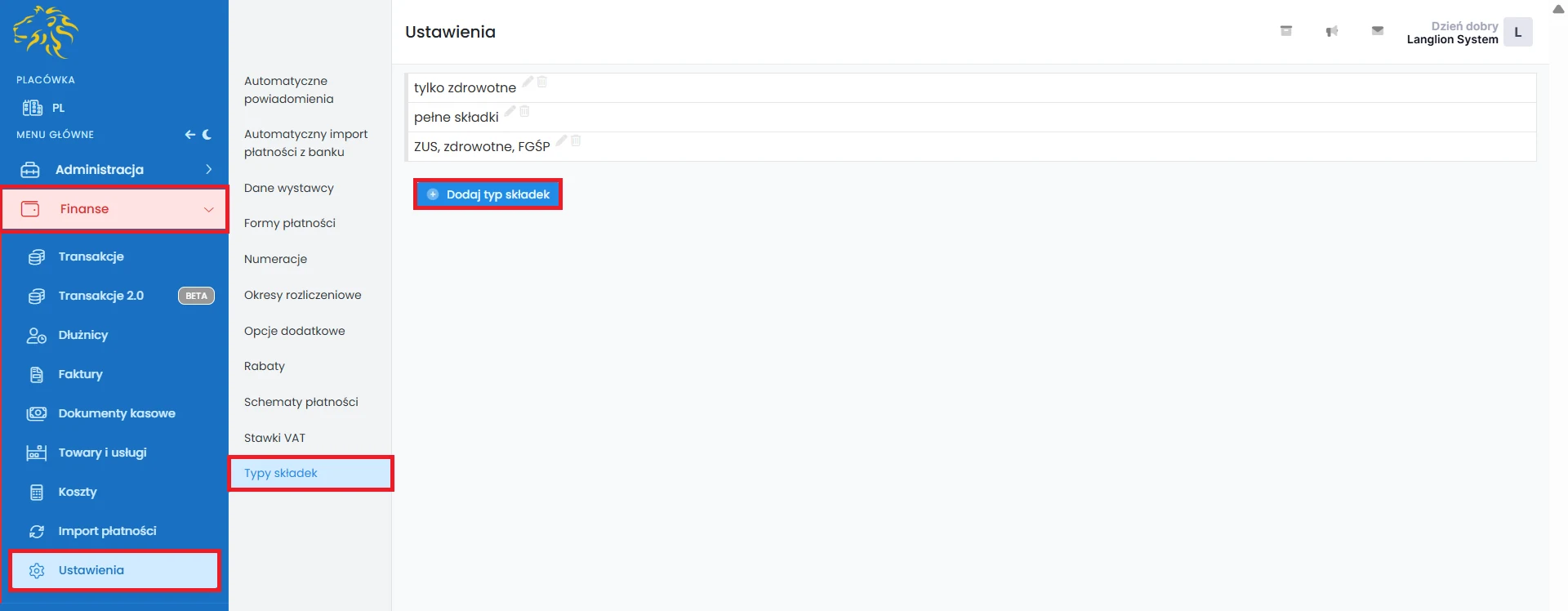
1. Go to "Settings" in the "Finance" module.
2. Select the "Contribution types" tab and click the "Add contribution type" button. This tab is available only for schools using the Polish system settings.
3. Then, in the rate editing window, enter a name and the relevant values, and click "Save and close".
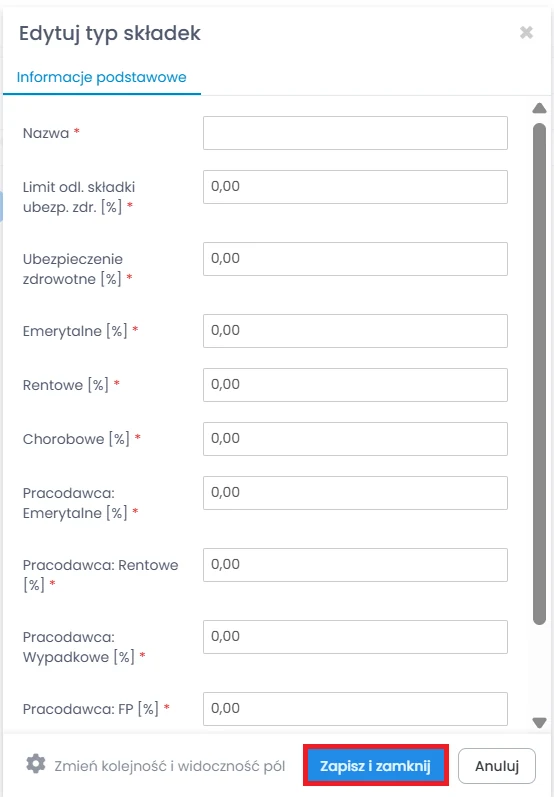
Done – the contributions have been defined and you can now settle the teacher.
How do I do that?
It is not difficult. All you need to do is:
1. In the "Administration" menu, select the "Teachers" -> "General data" tab.
2. Select the teacher you want to settle.
3. Go to the "Classes" tab and click the "Settle" button.
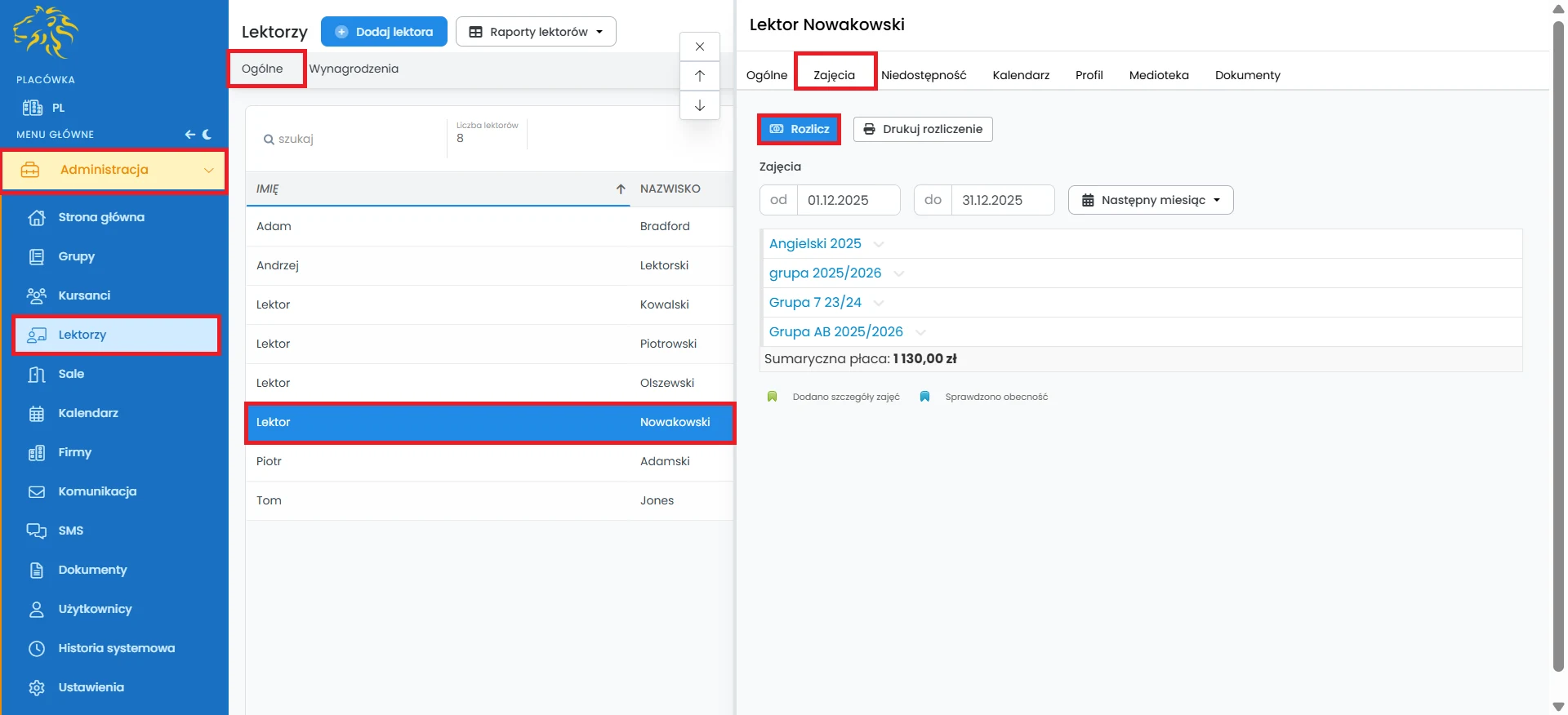
4. In the window that appears, select the period you are settling and tick the groups to settle. If you have several departments, you can turn on “Only classes from the current school”. You can also include the teacher's “Additional orders” in the settlement. Also select the settlement method. There are two to choose from: invoice and bill.
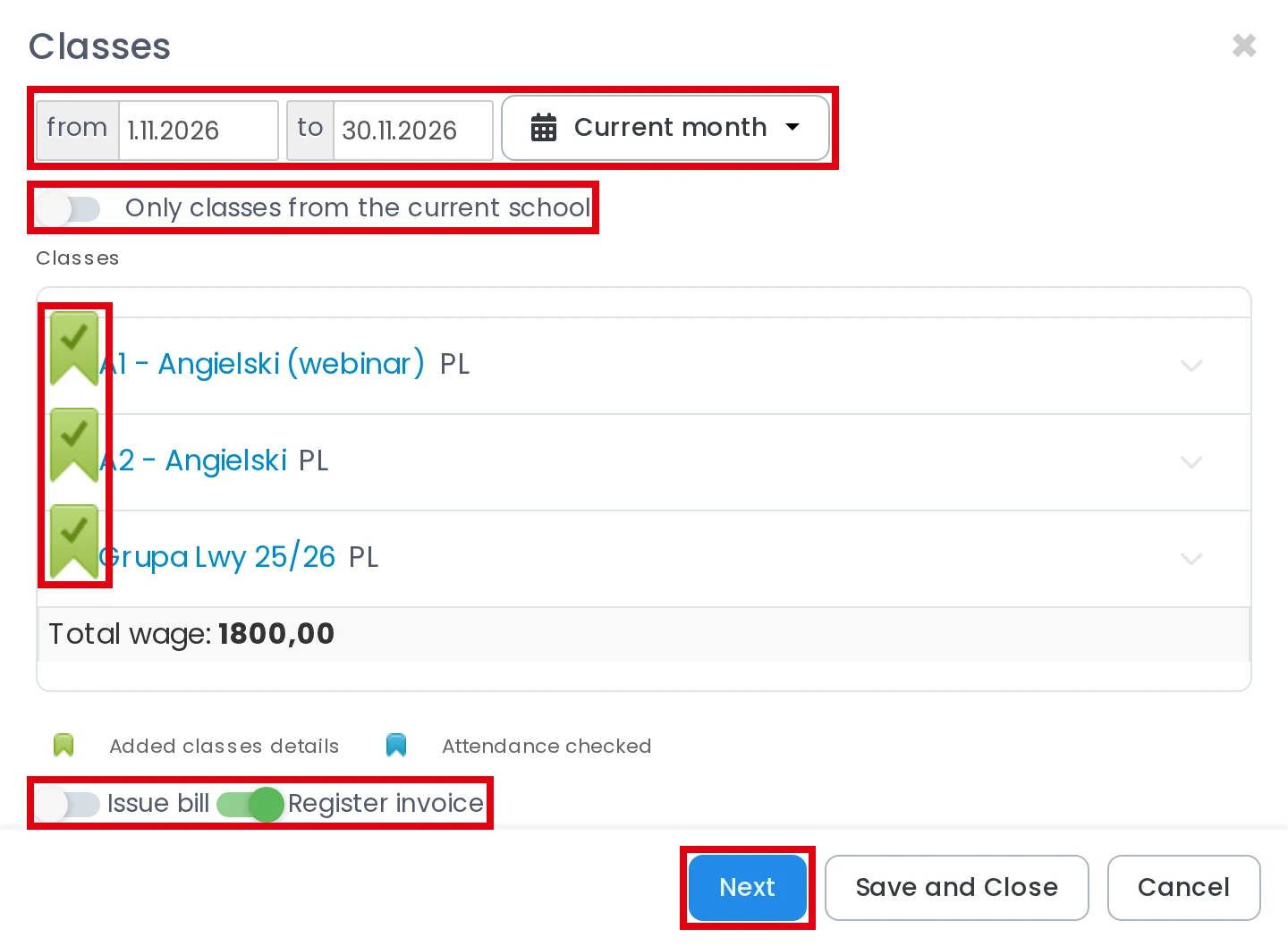
5. Click "Next".
6. In the next window, the system has automatically filled in the settlement period, the amount and the teacher's details. Complete the remaining required fields.
The Invoice/receipt no. field will be filled in with the next number generated from the numbering. The amount reflects the number of classes in the group and their statuses with the different teacher rates assigned to them.
If you selected "Issue bill", you will see this form.
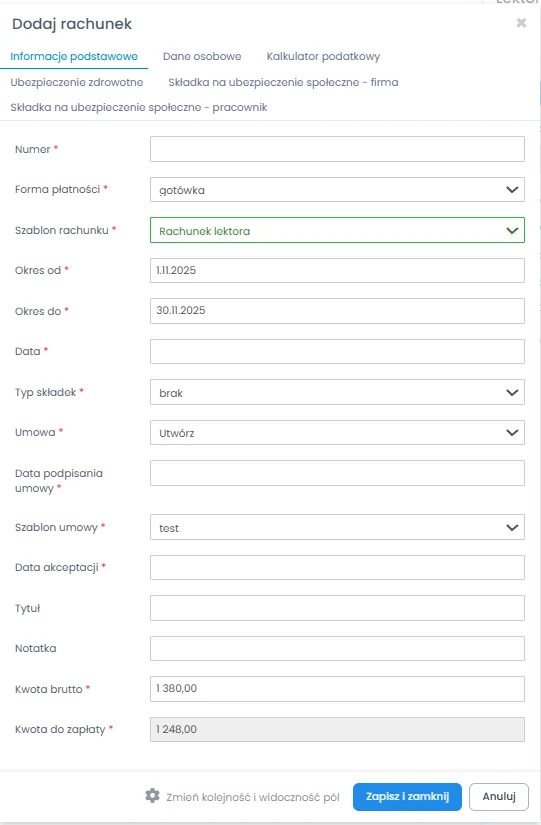
Enter the information in the required fields. You can also choose:
- The bill template, defined in the "Documents" tab,
- The contribution type on which the teacher's settlement is based,
- The contract – several bills can be linked to one contract. If the teacher does not have a contract yet, just select "Create" and the system will automatically assign a contract to the teacher.
Besides the basic settlement information, you have access to further tabs:
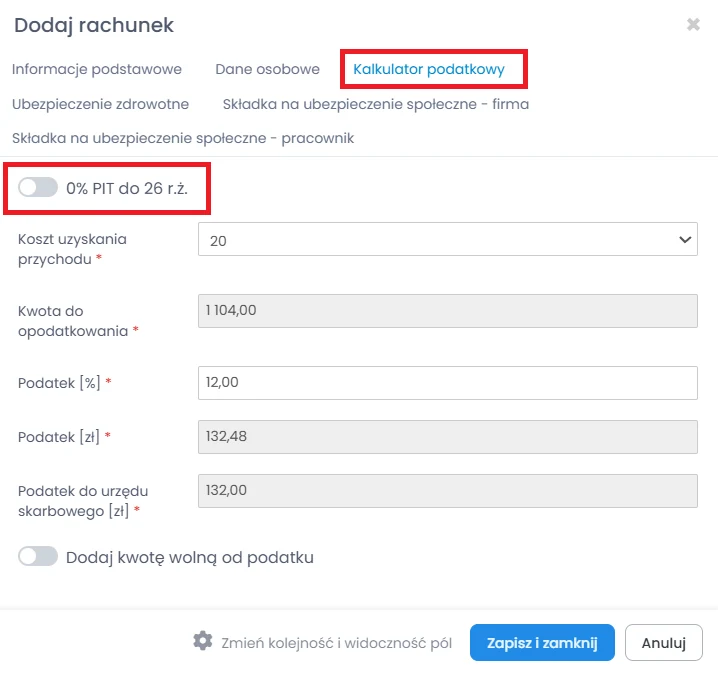
"Tax calculator" – a tab with information on the tax paid on the teacher's pay. Here you can select the tax-deductible costs threshold and edit the tax percentage.
Important! The "0% PIT till 26" option is ticked automatically when the system sees that the teacher is under 26. This is why you should enter teachers' dates of birth in their personal details, so that you can be sure the system recognises whether the correct tax should be applied to that person. If you do not fill in this information, remember to tick this option manually when issuing the bill.
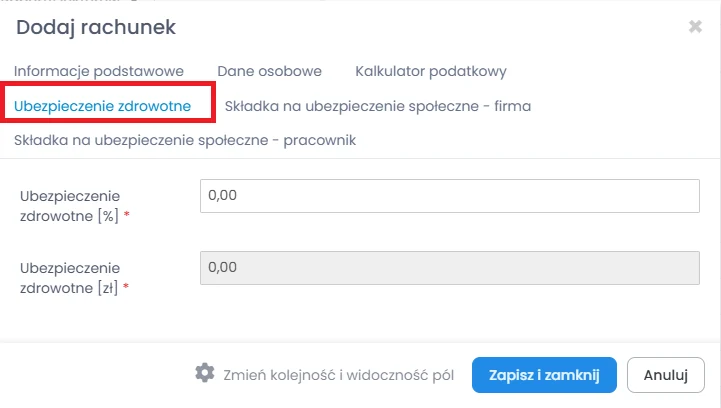
"Health insurance" – a tab showing a summary of health insurance contributions. In this tab you can edit the health insurance contribution percentage.
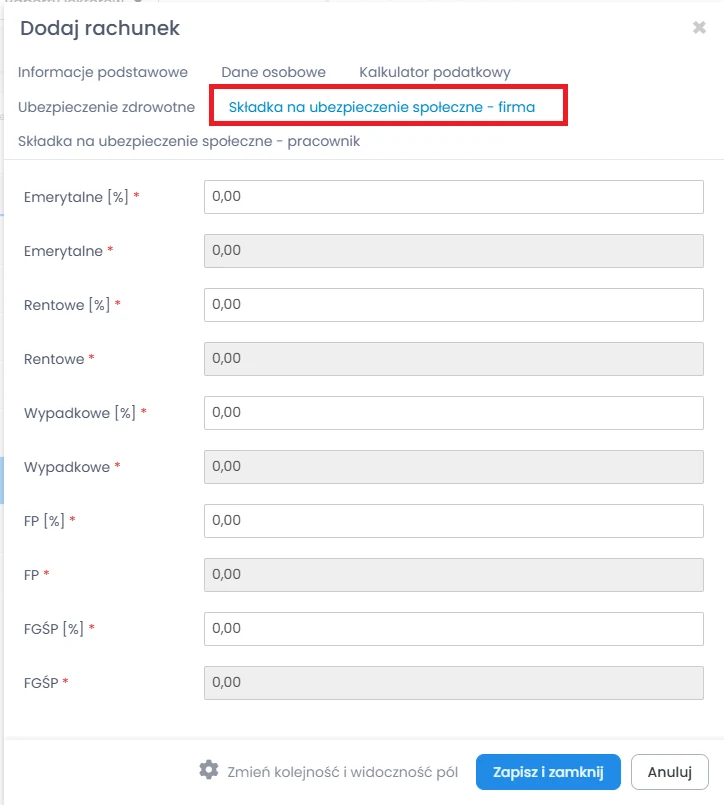
The next tab, "National insurance - company", shows the costs the employer incurs for employing the teacher. In this tab you can also edit the percentage values of the individual contributions.
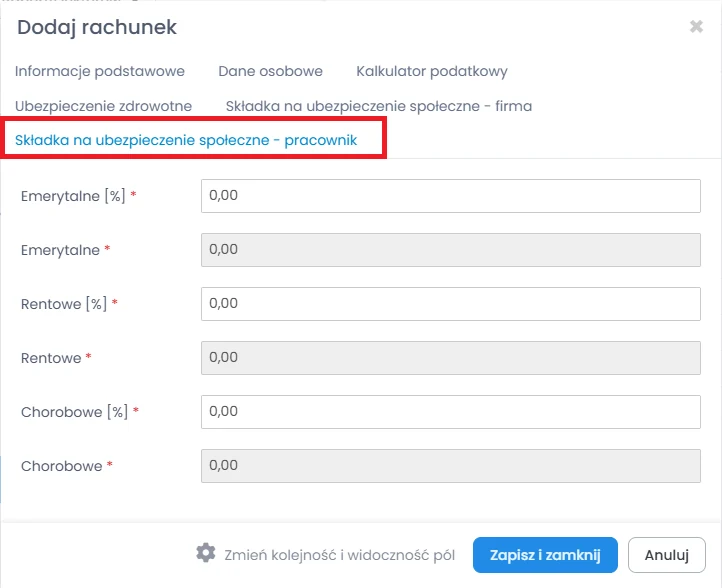
The "National insurance - employee" tab contains information on the contributions deducted from the employee's pay for social insurance. These contribution amounts can also be edited.
If you selected the option to register an invoice, this window appears instead.
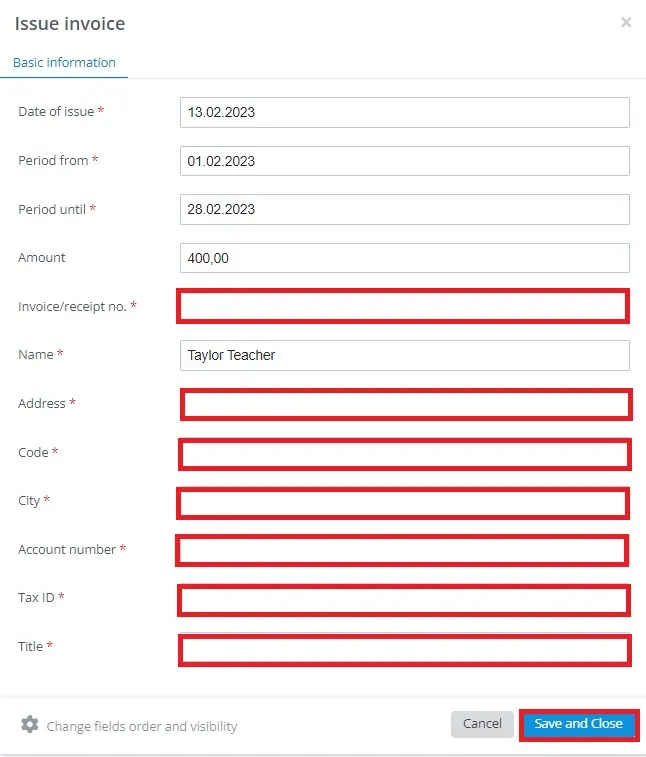
7. To save, click "Save and close".
Done – the teacher settlement has been created and is available in the "Teachers" -> "Salaries" -> "Settlements" tab.
From here you can issue a bill or an invoice for it, email them to the teacher, print them or, if they were issued incorrectly, delete them.
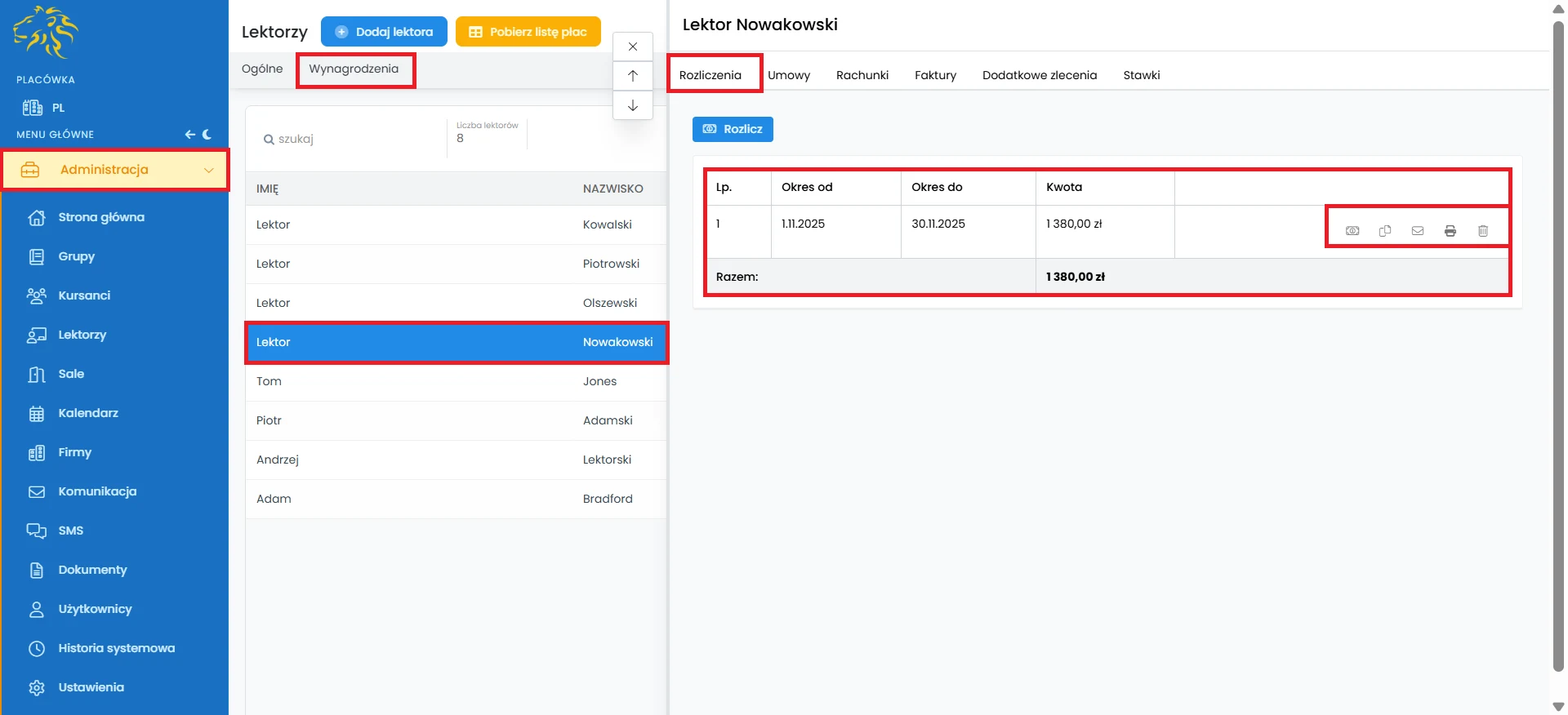
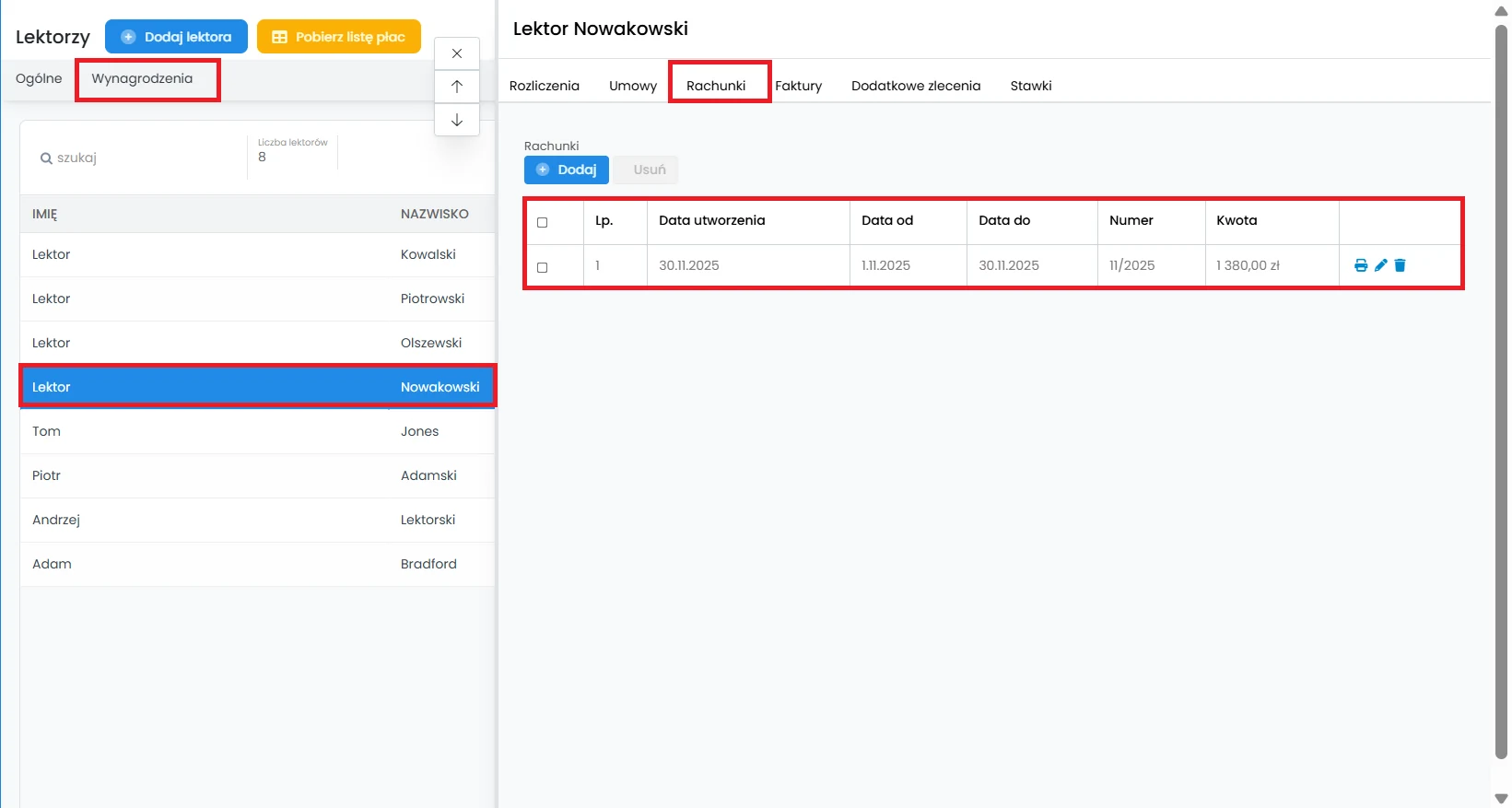
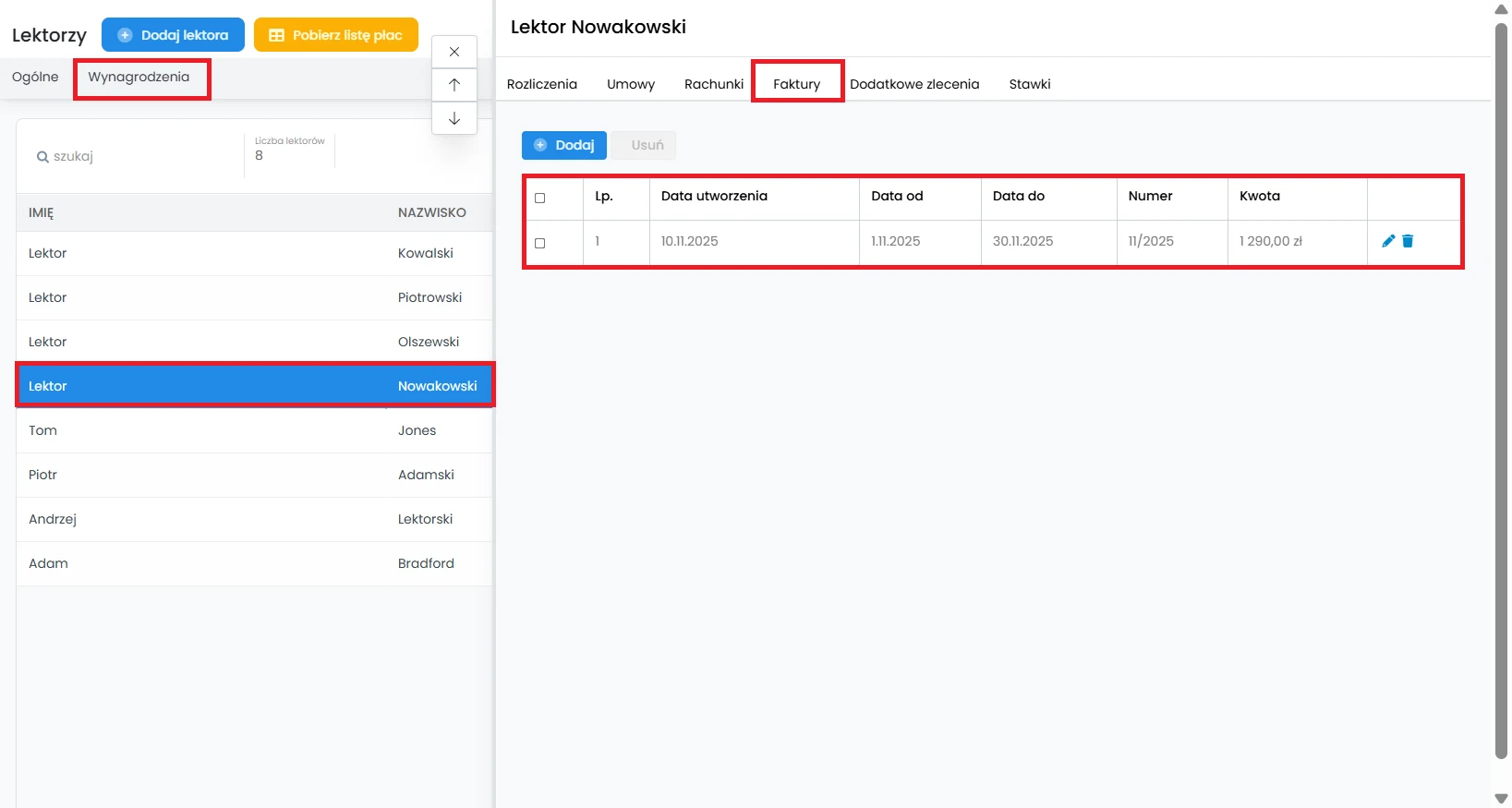
If a bill has been created or an invoice added for the settlement, the document will be available in the relevant tab on the right.
The teacher bill and contract templates should be prepared using the document template editor of the LangLion Platform.
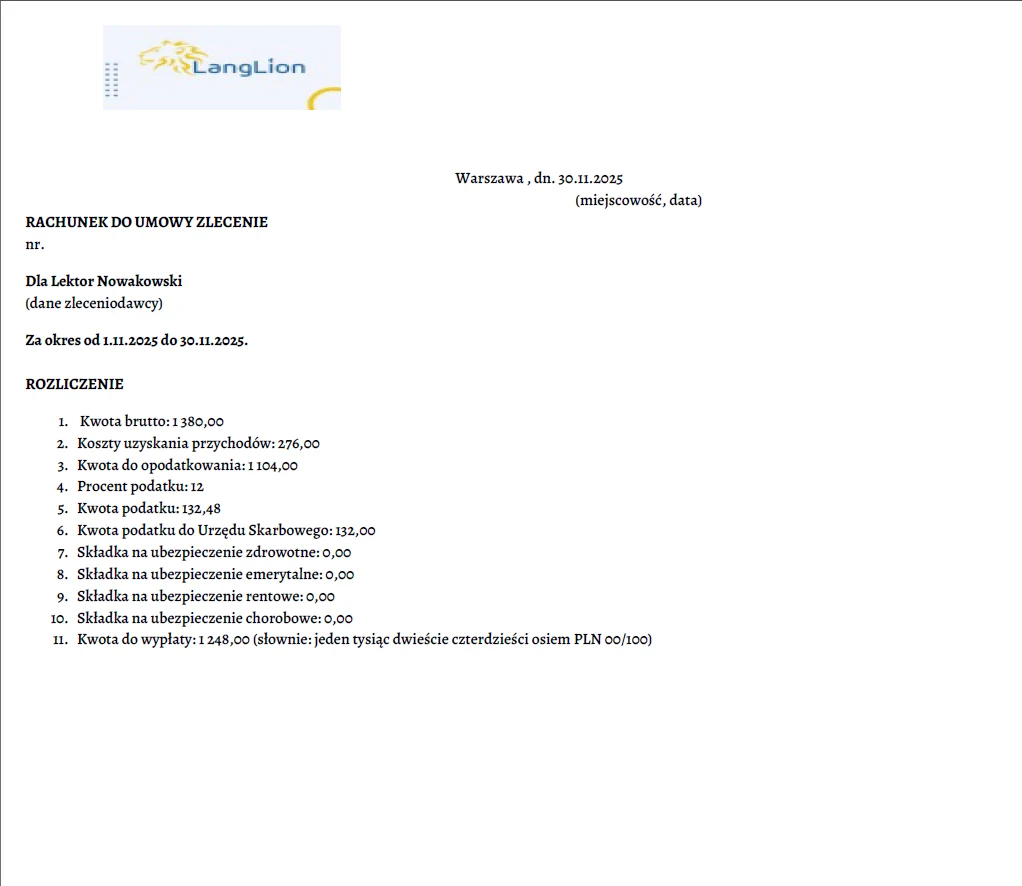
An example teacher bill is shown below.