
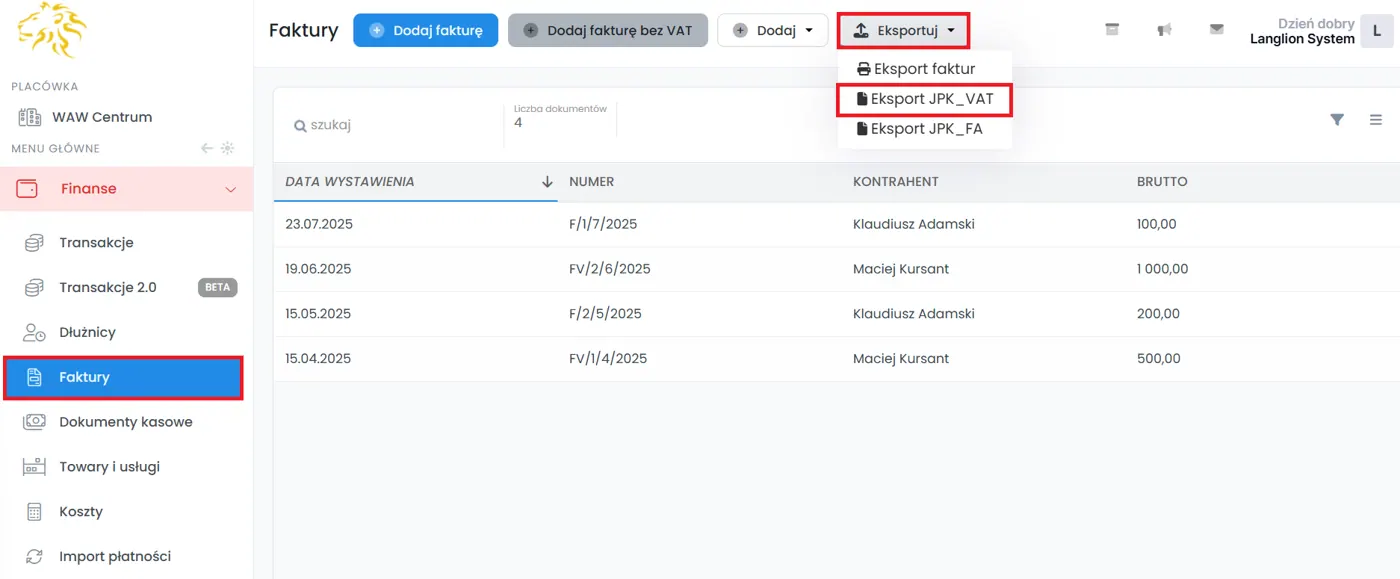
To download the JPK_VAT file from the LangLion Platform, go to the "Invoices" tab in the "Finance" module.
Above the list of invoices, click the "Export" button, and then "Export JPK_VAT".
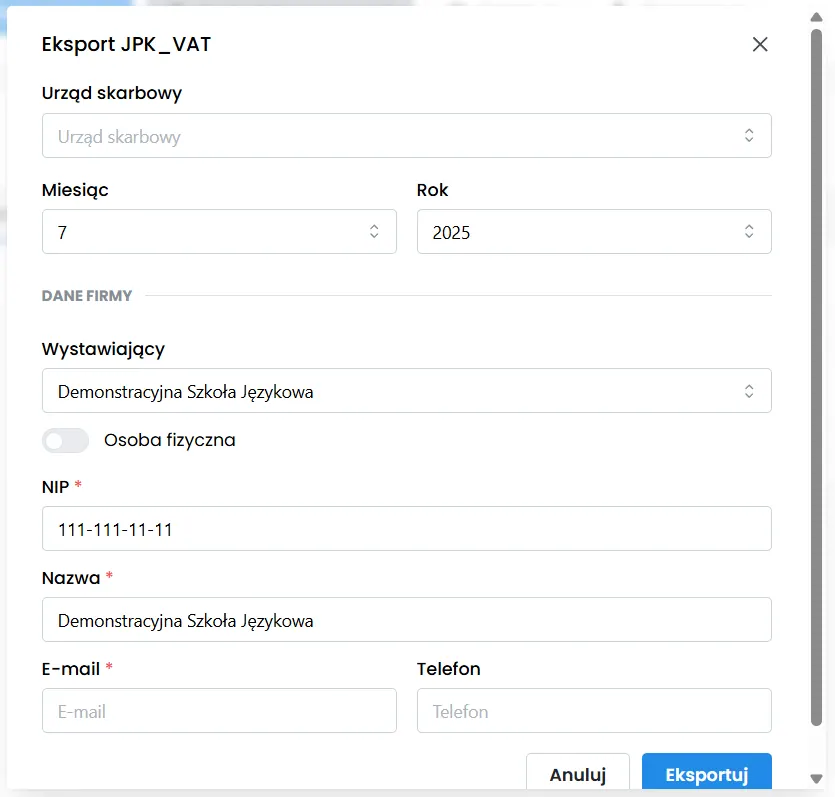
In the export window:
- Select the "Tax office".
- Select the "Month" and "Year" you want the file for – the previous month is set by default.
- In the "Company data" section, select the issuer – the tax ID (NIP), name, e-mail and phone number are filled in automatically. If you settle as a natural person, tick "Natural person" and enter the first name, last name and date of birth.
- Click "Export".
The system will generate an XML file in the JPK_V7M format.
In the same "Export" menu you will also find the "Export JPK_FA" option – a JPK_FA file with invoices, e.g. when requested by the tax office.
Marking a product or service with a GTU code
If you need to mark a product with a GTU code, you can do it in two ways.Method 1: when issuing an invoice
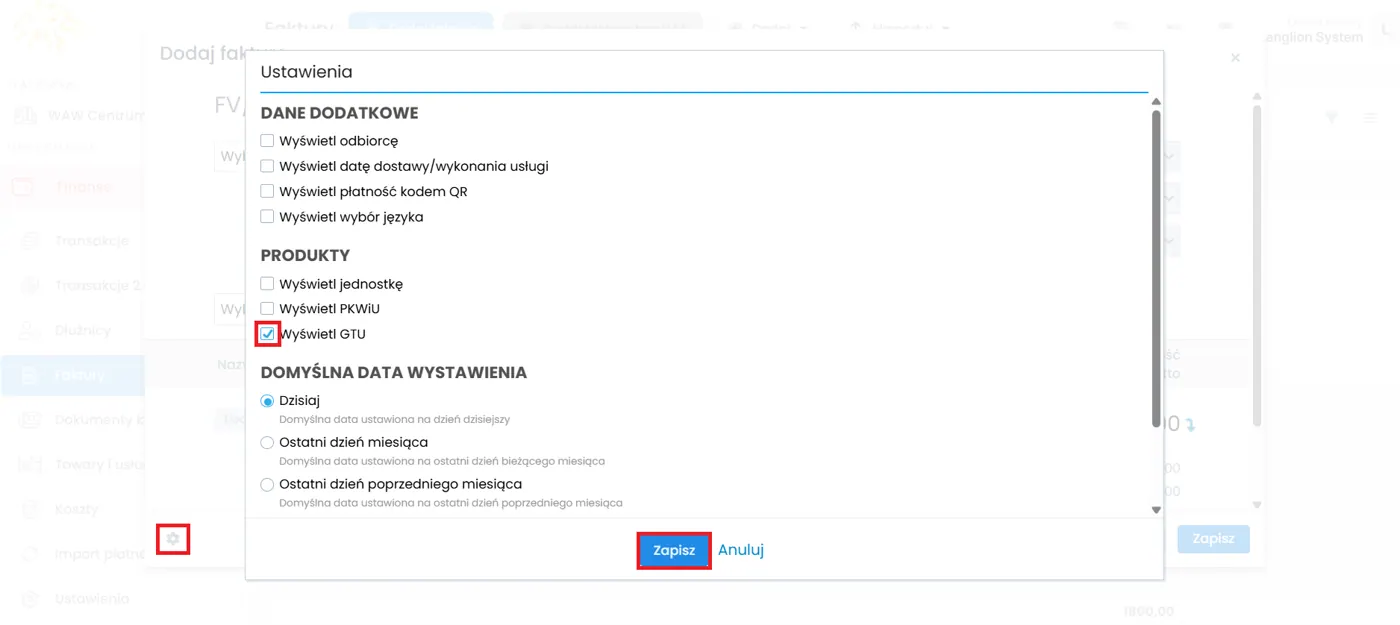
Open the settings (bottom left corner), select the "Display GTU" option and click "Save".
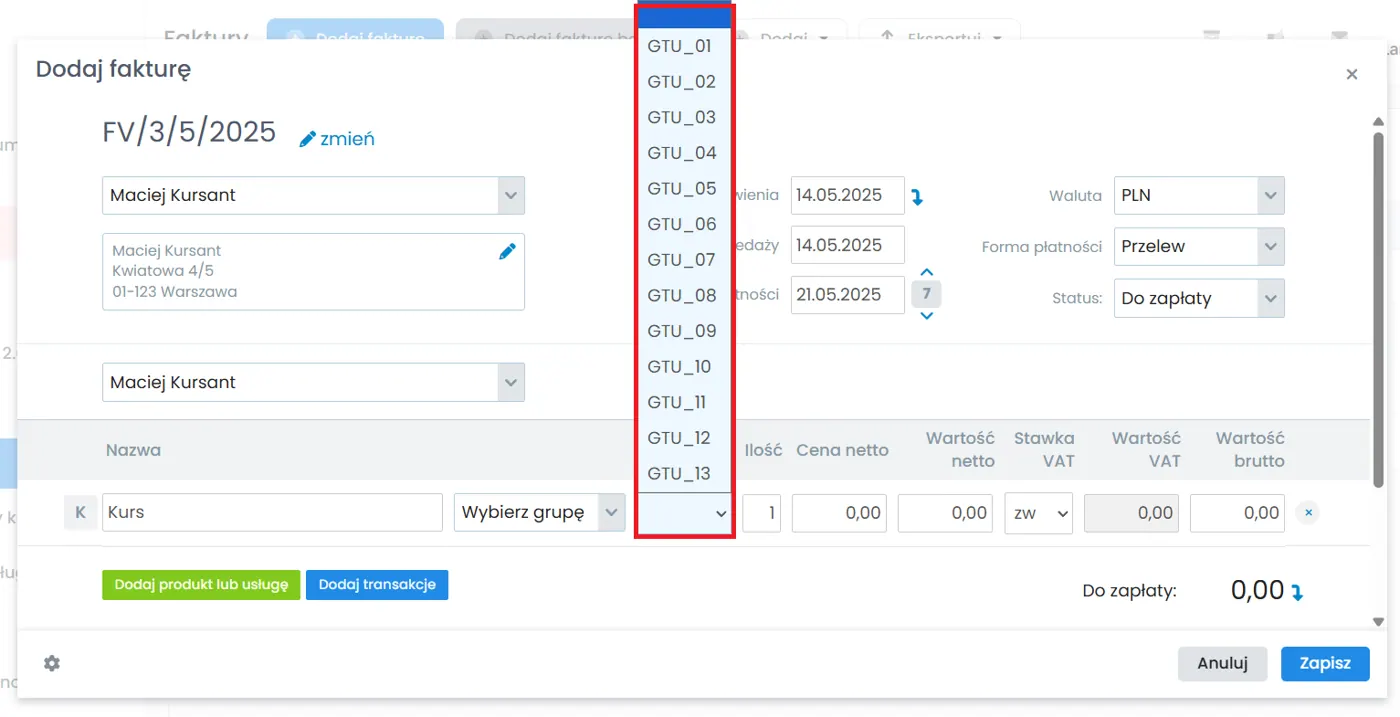
Then select the GTU with the correct number.
Method 2: adding a GTU code to a specific product or service
Go to the "Finance" module and open the "Goods and services" -> "Add product" tab, add the GTU number to the selected product or service and click "Save and close".
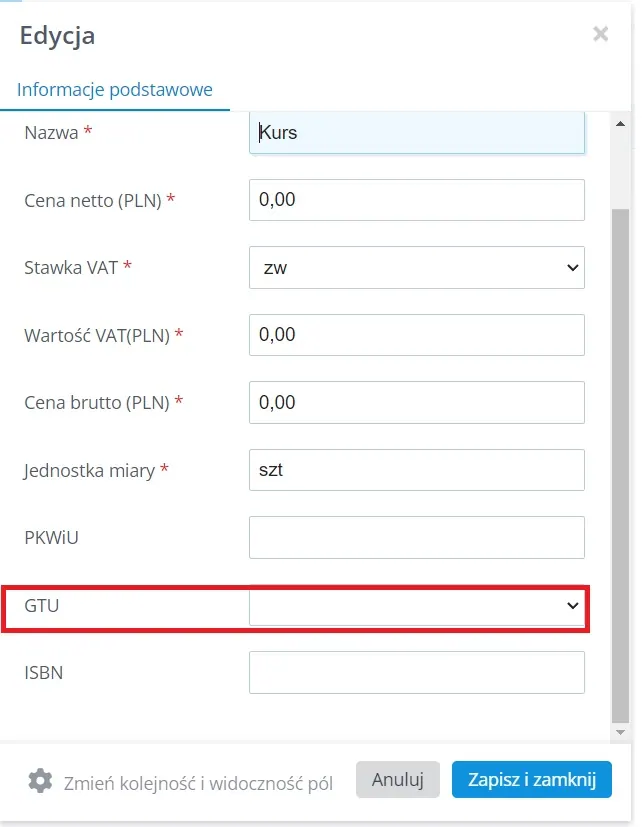
With the second method, when you issue an invoice and select this product, the GTU number will be filled in automatically.